
This guide explains how to migrate your entire WordPress site to Shifter using the All-in-One WP Migration and Backup plugin.
Export the data in “.wpress” format from your source WordPress site and import it into WordPress on Shifter. Shifter automatically adds an extension with unlimited storage, so you can import even large sites.
Exporting the “.wpress” Data
1. Install the All-in-One WP Migration and Backup plugin on the source WordPress site
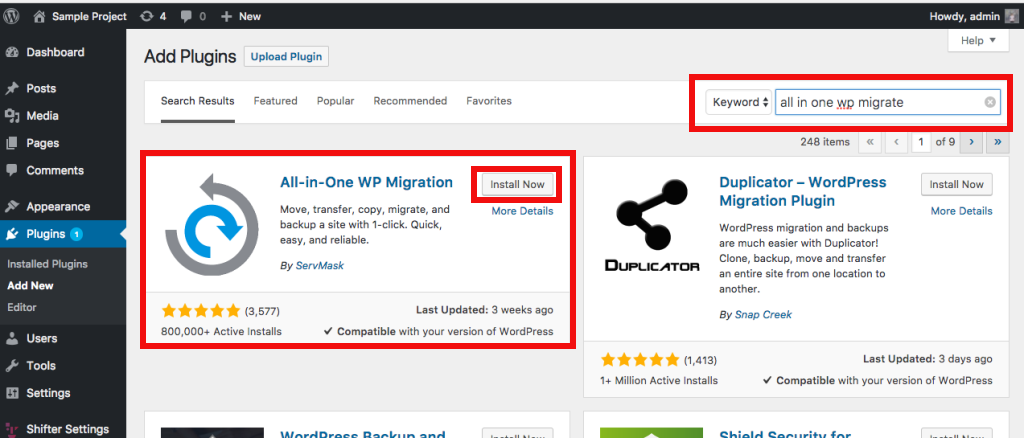
Go to “Plugins” > “Add New” in the WordPress dashboard, enter “All-in-One WP Migration and Backup” in the search bar, and search.
Once you find the plugin, click “Install Now” and then “Activate.”
(Alternatively, you can download the All-in-One WP Migration and Backup plugin file from the official WordPress repository and upload it to WordPress as a file.)
2. Disable or uninstall plugins that may cause the migration to fail
Plugins such as those listed below have low compatibility with Shifter and may cause import failures or WordPress crashes. Therefore, we recommend disabling or uninstalling them in advance.
- Plugins listed in the https://www.getshifter.io/ja/incompatible-plugins/ that apply (Plugins on this list must be deactivated)
- Plugins or themes that have not been tested with PHP 8 or are incompatible with it
- Plugins or themes that have not been updated for several years (as they may have compatibility issues with PHP 8 or later)
- WP Config File Editor (as it may cause WordPress on Shifter to crash if enabled)
- Site Guard WP Plugin (as it may cause login failures if enabled)
- Cache-related plugins (for example, Redis Object Cache, Simple Cache, APC Object Cache Backend, and other object cache plugins)
Additionally, if you are using many plugins, we recommend disabling them all temporarily and then re-enabling only the necessary ones after the import is complete.
3. Export the backup data from your current WordPress site
Go to “EXPORT SITE” in All-in-One WP Migration.
To reduce the file size, we recommend checking the following items under “Advanced Options” to exclude them:
- Do not export post revisions
- Do not export must-use plugins
- Do not export cache (cache files)
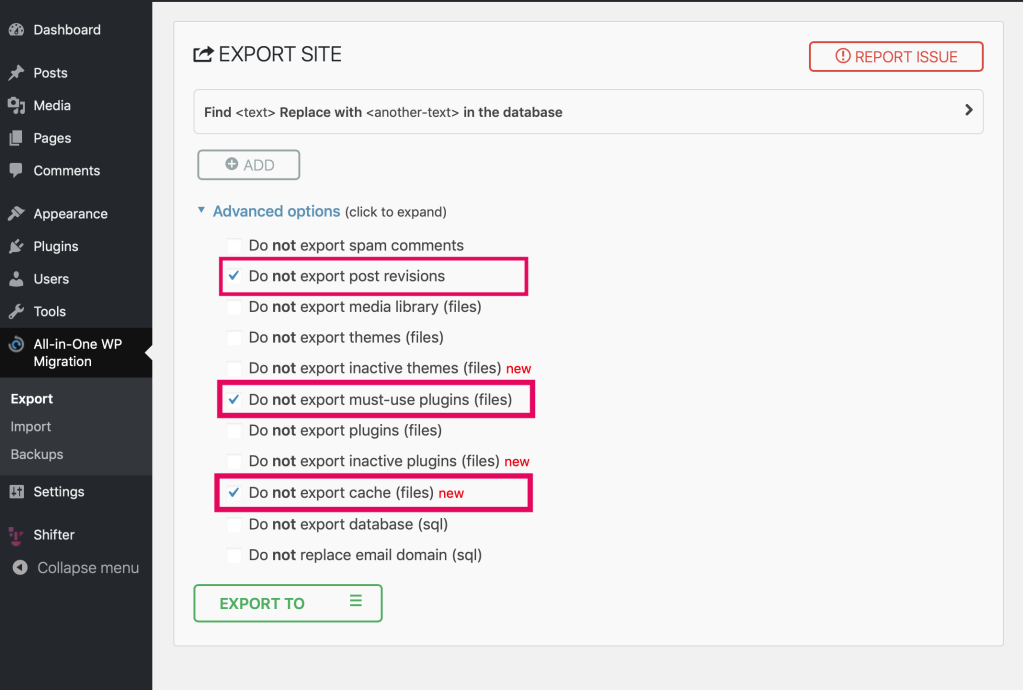
Select “File” under “EXPORT TO” to start exporting the backup data.
This completes the data export. Next, import the data into WordPress on Shifter.
Importing into Shifter
1. Create a new WordPress site on Shifter
Import the backup you just created into the newly created site. For instructions on how to create a WordPress site, please refer to “How to Create and Publish a New Site on Shifter.”
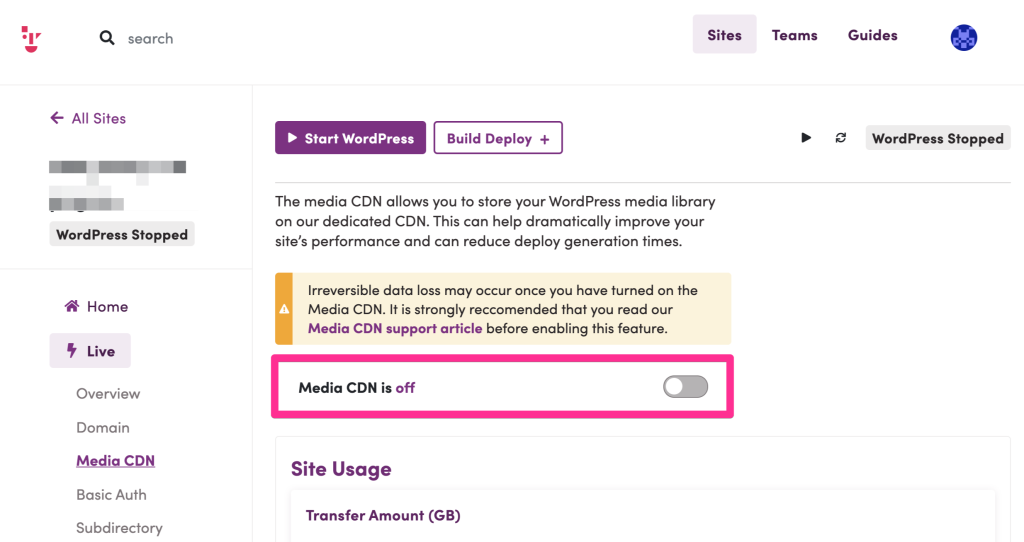
2. Verify that Media CDN is disabled
From the “Live” section in the left sidebar of the Shifter dashboard, navigate to “Media CDN” and confirm that the Media CDN feature is turned off. If you plan to use the Media CDN feature, enable it only after the migration is fully complete.
3. Import the Data: Launch WordPress, log in to the admin panel, and install All-in-One WP Migration and Backup
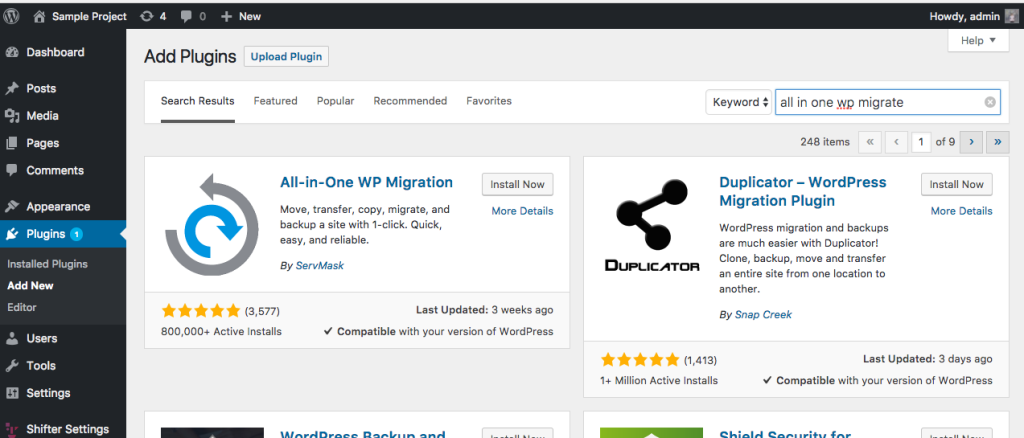
As before, go to “Plugins” > “Add New” in the WordPress dashboard, install (or upload) the All-in-One WP Migration and Backup plugin, and activate it.
4. Import the backup data in the “.wpress” format
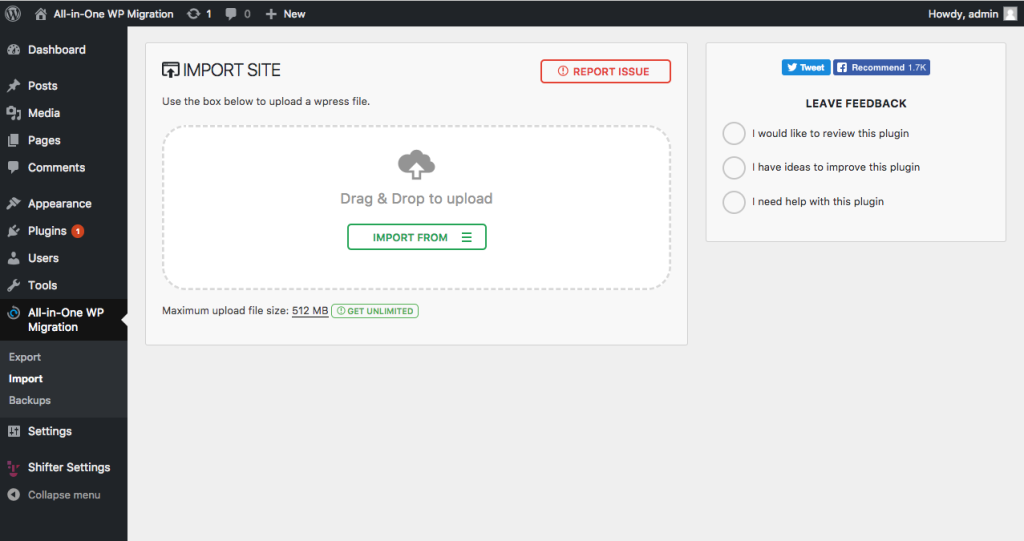
Go to “IMPORT SITE” in All-in-One WP Migration.
Select the backup data from “IMPORT FROM,” or drag and drop the backup file into the designated area.
When the progress reaches 100%, a confirmation prompt asking if you want to overwrite the data will appear; click “Start.”
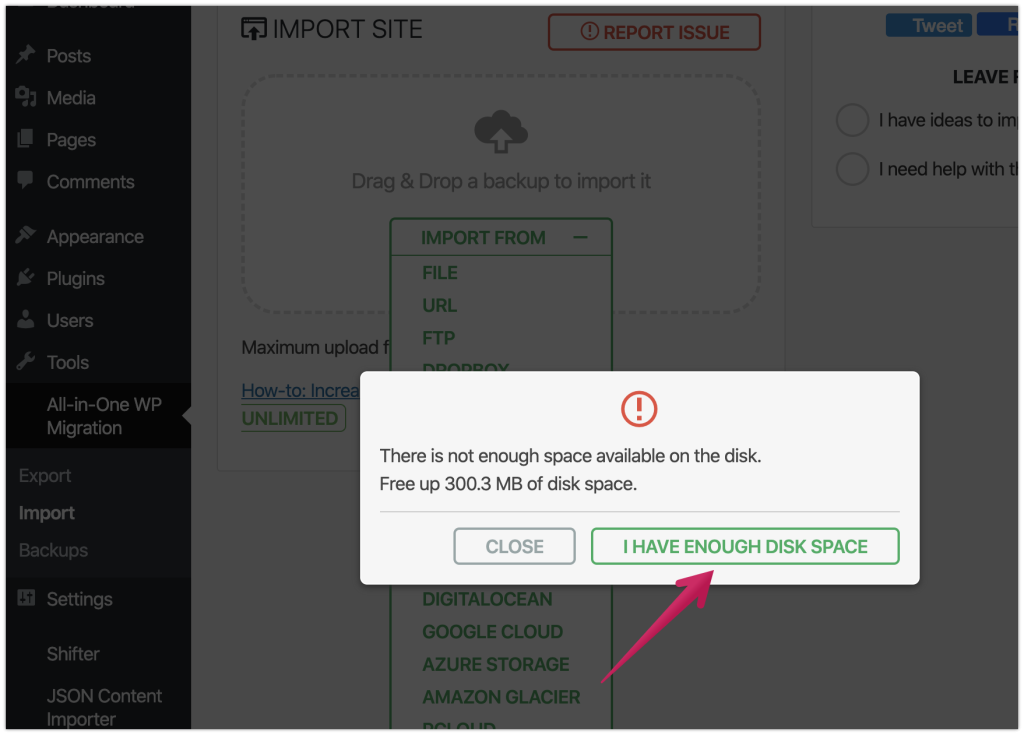
If you see a message stating “There is not enough free space on this disk,” click “I HAVE ENOUGH DISK SPACE” to continue the data migration.
5. Obtain the new URL for the WordPress Admin Dashboard or restart WordPress
To apply the changes, either select “Reset Admin Link” from the “WordPress Admin Dashboard” dropdown menu in the upper-right corner of the Shifter dashboard to obtain the new URL for the WordPress Admin Dashboard, or stop and restart WordPress.
6. Log back into the WordPress admin panel and update the permalink structure
Go to “Settings” in the left sidebar of the WordPress dashboard, select “Permalink Settings” (leave the settings as they are), and save the changes. Also, run a deployment from the Shifter dashboard to update the domain in the database.
This completes the migration to Shifter.
If you plan to use the Media CDN feature, please enable it.
Important Notes
Logging into the WordPress Admin Panel After Migration
Launch WordPress from the Shifter dashboard and log in to the WordPress admin panel by clicking the “WordPress Admin Panel” button.
This concludes the guide on how to migrate your WordPress site to Shifter.