
Custom domains are available for all sites on paid plans. There are a few important things to keep in mind before adding a custom domain.
- Your DNS server or provider must accept DNS records that begin with an underscore (_) to validate the domain. Please check whether your DNS provider supports underscore DNS records. Examples of DNS providers that support underscore records: Route 53, GoDaddy, Namecheap, Name.com, and MuuMuu Domain.
- If your DNS provider does not support records starting with an underscore, you can remove the leading underscore from the DNS record. For more information, see the AWS support document “Underscores Prohibited by DNS Provider.”
- Setting up a custom domain does not require changing any TXT or MX/Email records. Modifying these records may lead to unexpected results. The only records required to set up a custom domain name in Shifter are CNAME, ANAME, or ALIAS, depending on your DNS provider.
How Custom Domains Work in Shifter
Shifter uses CNAME records for custom domains. These act as a “mask” for the Shifter domain created for each site. For example, example-site.on.getshifter.io is masked by example-site.com. Using Shifter Without the “www” Subdomain
If you want to assign a domain without “www,” such as
example.com, your DNS provider must support ALIAS records. Domains without “www” are generally referred to as naked domains or apex domains. If you’re unsure whether your DNS provider supports this, please contact them or check their documentation.
The following DNS providers support ALIAS / ANAME records:
- ALIAS on DNSimple
- ANAME on DNS Made Easy
- ANAME on easyDNS
- Cloudflare’s CNAME
- Gehirn’s ALIAS
- MuuMuu Domain’s ALIAS in DNS ( Release notes regarding record support)
Adding a Custom Domain
Before adding a custom domain name, you must first verify domain ownership, assign the domain, and enable HTTPS for your site. This ensures that all site traffic is secure. HTTPS is required for all Shifter sites and is enabled by default.
Once your domain is verified and ready, add a CNAME record as shown below to enable that custom domain.
Domains with the “www” prefix ( www.example.com)
Custom domain URL: www.example.com
Shifter URL: example-123.on.getshifter.io
| Host or Name | Type | Value |
|---|---|---|
www | CNAME | example-123.on.getshifter.io |
Naked domain ( example.com)
Custom domain URL: example.com
CloudFront domain: 1e2x3a4m5p6l7e8.cloudfront.net
| Host or Name | Type | Value |
|---|---|---|
@ | ALIAS | 1e2x3a4m5p6l7e8.cloudfront.net |
Before going into the specific steps, here is a brief overview of how to enable a custom domain on Shifter. Shifter uses only CNAME (or ANAME/ALIAS) records. If you have a mail server (MX), do not delete or overwrite your existing records.
Step-by-Step Guide
Overview
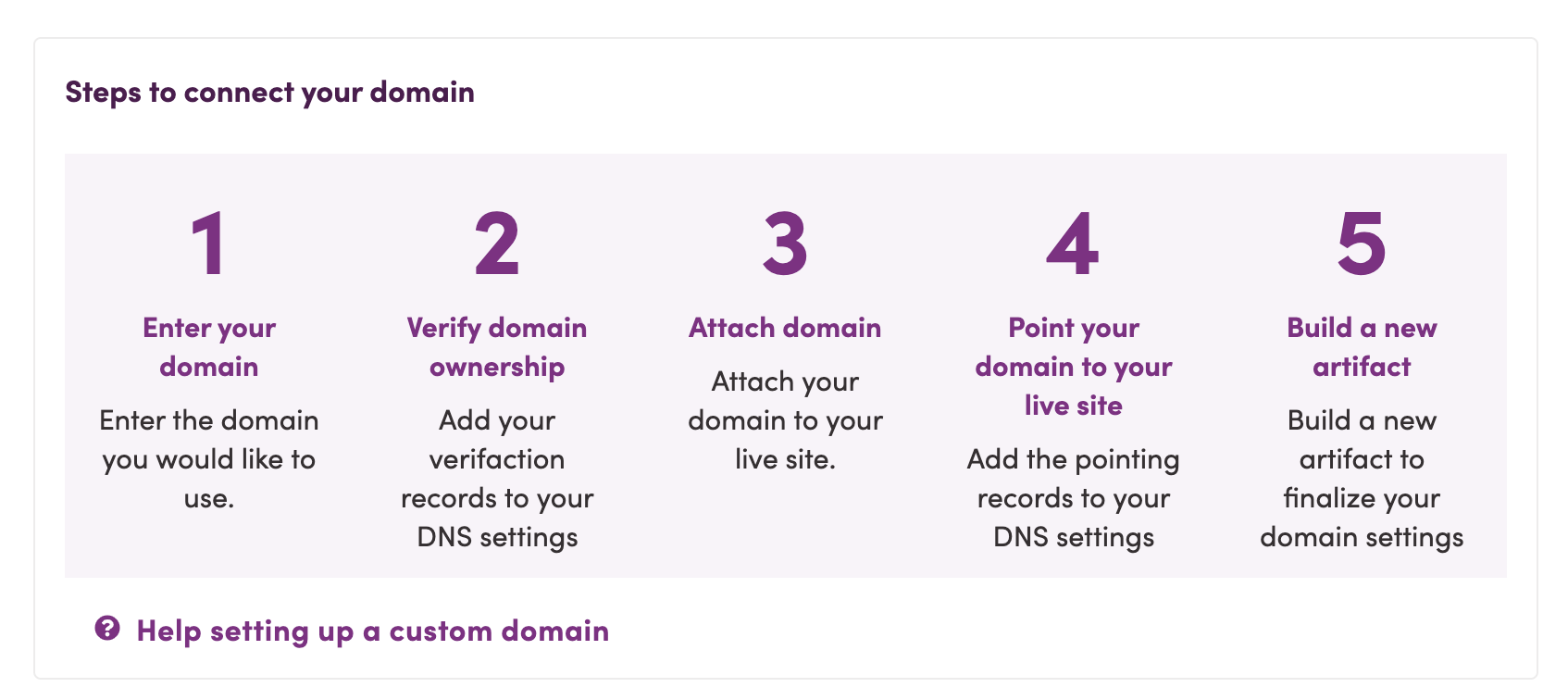
- Verify domain ownership to enable HTTPS
- Create a CNAME record for the custom URL
- Generate the site to replace the old URL with the custom URL
- Log in to the Shifter dashboard.
- Go to [Domain] under [Live] on your site.
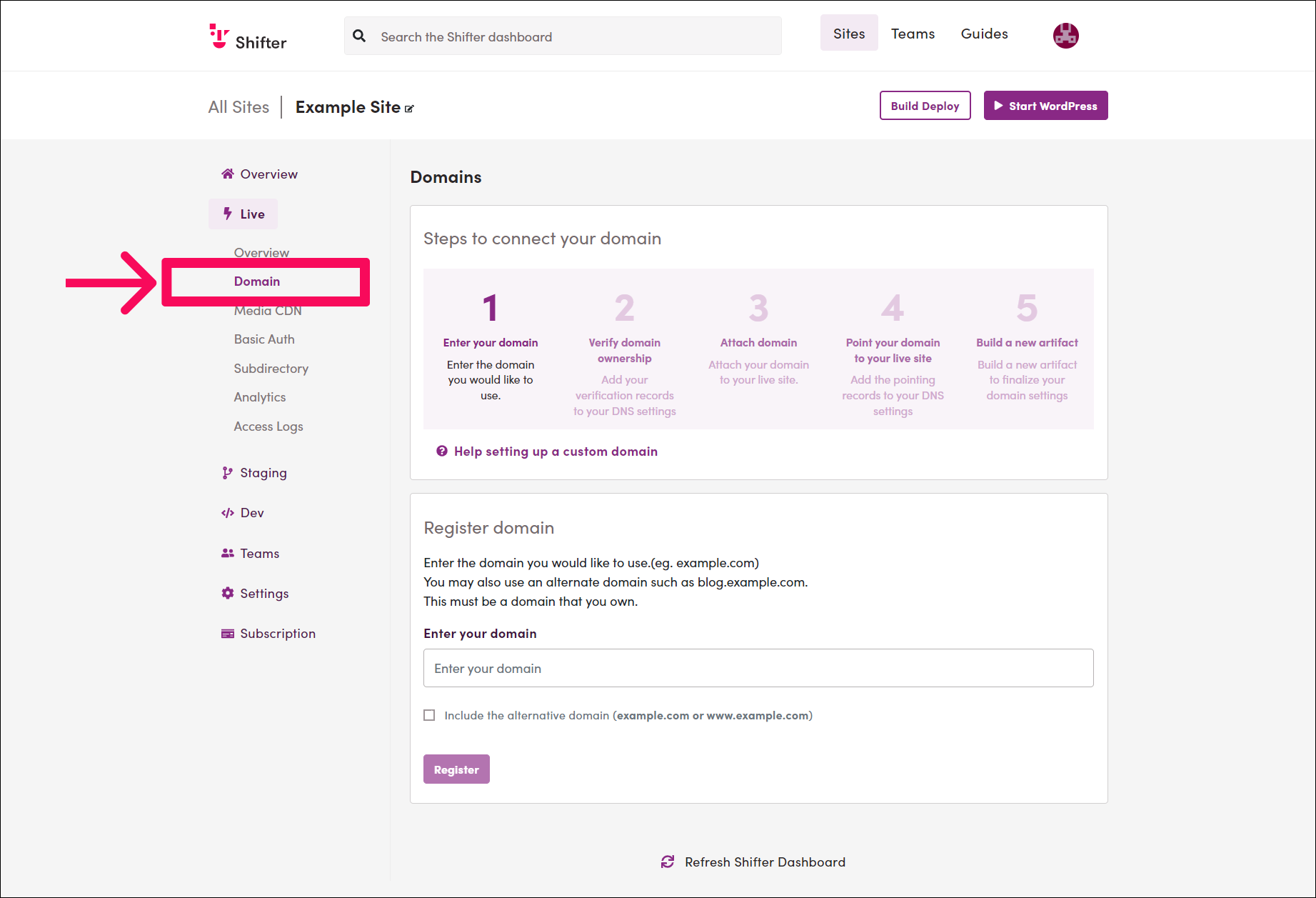
- Use the [Enter your domain] form to add a valid domain.
In this sample set, the main domain is example.com and the alternative domain is www.example.com. Enter your domain name in the [Enter your domain] form. If you need the www prefix, check [Include the alternative domain (www.YOUR-DOMAIN-NAME)].
- Copy the verification record for the custom domain.
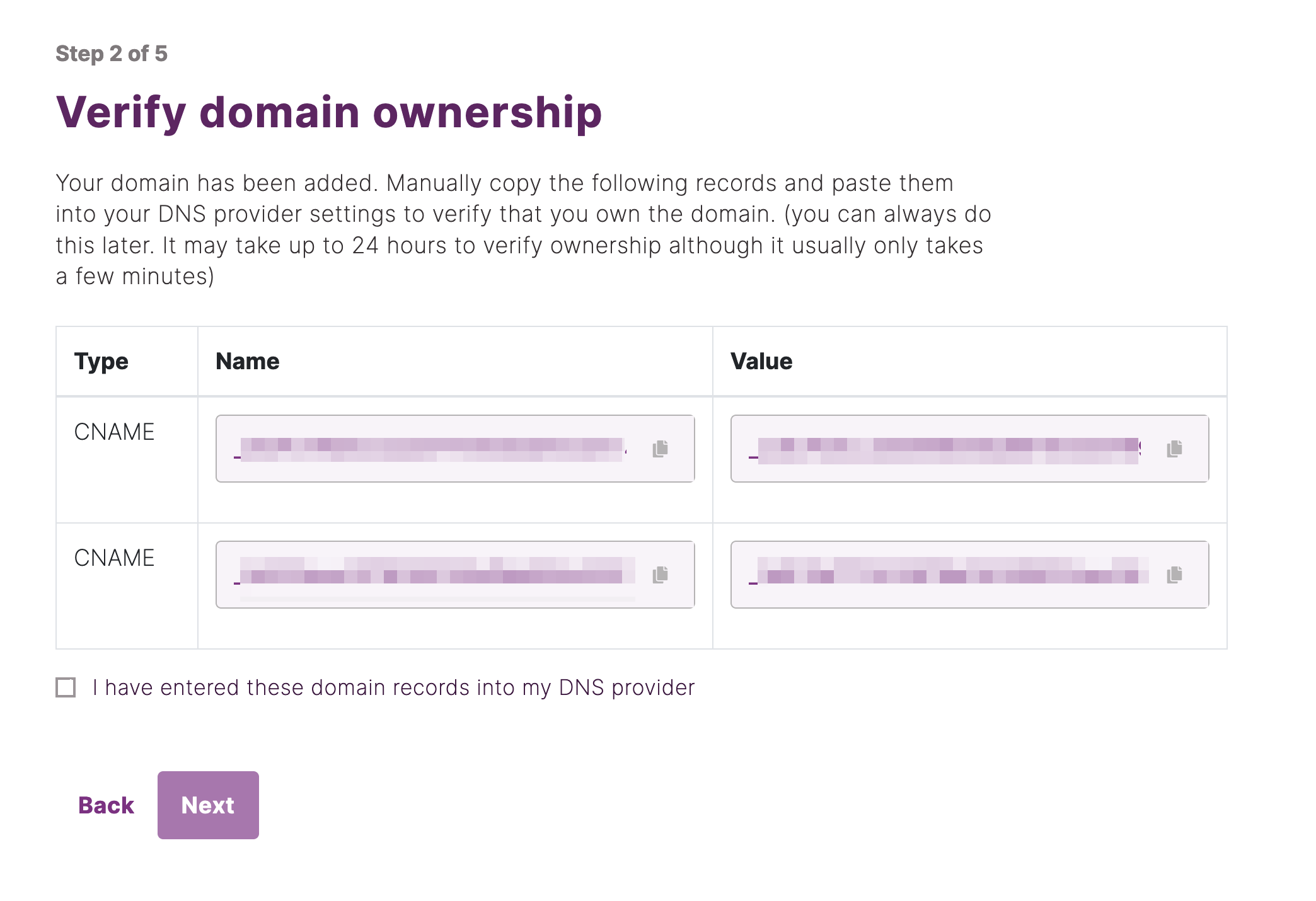
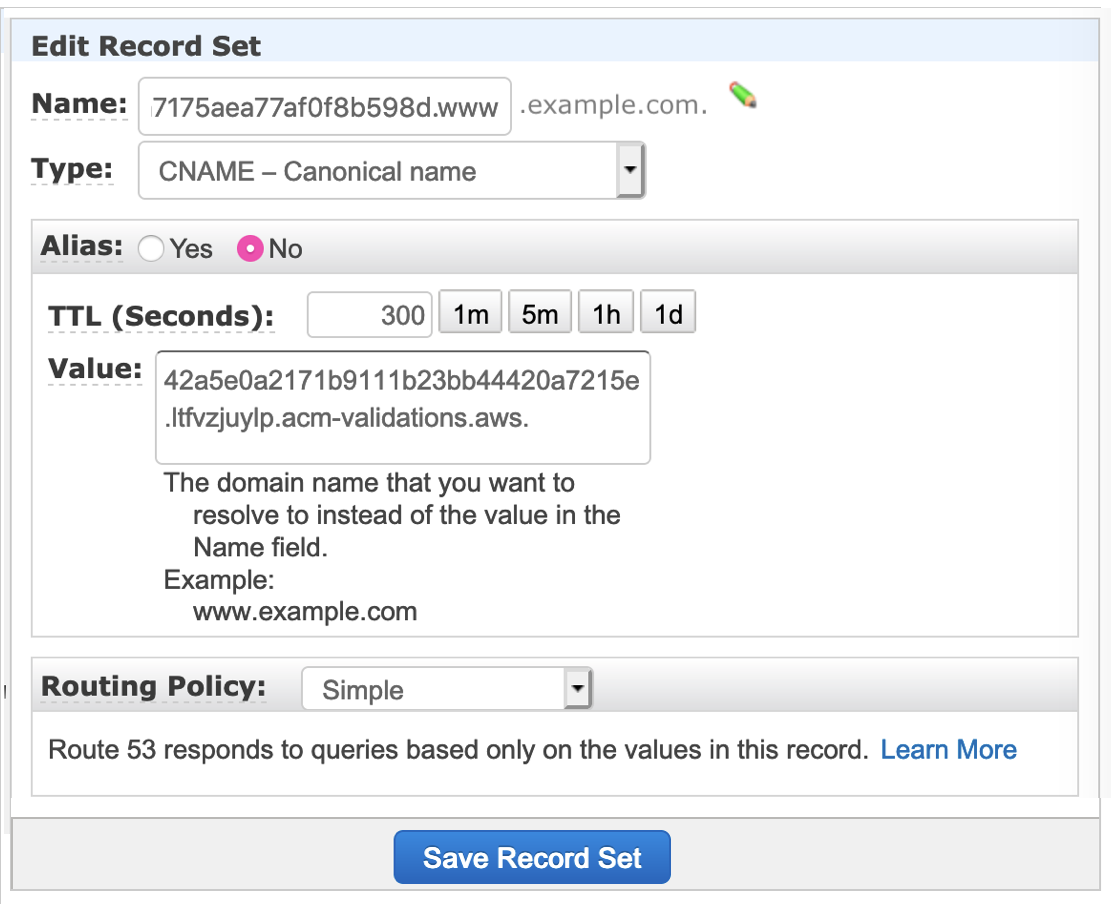
- Paste the verification records into your DNS provider.
For more information on adding DNS records, refer to the “DNS Providers Guides” documentation. This example uses Amazon’s Route53 DNS service. This screen may look different depending on your provider, but the steps are the same.
Note 1: Do not delete the validation records
Once you have added and verified the validation records, do not delete them. They are used to automatically extend the SSL/HTTPS expiration date for your domain name. If you delete the validation records, your SSL/HTTPS certificate will expire and will not be renewed.
Note 2: Remove the final dot from the value
In the sample above, the published record is _42a5e0a2171b9111b23bb44420a7215e.ltfvzjuylp.acm-validations.aws.; however, some DNS providers do not accept records with a trailing dot. Therefore, you must remove it when adding the record.
Example: _42a5e0a2171b9111b23bb44420a7215e.ltfvzjuylp.acm-validations.aws
Domain with the “www” prefix ( www.example.com)
| Name | Type | Value |
|---|---|---|
_cdf6d18fec87a7175aea77af0f8b598d.www | CNAME | _42a5e0a2171b9111b23bb44420a7215e.ltfvzjuylp.acm-validations.aws |
Naked domain ( example.com)
| Name | Type | Value |
|---|---|---|
_5e12852794b8f43b88df40624efd93fc | CNAME | _299dfb8f975137e2ca7a83b558cefa1b.ltfvzjuylp.acm-validations.aws |
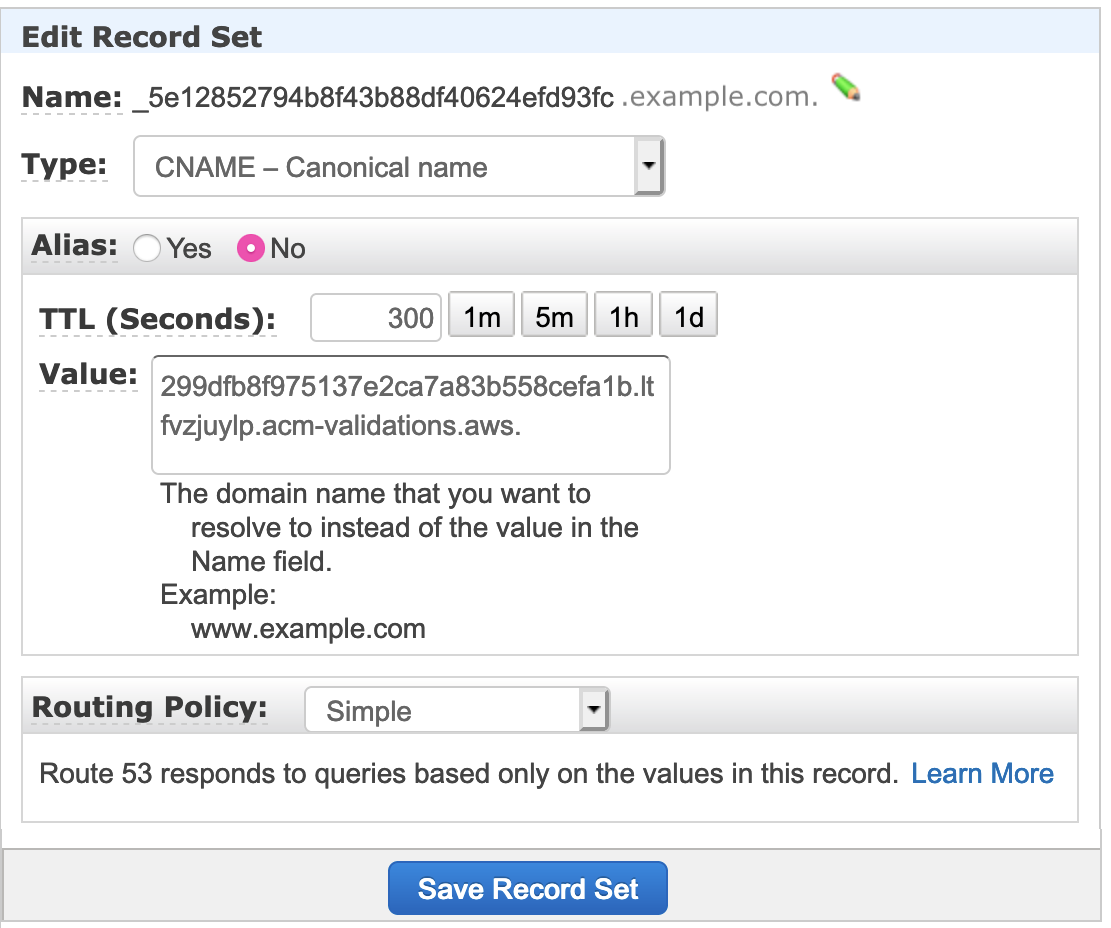
Note 2. DNS records beginning with an underscore are not supported To verify your domain, your DNS server or provider must support _(underscore) -based DNS records. Please check whether your DNS provider supports underscore-based DNS records.
Examples of DNS providers that support underscore records: Route 53, GoDaddy, NameCheap, Name.com, MuuMuu Domain
If your DNS provider does not support records that begin with an underscore, you can remove the leading underscore from the DNS record. For details, see the AWS support document Troubleshooting DNS validation problems.
Example: Domain with a “www” prefix ( www.example.com)
| Name | Type | Value |
|---|---|---|
_cdf6d18fec87a7175aea77af0f8b598d.www | CNAME | 42a5e0a2171b9111b23bb44420a7215e.ltfvzjuylp.acm-validations.aws |
Naked domain ( example.com)
| Name | Type | Value |
|---|---|---|
_5e12852794b8f43b88df40624efd93fc | CNAME | 299dfb8f9751 |