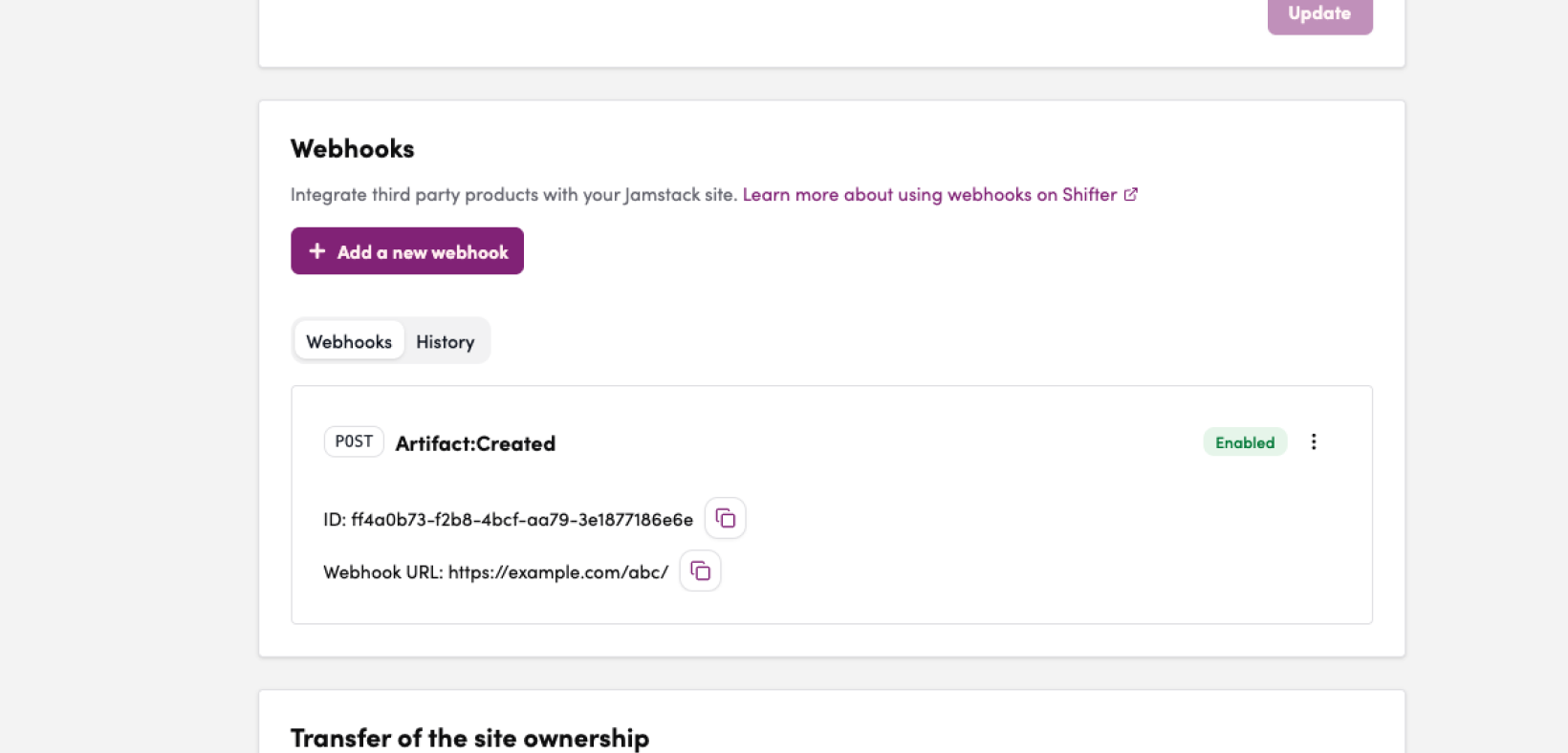
Important Notes on Configuration
- To configure a new webhook, the user performing the configuration must be the site Owner or have been granted Administrator permissions within the team.
Format of the Data to Be Sent
For POST Requests
Example of Data to Be Sent
{
"site_id": "xxxxxx-xxxxxxx...." ,
"artifact_id": "xxxxxxx-xxxxxx-...." ,
"download_url": "aHR0cHM6Ly93cC1h.......=="
}
For GET requests
Pass the data as query parameters.
Example of data to be sent
?site_id=xxxxxx-xxxxxxx....&artifact_id=68efb5c1-7ff1-4de5-be14-a97cb3bce9bf&download_url=aHR0cHM6Ly93cC1h.......Steps to Set Up a New Webhook
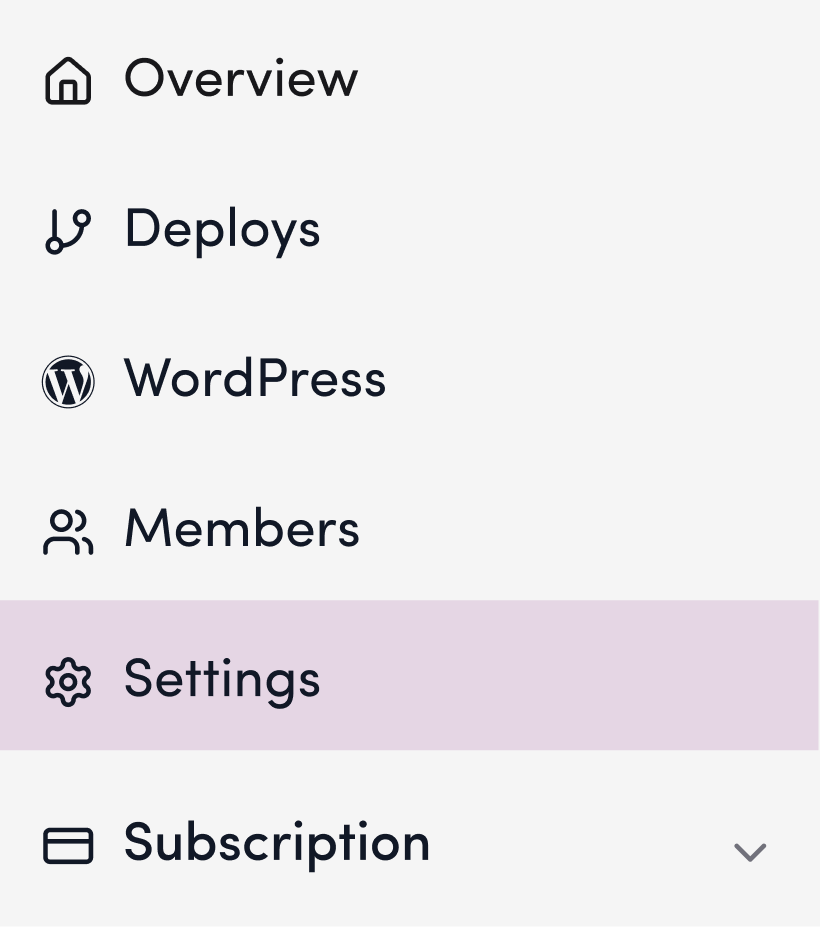
1. Log in to the Shifter dashboard and click “Settings” for your site.
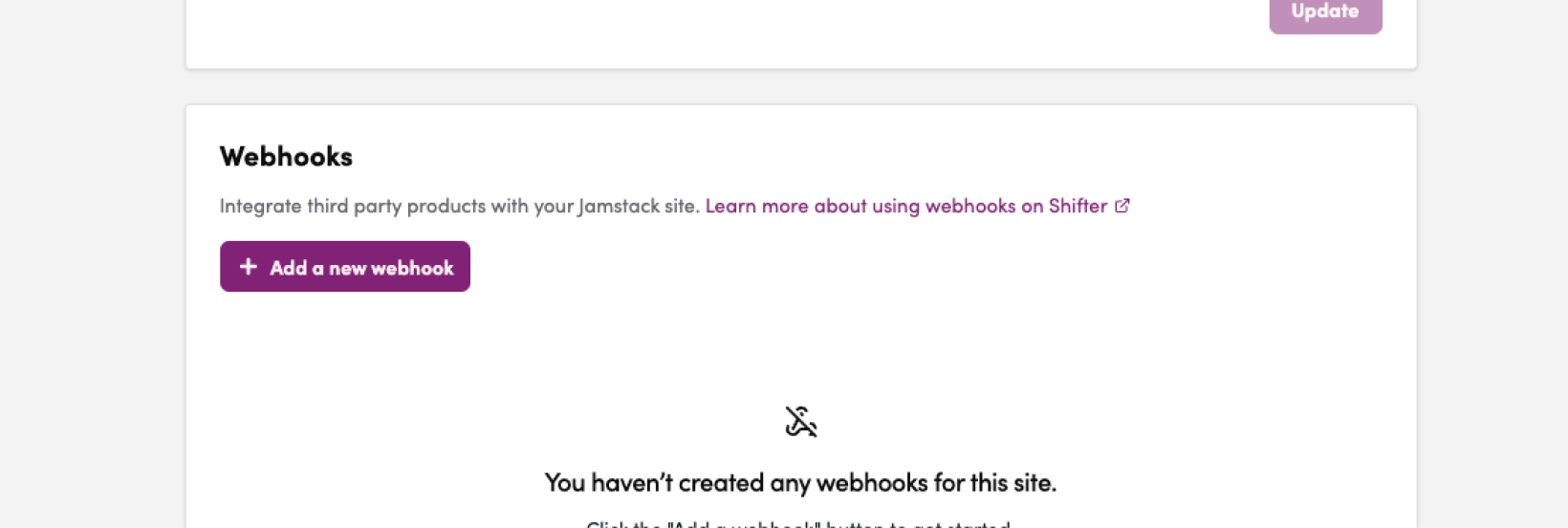
2. Scroll down to “Webhook.”
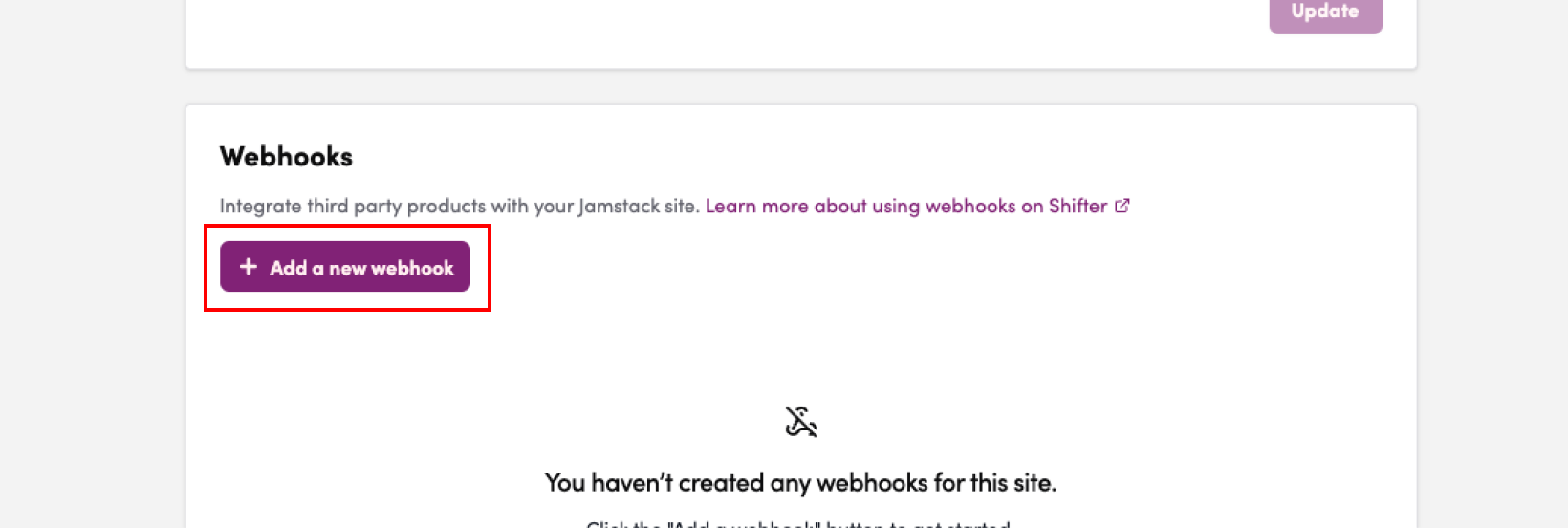
3. Click “Add Webhook.”
4. Configure the event type, method, headers, and URL
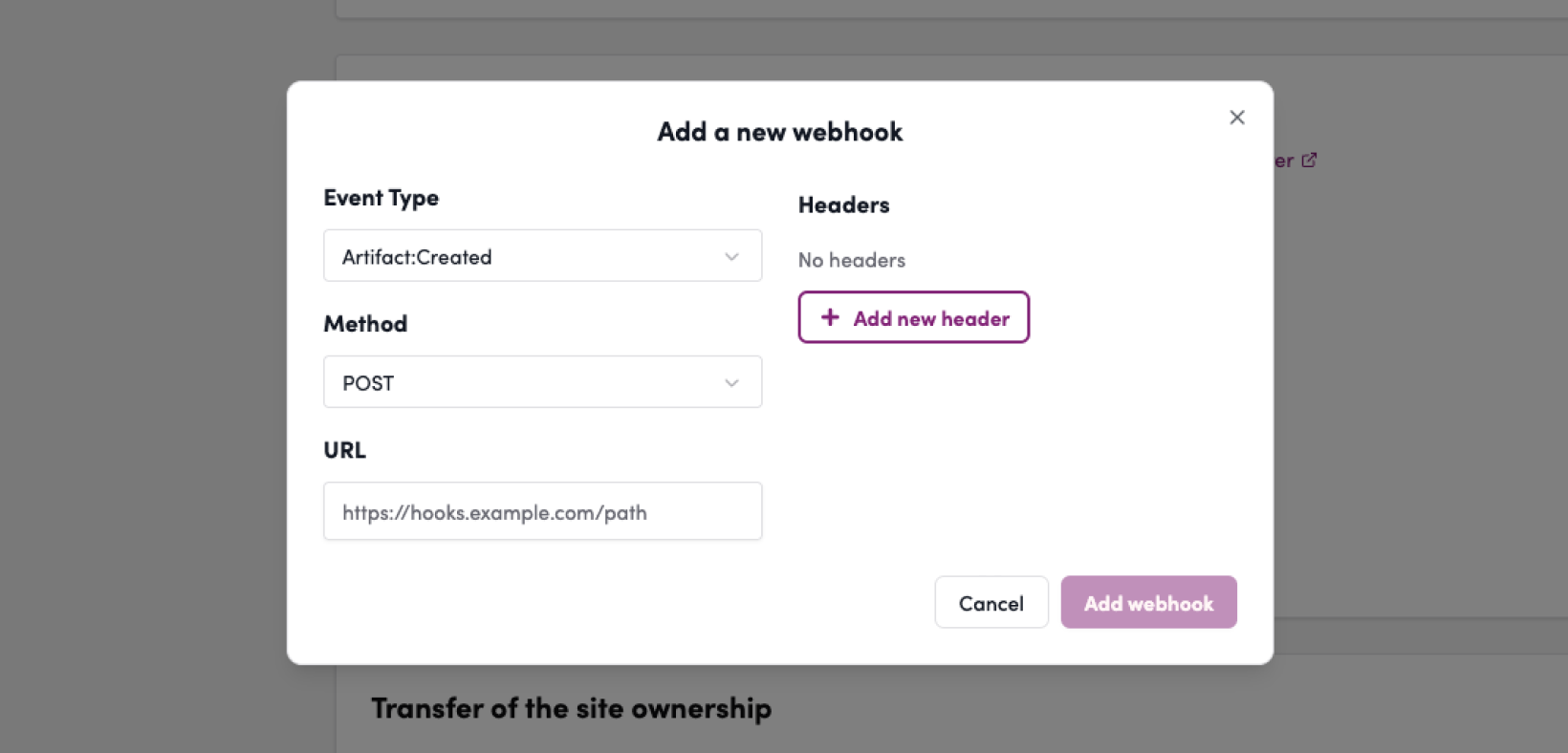
5.
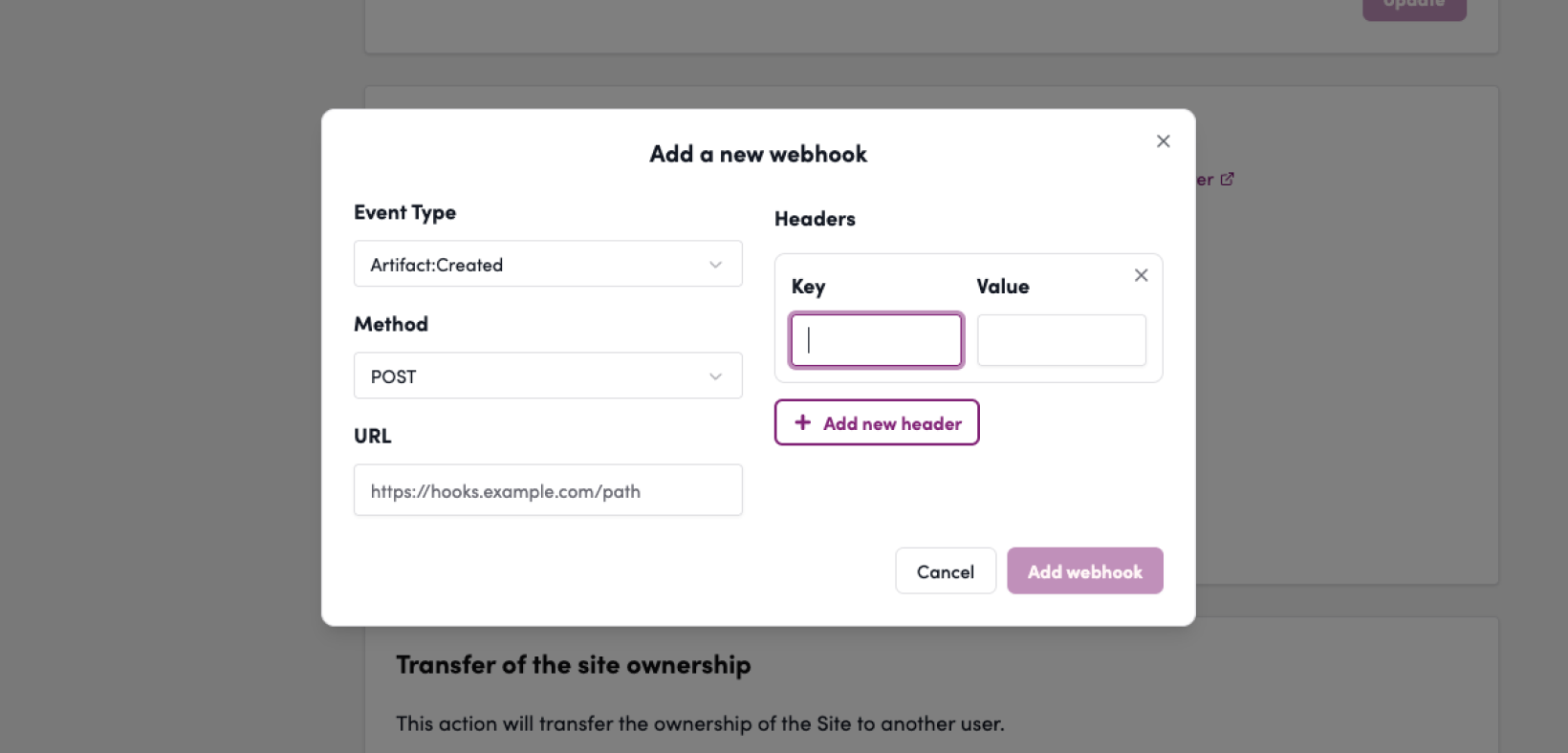
6. Click “Add Webhook”
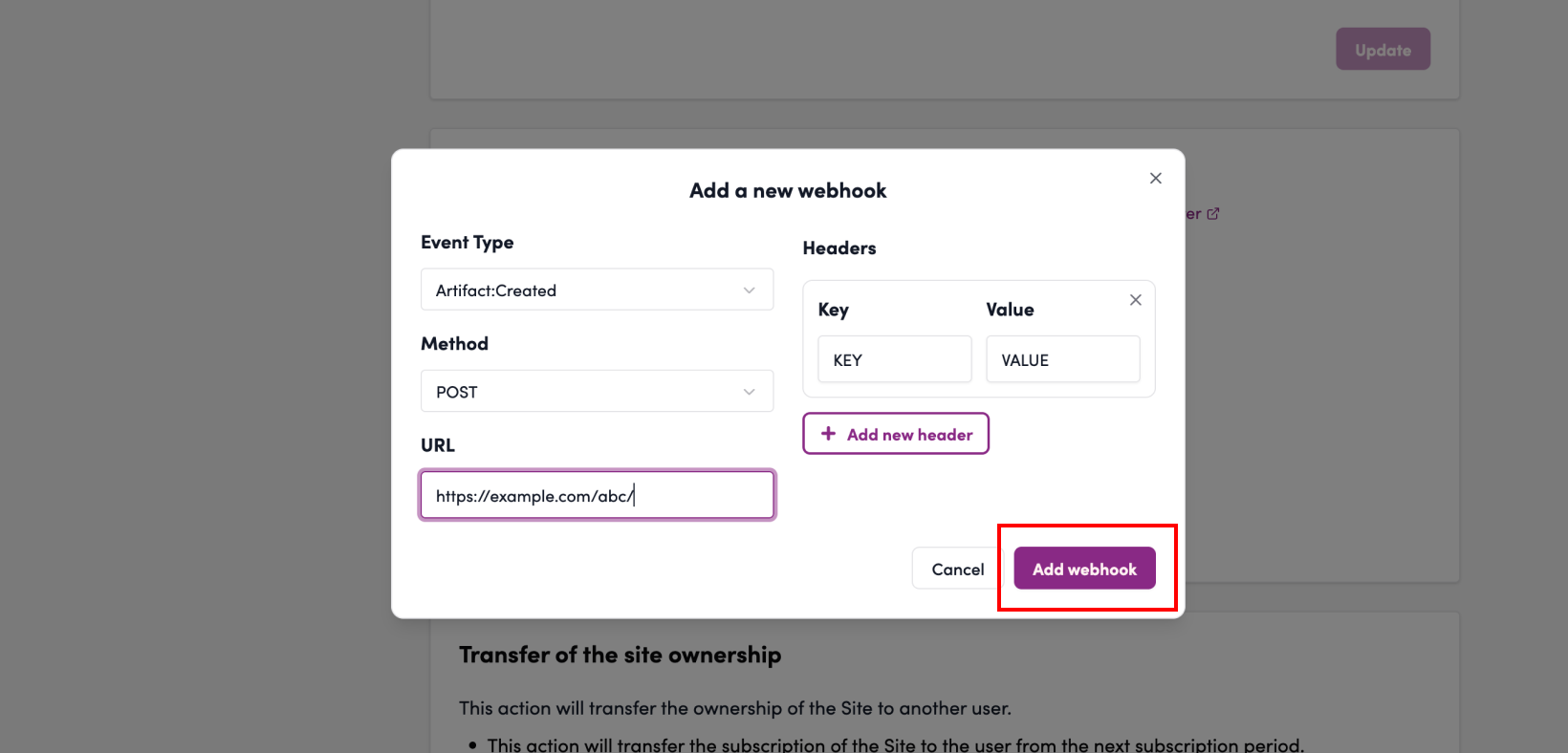
7. The webhook is added