
Introduction
Custom domains are supported on paid plans. If you are on the Free Trial or Free Tier, please upgrade to Tier 1, 2, or 3 to use this feature.
Important Notes
About Underscore Records
- Your DNS server or DNS provider must support DNS records (names and values) that begin with an underscore (_). Before beginning setup, please check with your DNS server’s support team to confirm whether it supports this feature.
- We have confirmed that Route 53, GoDaddy, NameCheap, Name.com, and Muu Muu domains support this feature.
- If your DNS server does not support DNS records starting with an underscore (_), you can still configure the record by removing the underscore from the Value you enter.(For details, please refer to the AWS support documentation: Troubleshooting DNS Validation Issues – AWS Certificate Manager (amazon.com)).
About the Type of DNS Record to Use
- The only type of DNS record to use is CNAME (depending on the DNS server, this may be labeled as ALIAS or ANAME for A records).
- When configuring a domain on the Shifter website, you do not need to set up TXT records or MX records for email. The pre-configured values for these should be left as is unless absolutely necessary, as changing them carelessly may cause unexpected issues.
If You Are Not Using “www” in the Subdomain
If you are assigning a non-www domain such as example.com, your DNS provider must support ALIAS records (non-www domains are generally referred to as “naked” or “apex” domains).
If you are not sure whether your DNS provider supports these, please contact your provider or check their documentation.
Adding a Custom Domain
Before adding a custom domain name, you must first verify domain ownership, assign the domain, and enable HTTP for your website.
This ensures the security of all site traffic. HTTPS is required for all Shifter sites and is enabled by default.
Once your domain is verified and ready, add a CNAME record as follows to enable your custom domain.
www-prefixed domain ( www.example.com)
Custom  URL    www.example.com
Shifter URL    example-123.on.getshifter.io
| Host or Name | Type | Value |
| www | CNAME | example-123.on.getshifter.io |naked domain (example.com)
Custom  URL        example.com
CloudFront Domain  1e2x3a4m5p6l7e8.cloudfront.net
| Host or Name | Type | Value |
| @ | ALIAS | 1e2x3a4m5p6l7e8.cloudfShifter uses only CNAME (or ANAME/ALIAS) records. If you have a mail server (MX), do not delete or overwrite your existing records.
Custom Domain Setup Procedure
Overview
The overview of the custom domain setup procedure is as follows.
- Verify domain ownership to enable HTTP
- Create a CNAME record for the custom URL
- Run “Generate” to replace the old URL with the custom URL
Procedure
1. Log in to the Shifter dashboard ( https://go.getshifter.io/). 2. Select the site you want to configure, then navigate to “Domain” under “Live” in the left sidebar.
2. Select the site you want to configure, then go to “Domain” under “Live” in the left sidebar.
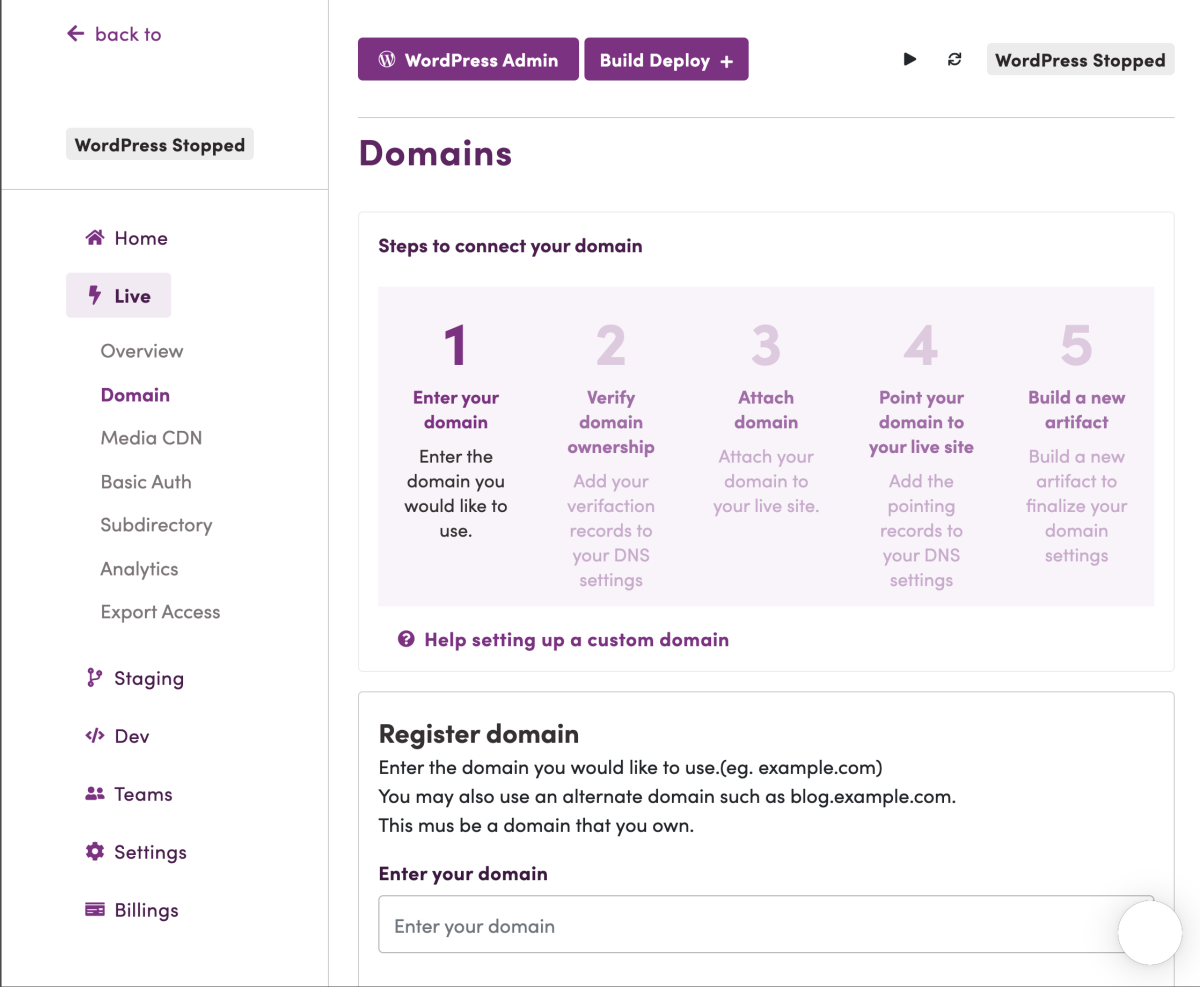
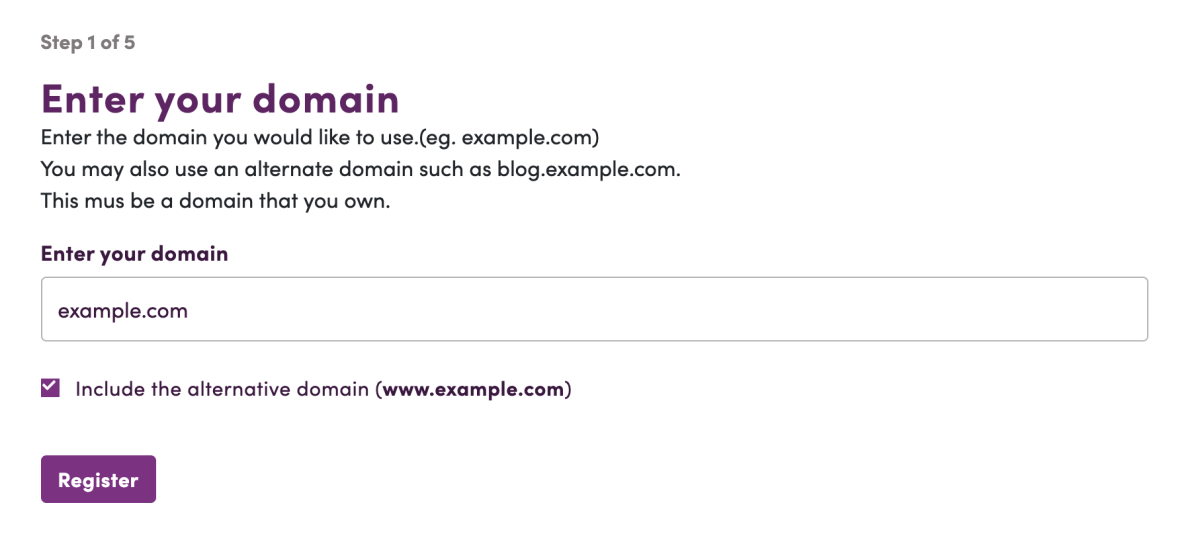
3. Add a valid domain to the “Enter your domain” field under “Register domain.”
If you need the www prefix, check the box for “Include alternative domains (www.YOUR-DOMAIN-NAME).”
In the example below, the main domain is example.com, and the alternative domain is www.example.com.
4. Copy the verification record for the custom domain.
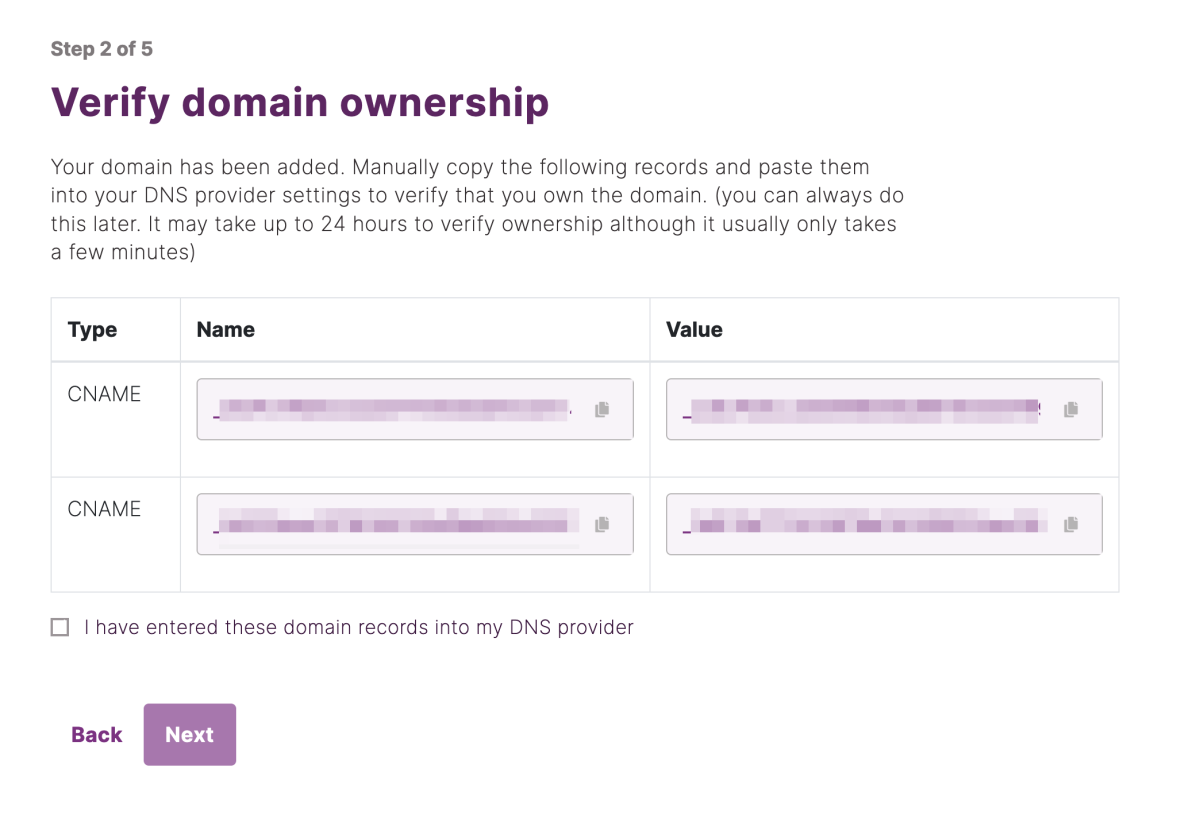
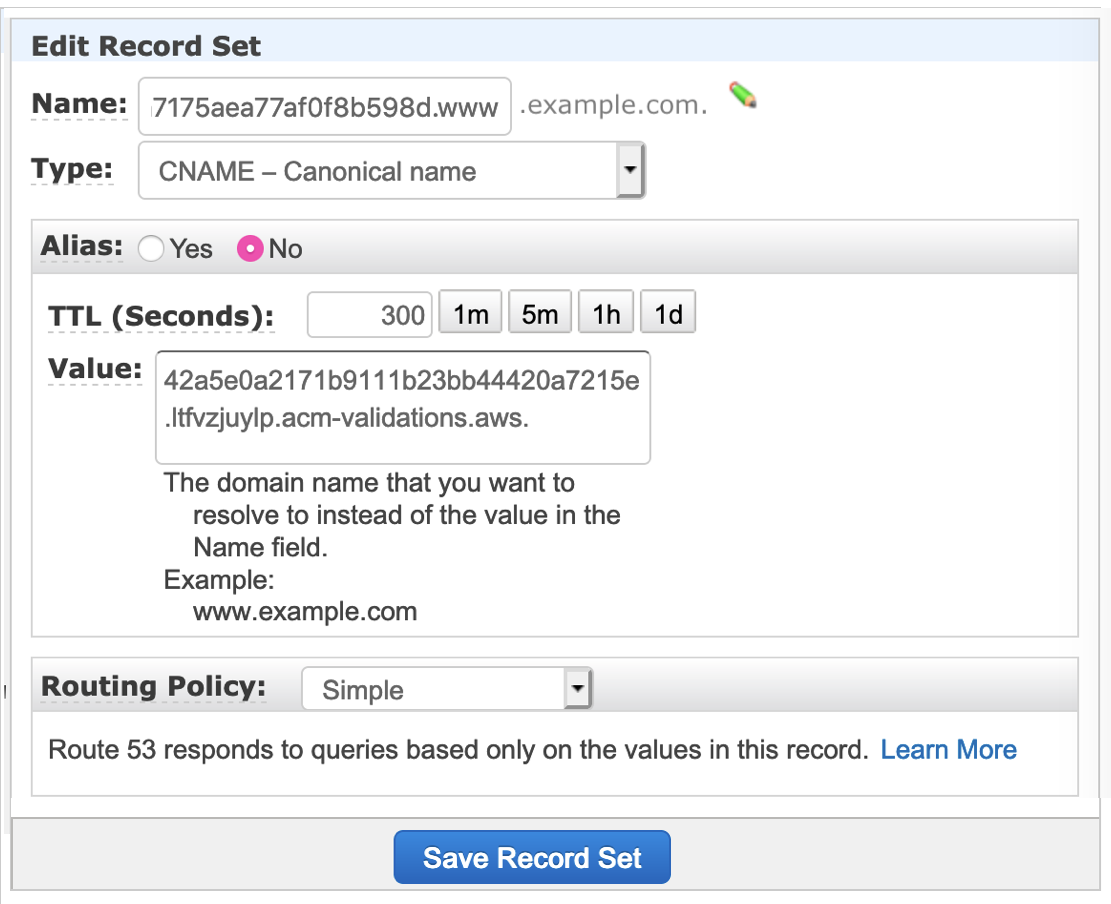
5. Add the verification record to your DNS.
The example below uses AWS Route53. The screen layout may vary depending on your provider, but the steps are the same.
Note 1: Do not delete the verification record
Once you have added the validation record and completed verification, do not delete it.
These records are used to automatically renew the SSL/HTTPS certificate for your domain name. If you delete the validation record, the SSL/HTTPS certificate will expire and will not be renewed.
Note 2: Exclude the final period from the value
In the sample below, the public record is “_42a5e0a2171b9111b23bb44420a7215e.ltfvzjuylp.acm-validations.aws.”, but some DNS providers do not accept records with a trailing dot. In that case, omit the trailing dot. Example: “_42a5e0a2171b9111b23bb44420a7215e.ltfvzjuylp.acm-validations.aws”
Example of a domain with “www” (www.example.com)
Example of a naked domain without “www” (example.com)
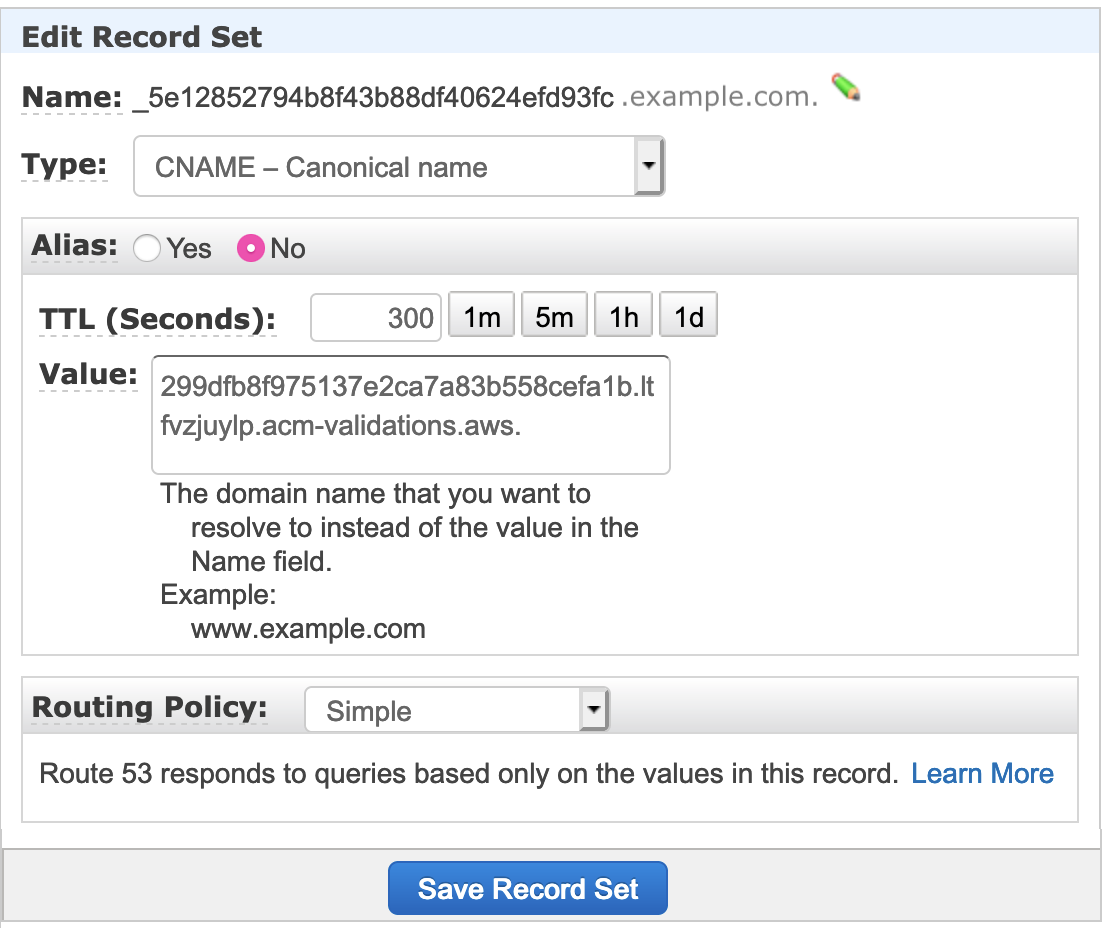
- Your DNS server or provider must accept DNS records that begin with an underscore (_) for domain validation. Please check with your DNS provider whether underscore DNS records are supported.
- If your DNS provider does not support records containing underscores, you can remove the first underscore from the DNS record. For more details, please contact your DNS server or provider.
- If domain verification fails, check with your DNS provider to ensure the added record does not include the domain name. For example, if you entered _abc123.www.your-domain.com, the correct entry would be _abc123.www.
6. Check the box next to “I have entered these domain records into my DNS provider” and click “Next.”
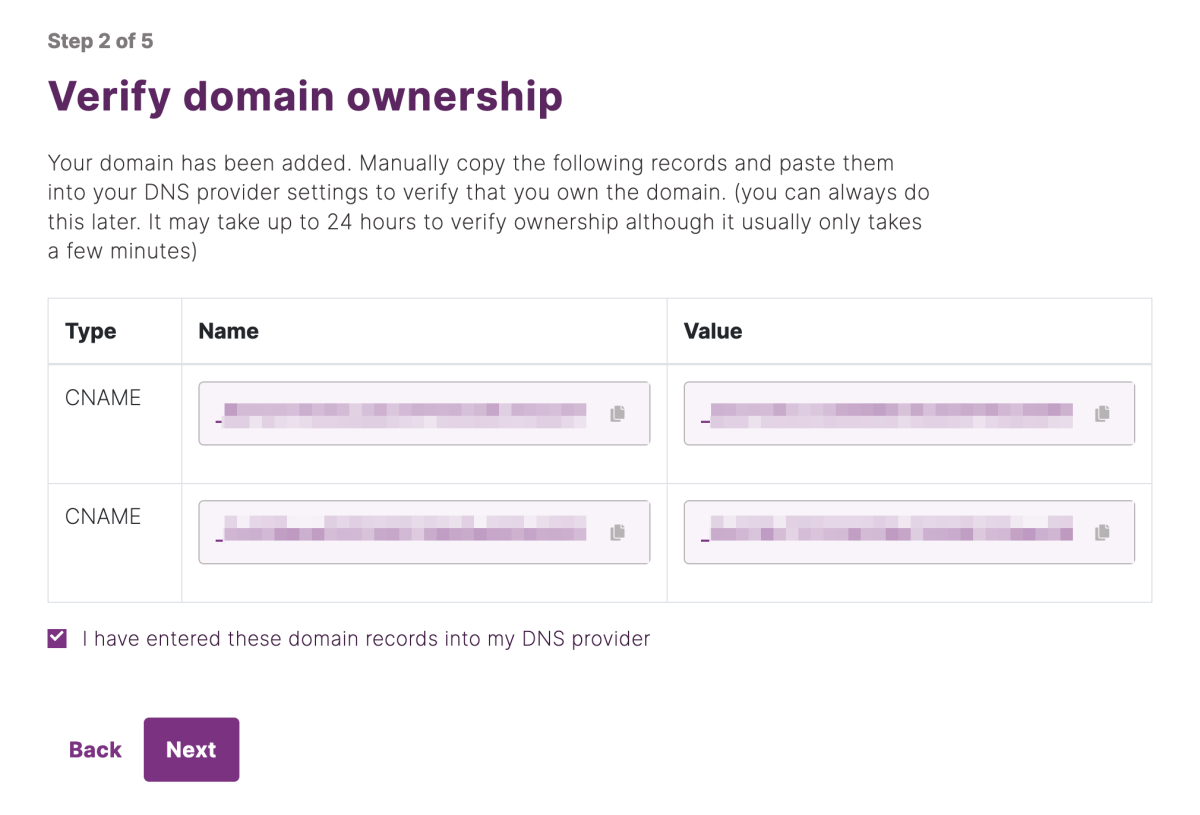
7. Click “Skip (do it later)” and wait for the domain status to change from Pending to Verified.
8. Copy the displayed DNS records and configure them on your DNS server.
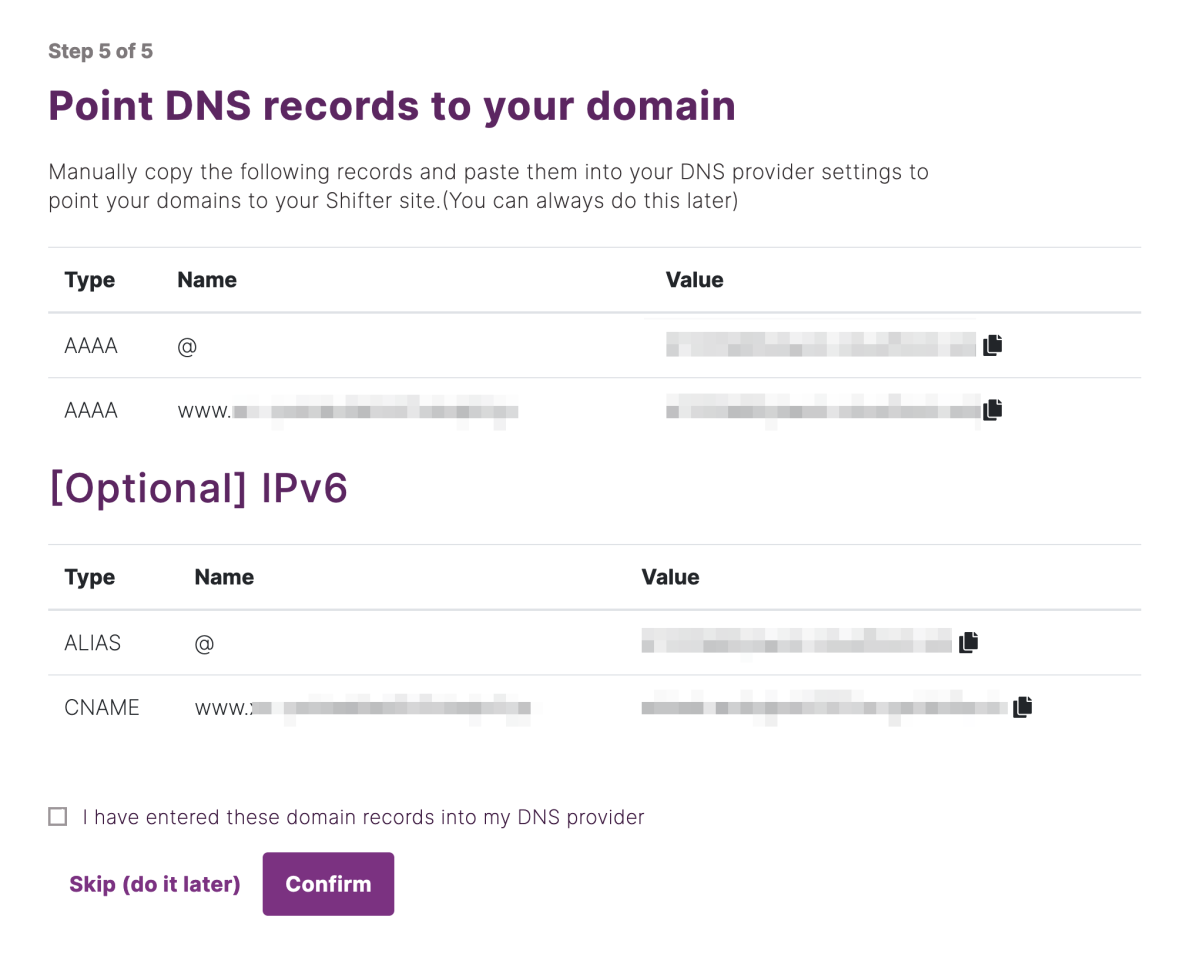
9. In your DNS server’s management interface, configure the CNAME record.
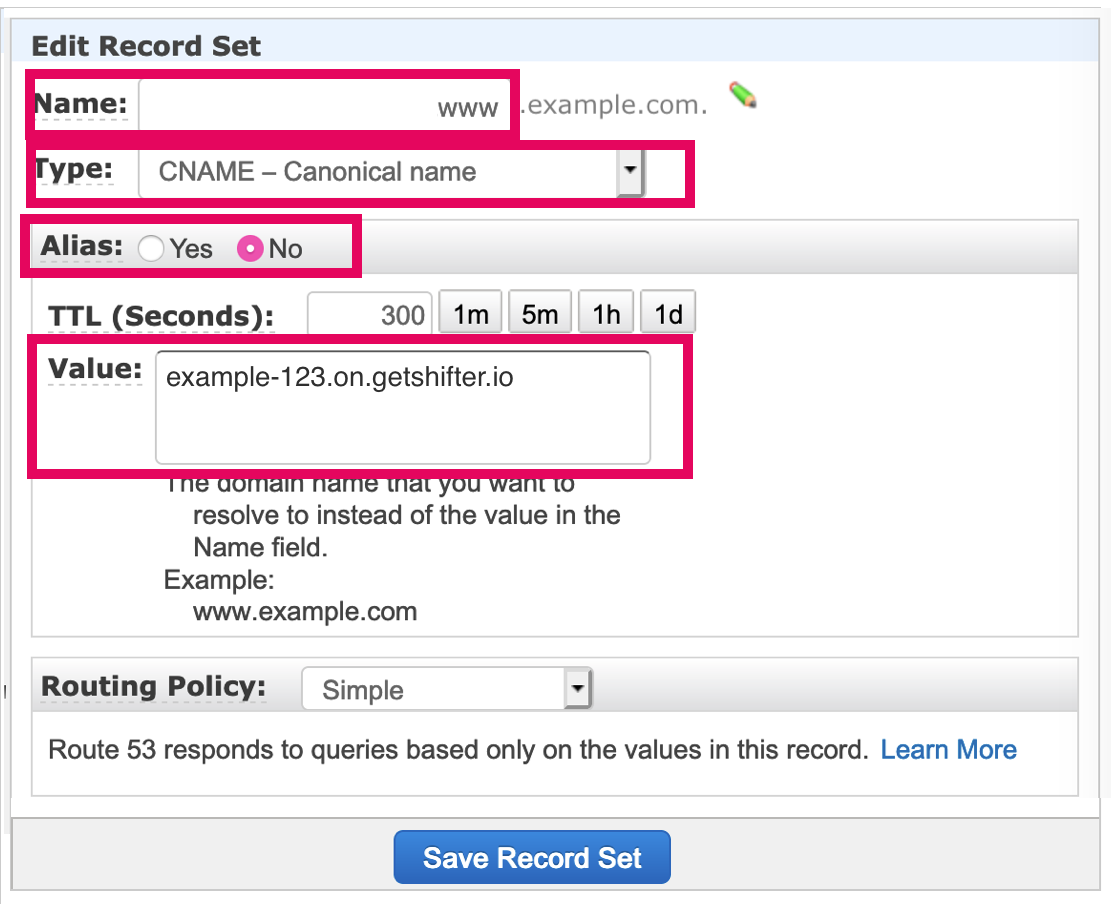
Example with “www”
- Name: www
- Type: CNAME
- Alias: Yes
- Value: example-123.on.getshifter.io
Or, use a CloudFront domain
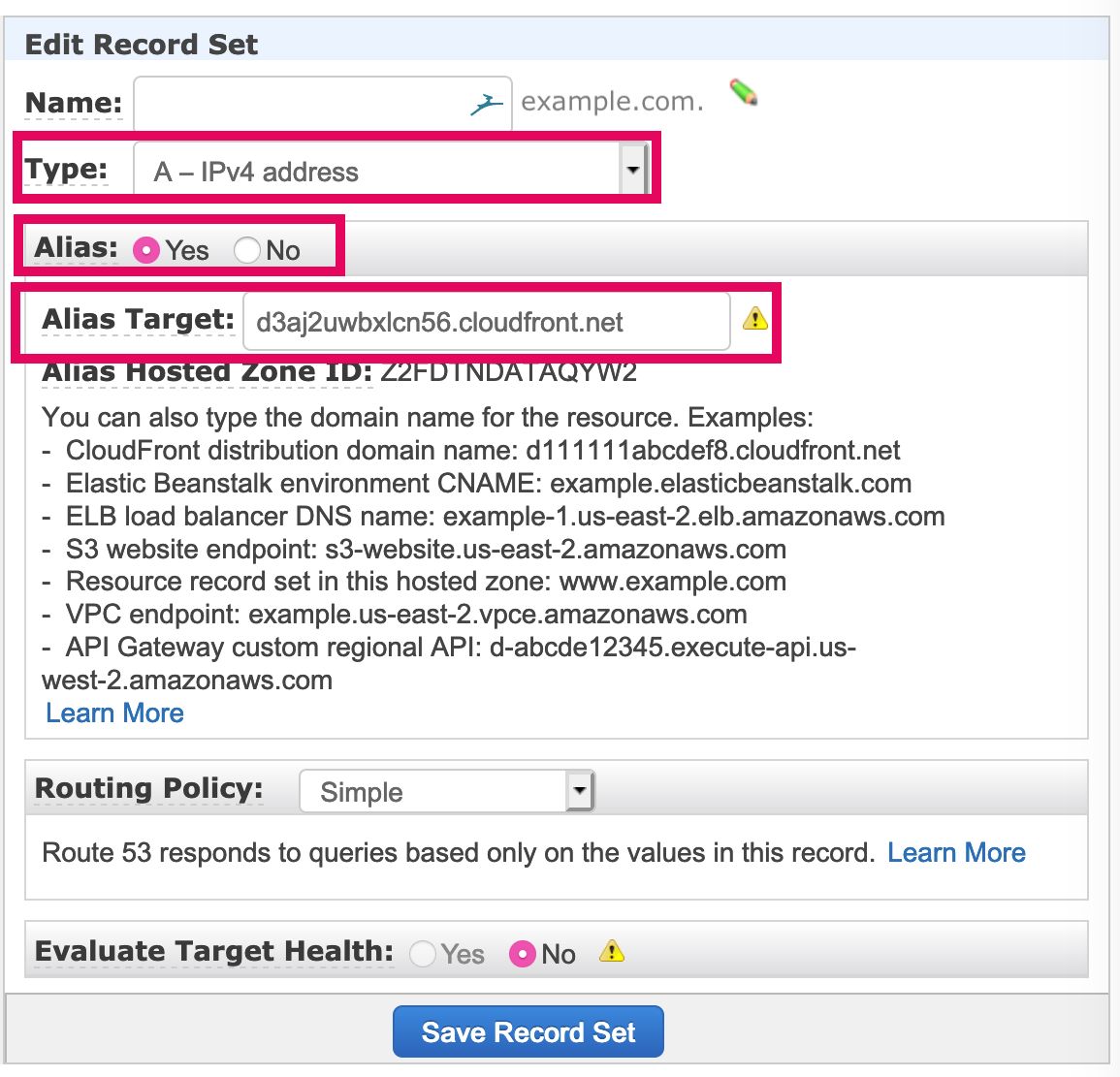
Example for a naked domain (without “www”)
- Type: A – IPv4 address
- Alias: Yes
- Alias Target: d3aj2uwbxlcn56.cloudfront.net (you can find the CloudFront domain on the “Site Settings” page of the Shifter dashboard).
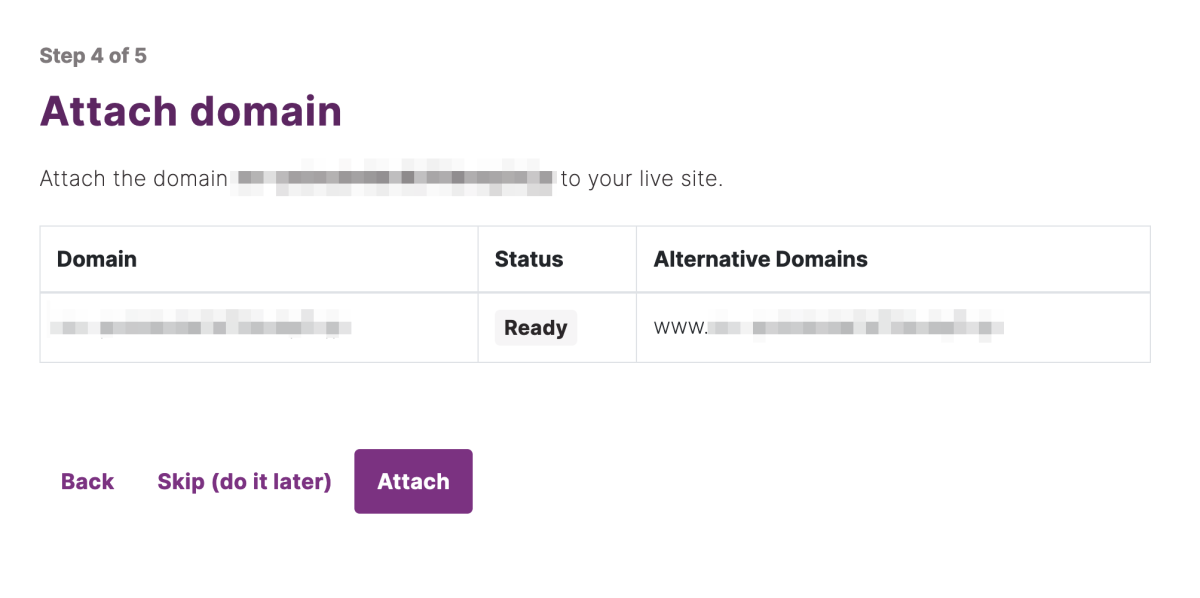
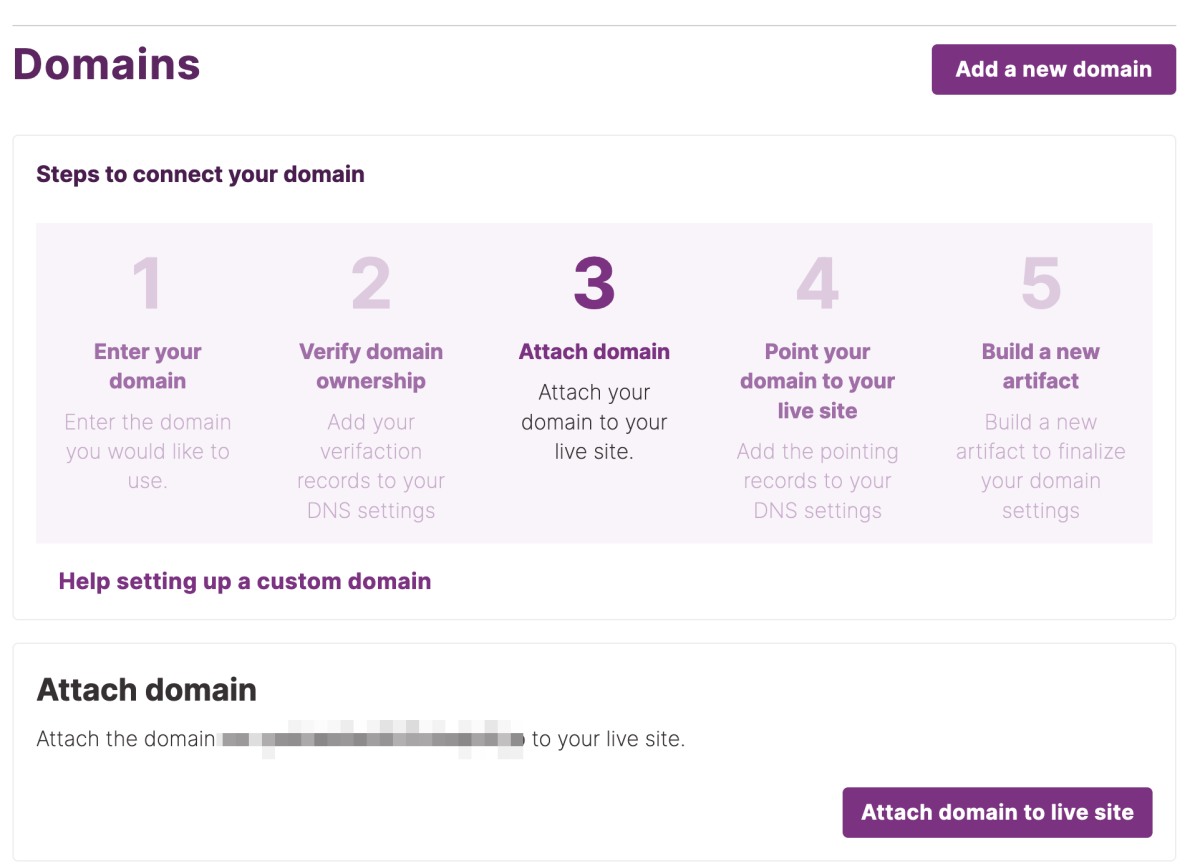
10. Click “Attach domain to live site.”
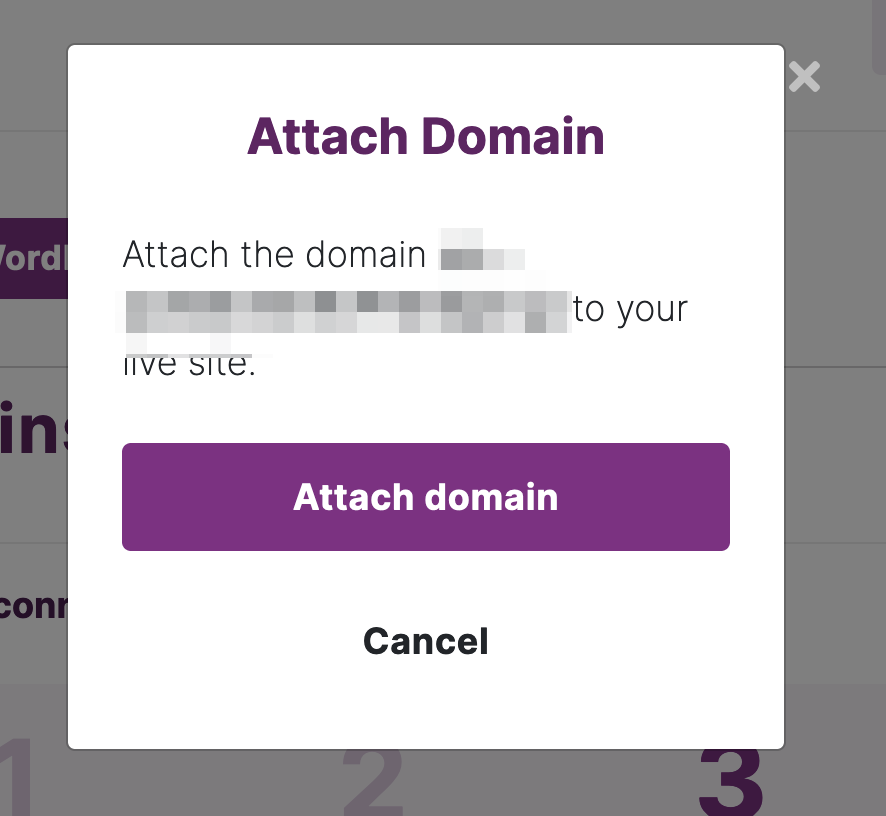
11. Click “Attach domain.”
12. Click “Build Deploy” to create an artifact with the custom domain applied.
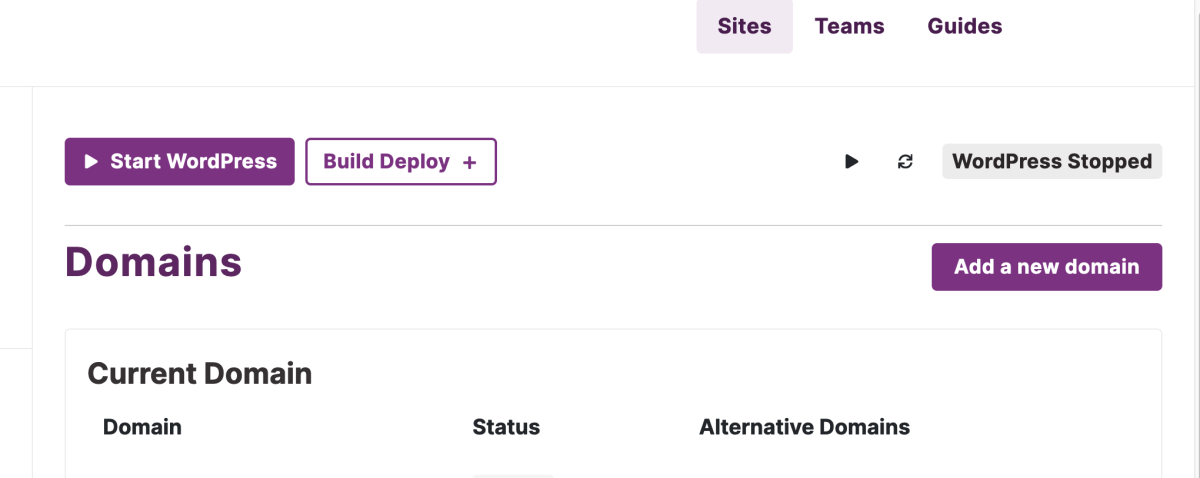
Note: After setting up your custom domain, generate a new artifact so that the Shifter URL (e.g., abcd-1234.on.getshifter.io) is replaced with your custom domain.
13. Verify that you can access the configured custom domain.
Return to the site’s Overview and verify that the custom domain name has been applied.
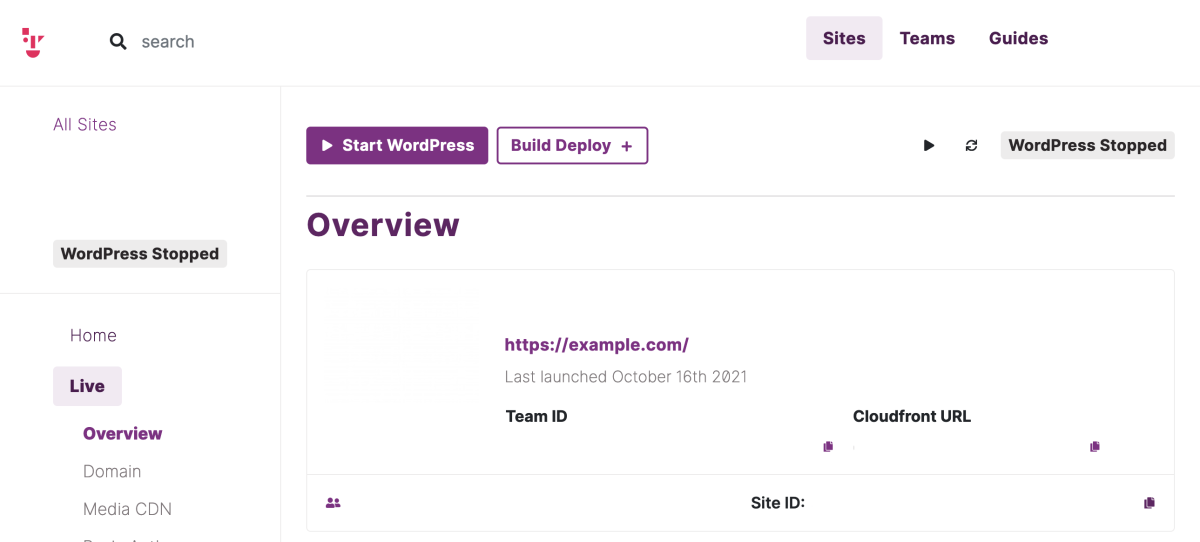
This completes the custom domain setup.