
Automatic WordPress backup functionality has been introduced for Tier 1 and higher plans. This new feature creates a backup of your WordPress site during the site generation process, which you can download from the Shifter dashboard. The backup is in the.wpress format and represent a complete backup of your site. You can use this file to migrate your site almost anywhere using the All-in-One WP Migration plugin.
The workflow for this backup process is designed to integrate seamlessly with the standard site-building process. Enabling the backup feature while building your static site is the best way to protect your data and save time.
How to Use
When you enable the “Create Backup” feature, Shifter will automatically create a backup file when it begins generating the artifact.
How to Set Up
- Make sure your website plan is Tier 1 or higher. This feature is not available on Legacy plans.
- Go to your site’s “Settings” menu
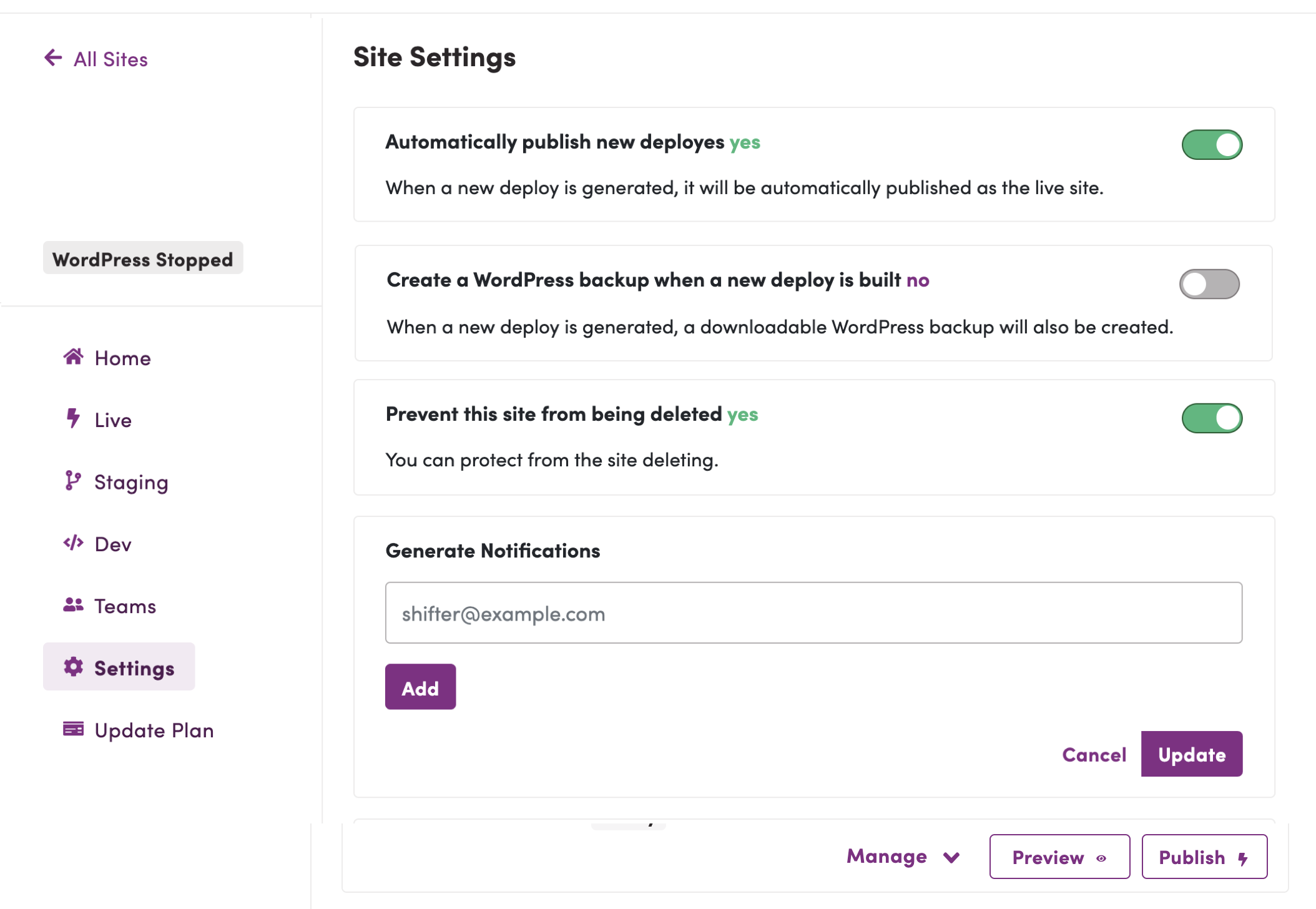
- Click the toggle button to enable the backup feature. Click the toggle switch for “[Create a WordPress backup on new deployments]”
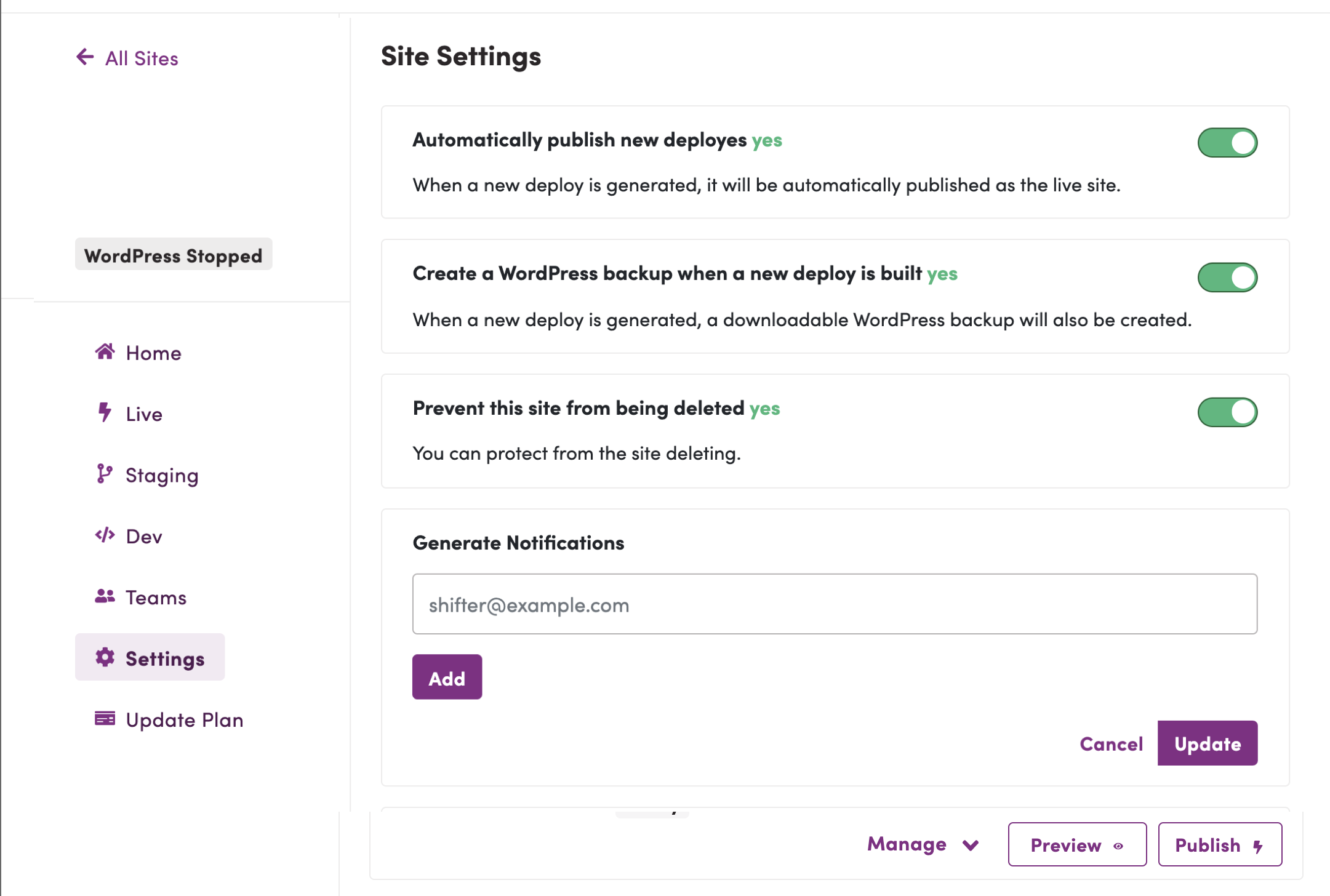
That’s it.
How to Download
From now on, every time you start generating an artifact, Shifter will automatically create a.wpress archive file.
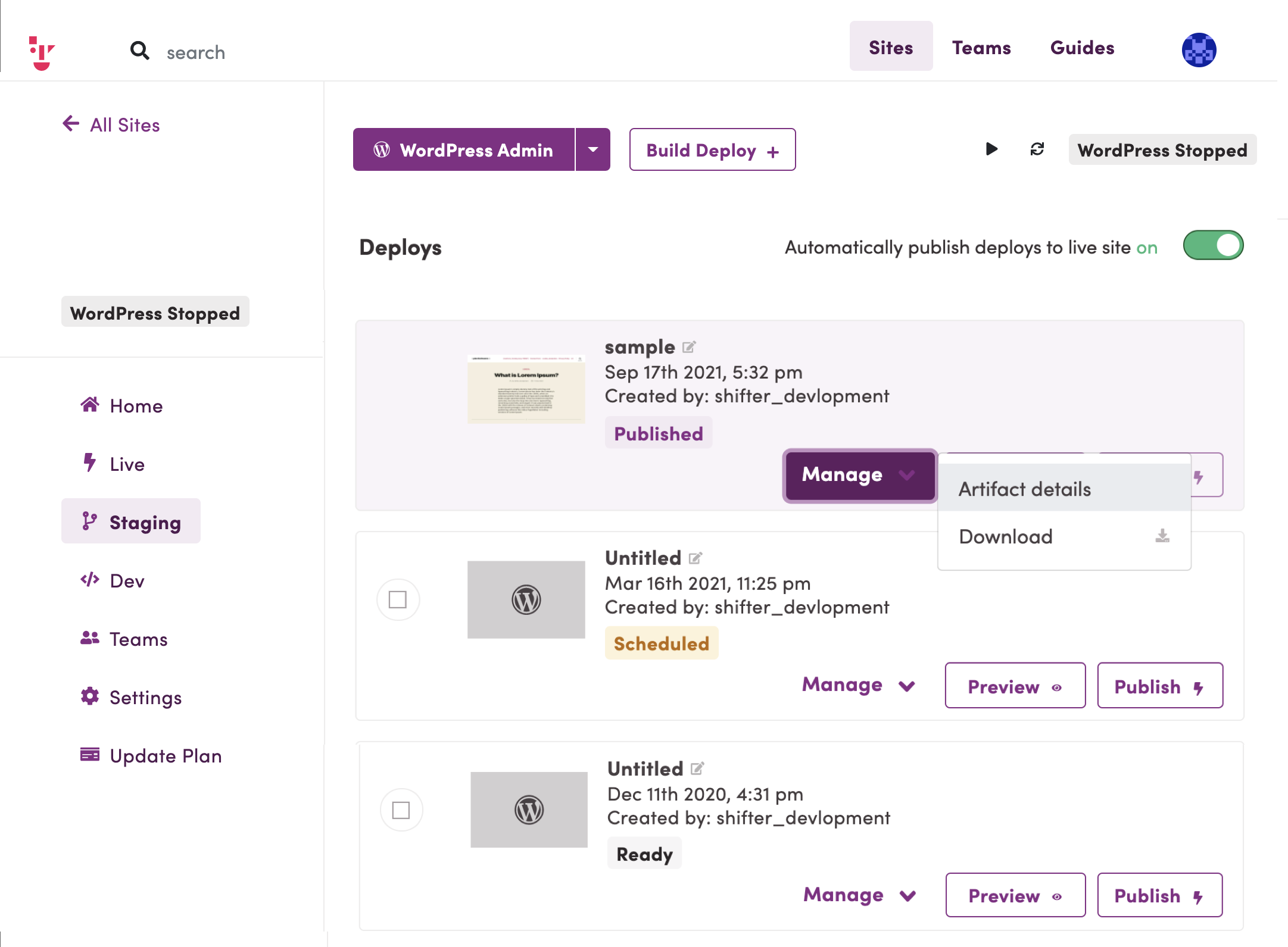
- Go to the “Staging” menu
- Click “[Artifact Details]” located below the “[Manage]” button for the deployment you want to back up
- Click the [Download Backup] button to retrieve the backup file
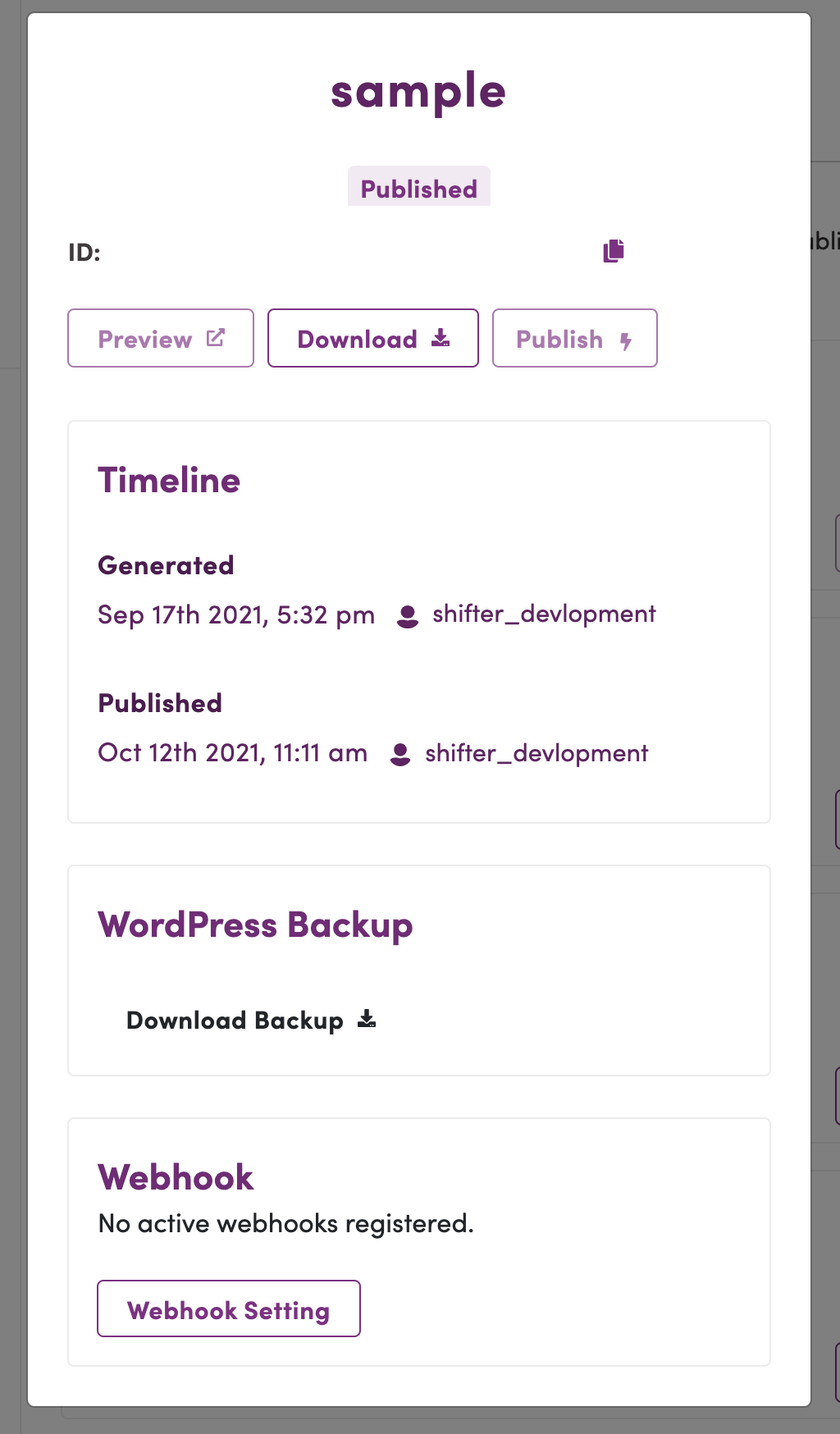
- To download the backup, click the WordPress icon next to the artifact’s download button to download the WordPress backup file
For details on how to import this backup into another site, please refer to the documentation on site migration.
Migrating to Shifter using the All-in-One WP Migration and Backup WordPress plugin