
About the Magic Link Feature
The Magic Link feature allows users to log in to WordPress without password authentication by accessing a URL containing a token (Magic Link).
You can use this feature to temporarily share the WordPress dashboard with collaborators, clients, or support staff, or to work together on projects.
Once generated, a Magic Link remains valid from the moment it is accessed and WordPress is launched until WordPress is shut down or until 3 hours have passed. If the link becomes invalid, please generate a new one.
Steps to Generate a Magic Link
1. In the WordPress dashboard, go to the [Users] menu.
![Screenshot: In the WordPress dashboard, go to the [Users] menu.](/wp-content/uploads/2026/10/en_MagicLink_01.png)
2. From the list of users, select the user you want others to log in as, and click the [Copy] button next to that user’s Magic Link.
![Screenshot: From the list of users, select the user you want others to log in as, and click the [Copy] button next to that user’s Magic Link.](/wp-content/uploads/2026/10/en_MagicLink_02.png)
3. A confirmation screen will appear; click the [OK] button.
![Screenshot: A confirmation screen will appear; click the [OK] button.](/wp-content/uploads/2026/10/en_MagicLink_03.png)
4. The link will be copied; send it to the person you want to share it with via email or another method.
- The recipient can log in to WordPress as the user you selected by accessing this link.
- The session remains active until WordPress is shut down or 3 hours have passed.
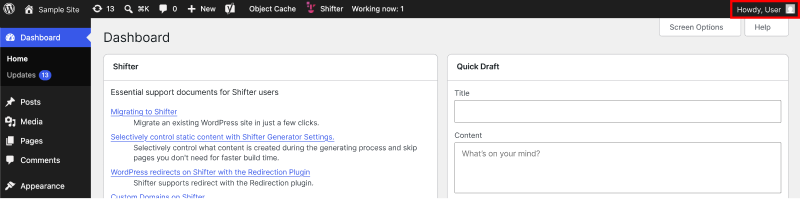
- The scope of actions available to a user who logs in via a Magic Link is determined by the permissions of the WordPress user they are logged in as.
This concludes our guide on how to share access to the WordPress admin dashboard using the Magic Link feature.