
This guide covers the following topics:
- Enabling Algolia
- Launching WordPress and Configuring the Plugin
- Getting Started with the Shifter Algolia Search Block
- Setting Up Deployment and Indexing with Algolia
- Testing the Functionality
- How-To Video
Enabling Algolia
-
Log in to the Shifter Dashboard and select the site where you want to add search.
-
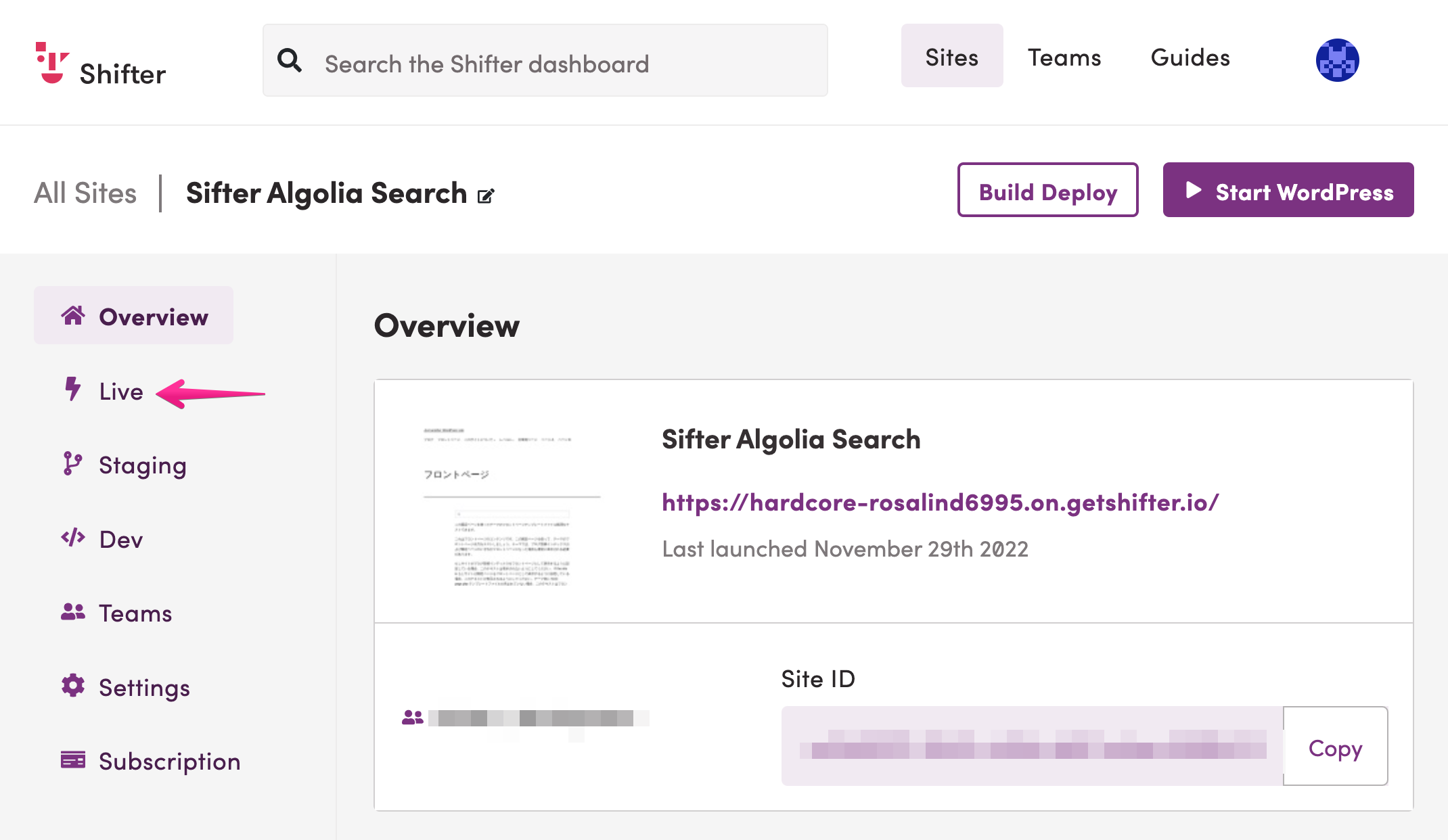
Click “Live” in the left-hand menu.
-
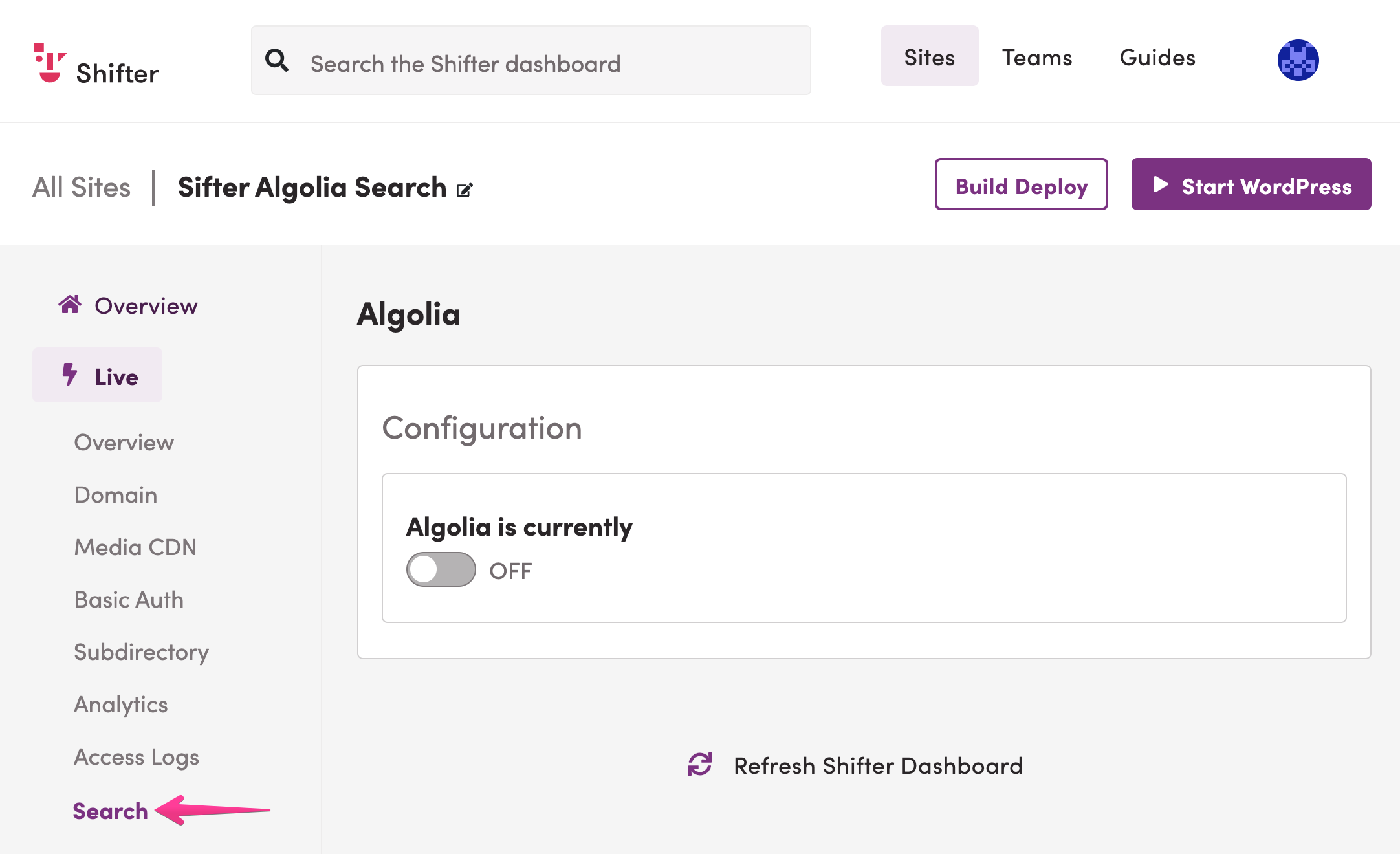
Click “Search” from the submenu.
-
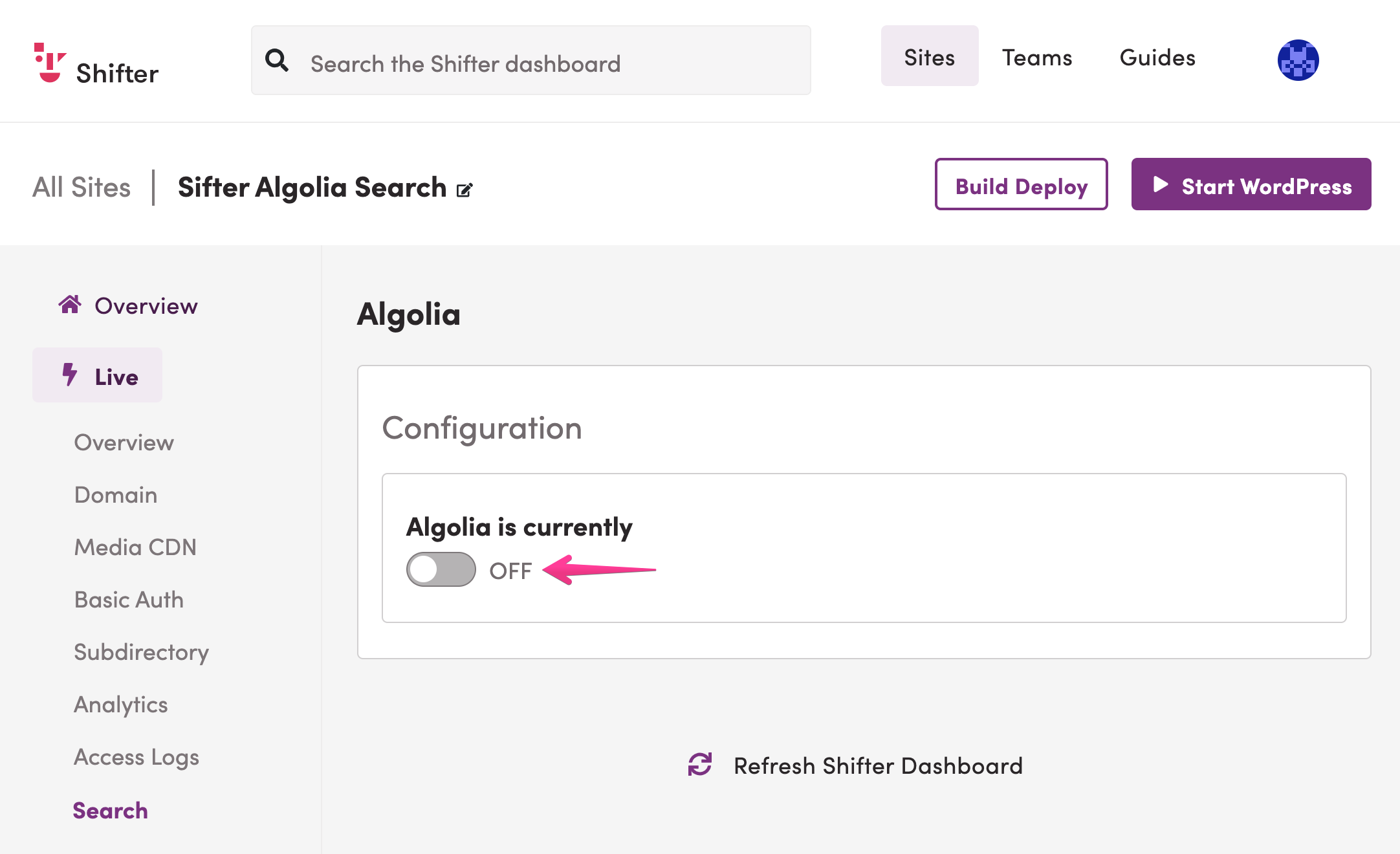
Here, you can click the toggle switch to enable or disable search.
-
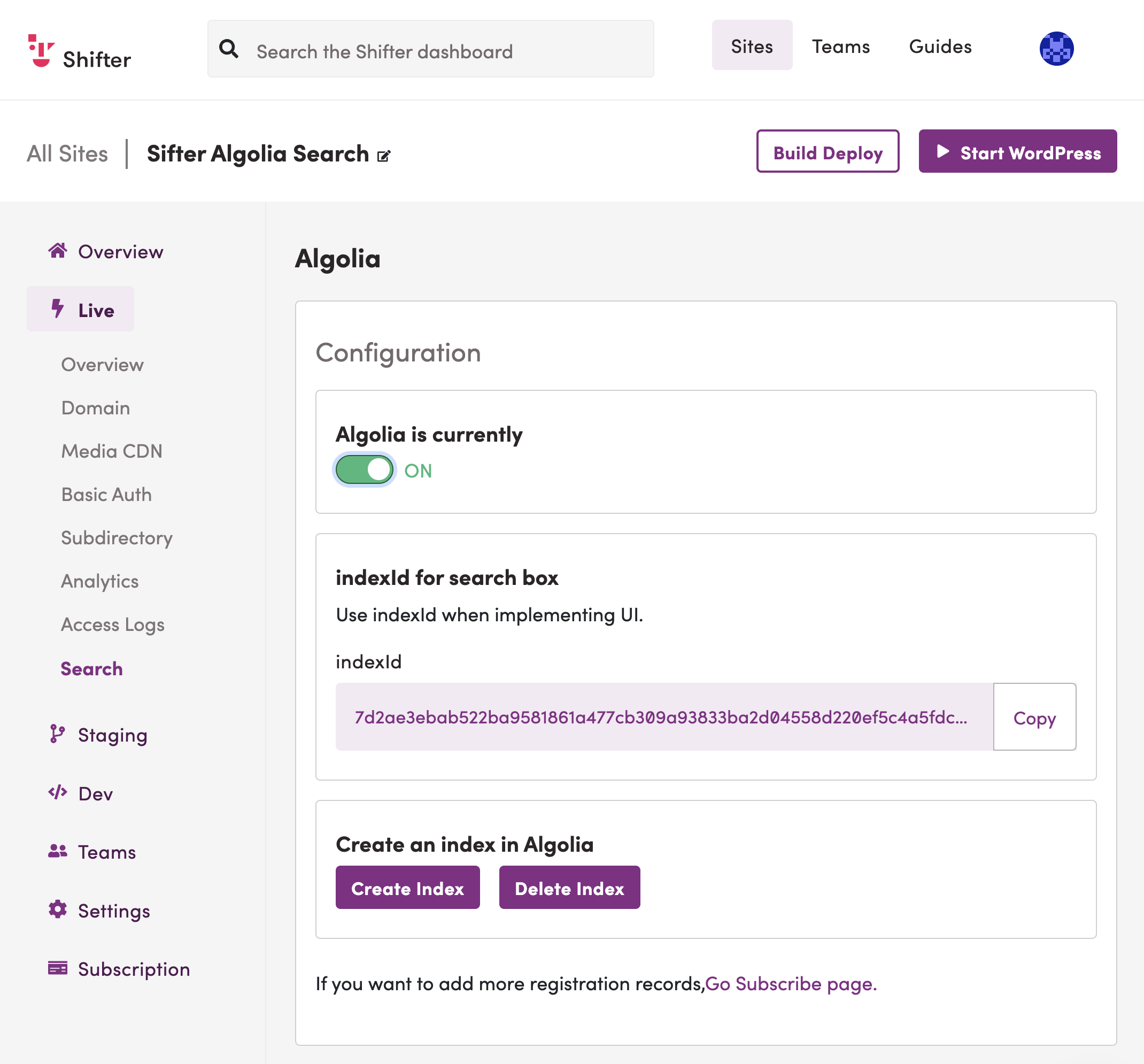
This enables search, and it should appear as shown below.
WordPress Setup and Plugin Configuration
-
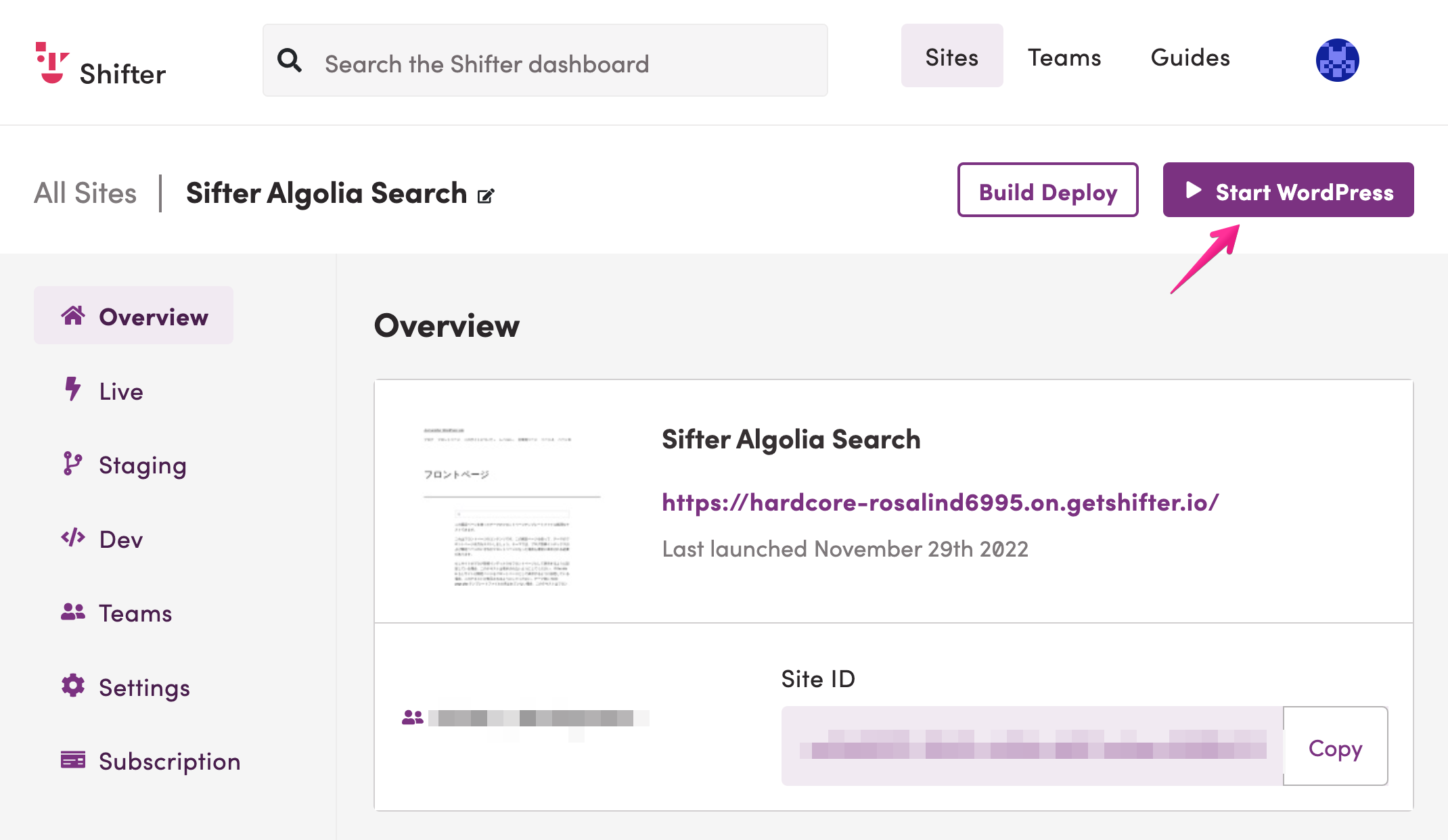
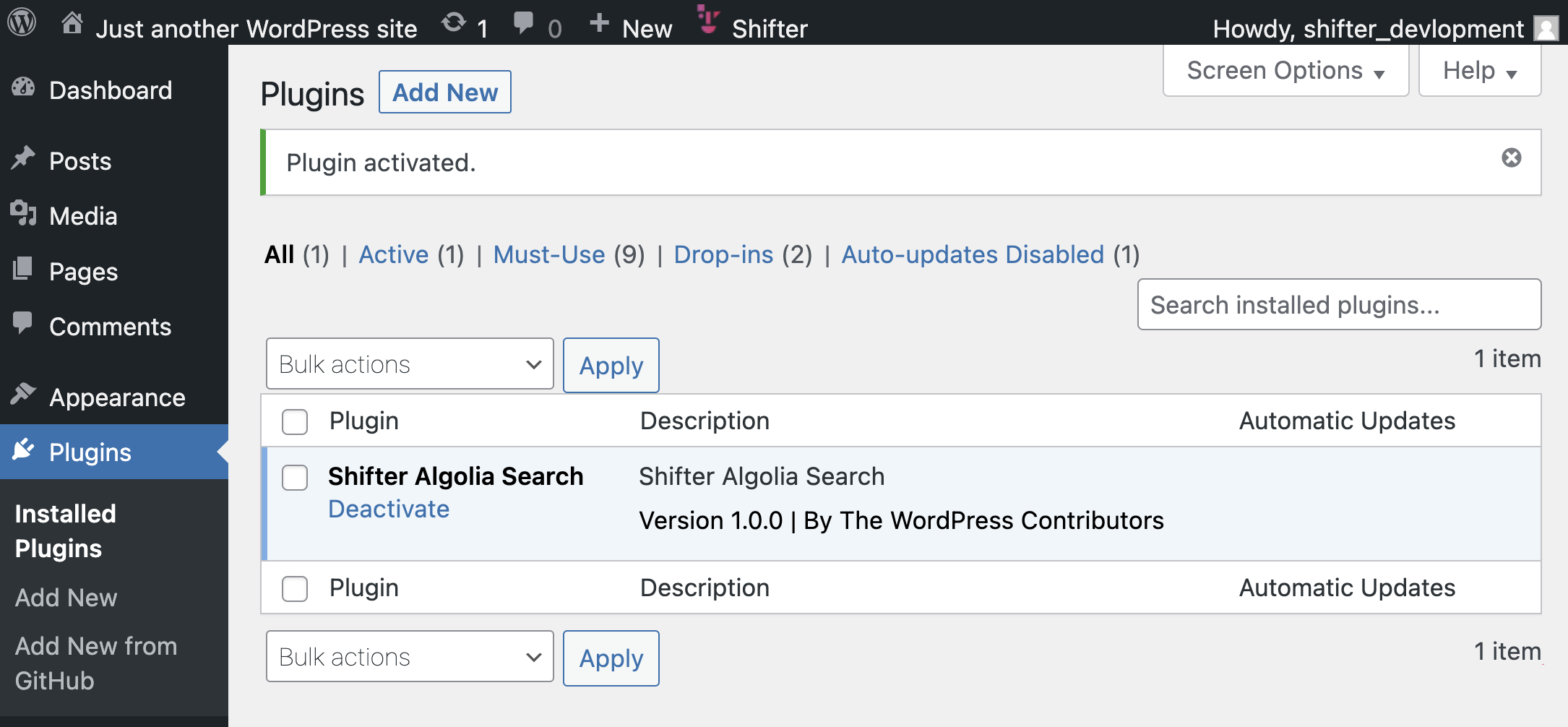
Launch WordPress, go to the Plugins page, and activate “Shifter Algolia Search.”
Adding the Shifter Algolia Block
-
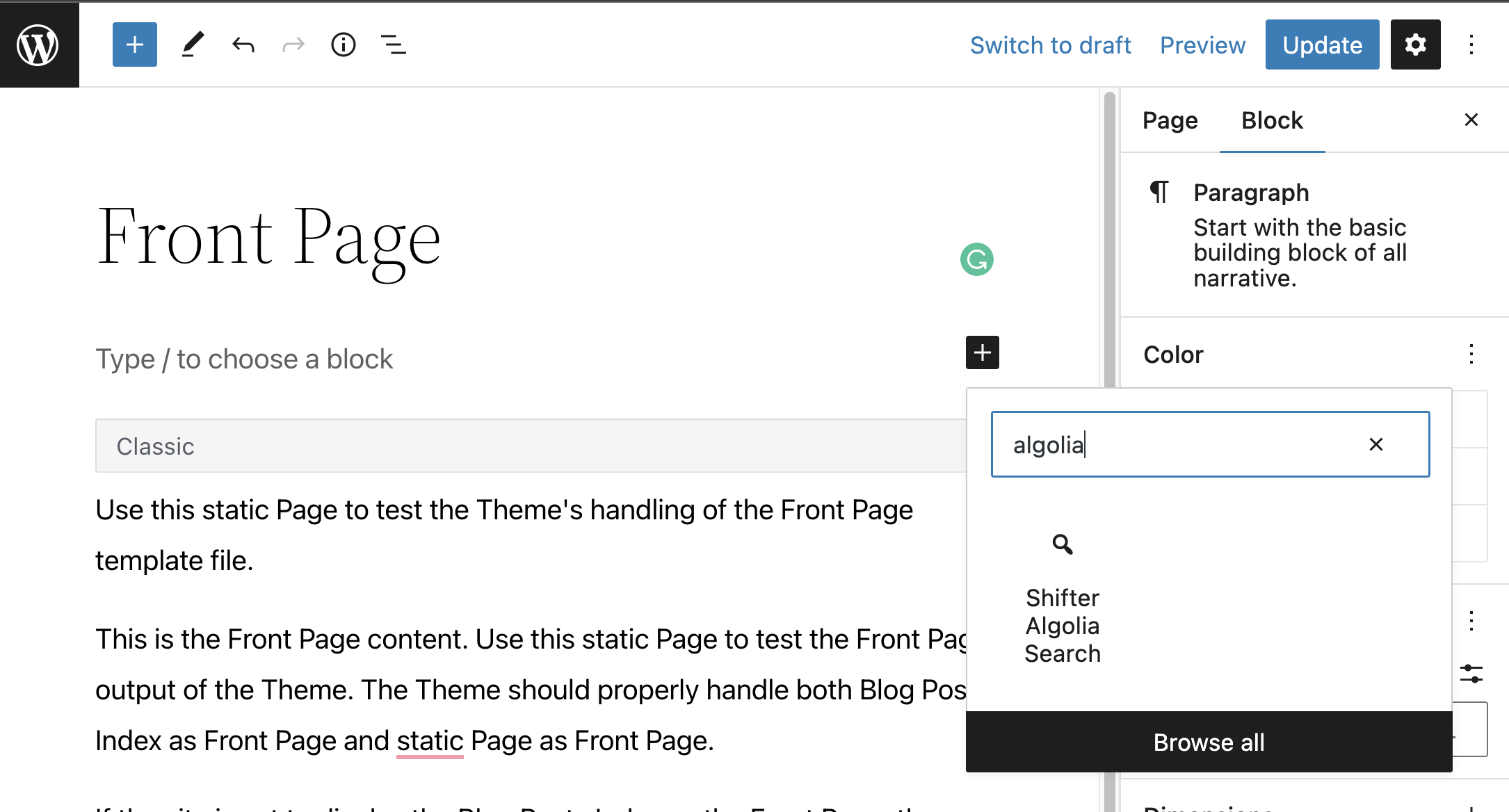
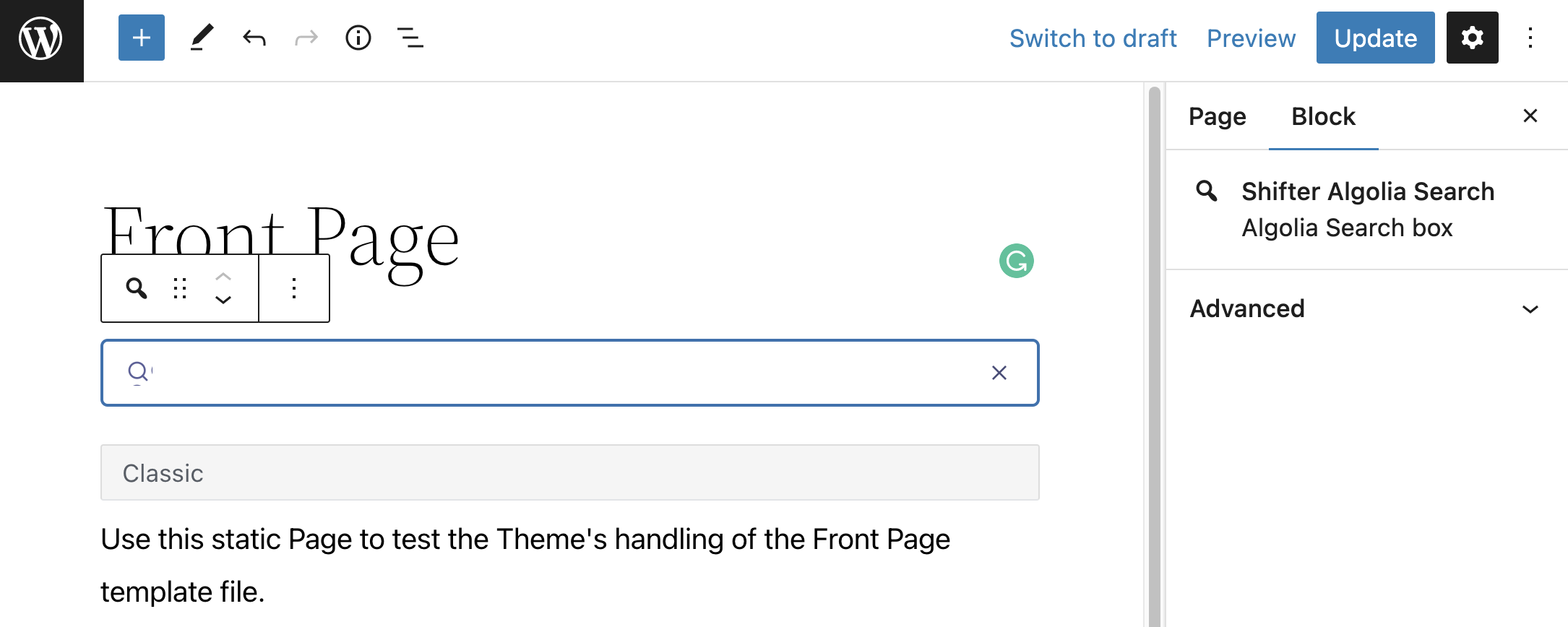
Start editing your site and add the “Shifter Algolia Search” block.
-
Search for “Algolia” in the block menu, and you should find the block.
Building the Deployment and Creating the Algolia Index
-
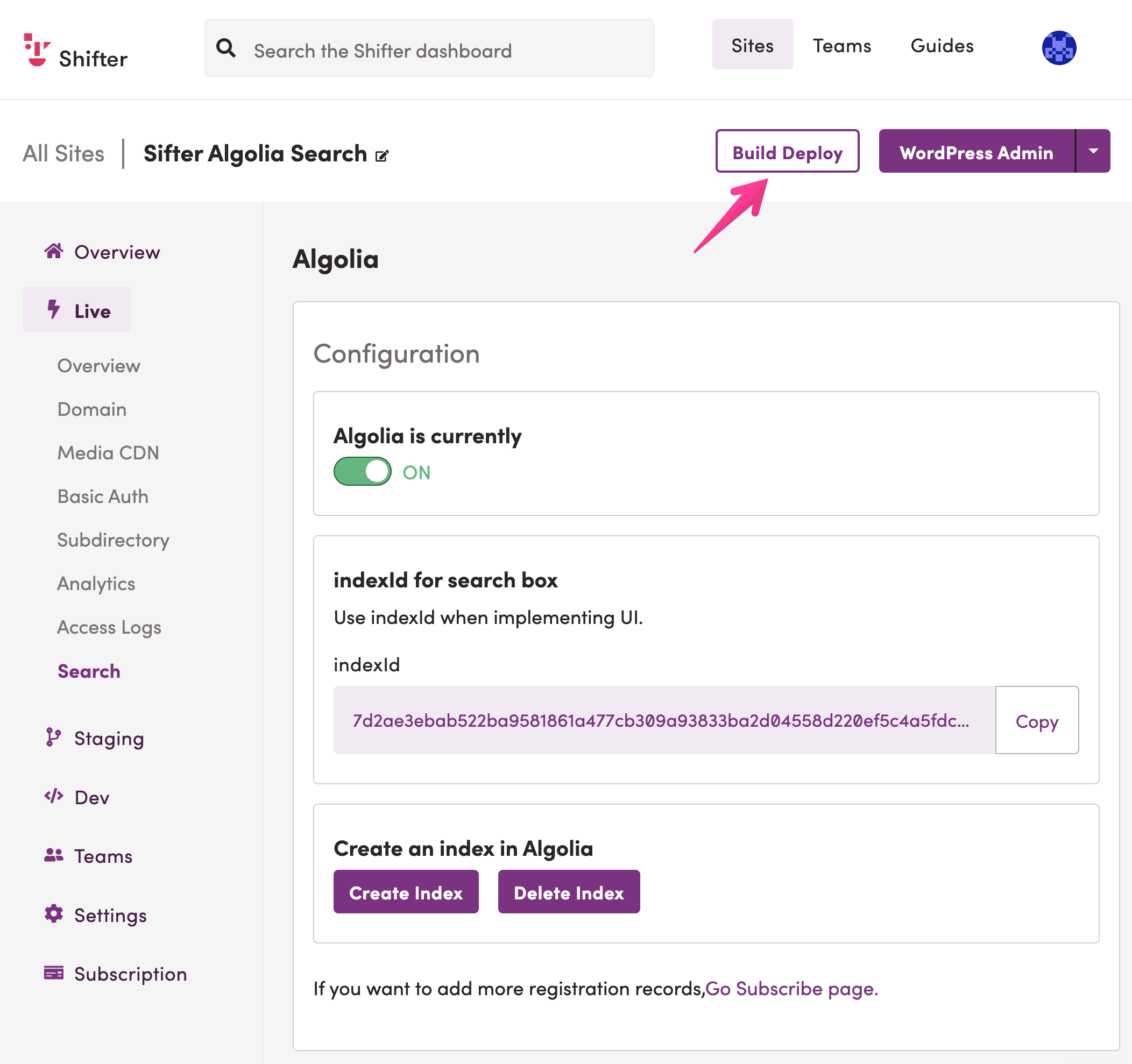
Once you’ve added the block, return to the Shifter dashboard, stop WordPress, and build the deployment.
-
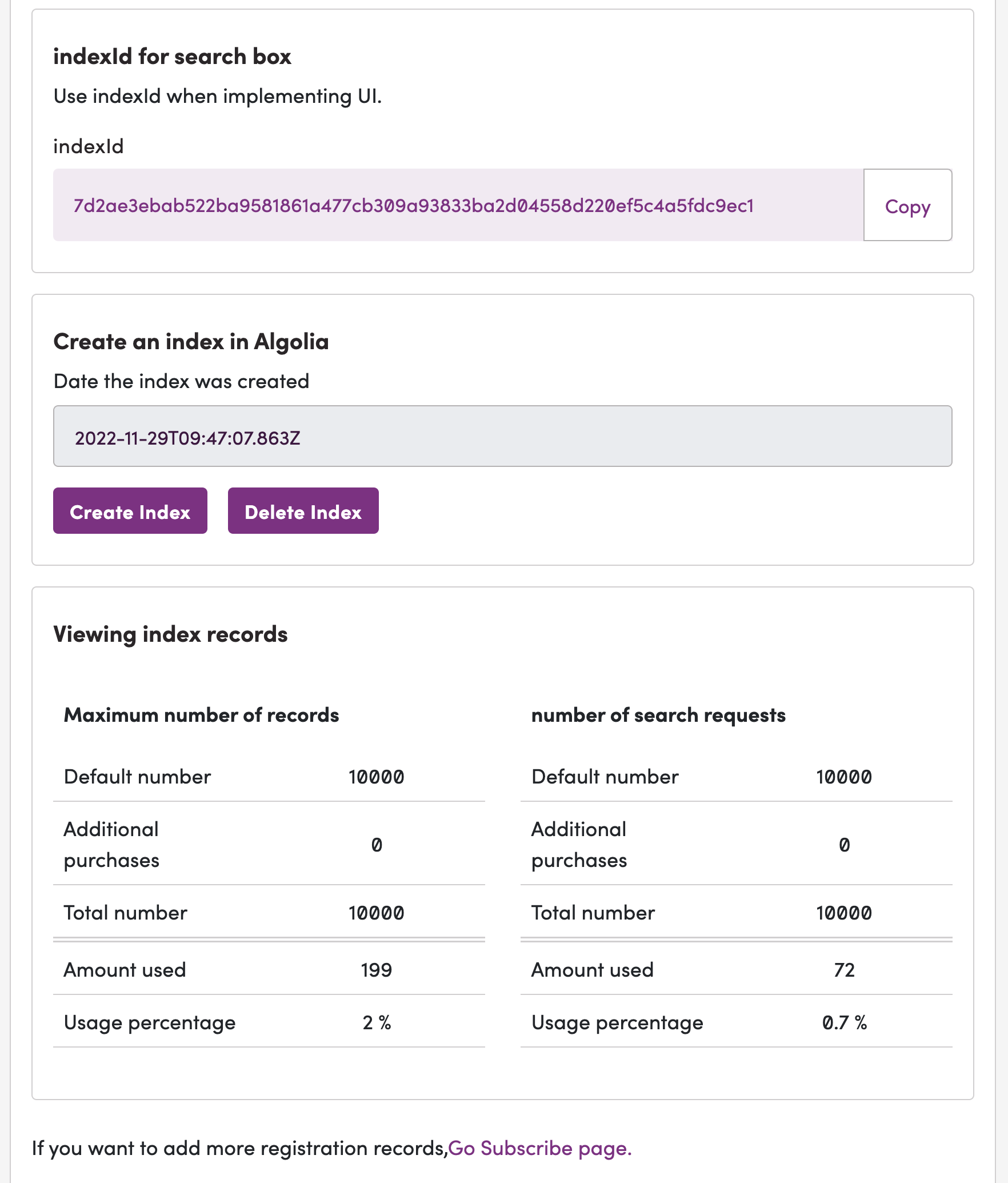
Your site’s Algolia search index will be created automatically after the deployment is built. If it doesn’t create automatically after a short wait, you can click the “Create Index” button to create it.
Testing
-
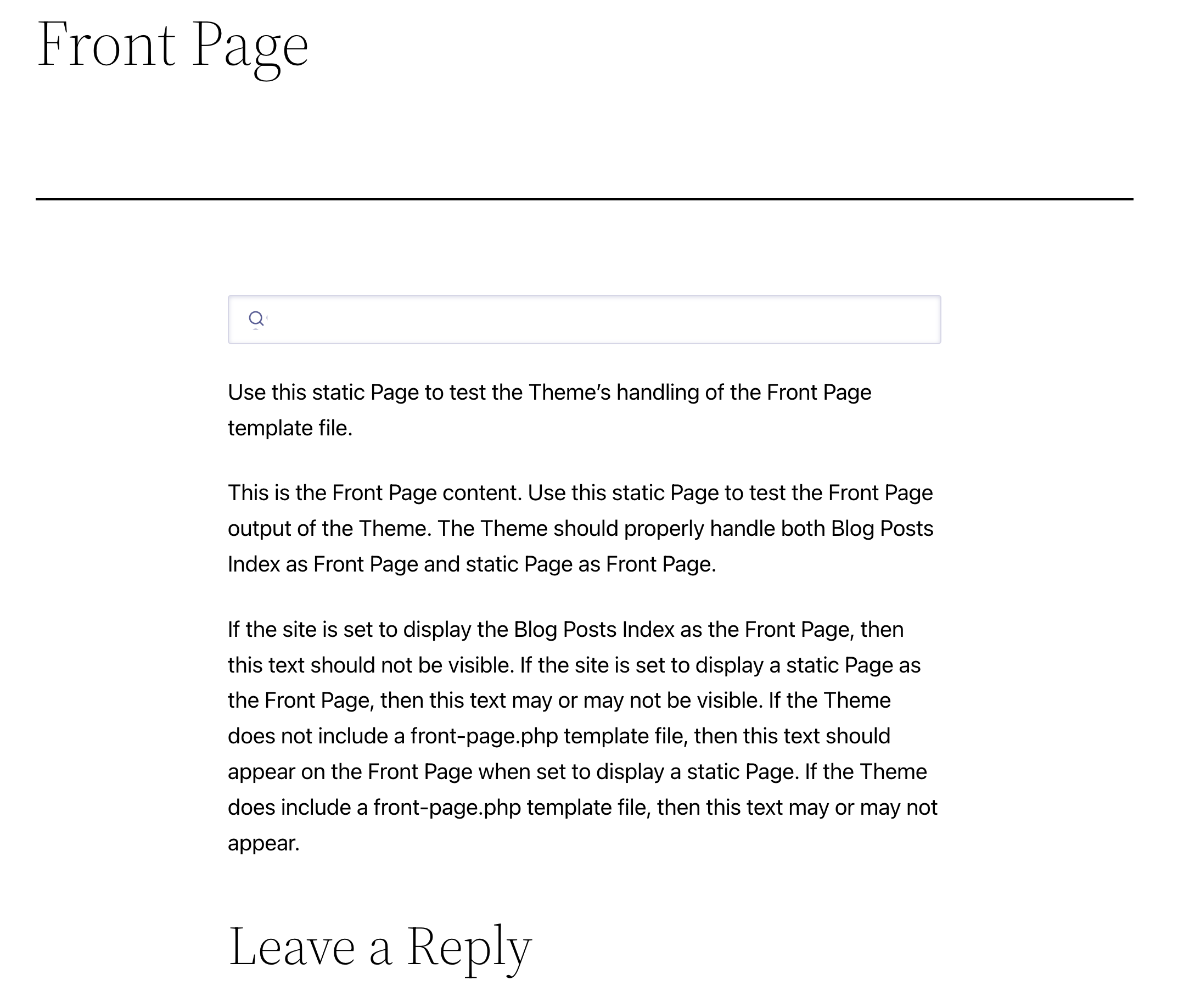
On the staging or live site, navigate to a page that contains the Algolia block.
-
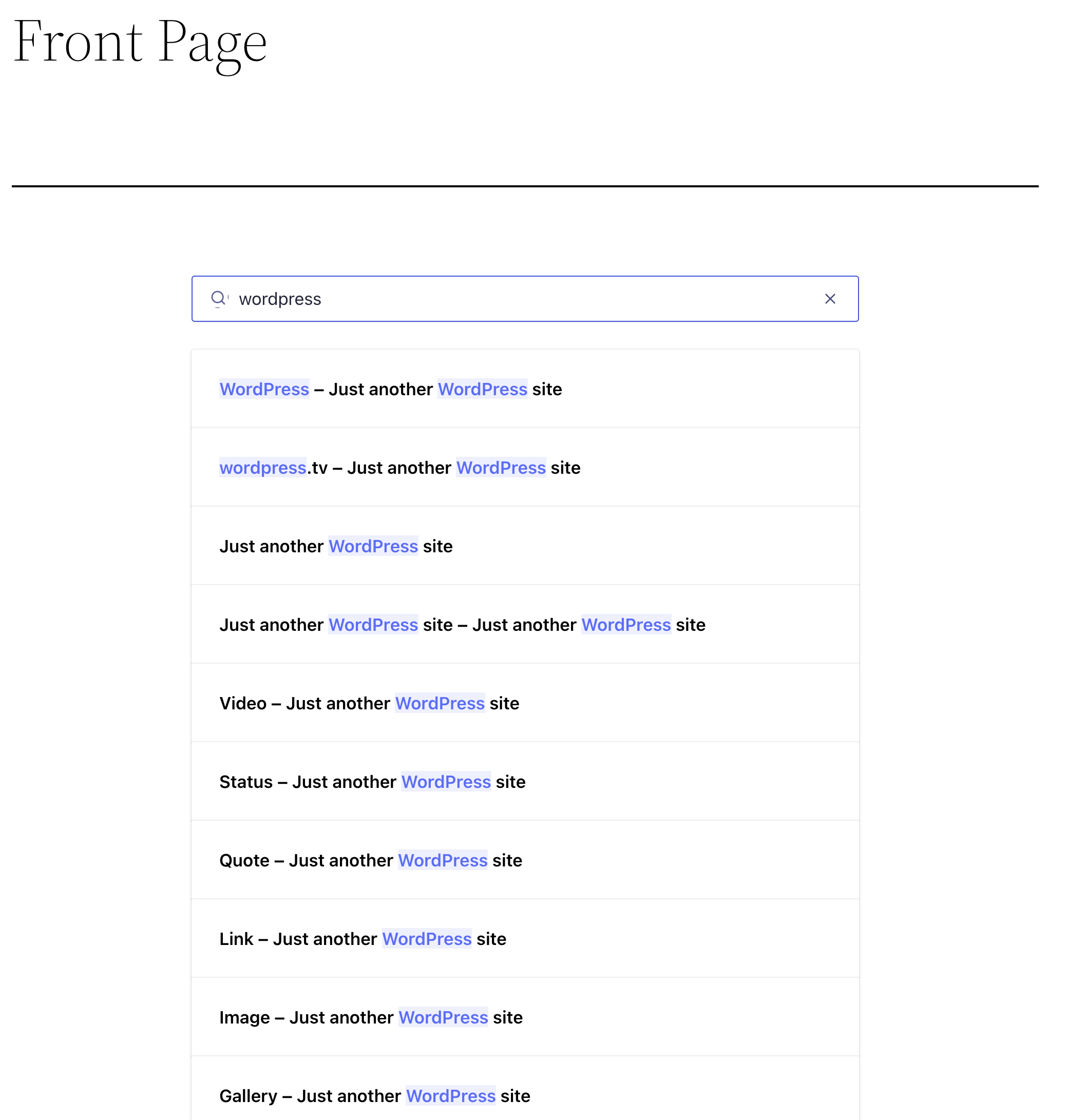
Start typing in the search bar, and results will appear in real time as you type. Clicking a search result will take you to that page.
This completes the configuration of Shifter for Algolia Search. Search should now be working on your site.