Requirements: Access key, redirect page (optional)
Getting Started
Create an access key
Go to https://www.staticforms.xyz,
enter your email address, and obtain an access key.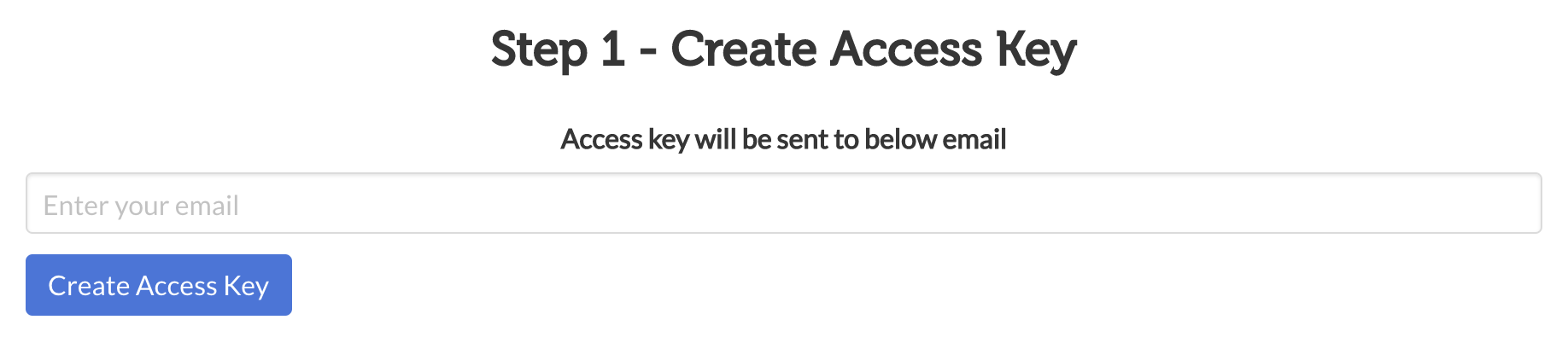
Create a form
Simply copy the sample form from the site and make any necessary changes. (Do not change the form’s
actionattribute.)<form action="https://api.staticforms.xyz/submit" method="post">
<!-- Replace with the access key sent to your email -->
<input type="hidden" name="accessKey" value="e44fc5d0-0b52-4cb1-9f79-fefc3800d89c">
<!-- Required -->
<input type="text" name="name">
<!-- Optional -->
<input type="text" name="subject">
<!-- Optional -->
<input type="text" name="email">
<!-- Optional -->
<input type="text" name="phone">
<!-- Optional -->
<textarea name="message"></textarea>
<!-- Optional -->
<!-- To set a specific email address for replyTo -->
<input type="text" name="replyTo" value="myreplytoemail@example.com">
<!-- Optional -->
<!-- To use the customer’s email address as the replyTo value, specify @ -->
<input type="hidden" name="replyTo" value="@">
<!-- Optional -->
<!-- To redirect to a specific URL after form submission -->
<input type="hidden" name="redirectTo" value="https://example.com/contact/success">
<!-- Optional -->
<input type="submit" value="Submit" />
</form>Replace the sample access key with your own
Example: change <input type=”hidden” name=”accessKey” value=”e44fc5d0-0b52-4cb1-9f79-fefc3800d89c”> to <input type=”hidden” name=”accessKey” value=”YOUR-STATICFORM-ACCESSKEY”>
Edit “ReplyTo” to use your own (optional)
Sample:
<input type="text" name="replyTo" value="myreplytoemail@example.com">
to
<input type="text" name="replyTo" value="hello@example.com">Edit the redirect (optional)
The value of `redirectTo`must be your website’s URL.Example:
<input type="hidden" name="redirectTo" value="https://example.com/contact/success"> <!-- Optional -->
to
<input type="hidden" name="redirectTo" value="https://abc-123-def-456.on.getshifter.io/thank-you"> <!-- Optional -->Modified form code:
<form action="https://api.staticforms.xyz/submit" method="post">
    <input type="hidden" name="accessKey" value="YOUR-STATICFORM-ACCESSKEY">
    <!-- Required -->
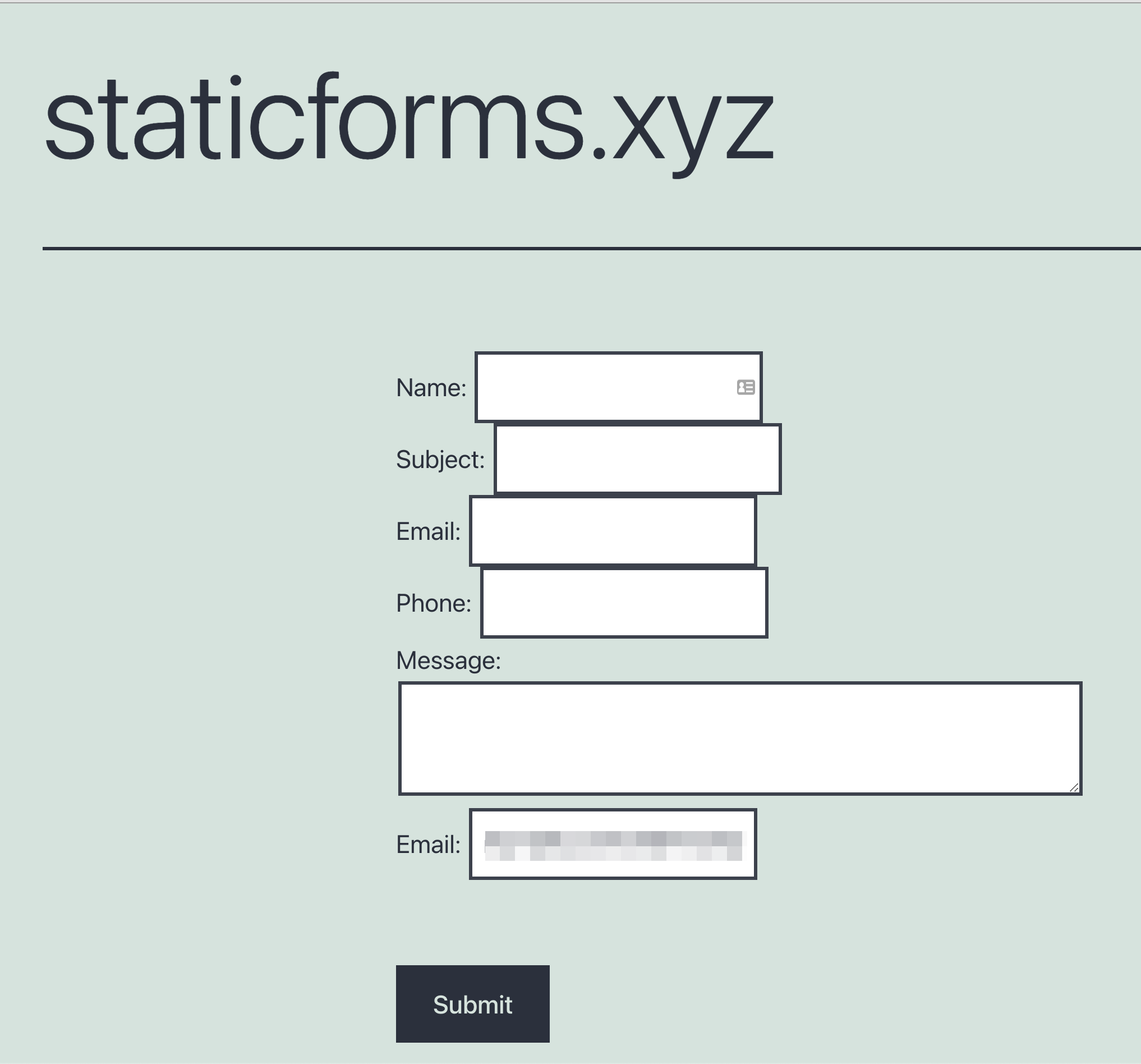
    Name: <input type="text" name="name"> <br/>
    Subject: <input type="text" name="subject"> <br/>
    Email: <input type="text" name="email"> <br/>
    Phone: <input type="text" name="phone"> <br/>
    Message: <textarea name="message"></textarea> <br/>
    Email: <input type="text" name="replyTo" value="hello@example.com"> <br/>
    <input type="hidden" name="replyTo" value="@"> <br/>
    <input type="hidden" name="redirectTo" value="https://example.com/thank-you">
    <input type="submit" value="Submit" />
    <input type="text" name="honeypot" style="display: none;">
</form>
Launch WordPress from the Shifter Dashboard
Return to the Shifter dashboard and click the [Start
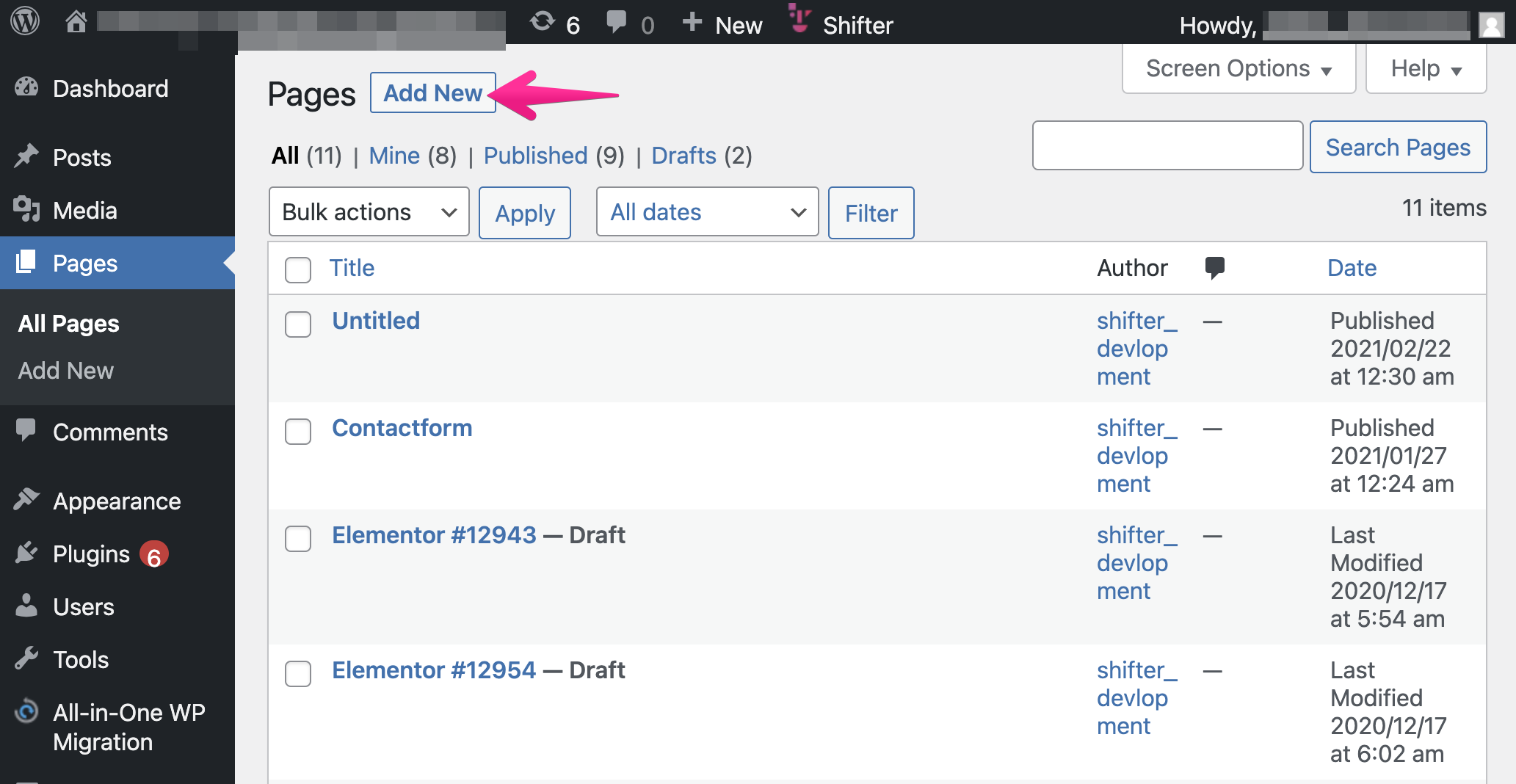
WordPress] button.Create a new page to embed the code
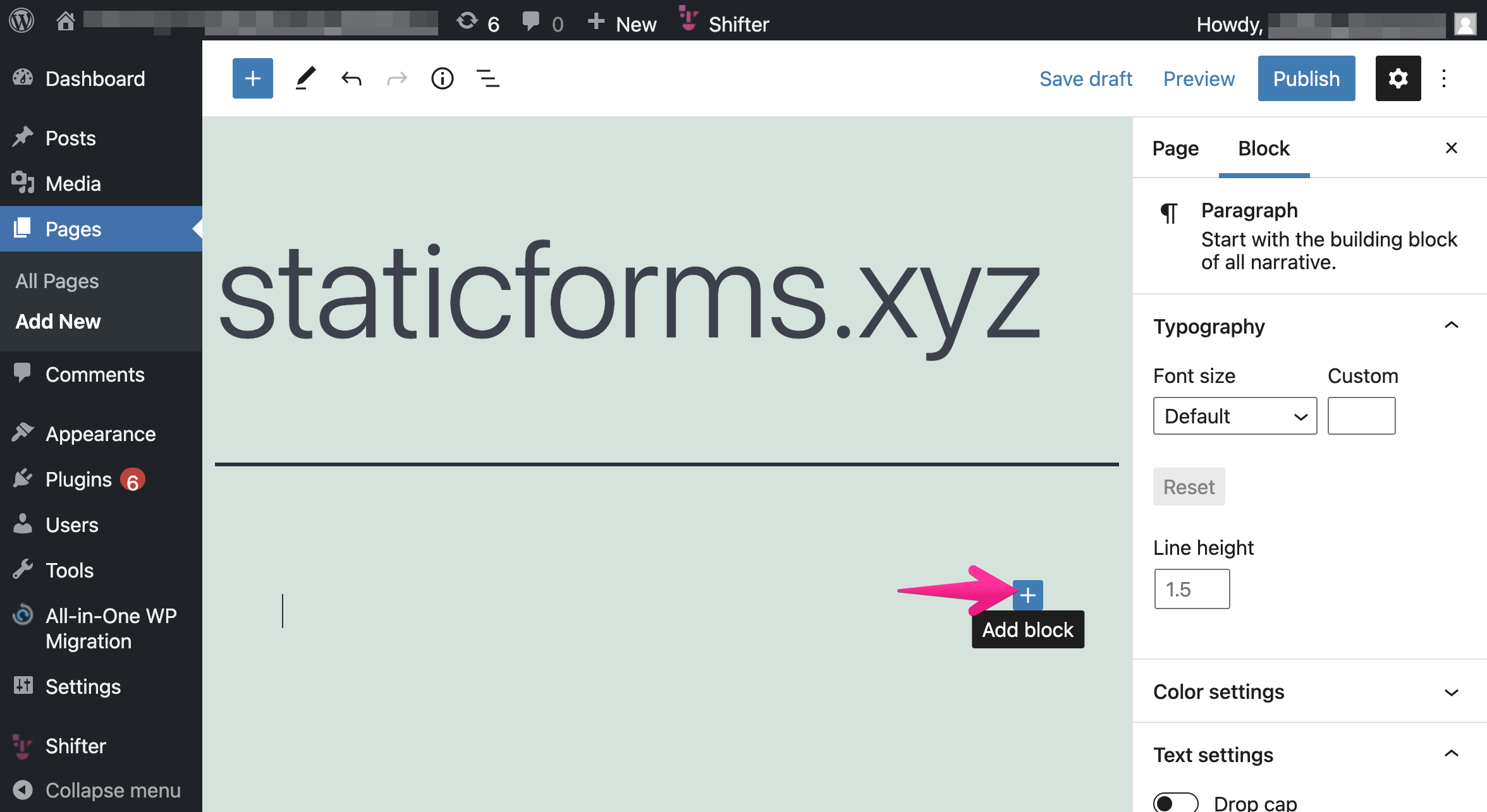
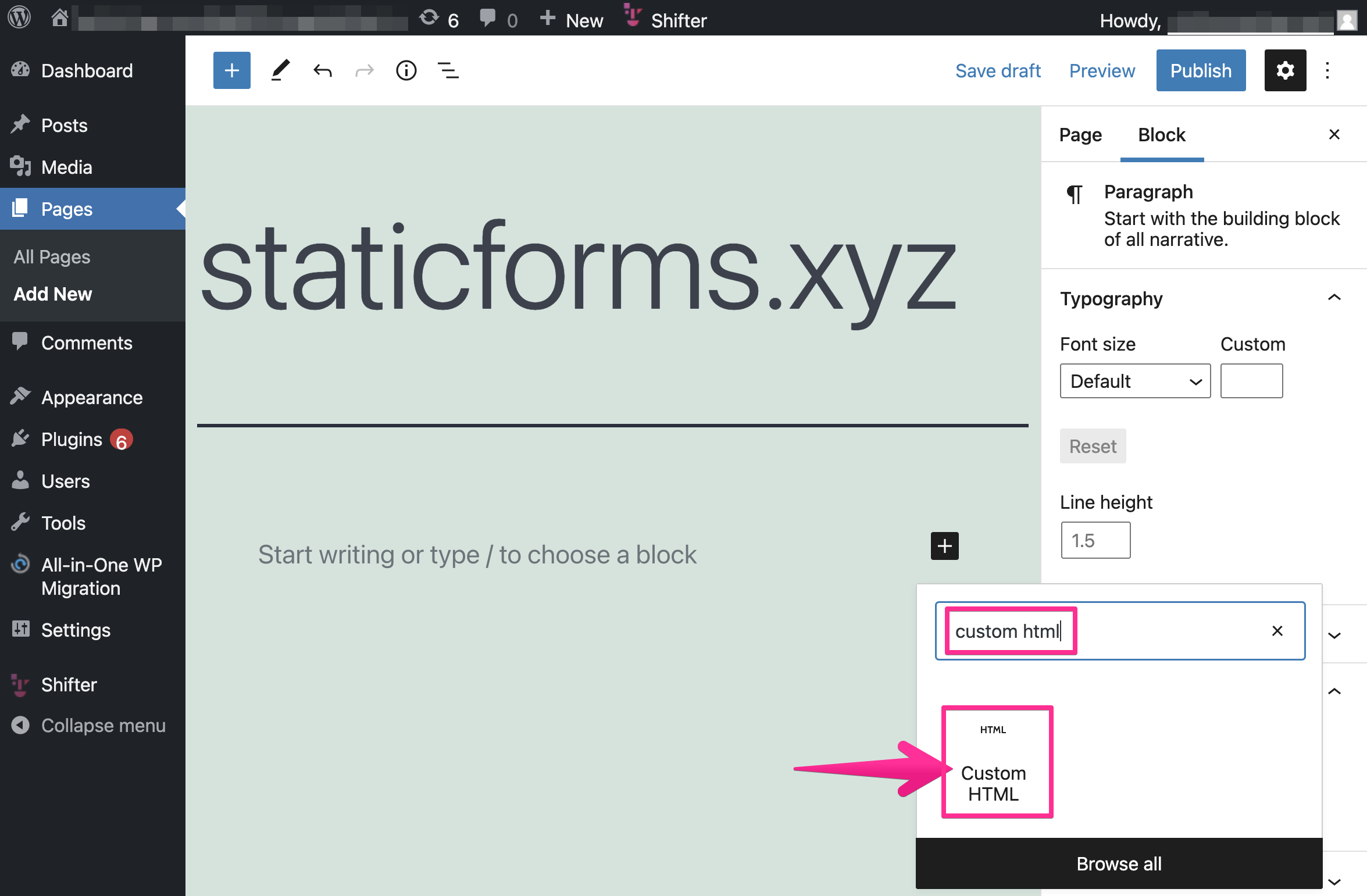
Add a block
Select “Custom HTML”
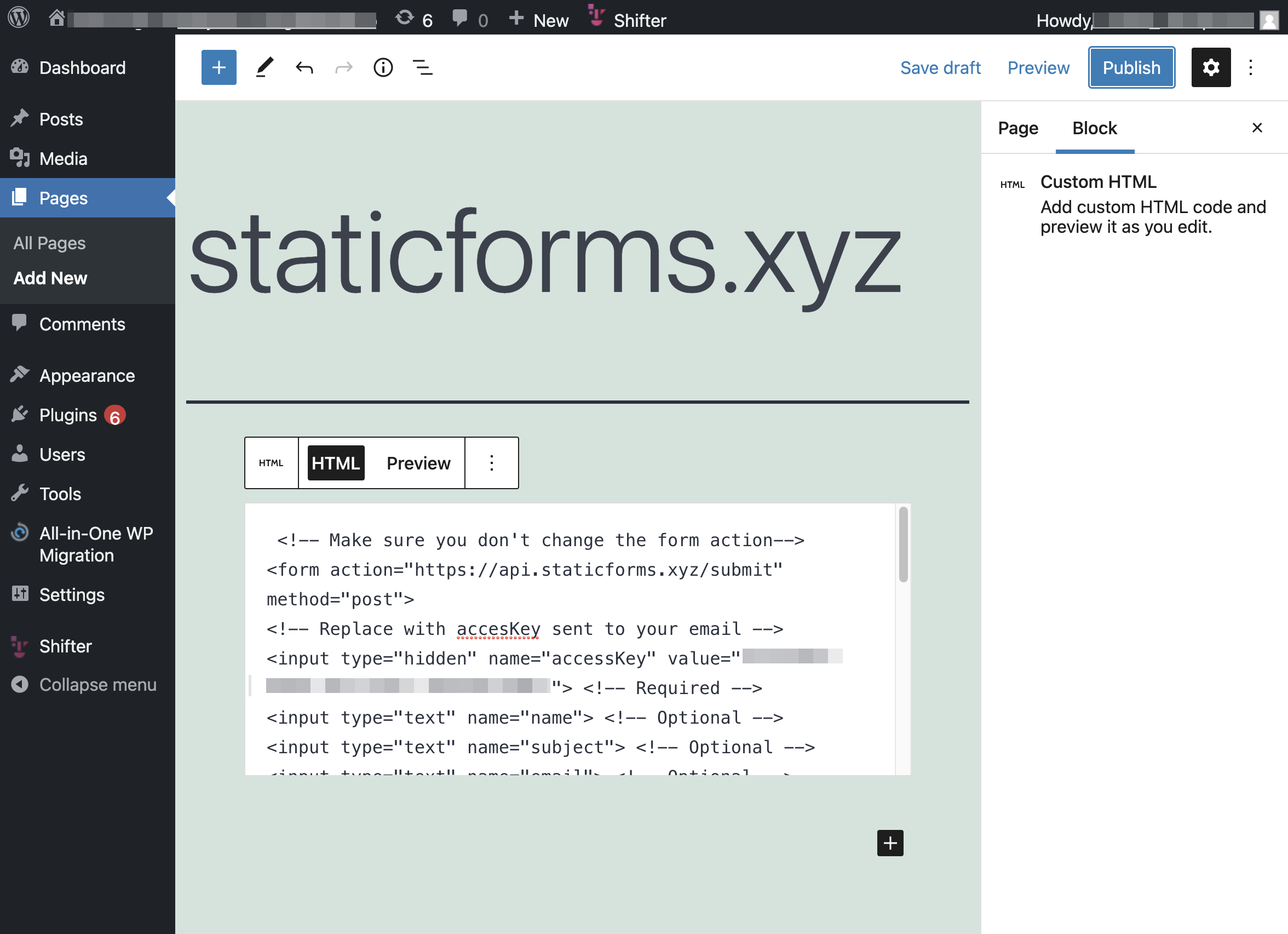
Paste the code and publish
Generate and publish the artifact
Return to the Shifter dashboard and click the [Generate] button.
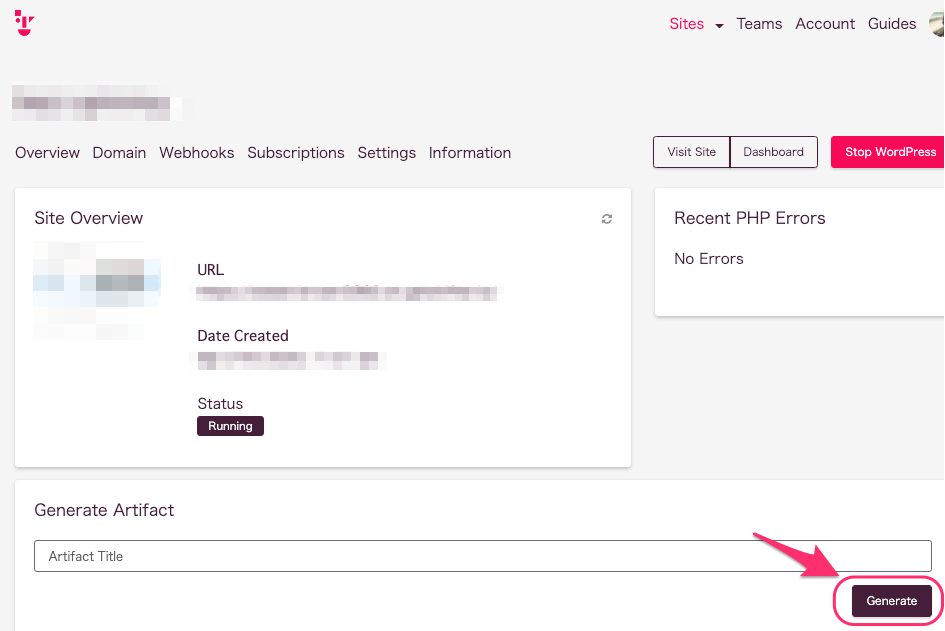
If desired, you can add notes to each artifact to document your changes.
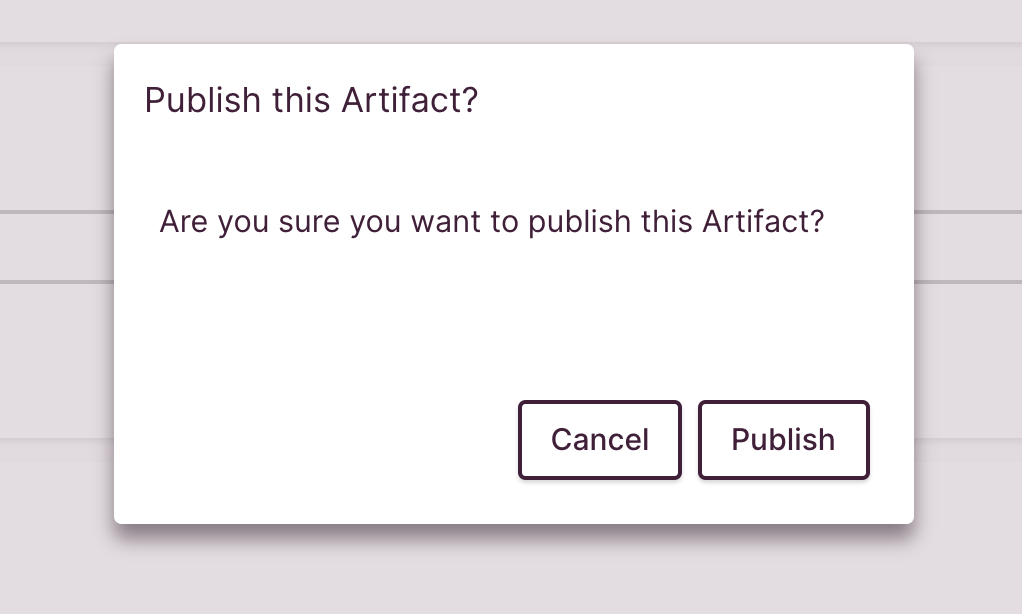
Publish!
Automatic publishing is enabled by default. If this feature is disabled, you can select the newly created artifact and publish it.
Test the form
Access the contact form to test it.
Verify that the redirect works (if configured)

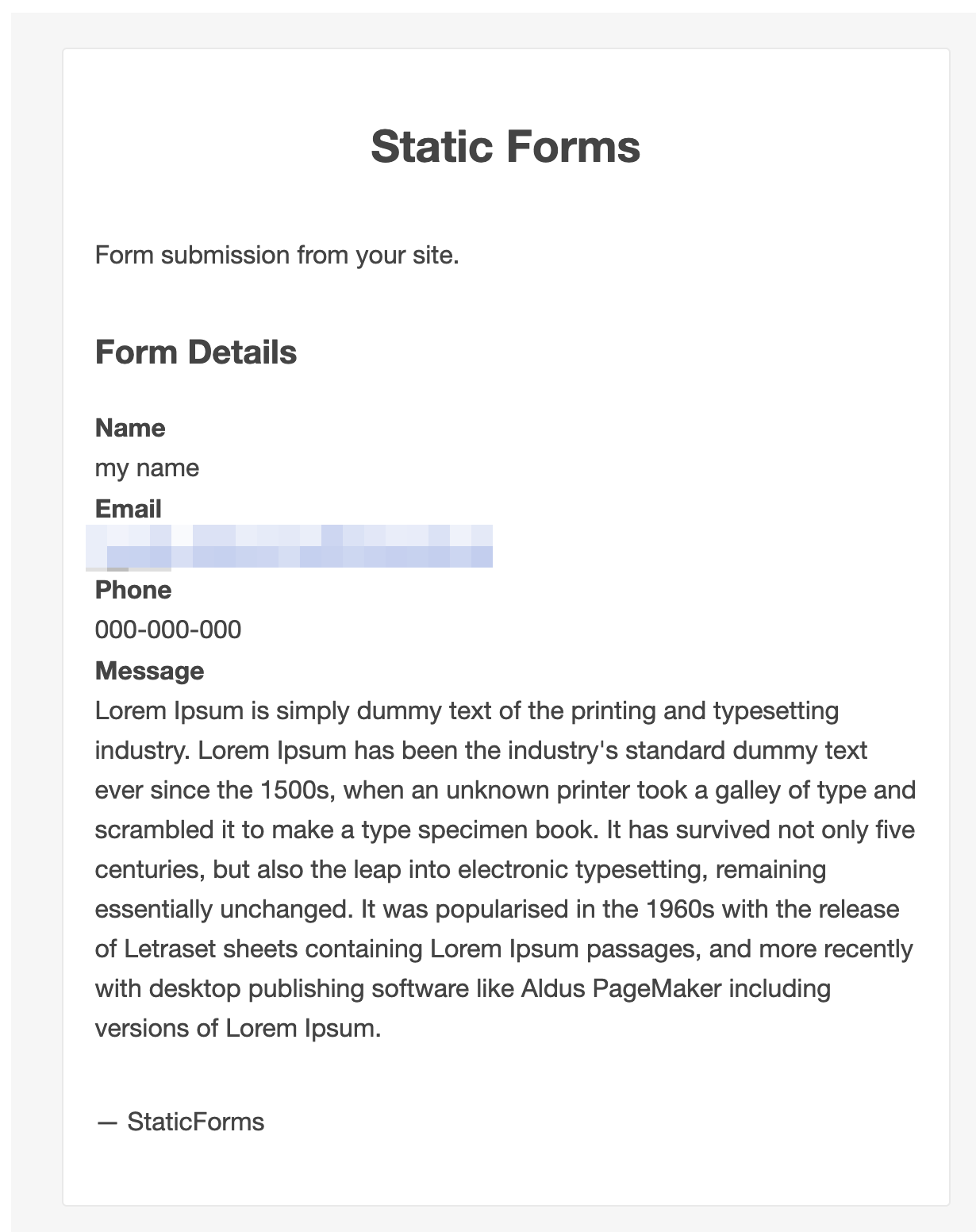
After submitting the form, you’ll receive an email from Staticform (info@staticforms.xyz).