
Here’s how to add a site to an existing team.
Getting Started
- Only the owner of the site you’re adding can add it to a team.
- If you haven’t created a site yet, please refer to the following page to create one.
How to Create and Publish a New Shifter Site
How to Add a Site
If you’ve already created a team, you can easily share a new or existing site with your team members.
Steps
1. Click “Teams.”

2. Click “Open Dashboard” for the team you want to add the site to.
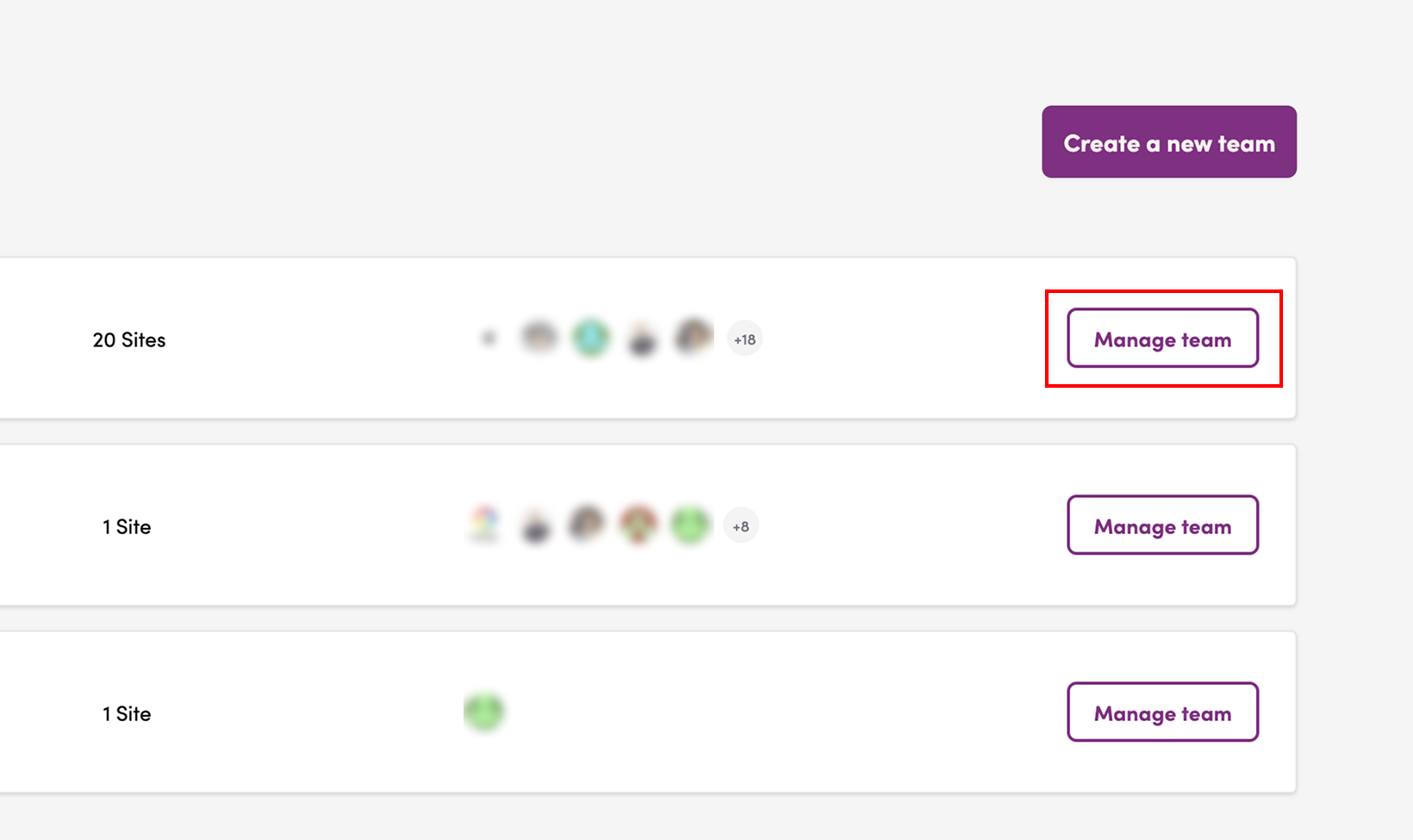
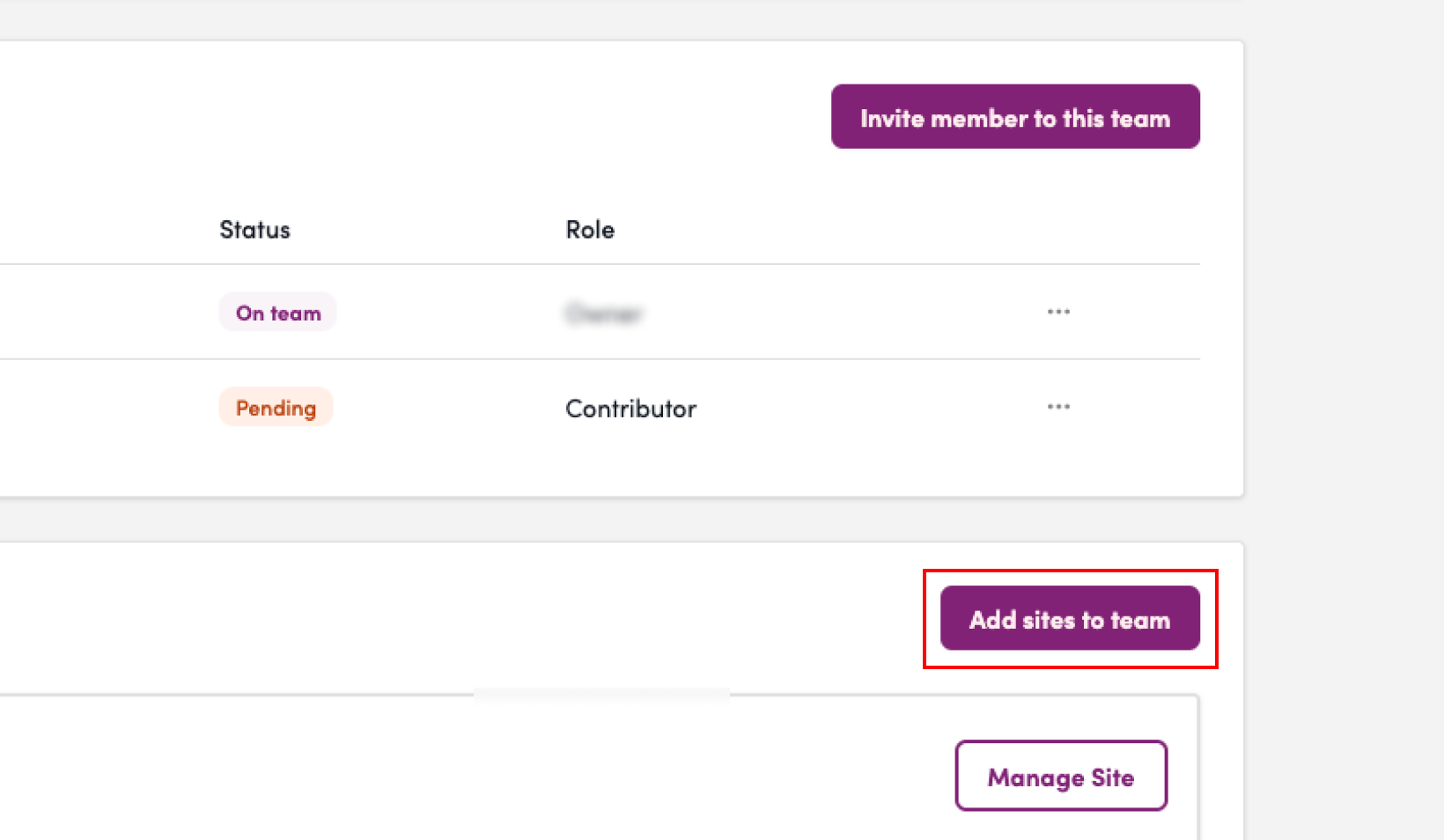
3. Click “Add a Site to the Team.”
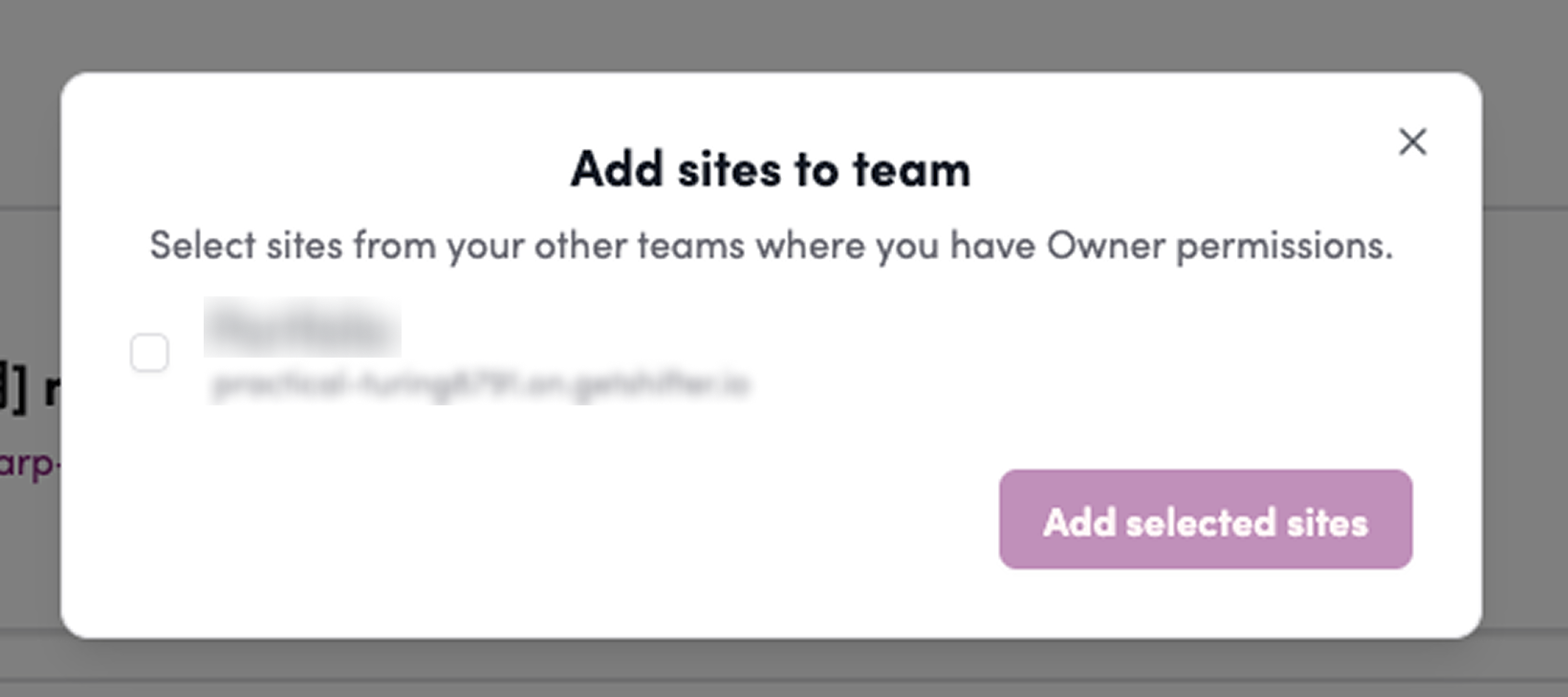
4. Click the site you want to add to select it.
5. Click “Add Selected Site.”
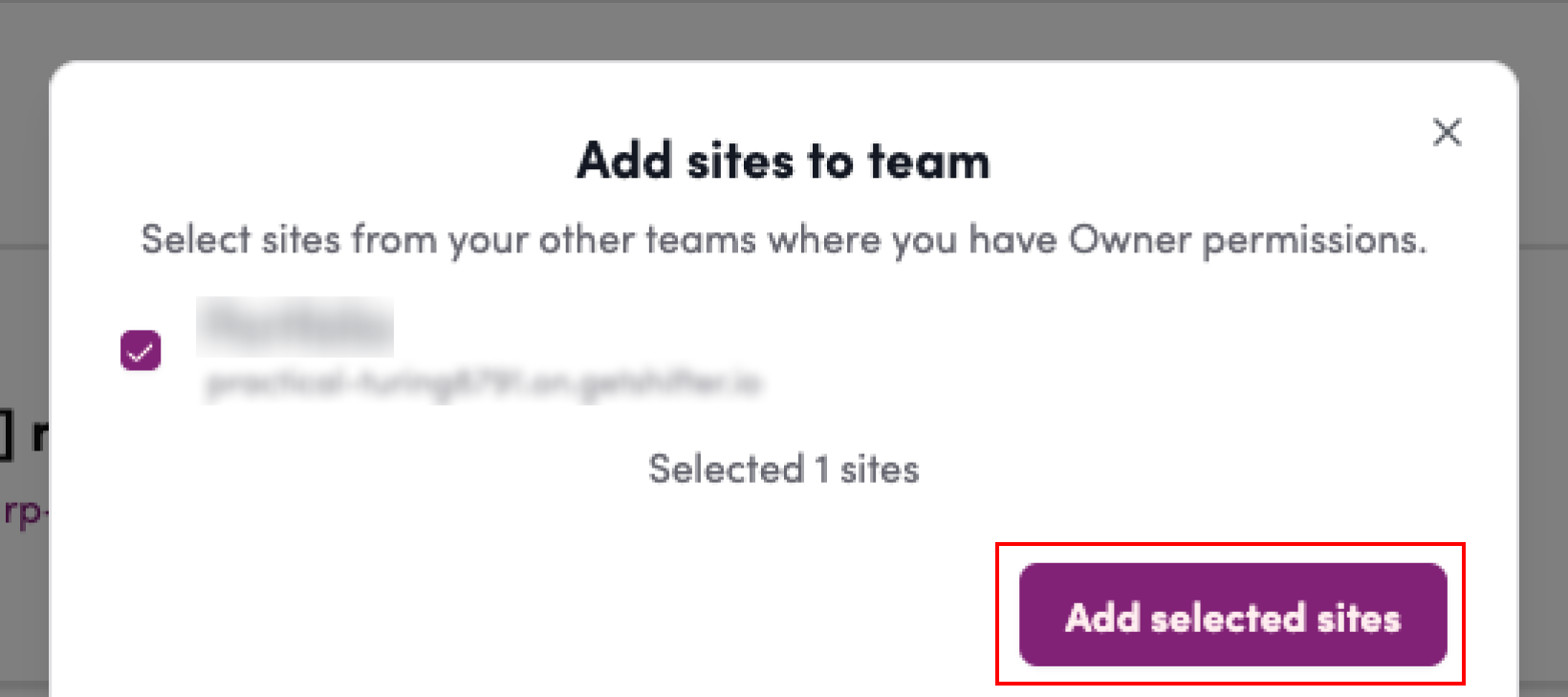
The site has been added.
Notes
- A single site can only be added to one team.
- Please note that if you add a site to a different team, you will no longer be able to share it with members of the team it was originally linked to.