
This article explains how to use Shopify’s Buy Button to embed products on an external site (e.g., WordPress).
Shopify Initial Setup
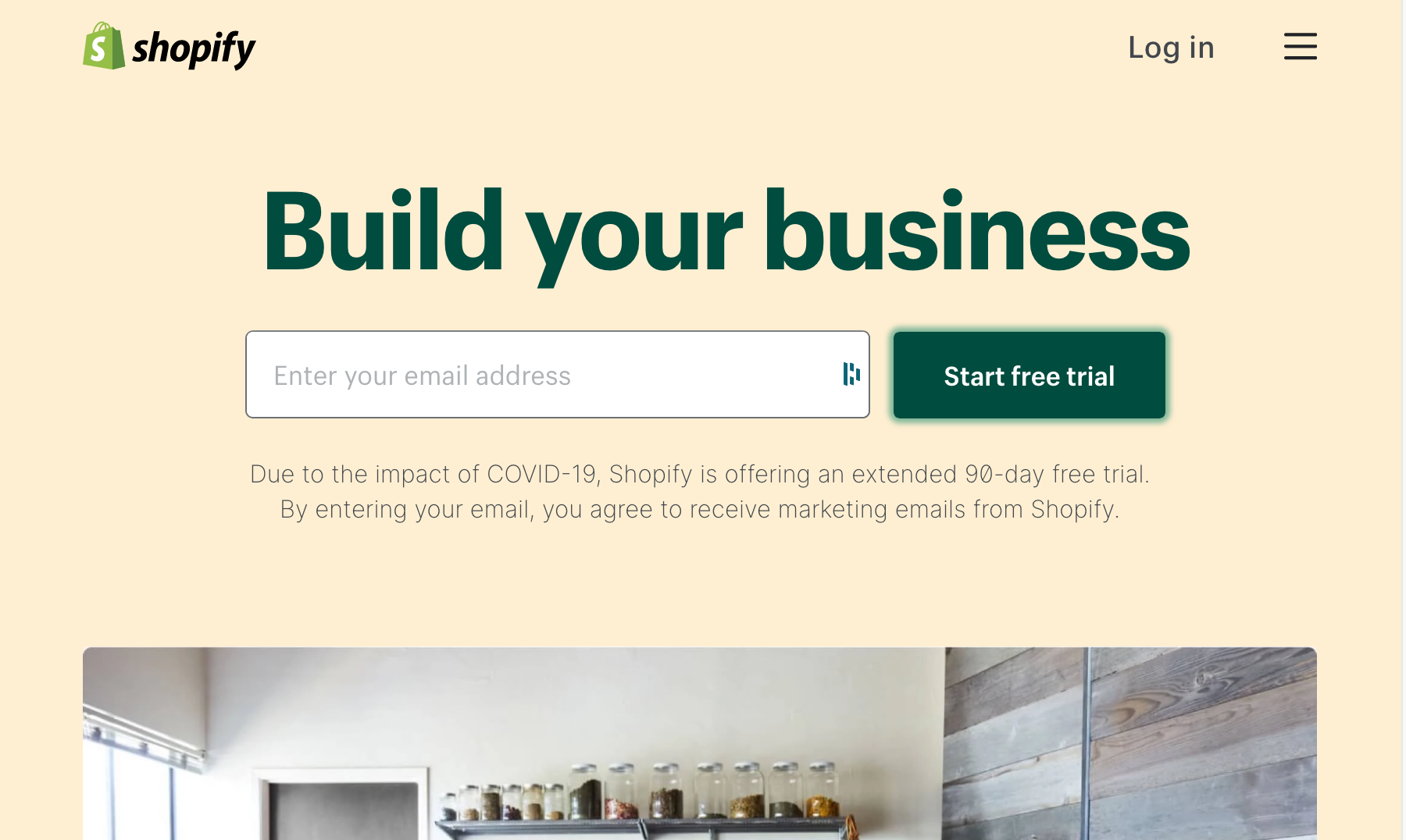
Sign up for Shopify and complete the initial setup.
- Sign up: https://www.shopify.com/
- Complete the initial setup. For more details, refer to Shopify’s
official guide, “Getting Set Up to Start Selling”: Getting set
up to start selling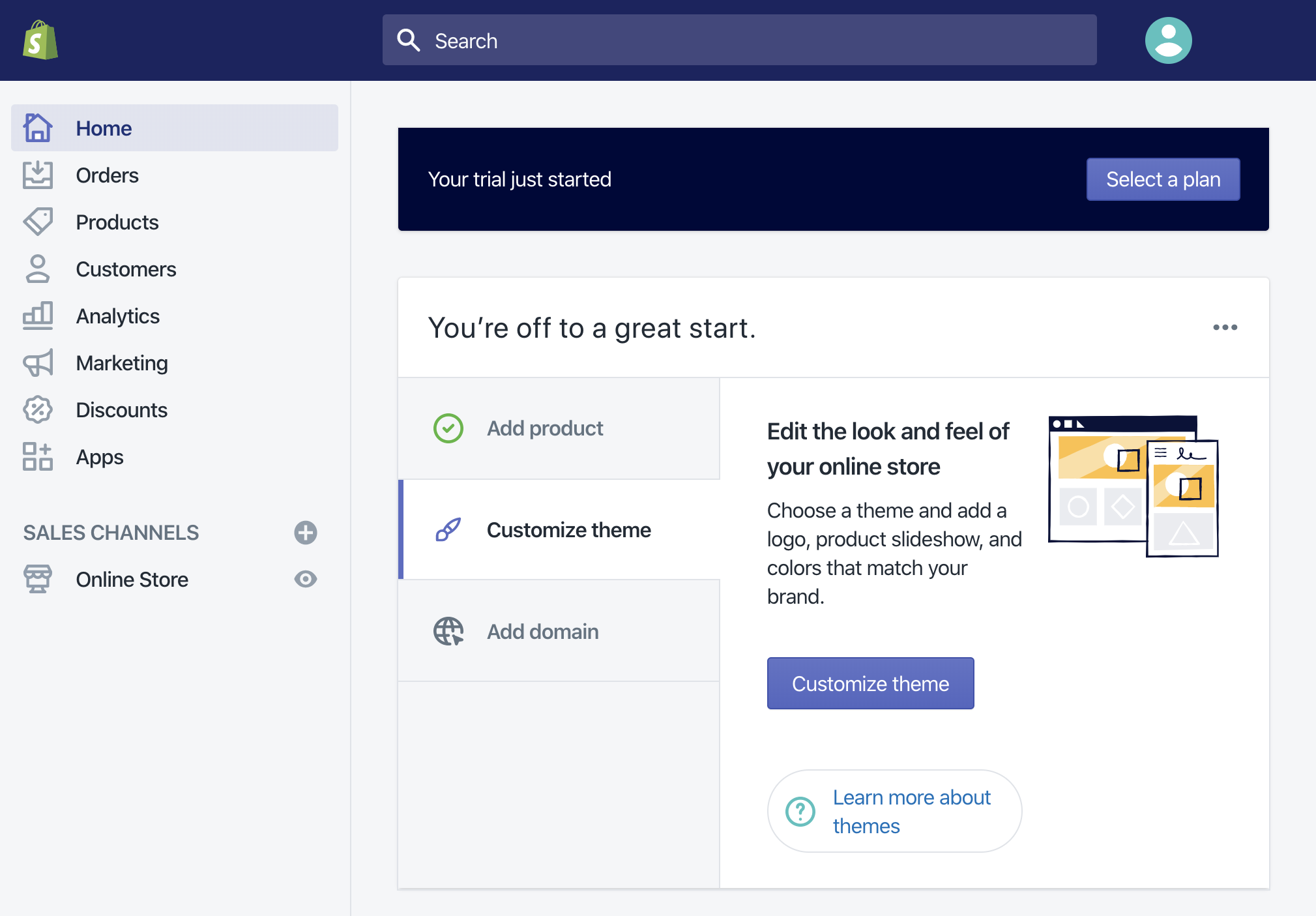
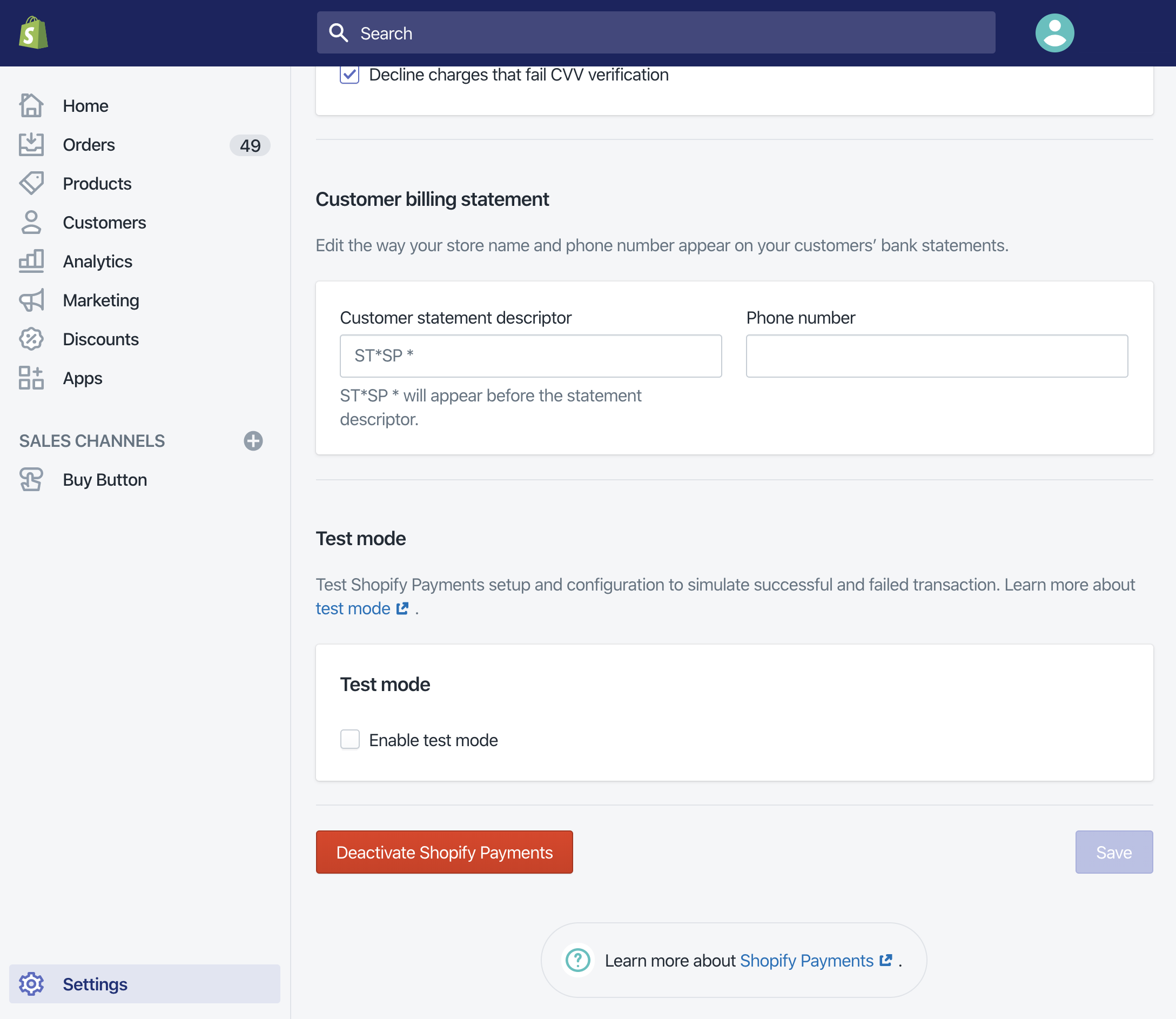
Enable Test Mode
Enabling test mode allows you to verify how the Buy Button
works without actually processing a payment.
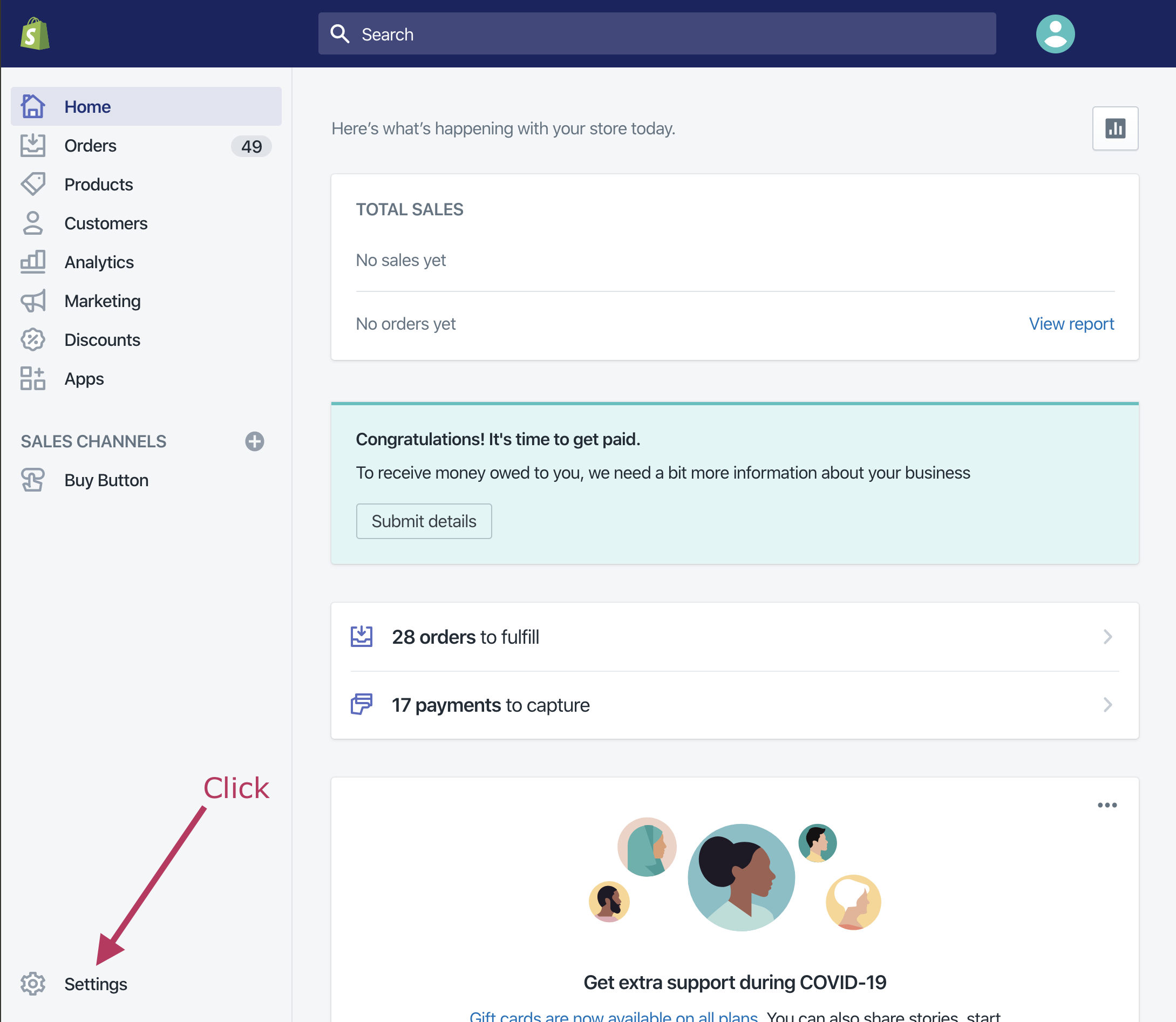
- Go to [Settings]
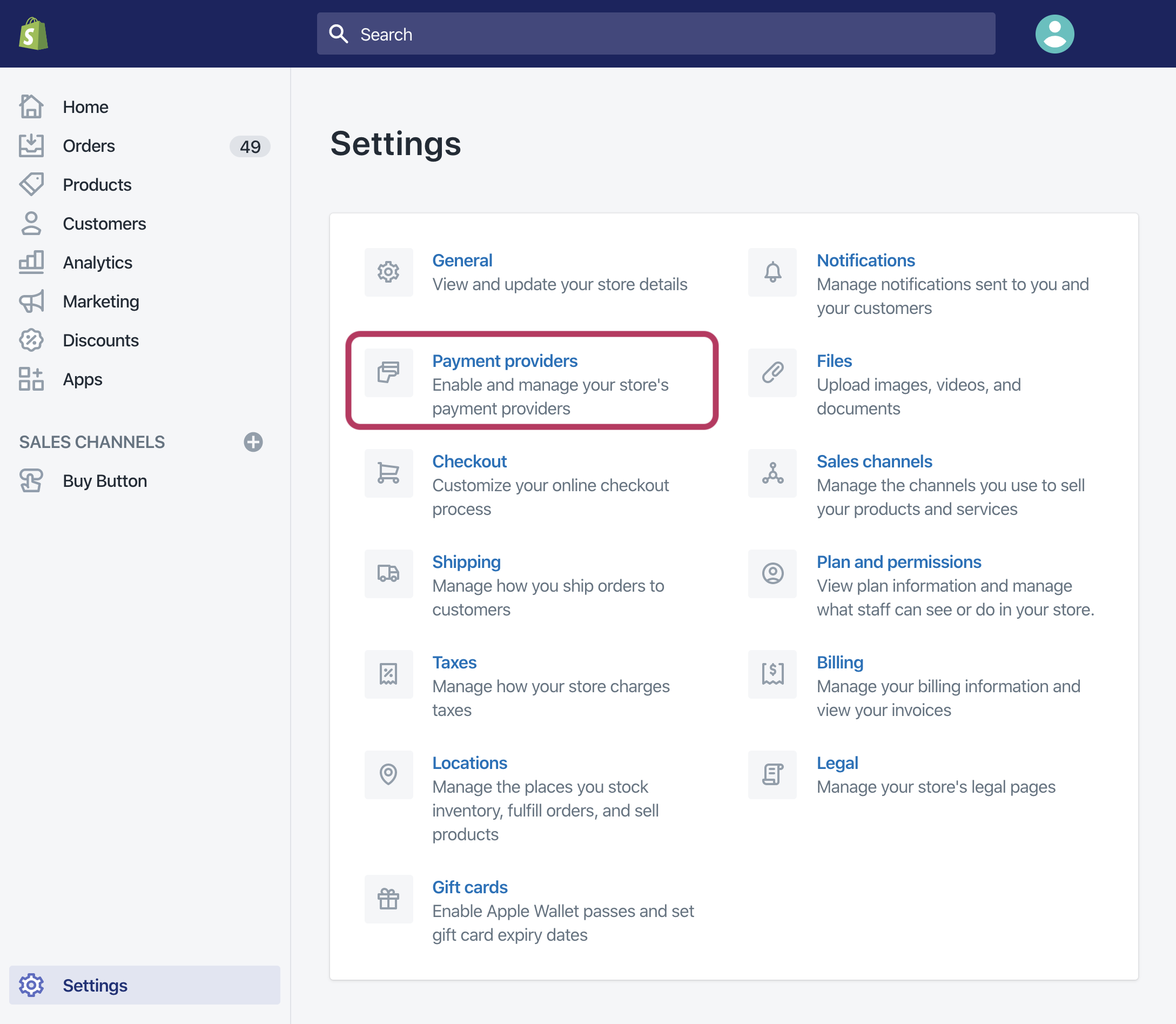
- Click [Payment Providers]
- Scroll to the bottom of the page
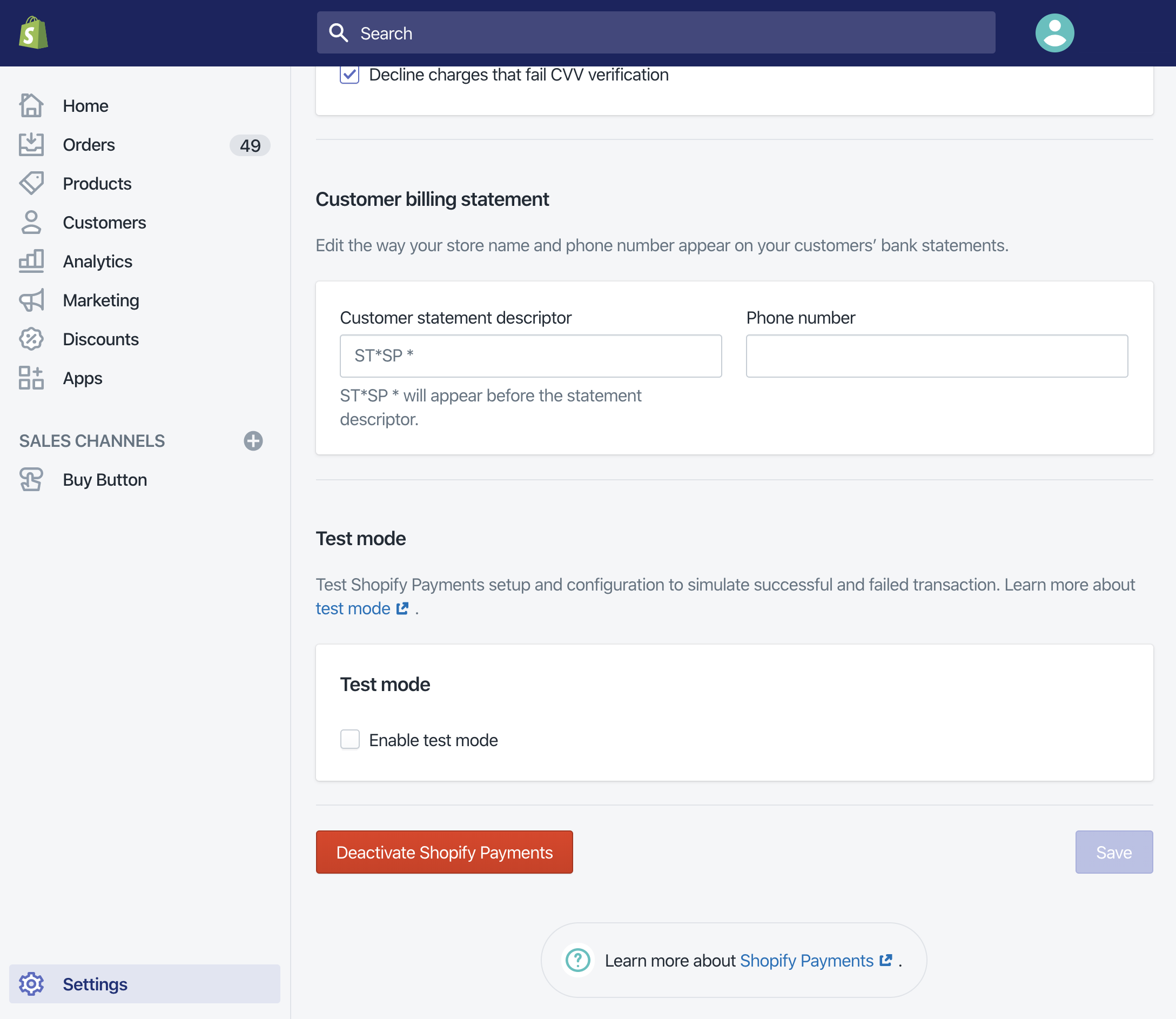
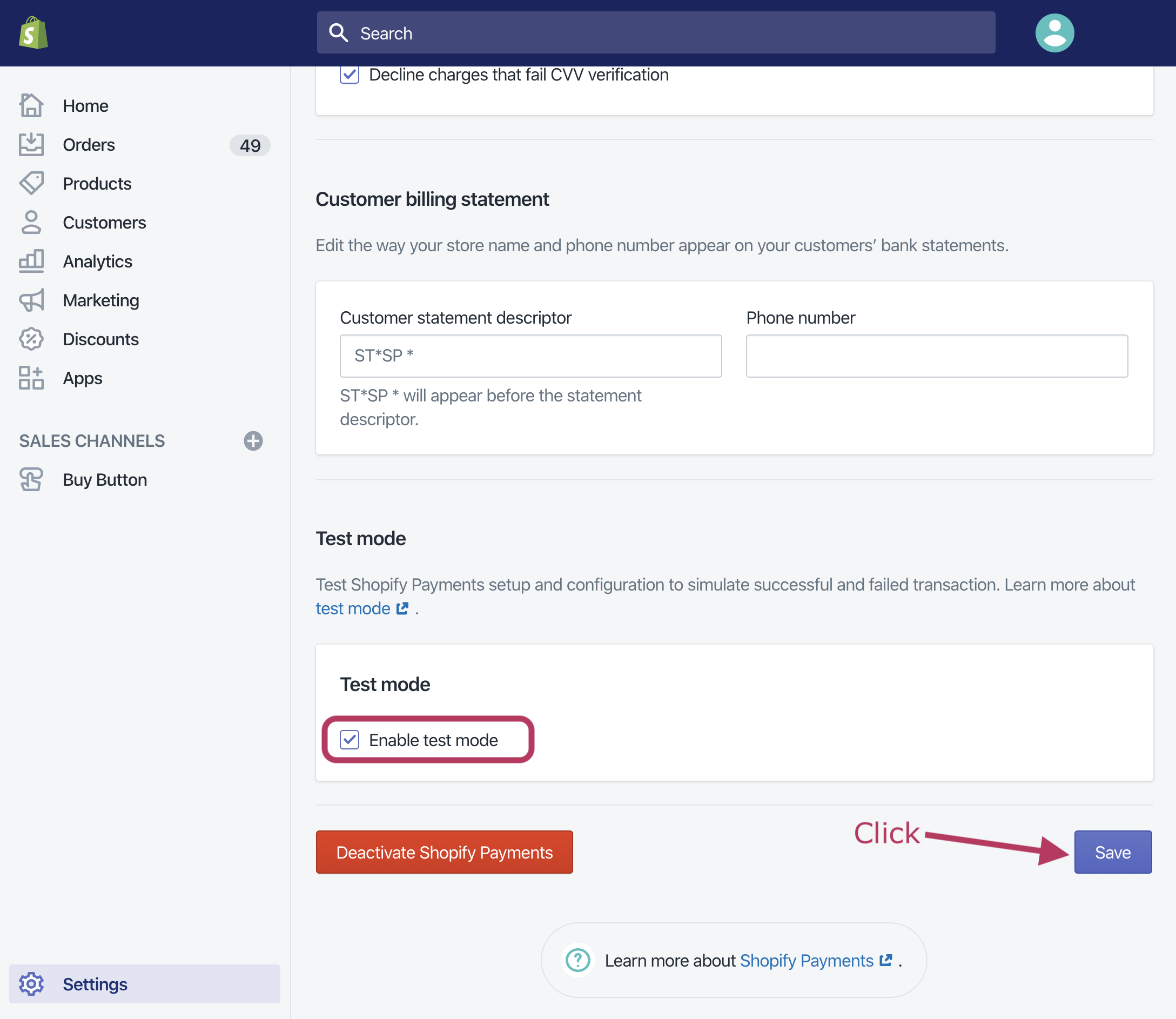
- [Check “Enable test mode” and click the [Save] button]
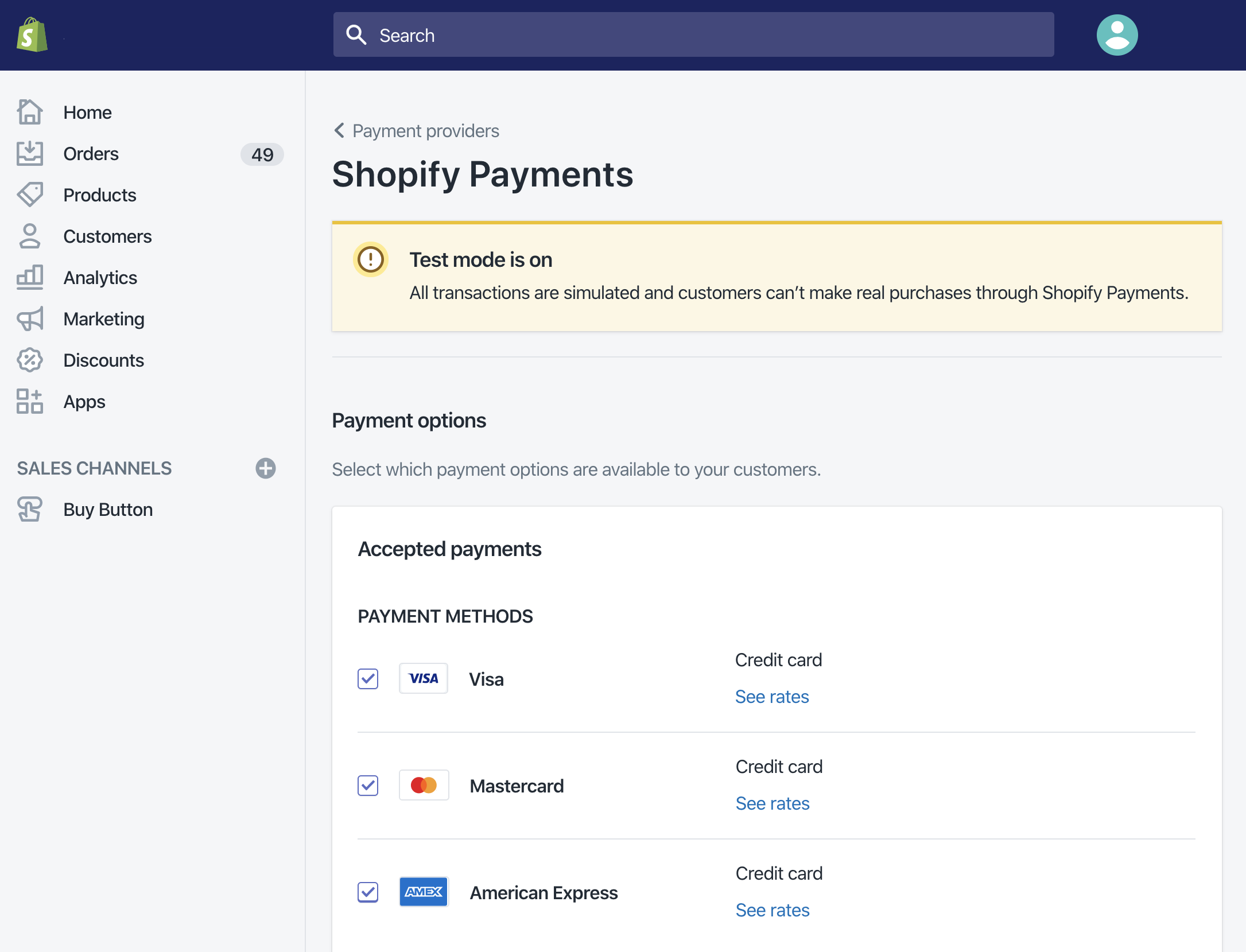
- Verify that “Test Mode” is turned on
Create a Buy Button
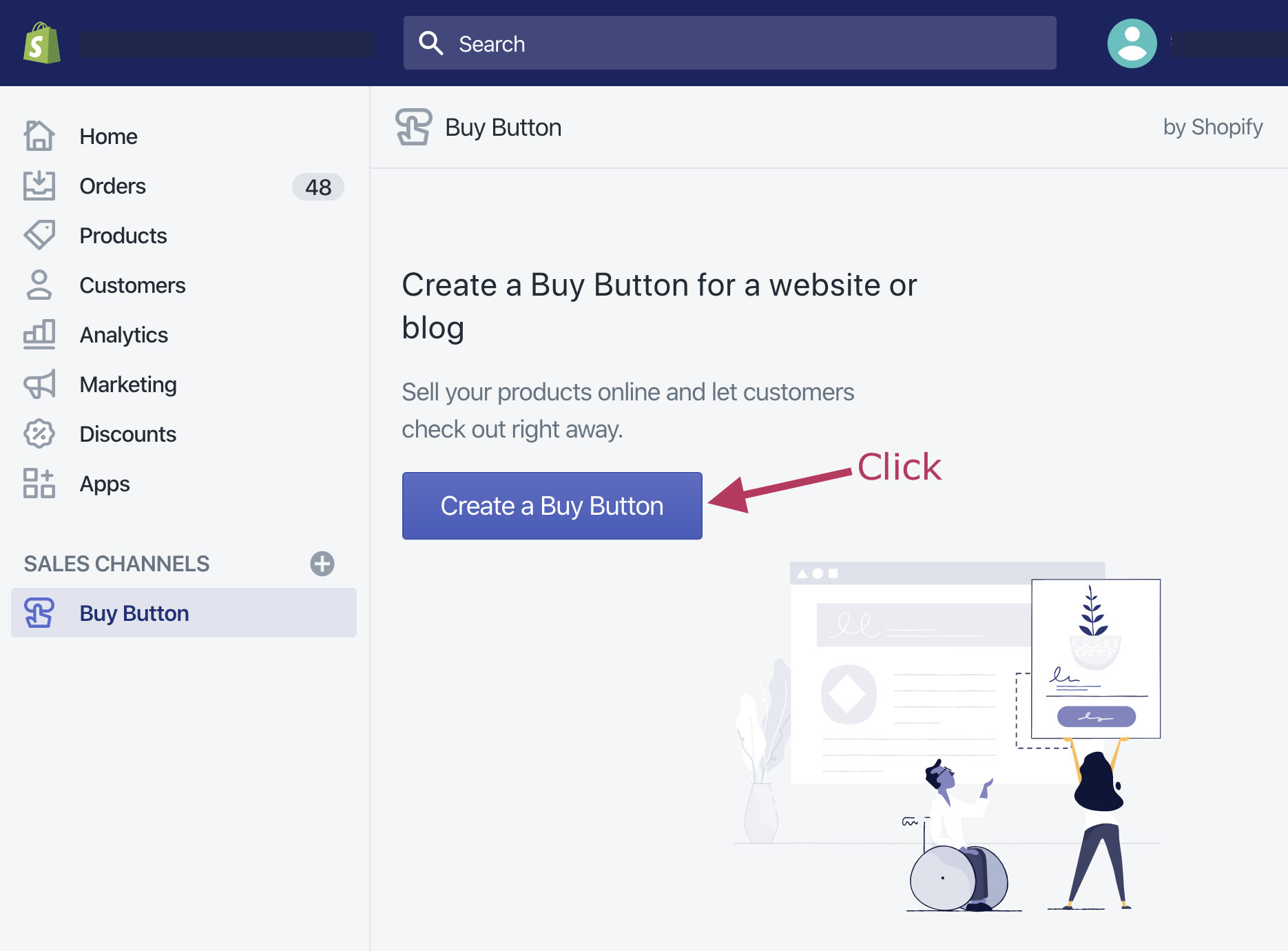
- Return to the admin panel and click [Create Buy Button]
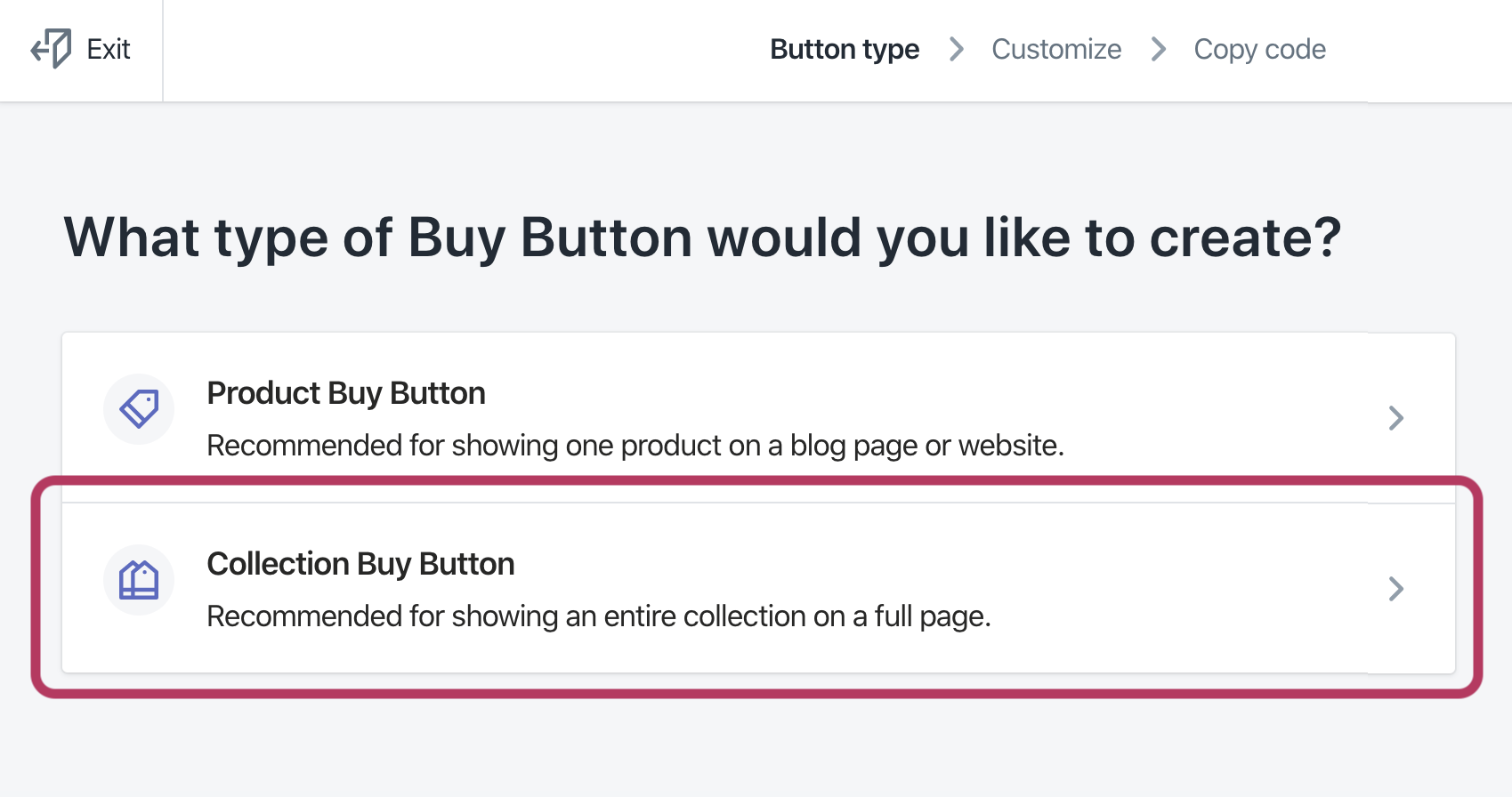
- Select [Product Buy Button] or [Collection Buy Button]
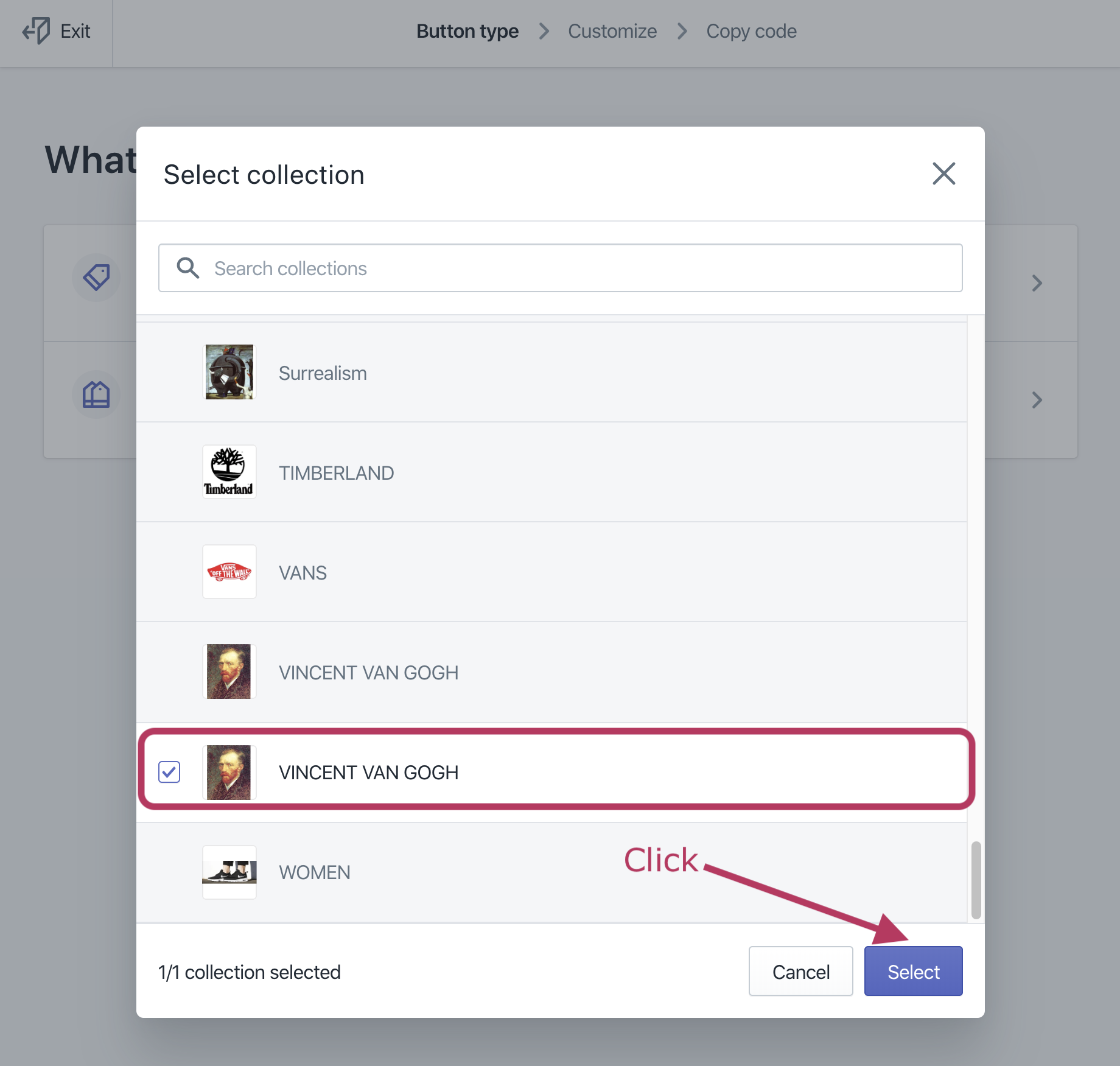
- Verify the relevant product and click the [Select] button
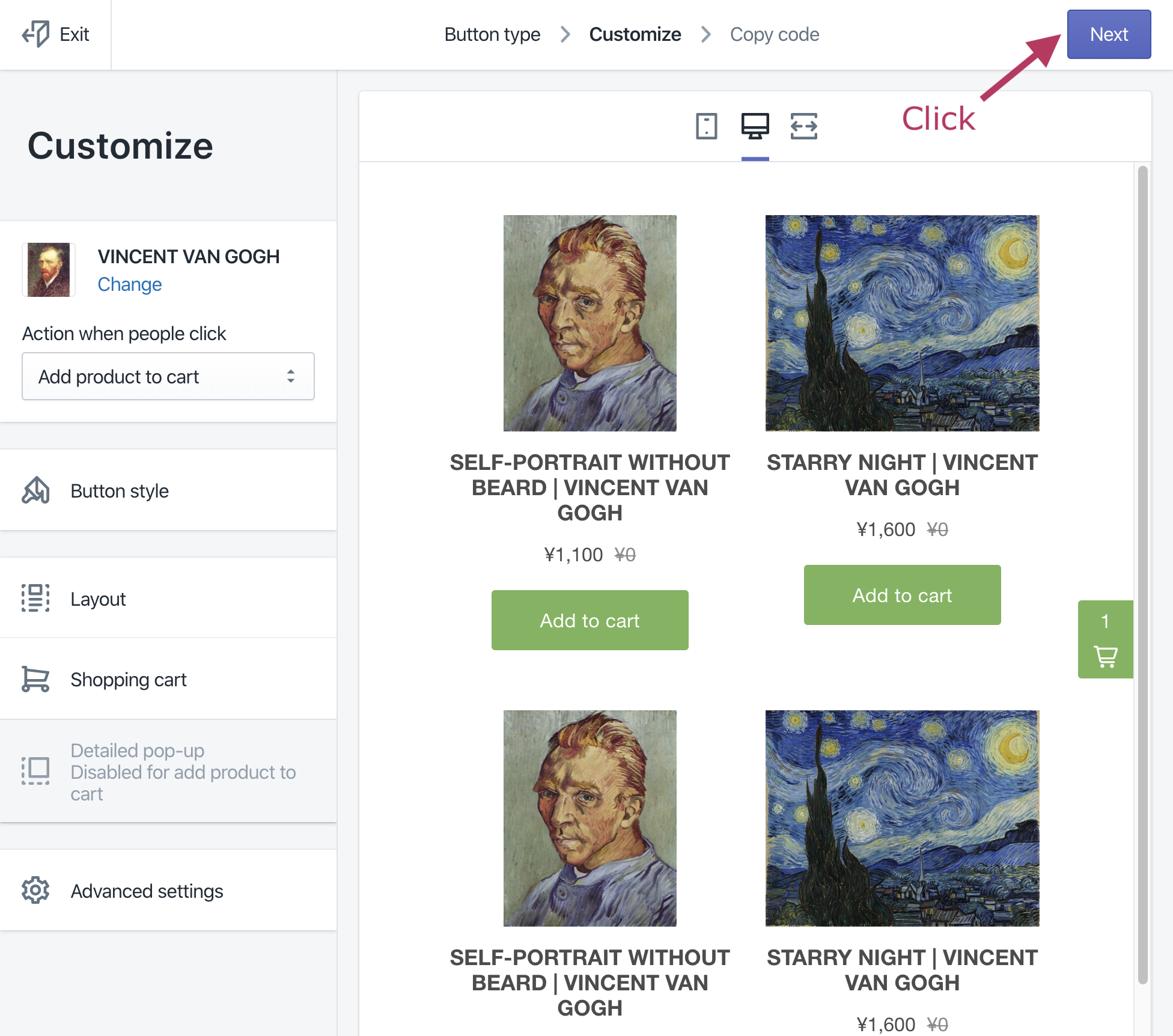
- Click the [Next] button
- Click the [Copy Code]
button to copy the generated code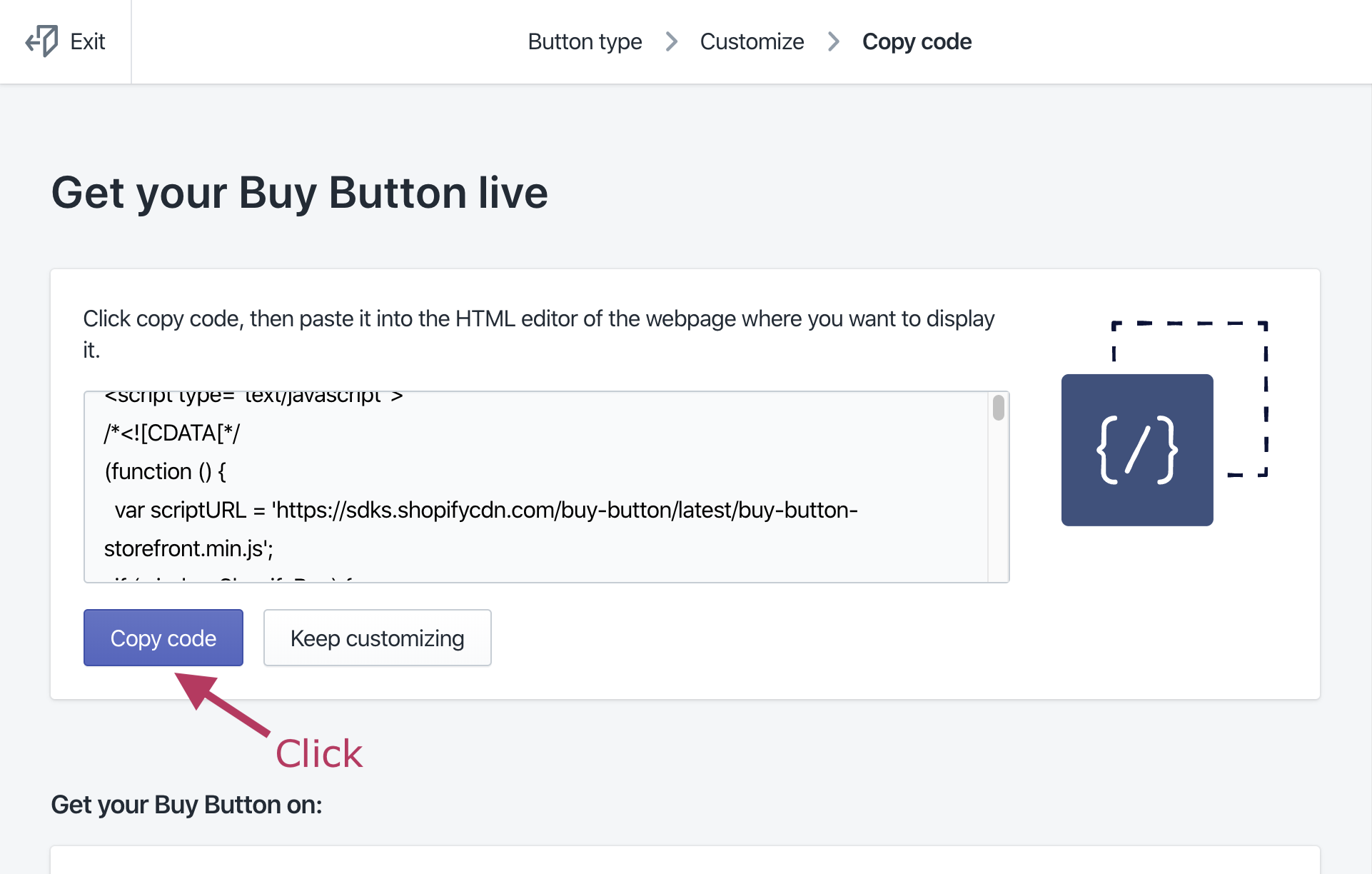
- … Copying complete
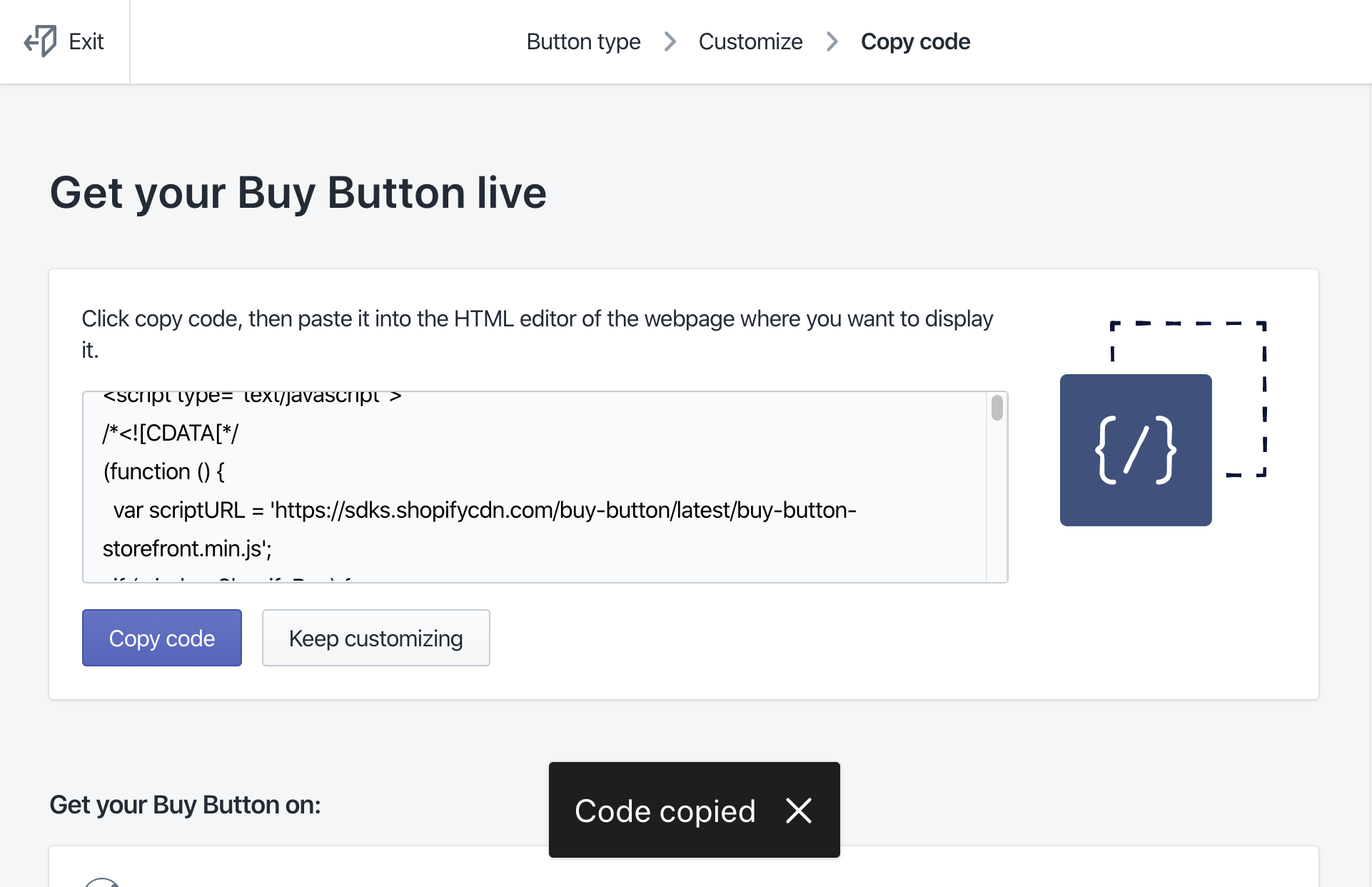
- Click [Finish]
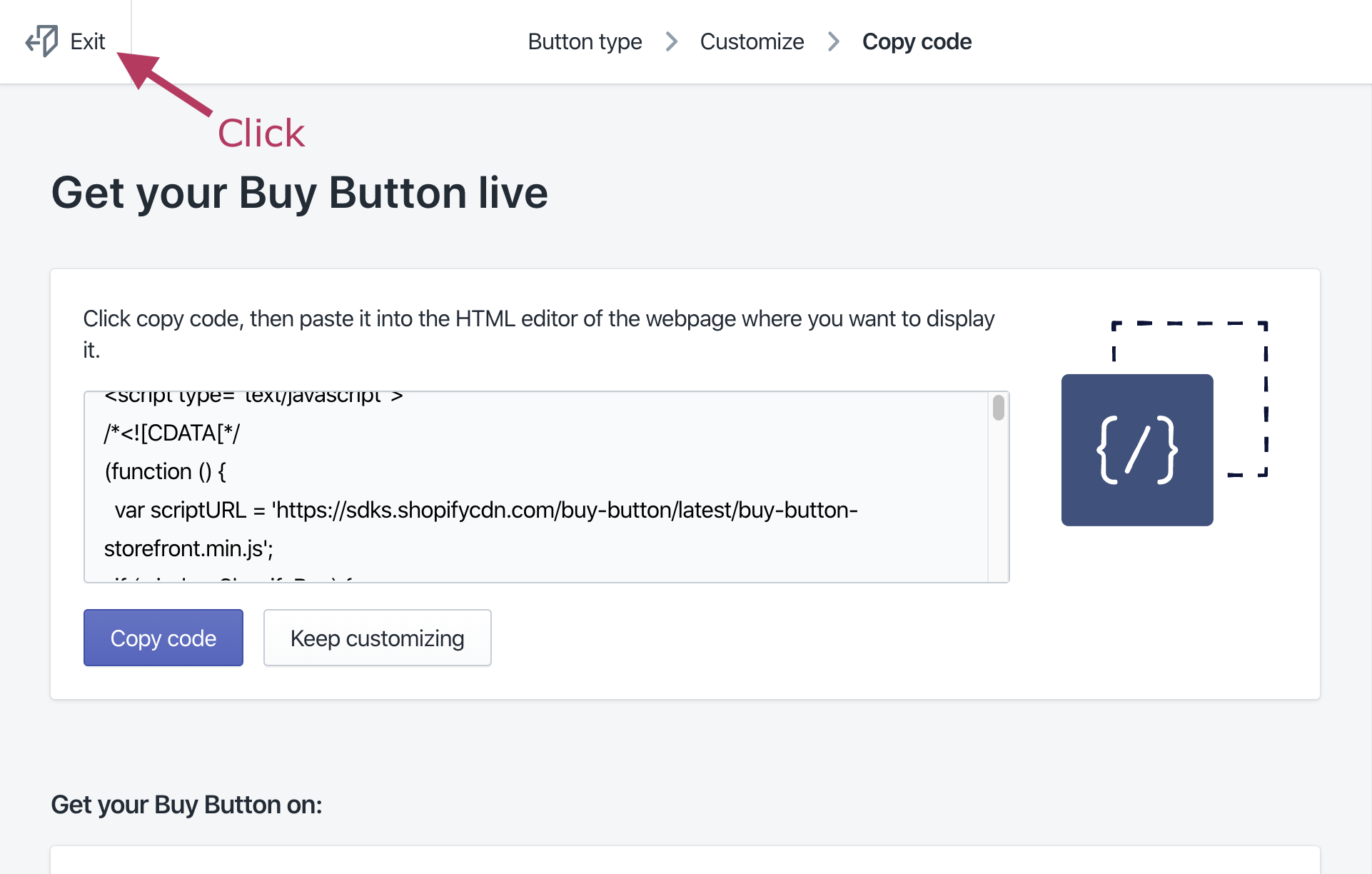
Add a Buy
Button to a WordPress Page
Here, as an example, we’ll explain the steps to add a Buy Button
to a WordPress page.
Launch WordPress from the Shifter dashboard and log in to the WordPress
dashboard: https://go.getshifter.io/Add a new page or post
Add a “Custom HTML” block
Paste the copied Buy Button JavaScript code
<!-- Paste the Buy Button code here -->Publish
Return to the Shifter dashboard and generate an artifact
Verify that the Buy Button
is working
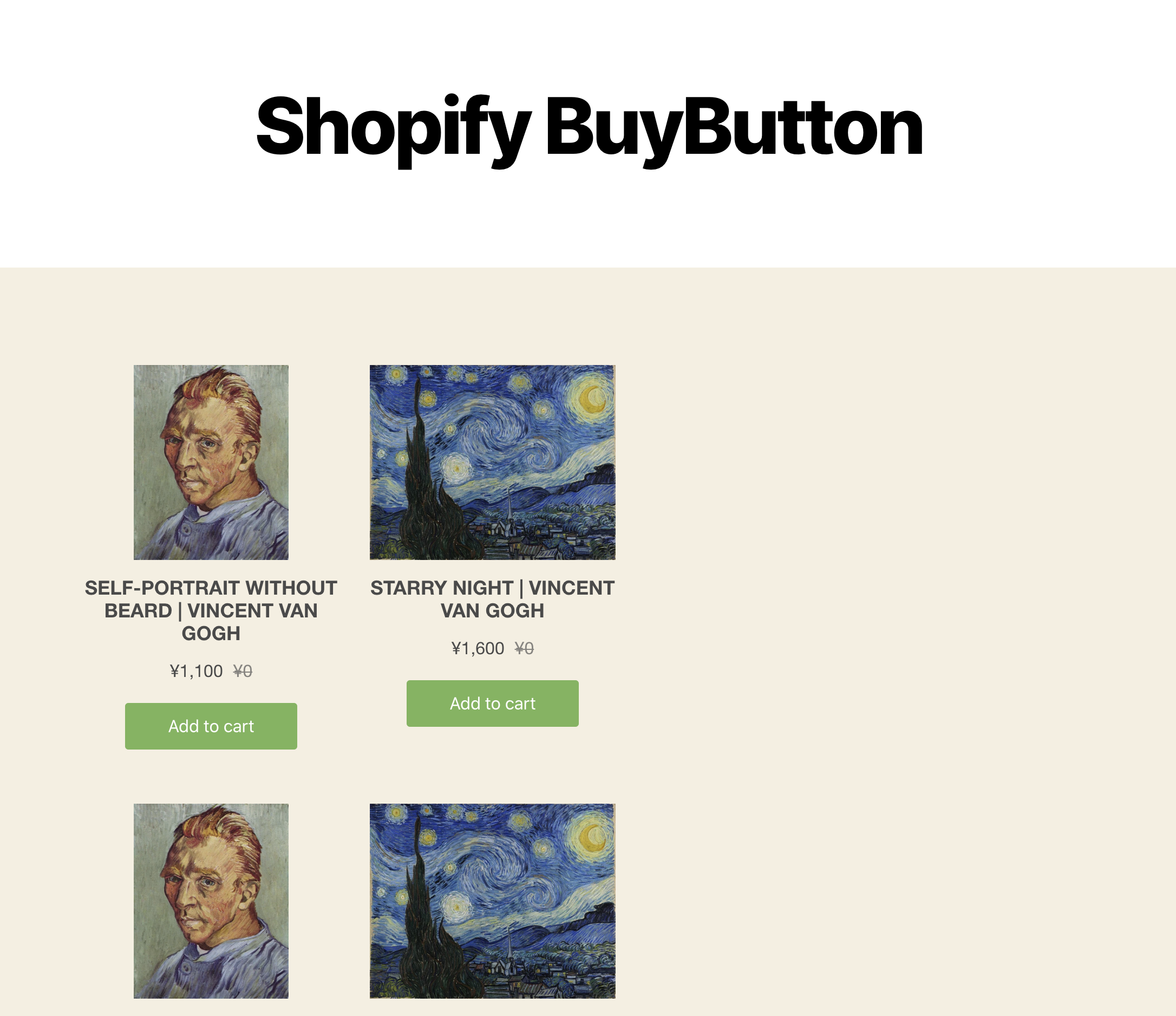
- Go to the Buy Button page (e.g., https://example.com/shopify-buybutton/).
- Click the product’s [Add to Cart] button
- The product is added to the cart
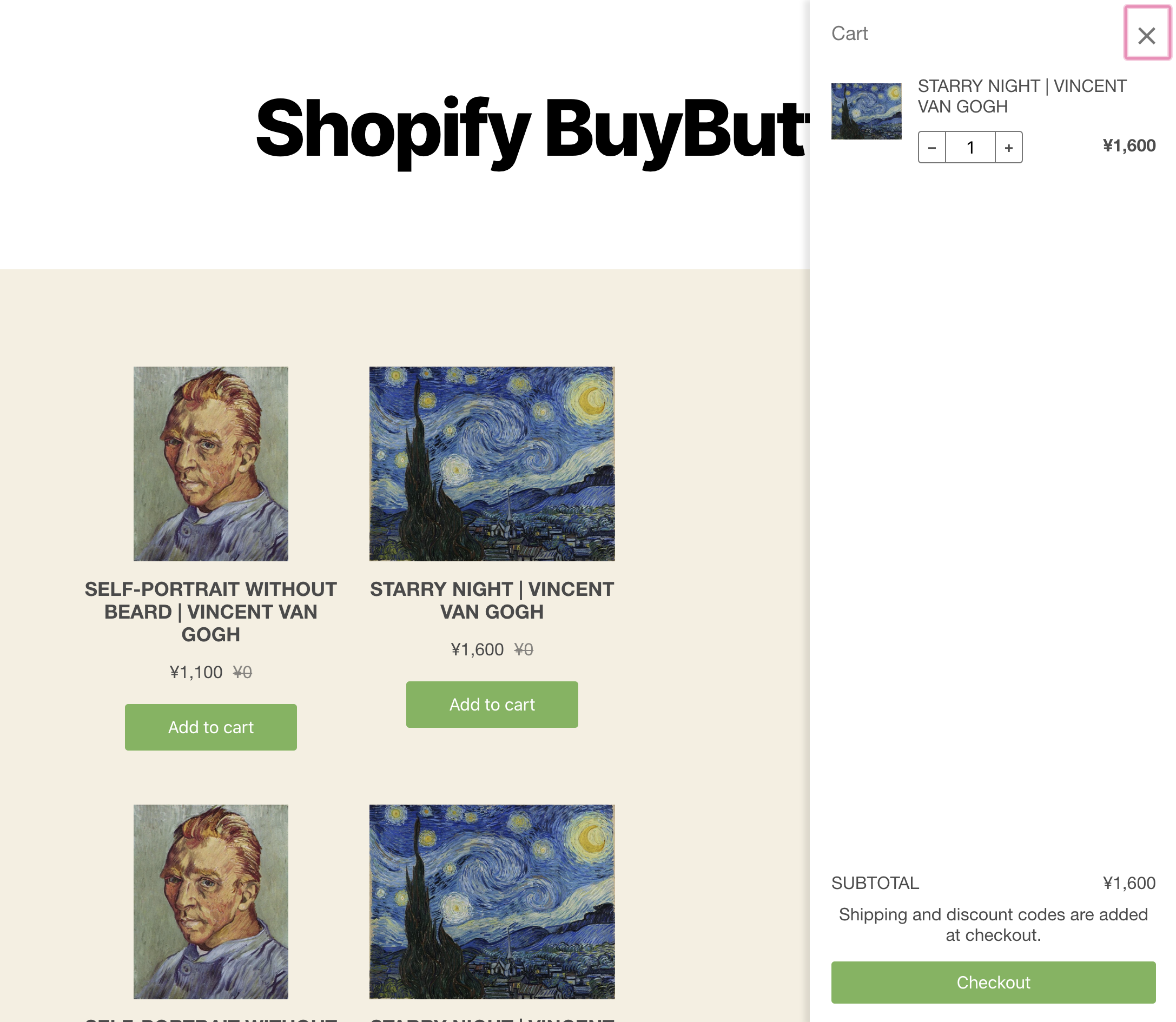
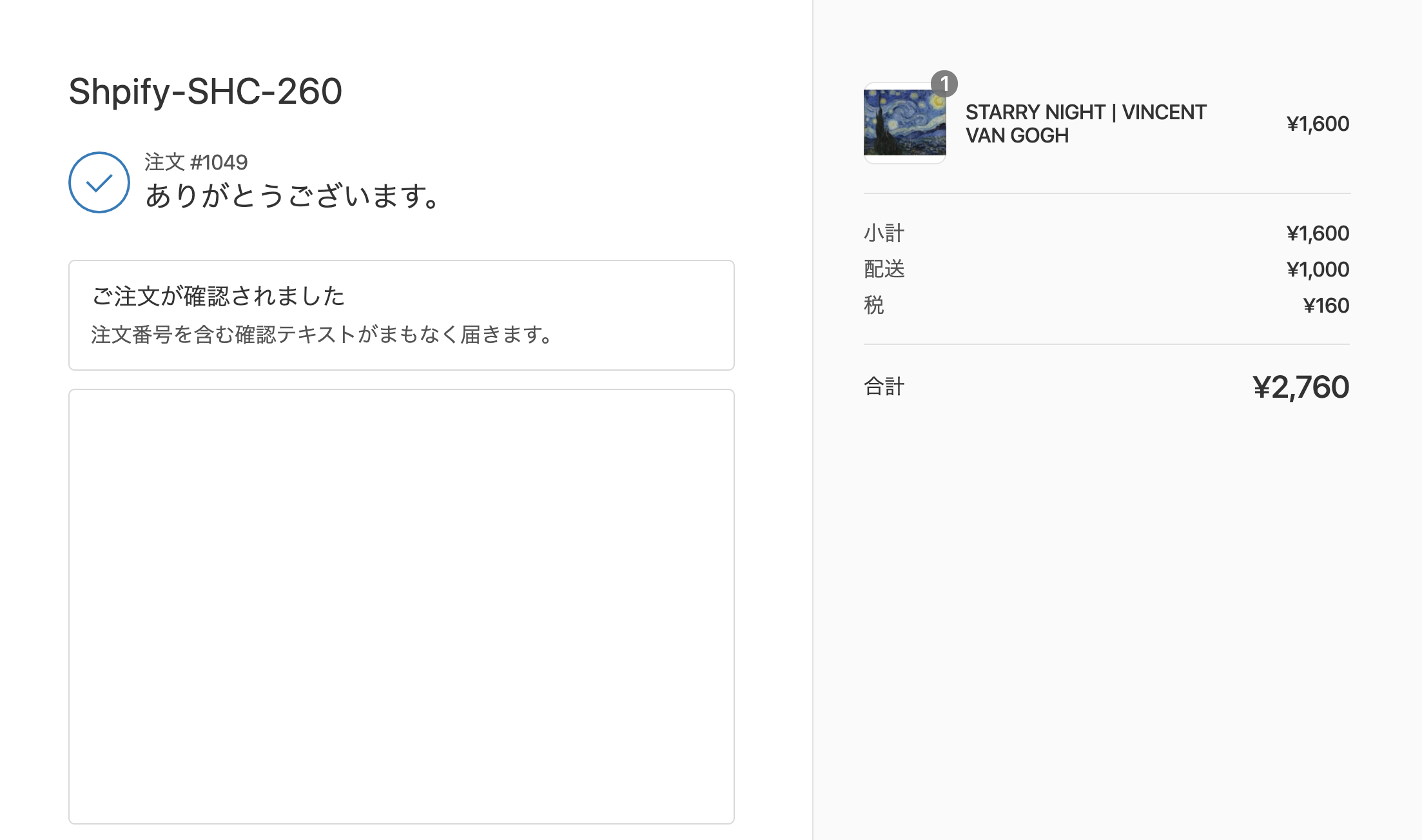
- Complete checkout; the transaction is successful
Disable test mode
Once you’ve verified that everything works, disable test mode so you can accept actual payments.
- Return to the Shopify admin
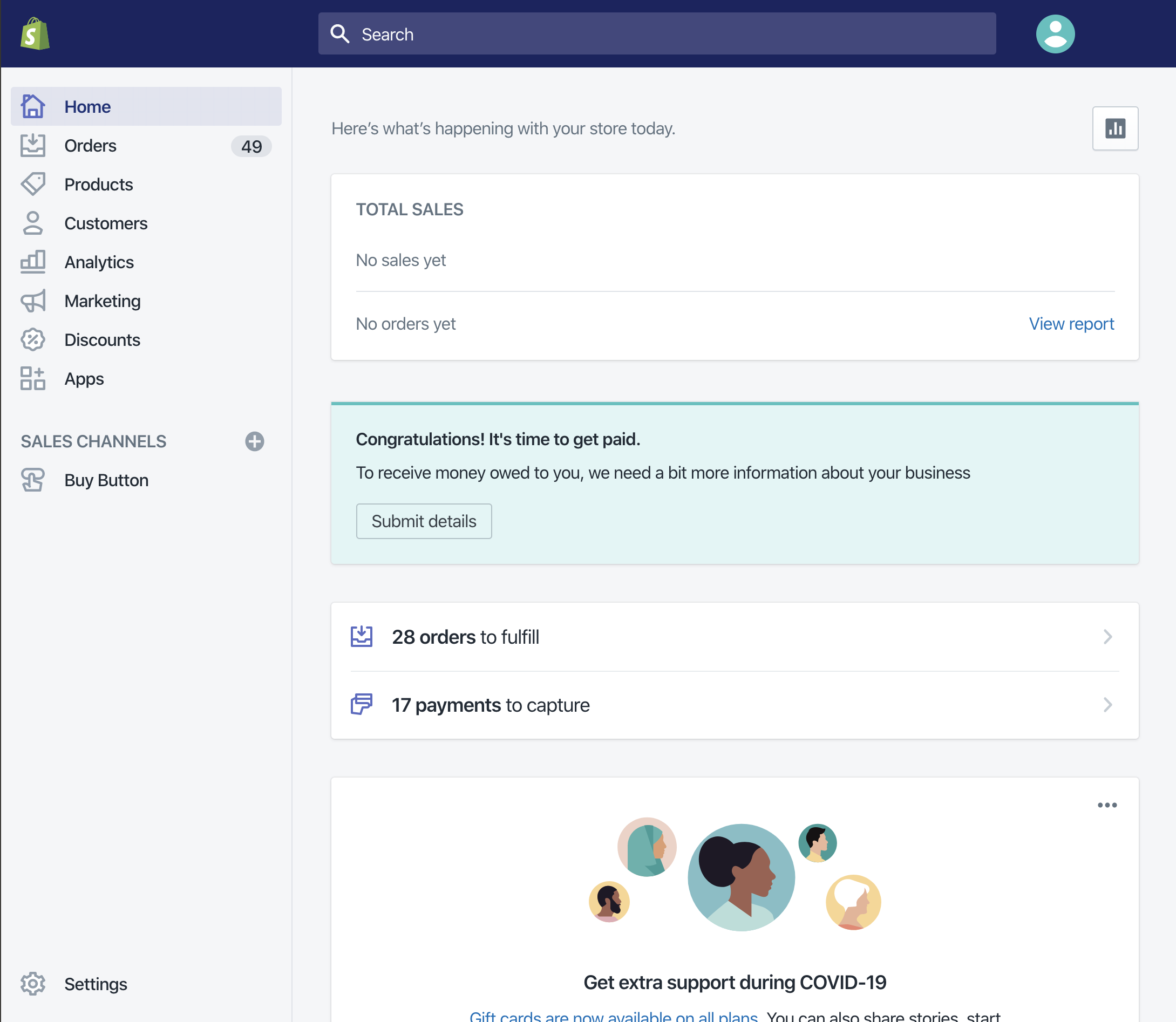
- Click [Settings]
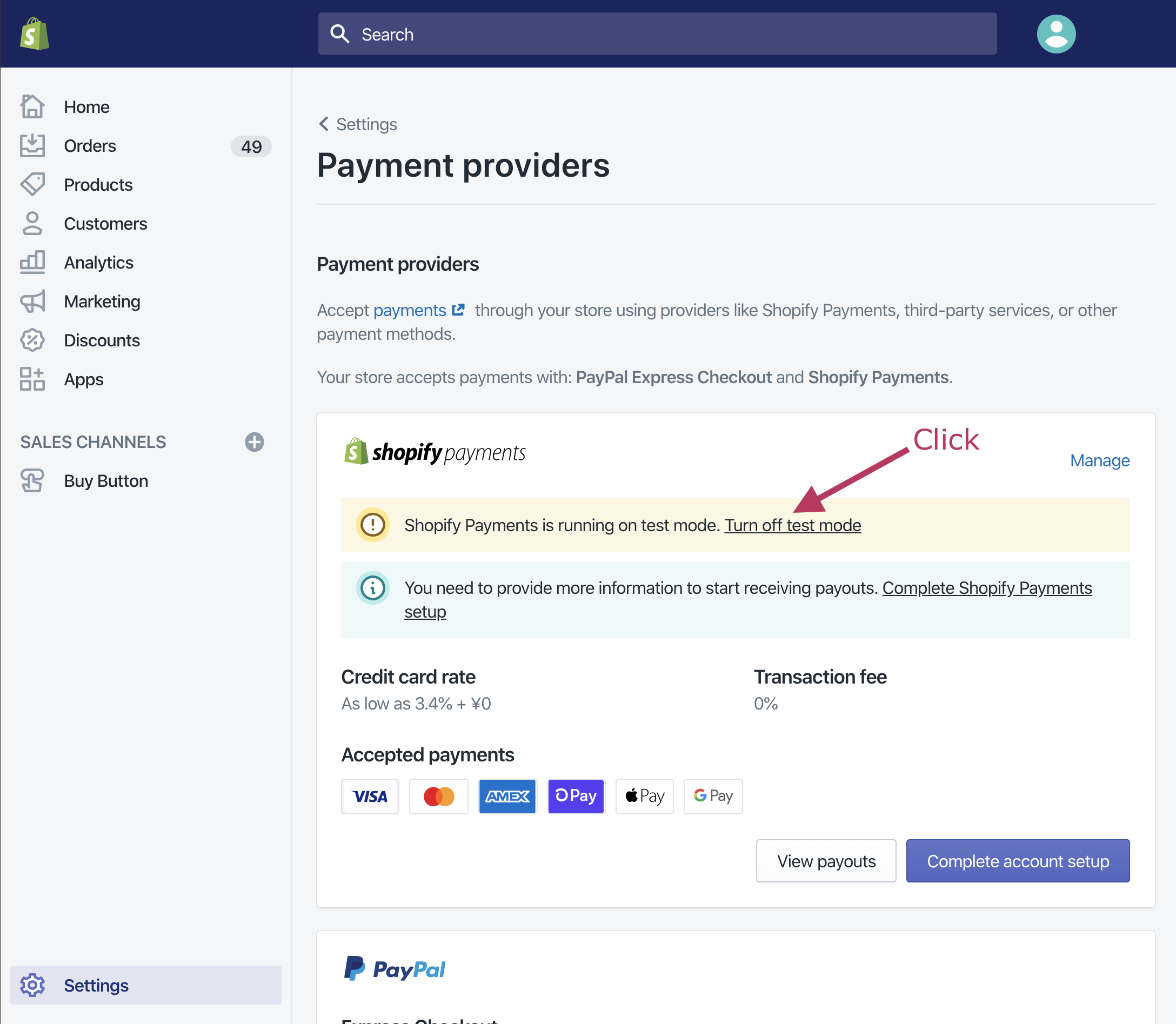
- Click [Payment Providers]
- Click “Turn off test mode”
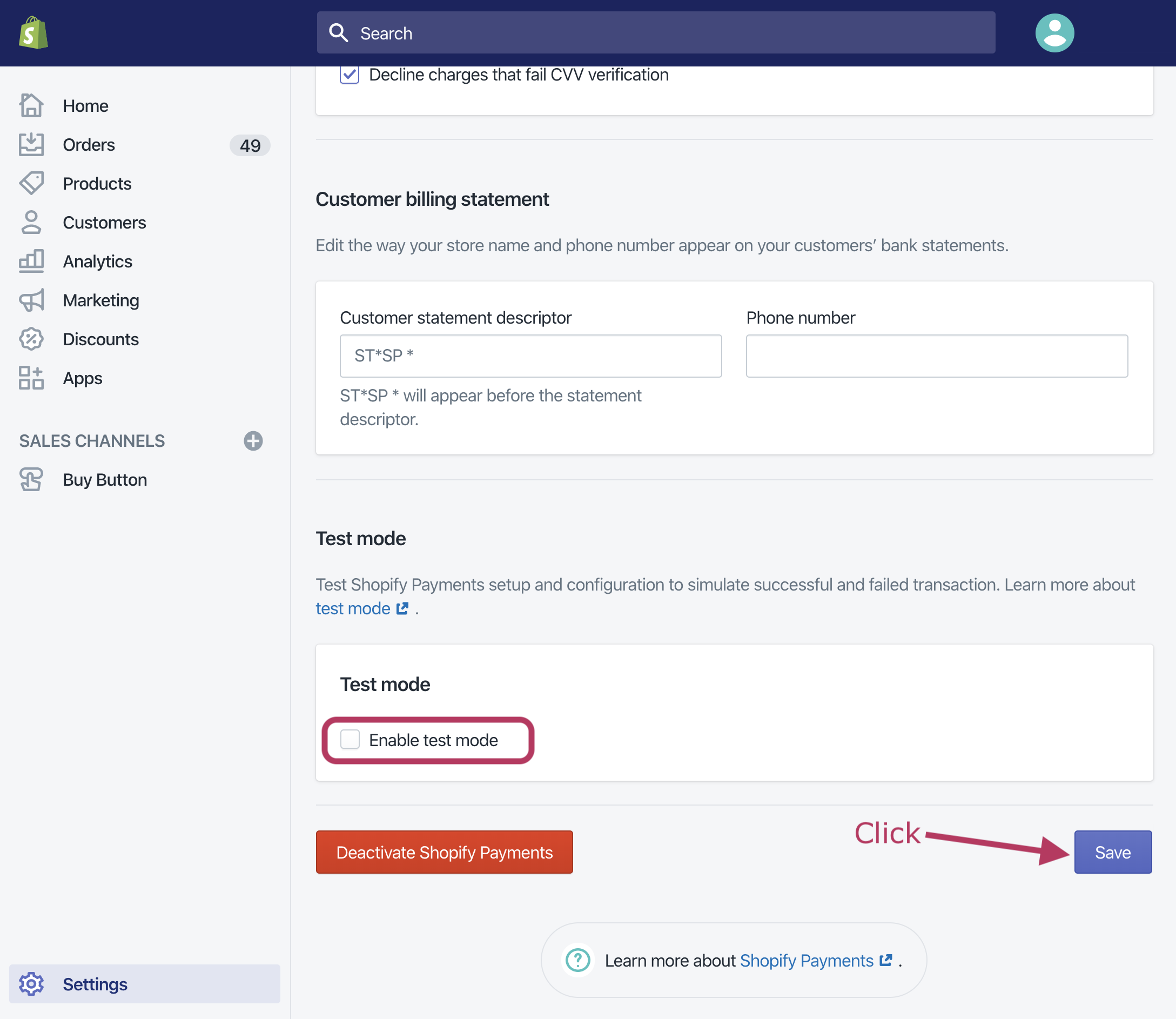
- Disable “Test Mode” and publish your store
- Verify that “Test Mode” is turned off
That’s it!