
Requirements:
A Kwes account; a theme editor or a plugin for inserting scripts (e.g., Scripts n Styles, Header and Footer)
Getting Started
Follow the steps below to create a contact form using Kwes.
- Sign Up Go to the official Kwes website.
- Register Your Website Click the [Add Website] button to register your website, then enter the website name.
- Create a Form Give the form a name and click the [Add Form] button.
- Copy the JavaScript Link After copying the code, click the [Next] button.
<scriptsrc=" https://kwes.io/js/kwes.js"></script>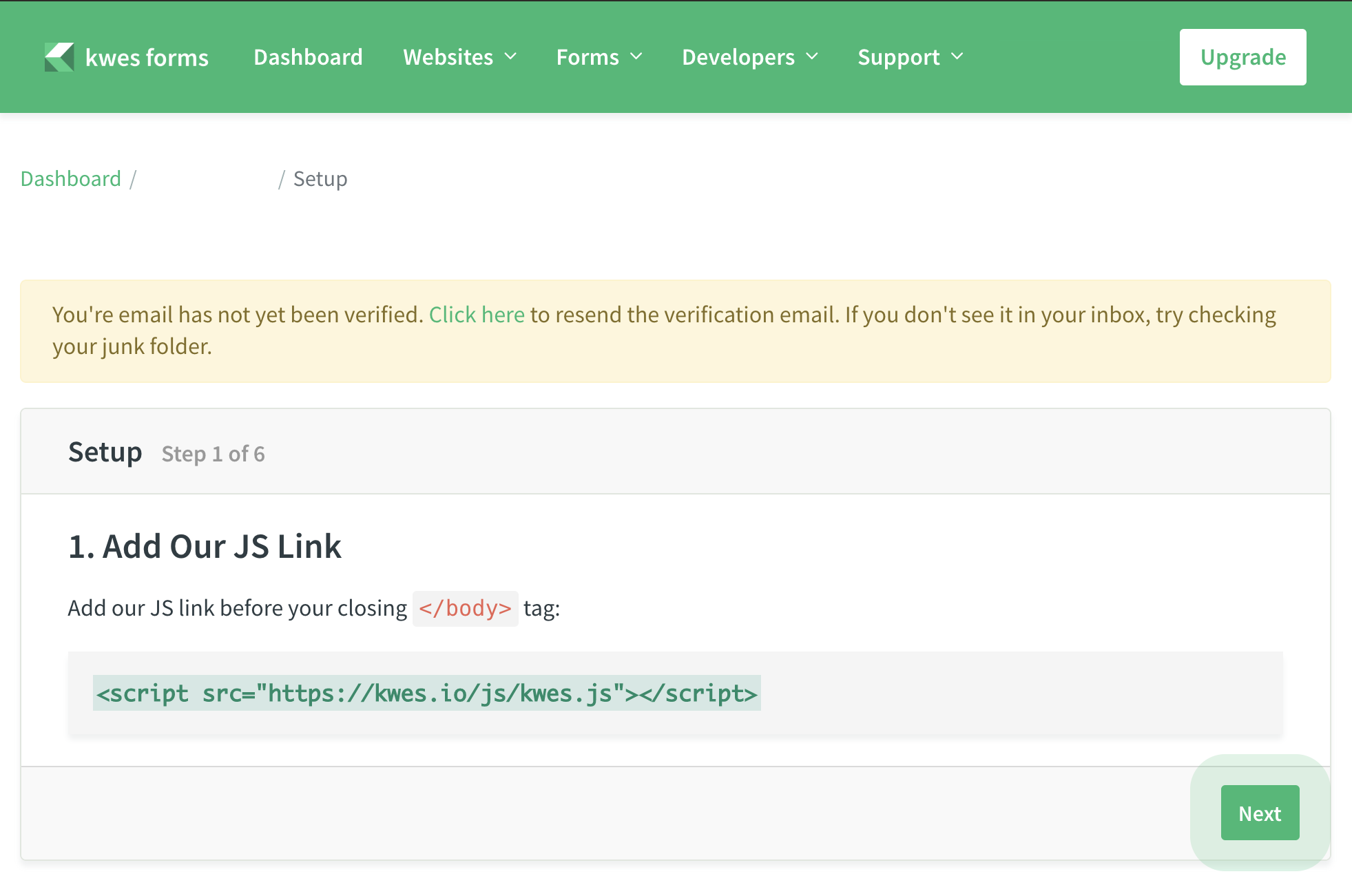
- Copy the form code
- Add an action URL
- Customize fields
- Add optional fields and copy them.
- First Submission Before clicking [Finish], go to the Shifter dashboard to complete the form setup.
- Launch WordPress from the Shifter Dashboard Return to the Shifter dashboard and click the [Start WordPress] button.
- Insert the Script Code
You can either add the code directly to your theme’s
footer.phpor use plugins such as Scripts n Styles or Header and Footer Scripts.How to install and configure the Scripts n Styles and Header and Footer Scripts plugins:
- Script’n’Style:
- Go to [Plugins] -> [Add New].
- Search for the plugin and install it.
- Go to the [Global] tab.
- Paste the copied script into the [HTML (end of the body tag)] text area.
- Click [Save Changes].
- Header and Footer Scripts:
- Go to [Plugins] -> [Add New].
- Search for the plugin and install it.
- Click [Add New].
- Select [Site Wide] from Site Display.
- Select [Footer] from the “Location” dropdown.
- Paste the JavaScript link from Step 4 into the Snippet/Code area.
<scriptsrc="https://kwes.io/js/kwes.js"></script> - Click the [Save] button.
Access the running WordPress and confirm that the code is displayed.
- Script’n’Style:
- Add a Form
- Create a page.
- Select [Custom HTML] from the Formatting menu.
- Paste the copied form code (from Step 8) into the text area.
- Publish the page.
- Go to the form page and submit the form for the first time.
- Click [Set As Testing Domain]. The form on your live WordPress site is now set up for testing.
- Return to the Kwes dashboard and verify that the first submission has been received.
- Generate an artifact, publish it, and test the form.
- Click [Set As Live Domain].
That’s it!