
This article is a dedicated branch of the “Custom Domains in Shifter” guide for MuuMuu domains. Before following these steps, you must register your domain name with Shifter and obtain the domain verification records by following the “Custom Domains in Shifter” guide.
Sample Domains and DNS Records
Sample domains:
example.com,
www.example.comSample Shifter domains: abc123.on.getshifter.io. def456.cloudfront.net.
Sample validation record:
For example.com- Name:
_abcde.example.com - Type:
CNAME - Value:
_01234.acm-validations.aws.
- Name:
For www.example.com- Name:
_hijkl.www.example.com - Type:
CNAME - Value:
_56789.acm-validations.aws.
- Name:
Configuring DNS Records for MuuMuu Domains
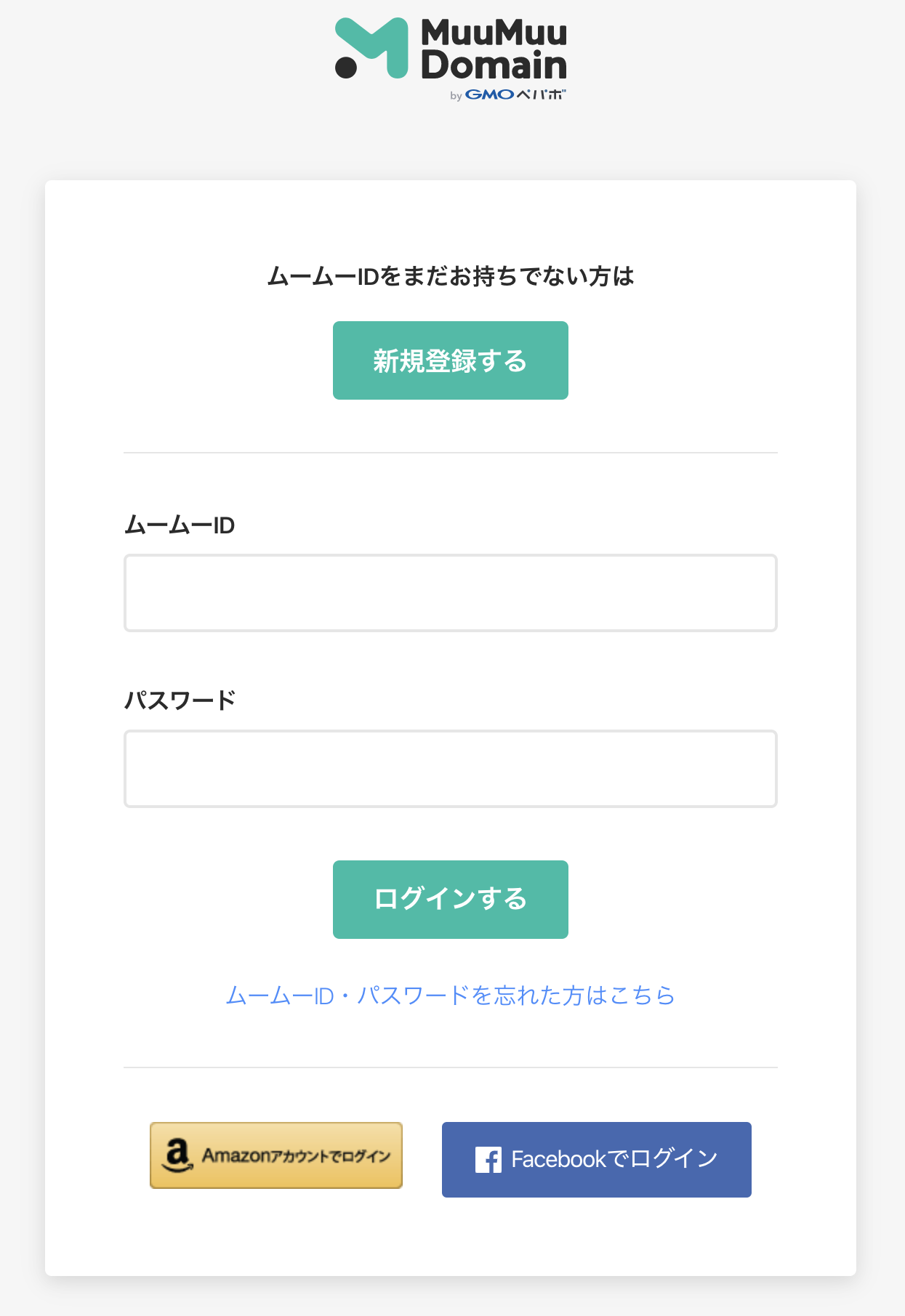
Log in to the control panel. URL: https://muumuu-domain.com/checkout/login
Click the domain name you want to edit. In this document, we’ll use the sample domain
example.com.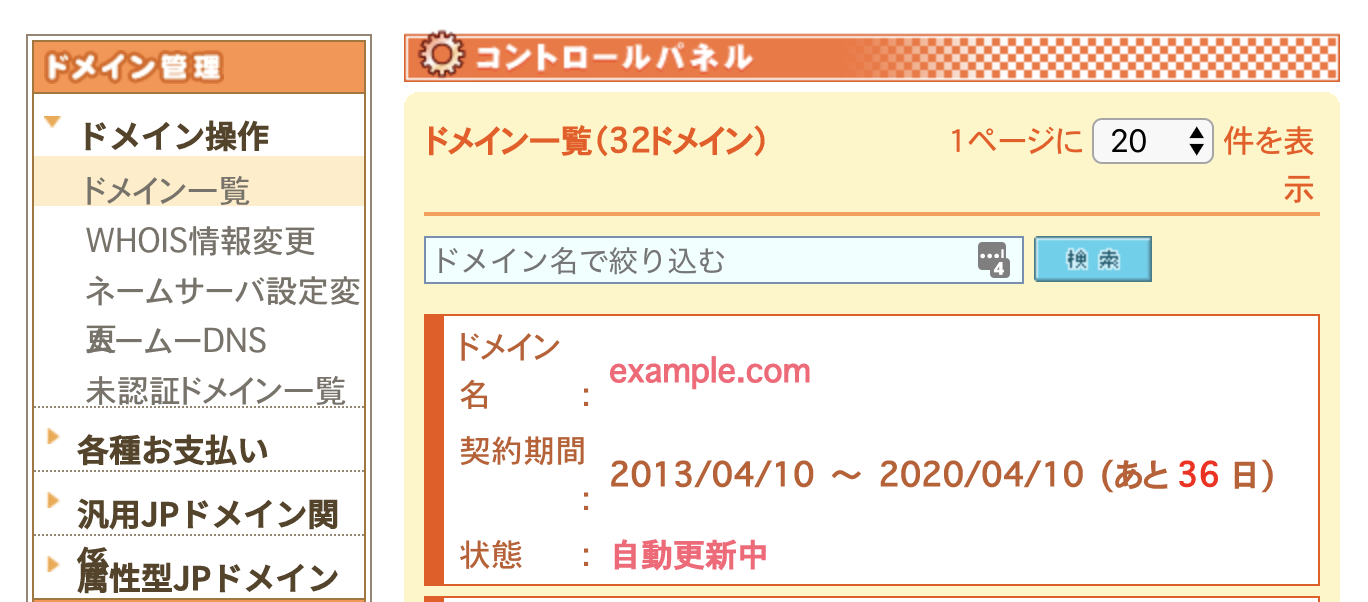
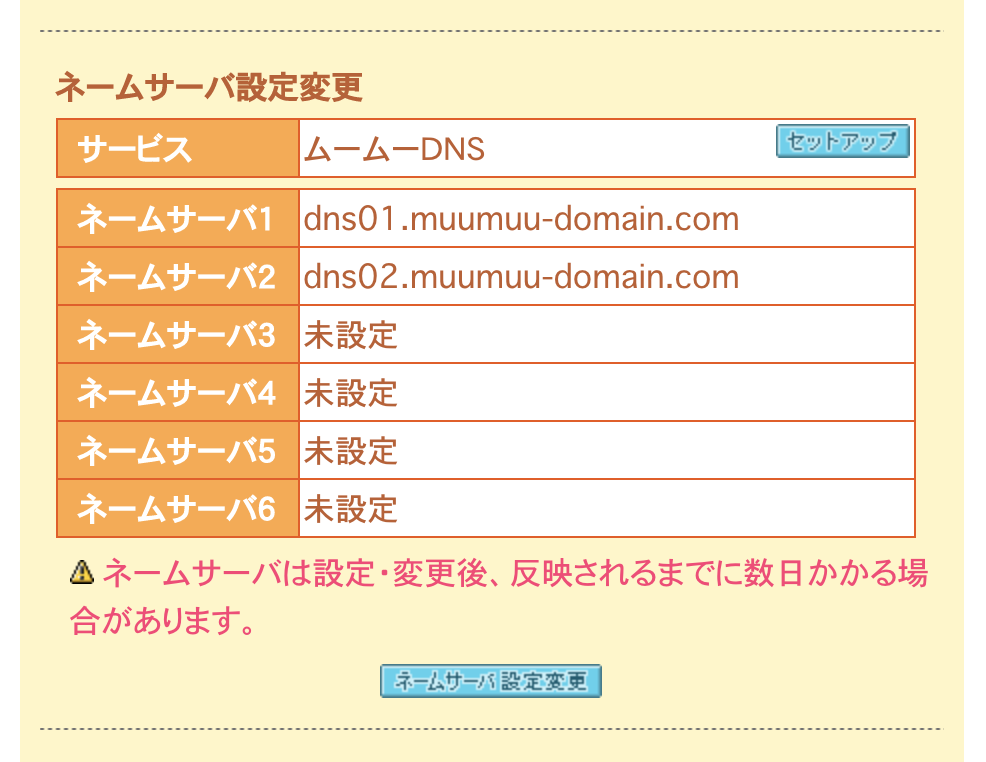
Click the [Setup] button to change the DNS settings. Make sure that Name Servers 1 and 2 are the MuuMuu domain’s DNS servers.
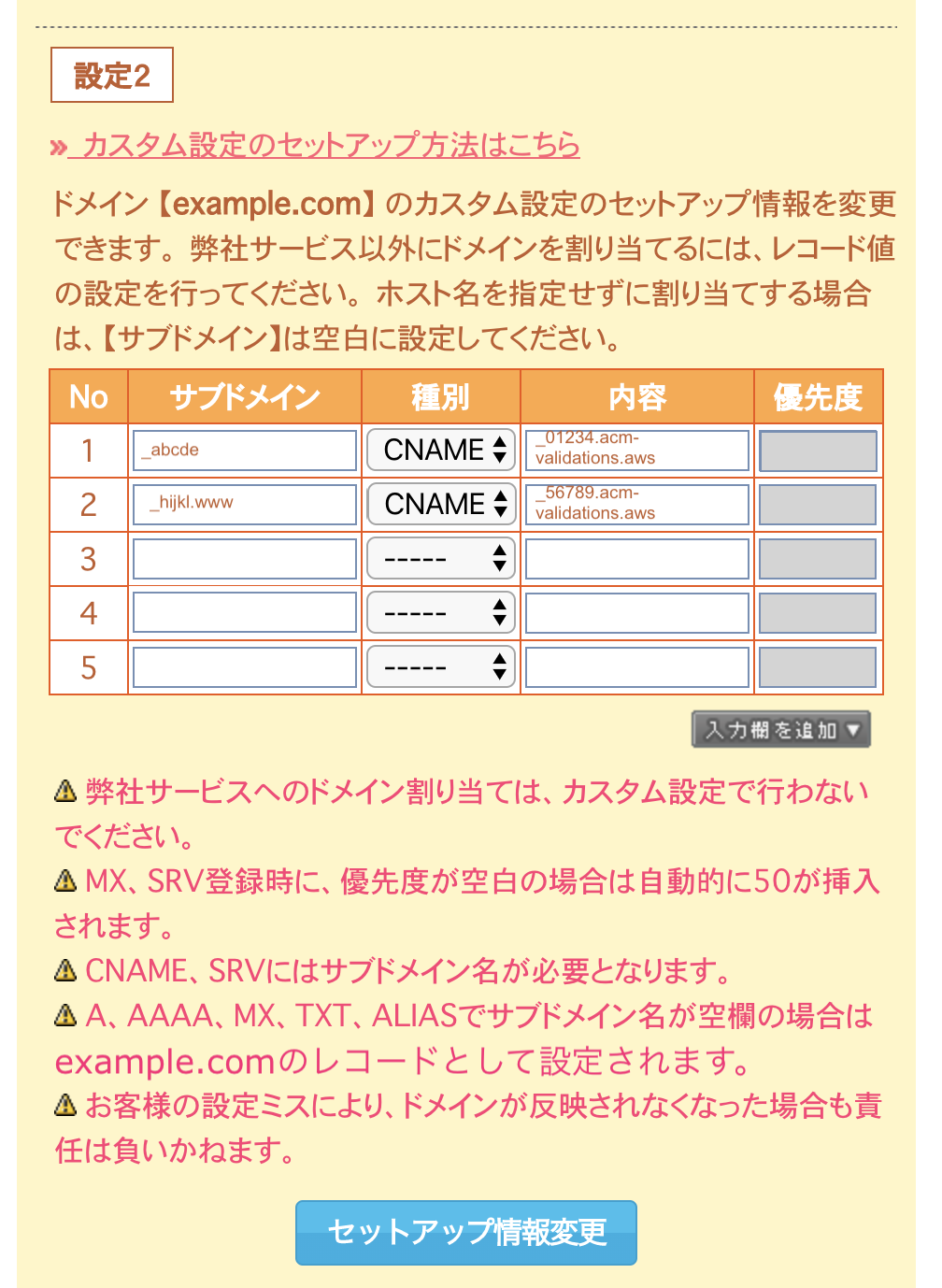
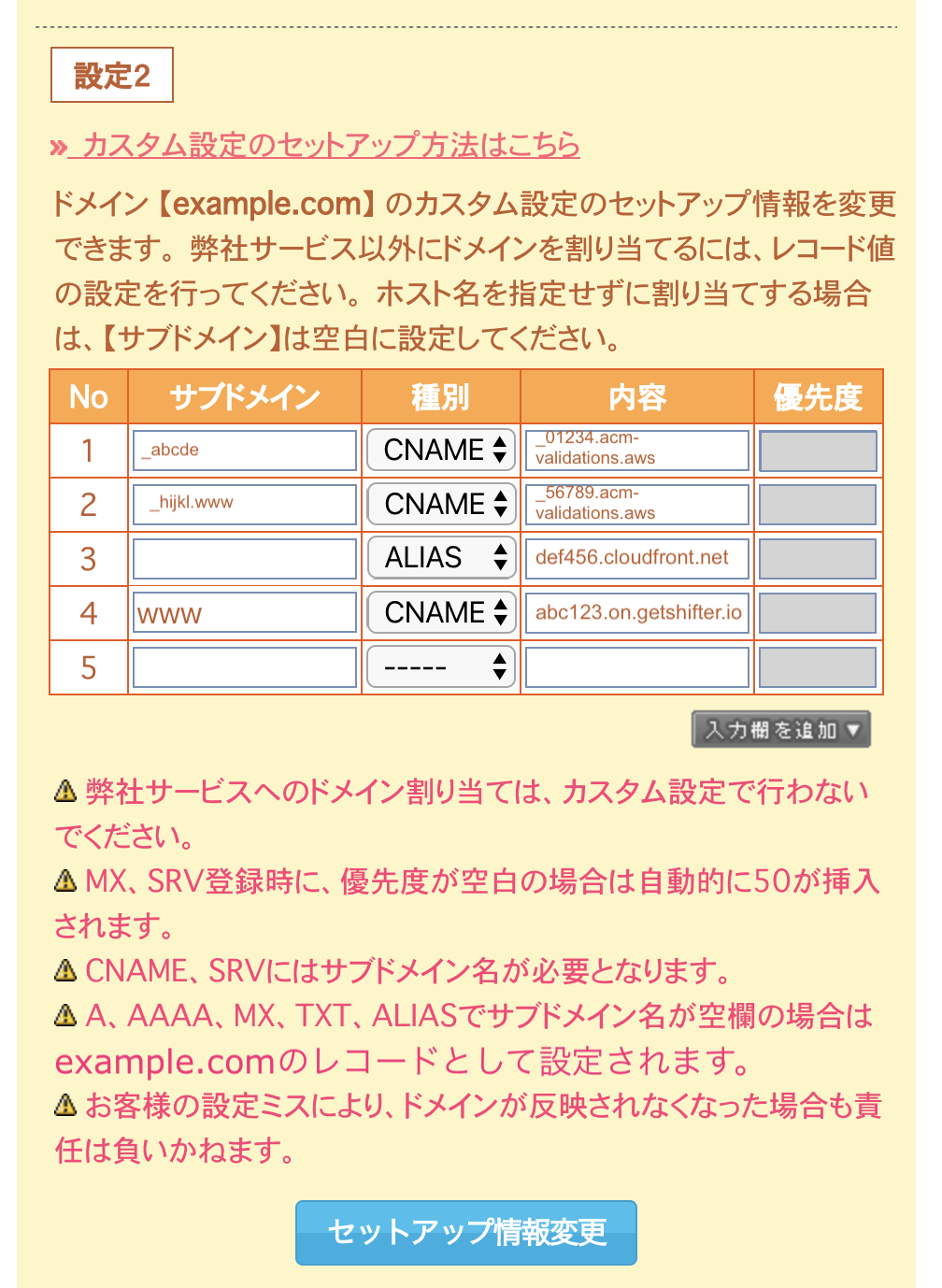
Add a verification record.
- No. 1: In the [Subdomain] field,
enter _abcde.
No. 2:
In the [Subdomain] field, enter_hijkl.www. Save your changes. Click the [Change Setup Information] button.
Add the ALIAS and CNAME records. Once domain verification is complete, configure the ALIAS and CNAME records for your domain name.
For example.com(no subdomain)- No. 3: [Subdomain]: Leave blank.
www.example.com(with the www subdomain)- No. 4: [Subdomain]:
www
Save your changes.
Click the [Change Setup Information] button.
Note: Remove the trailing period from the value provided by the Shifter dashboard. If the record you obtained is _01234.acm-validations.aws., you can enter _01234.acm-validations.aws in the field. This is because MuuMuu Domain does not allow values ending with a period.
That’s it!