
Requirements:
For TOTP to work properly, you must first install an authentication app on your mobile device.
Authentication Apps
Here are some recommended apps:
- Authy
- Google Authenticator
- SmartKey
- Duo Mobile
- Last Pass
- or any other app that supports TOTP
Log in to check your current settings
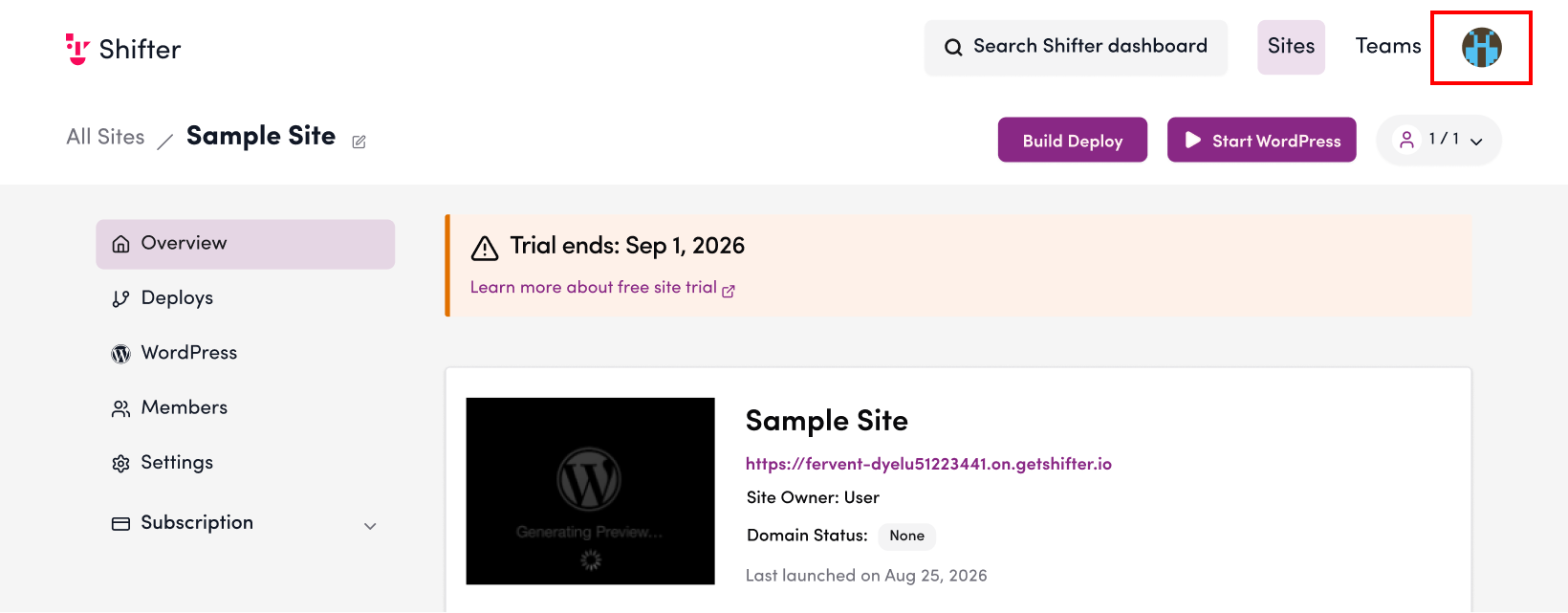
1. Click the account icon in the top-right corner of the page.
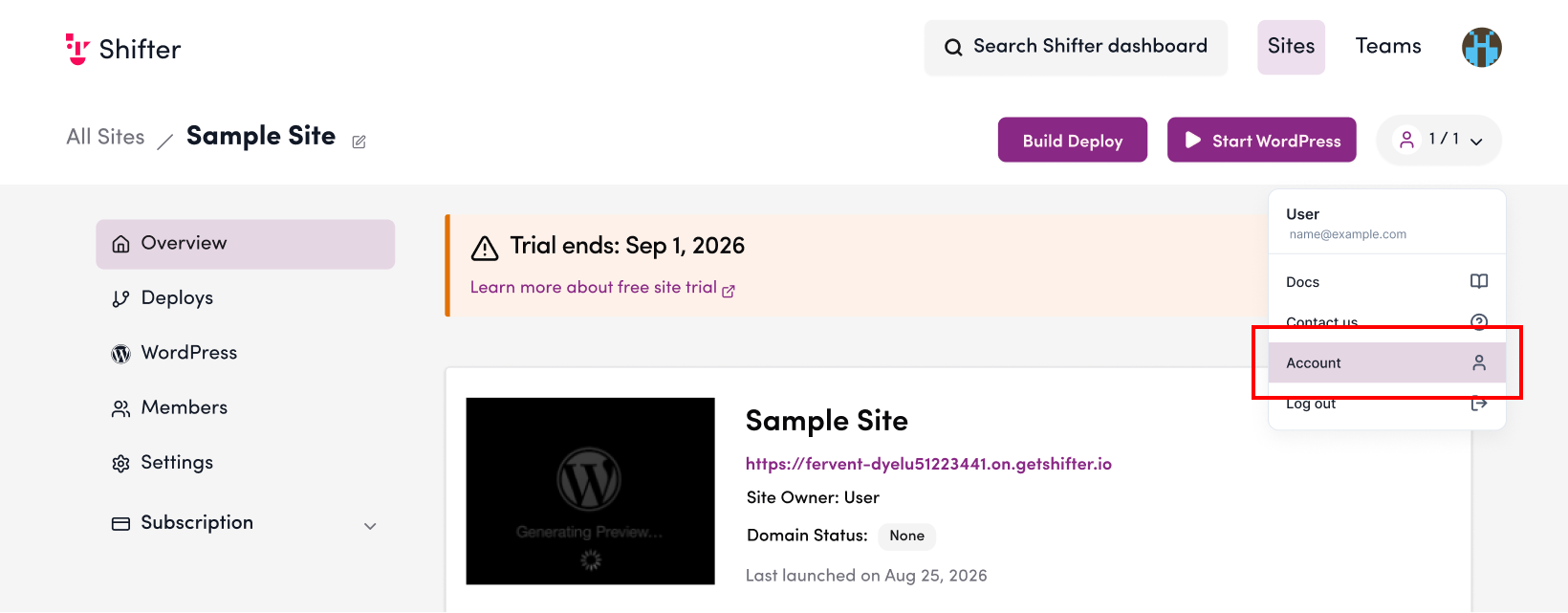
2. Select “Account.”
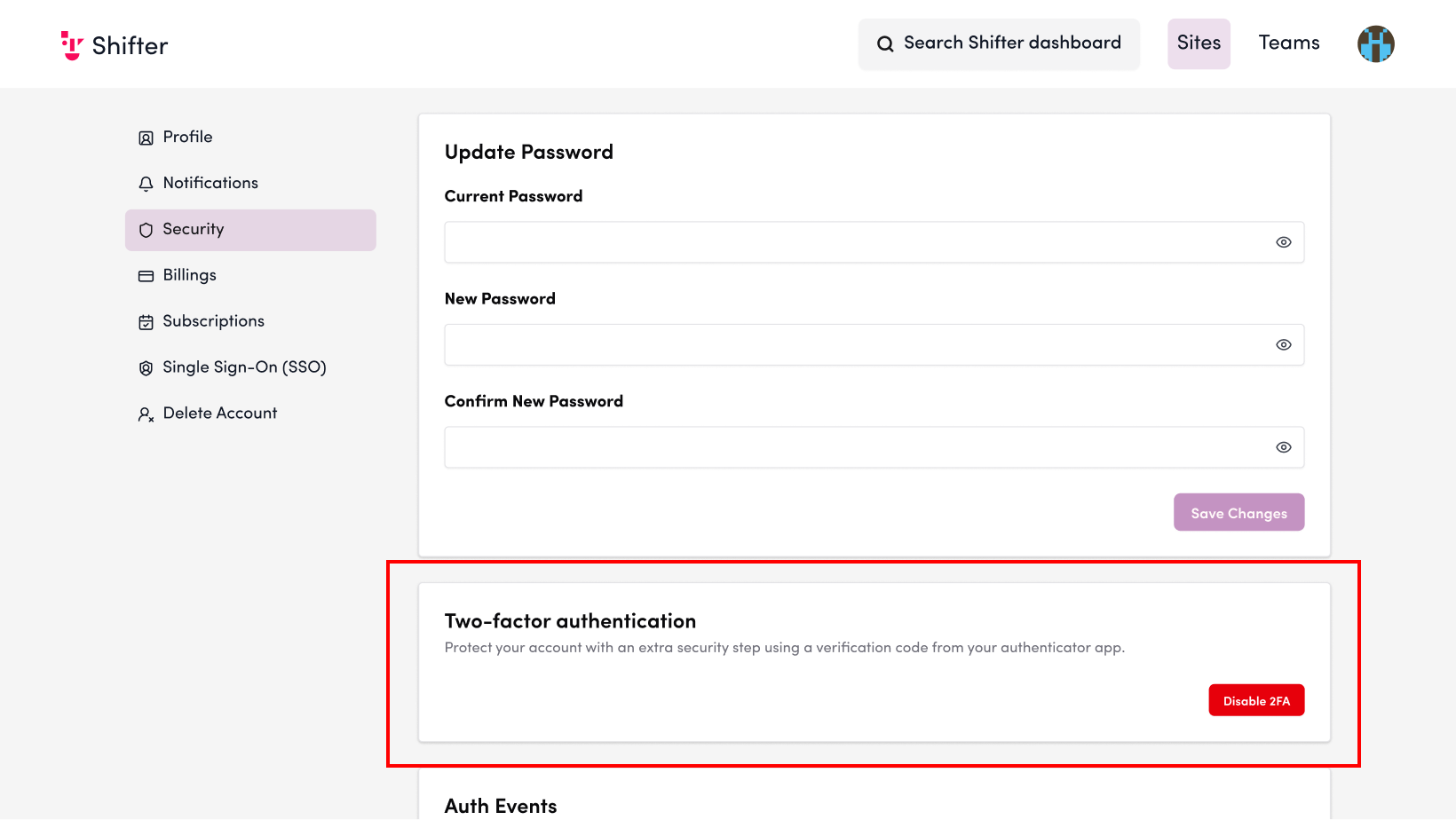
3. Two-factor authentication via SMS is currently enabled.
Click the toggle switch to disable two-factor authentication.
4. Disable two-factor authentication.
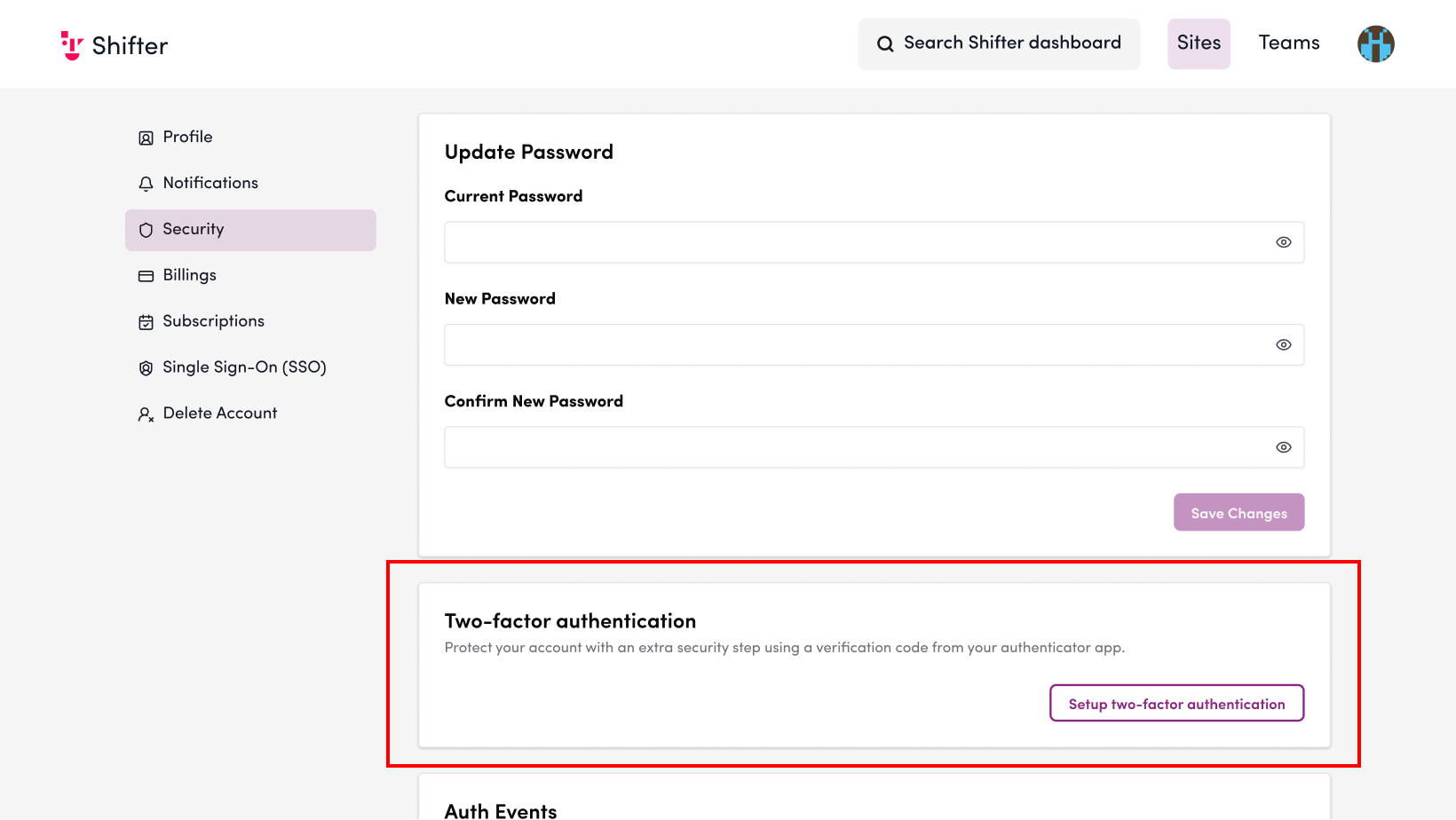
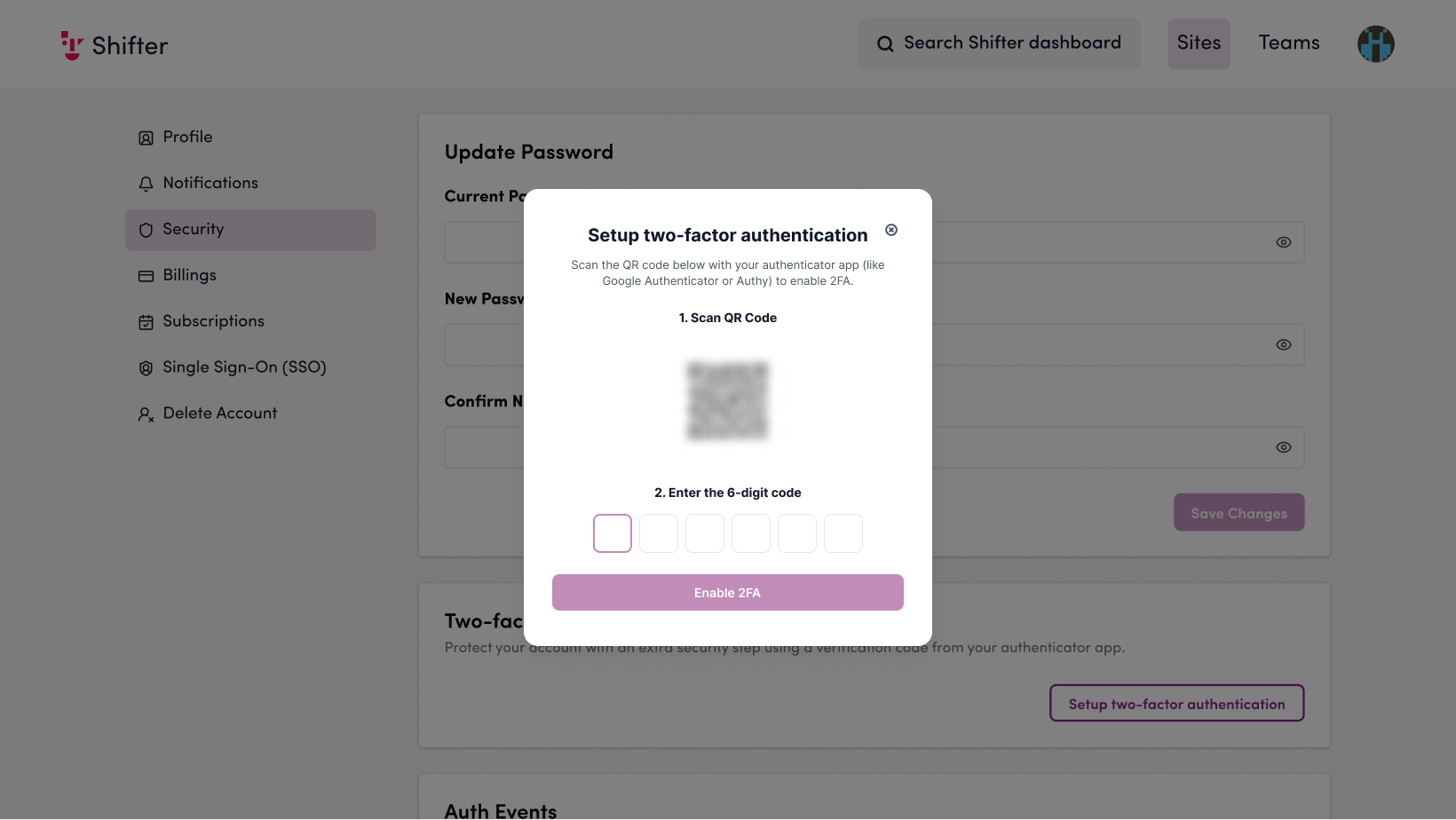
5. Click [Set Up Two-Factor Authentication] to re-enable two-factor authentication.
![Screenshot: Click [Set Up Two-Factor Authentication] to re-enable two-factor authentication.](/wp-content/uploads/2026/10/en-Two-Factor-Authentication_05.png)
6. Scan the QR code with your authentication app and enter the 6-digit code displayed.

7. Two-factor authentication is now enabled.
Once enabled, two-factor authentication will show as “ON.”
Clicking the toggle switch will disable two-factor authentication, and the status will change to “OFF.”
Functionality Test
Verify that two-factor authentication is set up correctly.
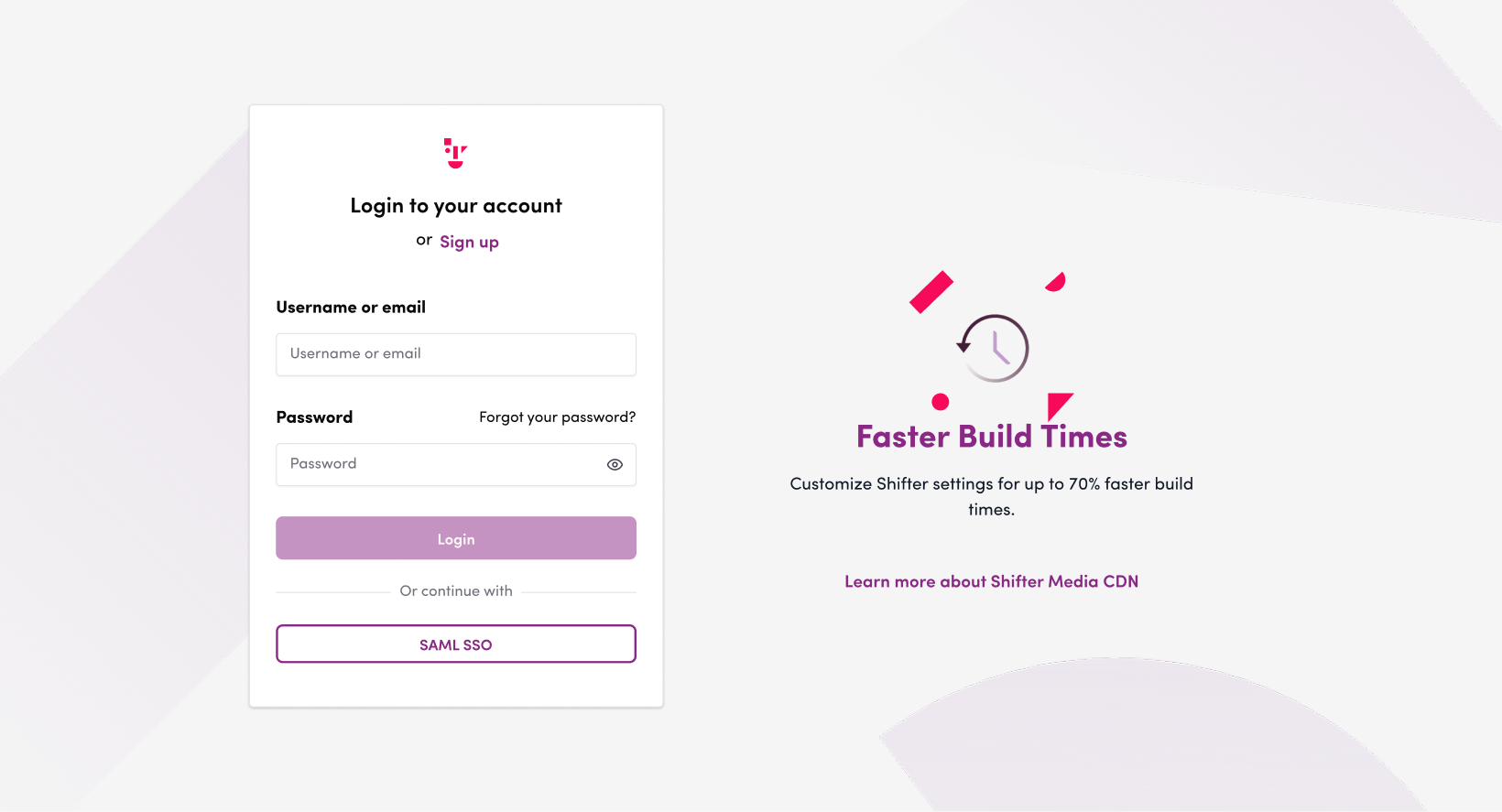
1. Log out or open the Shifter dashboard in incognito mode.
2. Enter your login credentials.
3. Enter the 6-digit code generated by your authentication app.
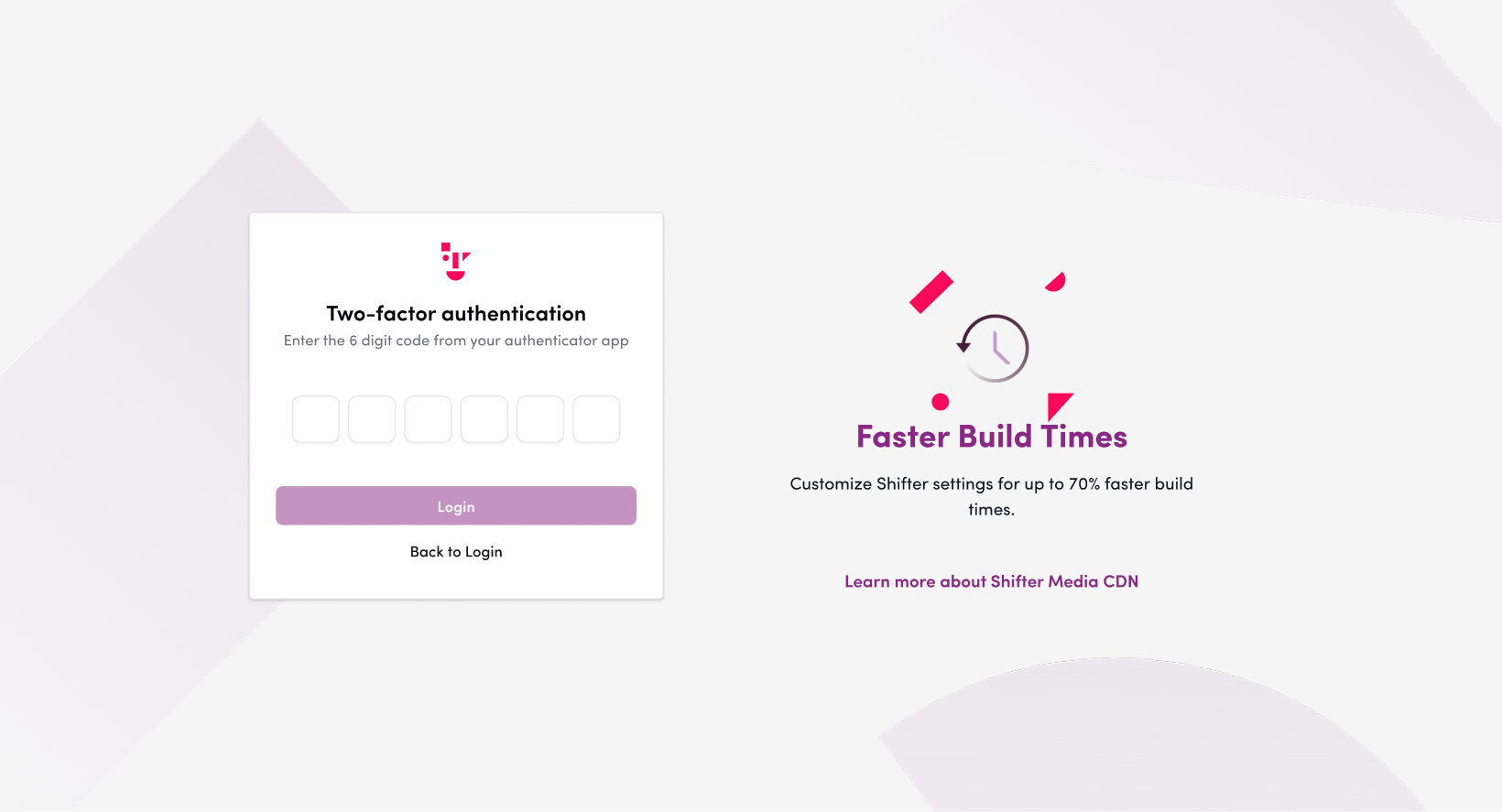
4. You can now access the Shifter dashboard.