
Procedure Overview: Install a plugin to export media, then deactivate Shifter Media CDN. Restart WordPress and install several additional plugins to upload files, replace paths, and regenerate media thumbnails. Generate artifacts.
Full Procedure
- Launch WordPress and install the Export Media Library plugin to download your media.
- Install the Export Media Library plugin.
- Then activate it.
- Export the media.
- Click [Media] → [Export].
- Download the media files.
- Click the [Download Zip] button and verify that all media has been exported.
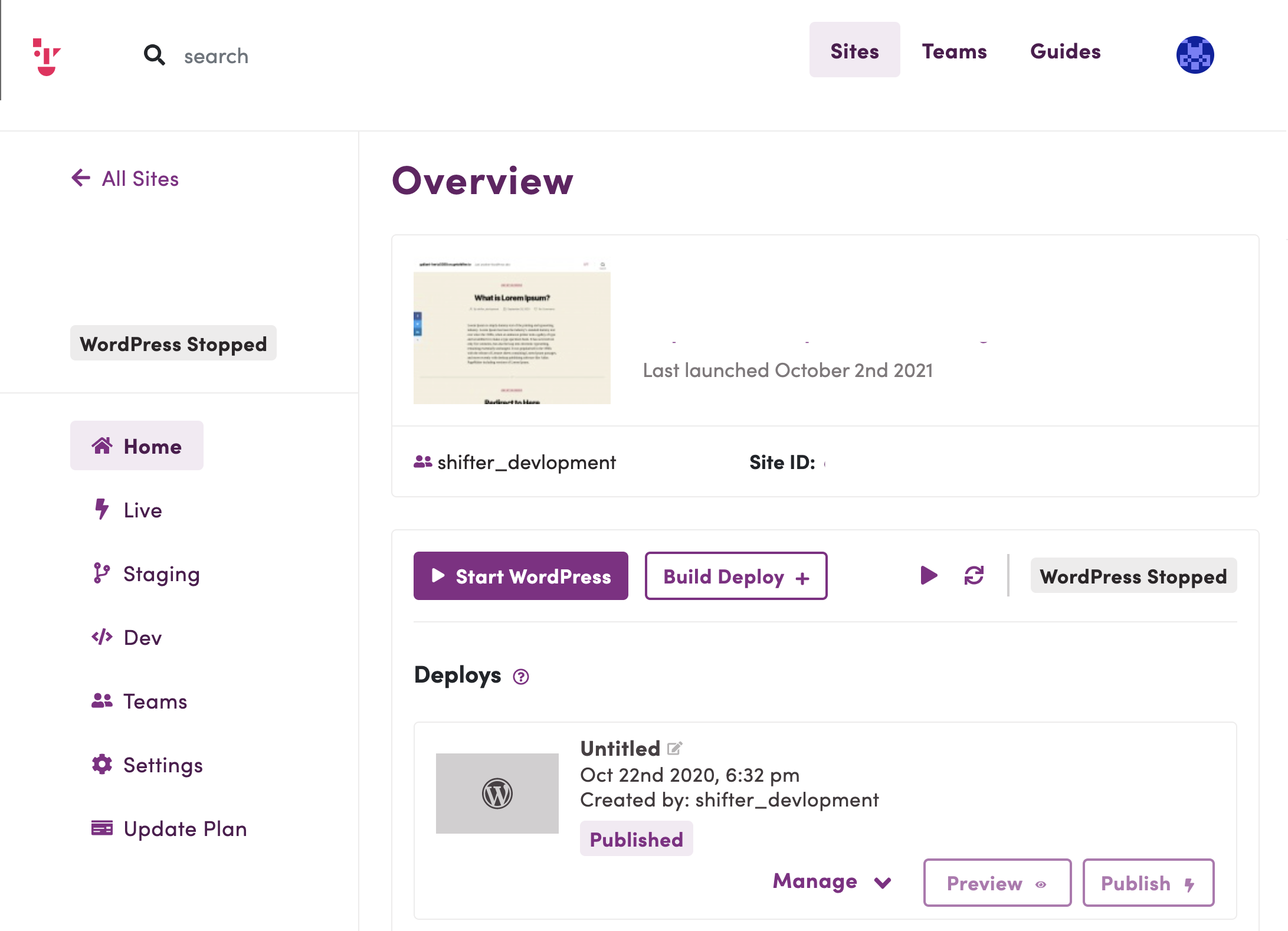
- Stop WordPress and disable Media CDN.
- Return to the Shifter dashboard, stop WordPress, and then disable Media CDN.
- Click [Start WordPress] to start WordPress (it will start without Media CDN).
- Install and activate the File Manager plugin.
- https://wordpress.org/plugins/wp-file-manager/
- https://wordpress.org/plugins/file-manager-advanced/
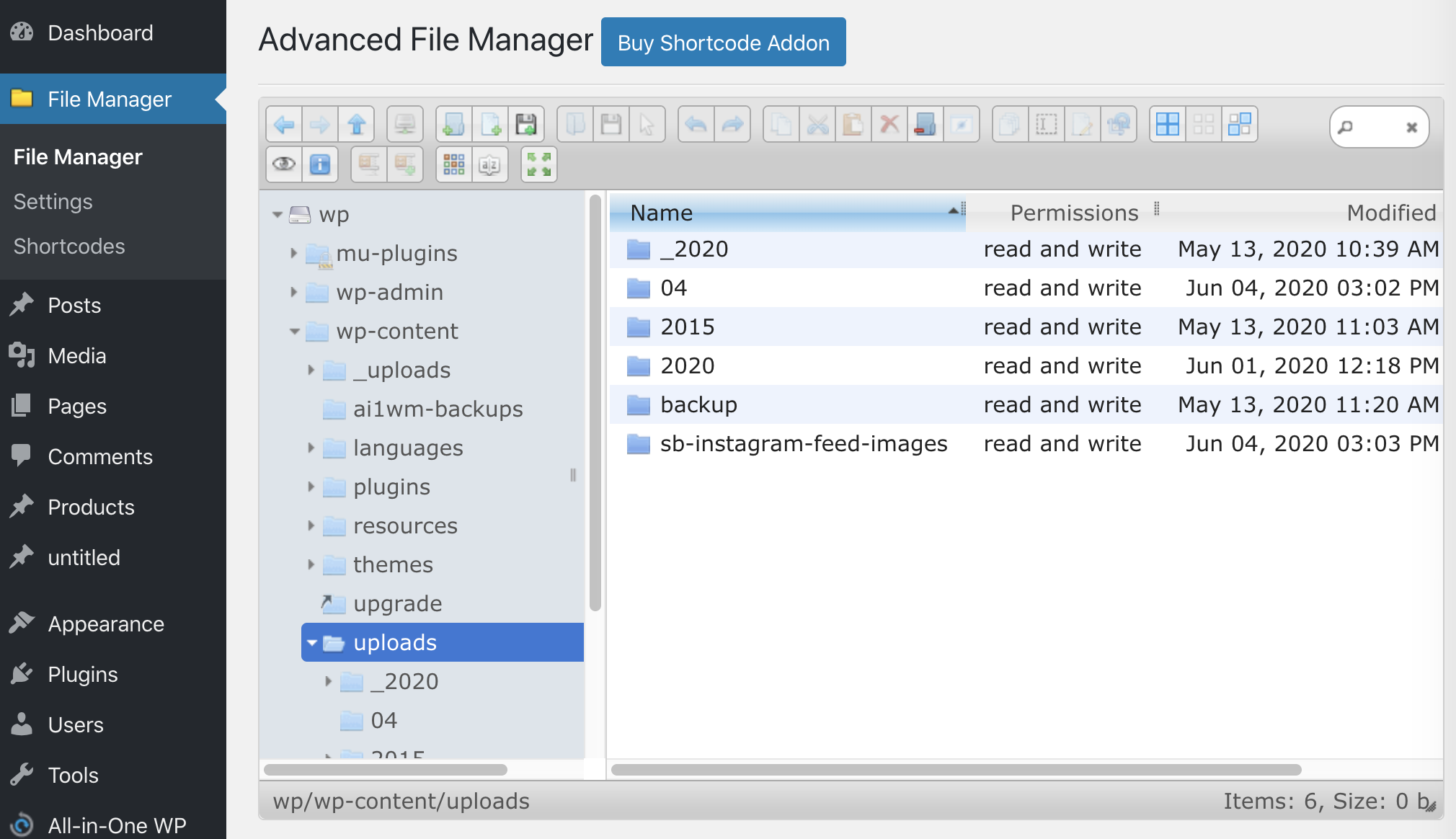
- Use the File Manager WordPress plugin to connect to Shifter via SFTP.
- Use the File Manager plugin to upload media to
wp-content/uploads/.
- Manually search and replace the media paths, or use a plugin.
- Replace the media paths in posts or pages from
https://cdn.getshifter.co/{site-id}/tohttps://{YOUR-DOMAINNAME}/or simply/. - Search and Replace Plugins:
* Search Regex
* Search Replace
- Regenerate thumbnails.
- Install a thumbnail regeneration plugin and regenerate the thumbnails for your media.
- Thumbnail Regeneration Plugins:
* Regenerate Thumbnail Advanced
* Regenerate Thumbnails
- Preview:
- Preview to ensure all media has been uploaded and is displayed.
- Build and Deploy:
- Build the artifact. That’s it!