
Custom Domain
Custom Domain and DNS Settings
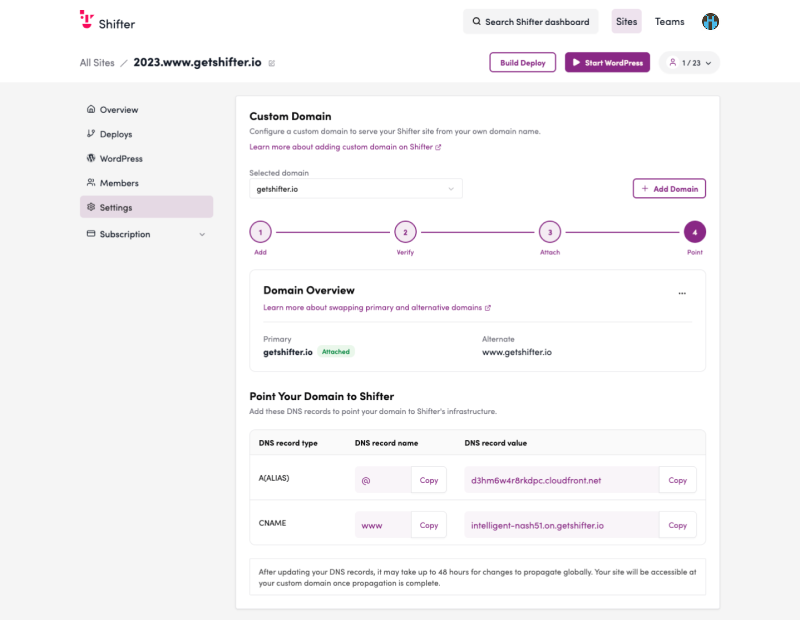
This section contains the settings for publishing your Shifter site under a custom domain.
Selected Domain ( Selected domain)
Displays the domain currently linked to the site. You can switch between configured domains using the drop-down menu.
Add Domain ( Add Domain)
Click the “+ Add Domain” button to add a new custom domain. After adding it, complete the setup by following the four steps below.
Domain Setup Steps (1–4)
| Step | Name | Action/Task |
|---|---|---|
| 1 | Add Domain | Enter the domain name and add it |
| 2 | Verify | Verify domain ownership |
| 3 | Attach | Link the domain to the site |
| 4 | (Point) | Point DNS records to Shifter’s infrastructure |
Domain Overview
Displays the status of currently attached domains. The Primary (main domain) and Alternate (alternate domain, typically the domain with “www”) are shown. If the “Attached” badge is displayed, the domain is successfully connected.
DNS Record Settings (Point Your Domain to Shifter)
Displays the DNS records required to point your domain to Shifter’s infrastructure.
| DNS Record Type | DNS Record Name | Value |
|---|---|---|
| A (ALIAS) | @ (root domain) | CloudFront URL |
| CNAME | www | *.on.getshifter.io or CloudFront URL |
Displays the status of currently attached domains. The Primary (main domain) and Alternate (alternate domain, typically the domain with “www”) are displayed. If the “Attached” badge is present, the domain is successfully connected.
Auto Publish and Basic Authentication
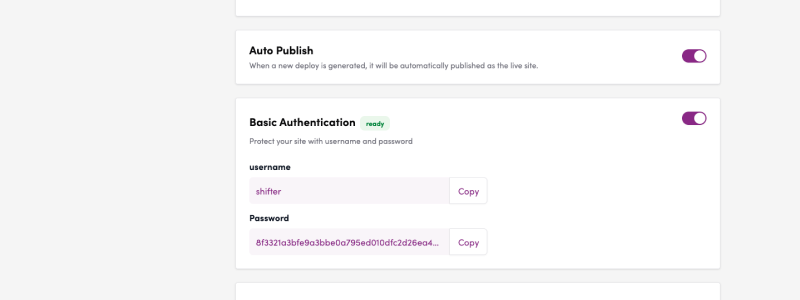
Auto Publish
Configure whether to automatically publish a new deployment as a live site when it is generated.
ON: The site is automatically published as soon as the deployment is complete, without requiring confirmation.
OFF (Off / Default): The site will not be published until you manually click “Publish” after deployment.
Tip: In a production environment, we recommend keeping this set to OFF to prevent accidental publication.
Basic Authentication
Set up access restrictions for the site using a username and password. This is useful during development or for protecting private content.
Status badge “ready”: Indicates that authentication is available.
Toggle switch: When set to ON, authentication is enabled, and a dialog box will appear when accessing the site via a browser.
Username
The username used for authentication. You can copy it using the “Copy” button.
Password
The password used for authentication. You can copy it using the “Copy” button.
Note: The username and password for Basic Authentication are automatically generated by the system. They cannot be changed.
Auto Backup, Deletion Protection, Subdirectory Deployment, Algolia Search, MediaCDN
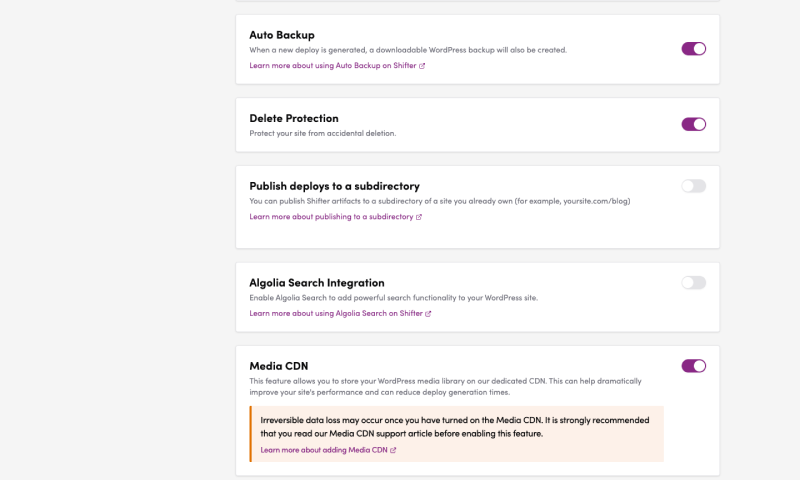
Auto Backup
This feature automatically creates a downloadable WordPress backup every time a new deployment is generated.
ON: A backup file is generated with every deployment.
OFF (Default): Automatic backups are not created.
For details, see “ https://ja.getshifter.io/shifter-support-documents/backup/automating-your-wordpress-backups.”
Delete Protection
This feature prevents you from accidentally deleting your site.
ON: The site deletion action is disabled, preventing accidental deletion.
OFF (Default): You can delete the site as usual.
Recommended: We strongly recommend keeping this feature ON for production sites at all times.
Publish Deploys to a Subdirectory
This feature allows you to publish Shifter artifacts to a subdirectory of a site you already own (e.g., example.com/blog).
ON: The subdirectory publishing setting is enabled (additional configuration is required).
OFF (Default): Deploys to the root domain.
For details, see “ https://ja.getshifter.io/shifter-support-documents/development/subdirectory-publish.”
Algolia Search Integration
This integration setting adds Algolia’s powerful search functionality to your WordPress site.
ON: Algolia Search is enabled, significantly enhancing your WordPress site’s search capabilities.
OFF (Default): Uses the standard WordPress search.
For details, see the “ Algolia” link.
Media CDN
This feature stores your WordPress media library on Shifter’s dedicated CDN. It significantly improves site performance and reduces deployment generation time.
ON: Media files are migrated to the CDN (this cannot be undone once enabled).
OFF (Default): Uses standard WordPress media management.
⚠️ Important Warning: Enabling Media CDN may result in irreversible data loss. Be sure to read the support documentation before enabling this feature.
Access Logs and Completion Notifications
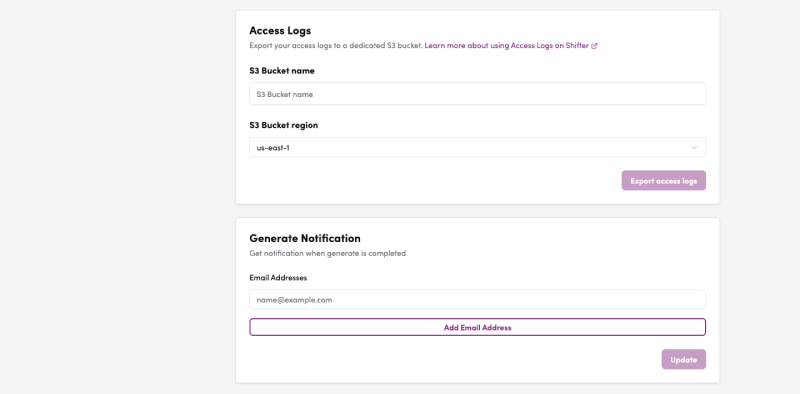
Access Logs
This feature exports your site’s access logs to an AWS S3 bucket. You can use this for traffic analysis and security audits.
- S3 Bucket name: Enter the name of the S3 bucket to which you want to export the logs.
- S3 Bucket region: Select the S3 bucket region from the drop-down menu. Examples of supported regions: us-east-1, ap-northeast-1 (Tokyo), etc.
- Export access logs: Clicking the “Export access logs” button will start the export to the specified S3 bucket.
Generate Notification
This setting allows you to receive email notifications when the deployment (Generate) is complete.
Email Addresses
Enter the email addresses to which notifications should be sent. You can add multiple addresses using the “Add Email Address” button. After configuring, click the “Update” button to save.
Webhook Integration
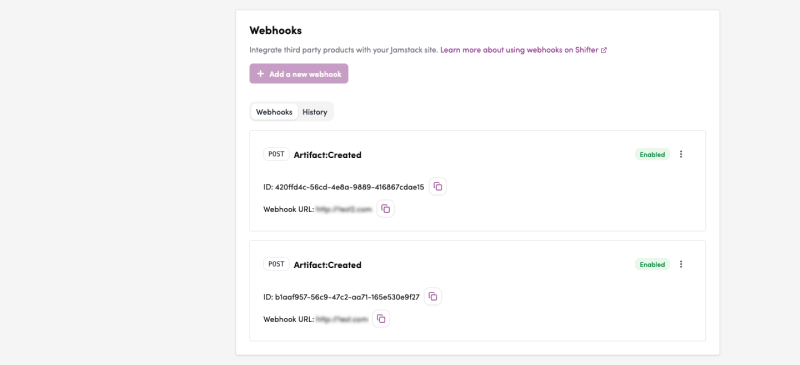
Webhook Integration (Webhooks)
Configure webhooks to integrate third-party services with your Jamstack site.
Add a new webhook: You can add a new webhook by clicking the “+ Add a new webhook” button.
Webhooks Tab: Displays a list of configured webhooks. The following information is displayed for each webhook:
- HTTP Method (e.g., POST) Event Trigger (e.g., Artifact:Published — when an artifact is published)
- Status (Enabled / Disabled)
- ID: The webhook’s unique identifier
- Webhook URL: The URL to which requests are sent
- History tab: You can view the webhook’s transmission history.
Site Transfer and Deletion
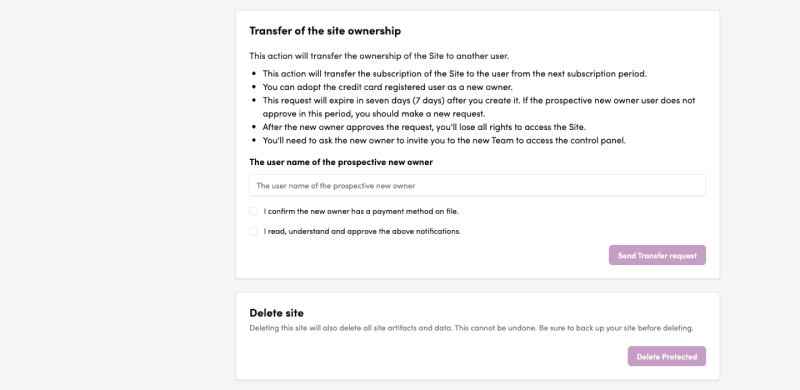
Transfer of Site Ownership
This process transfers ownership of a site to another user. Please note the following:
- The subscription will be transferred to the new owner starting with the next billing cycle.
- The new owner must have a credit card on file.
- The transfer request is valid for 7 days after creation. If it is not approved within this period, you will need to resubmit the request.
- Once the new owner approves the transfer, the current owner will lose all access rights to the site.
Instructions:
- Enter the username of the prospective new owner in the “The user name of the prospective new owner” field
- Check the box next to “I confirm the new owner has a payment method on file.”
- Check the box next to “I read, understand, and approve the above notifications.”
- Click the “Send Transfer Request” button
Deleting a Site (Delete Site)
This will permanently delete the site and all artifacts and data. This action cannot be undone.
Be sure to back up the site before deleting it.
Click the “Delete” button to proceed with deletion.
⚠️ Warning: This action is only available when Delete Protection is turned OFF. To prevent accidental deletion,