
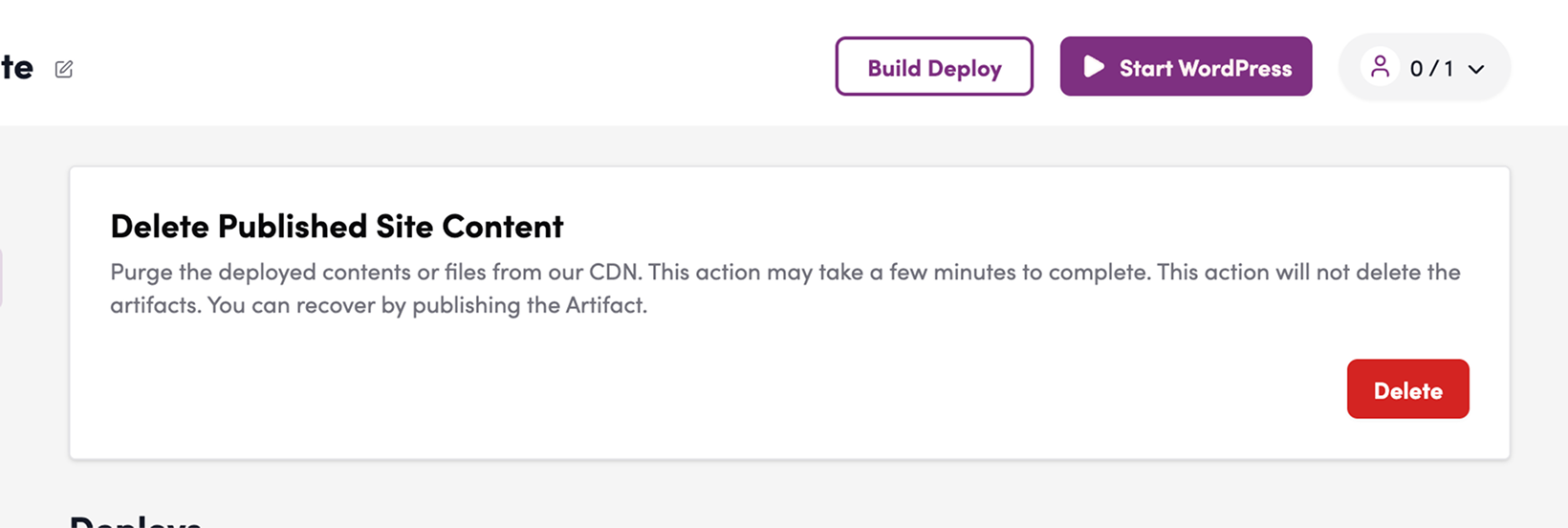
Using the “Delete Published Site Content” feature, you can remove all content from Shifter CDN without deleting artifacts or deployments in your account.
How to Delete Published Content
1. Log in to the Shifter dashboard.
2. From the site list, click “Open Admin” for the relevant site.
3. Click the “Live” menu in the left sidebar.
4. Click the “Delete” button in the “Delete Published Sites” section.
5. Enter “delete” in the text field and click the “Delete” button.
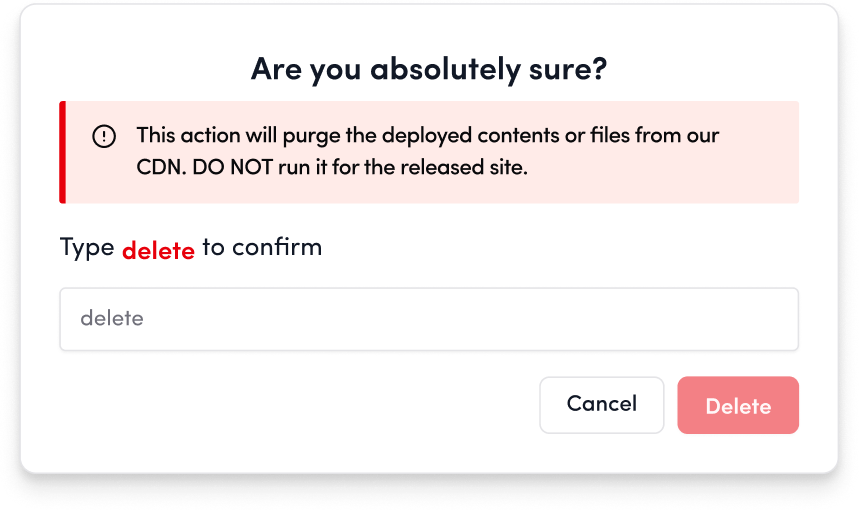
6. The content will be deleted from the CDN.
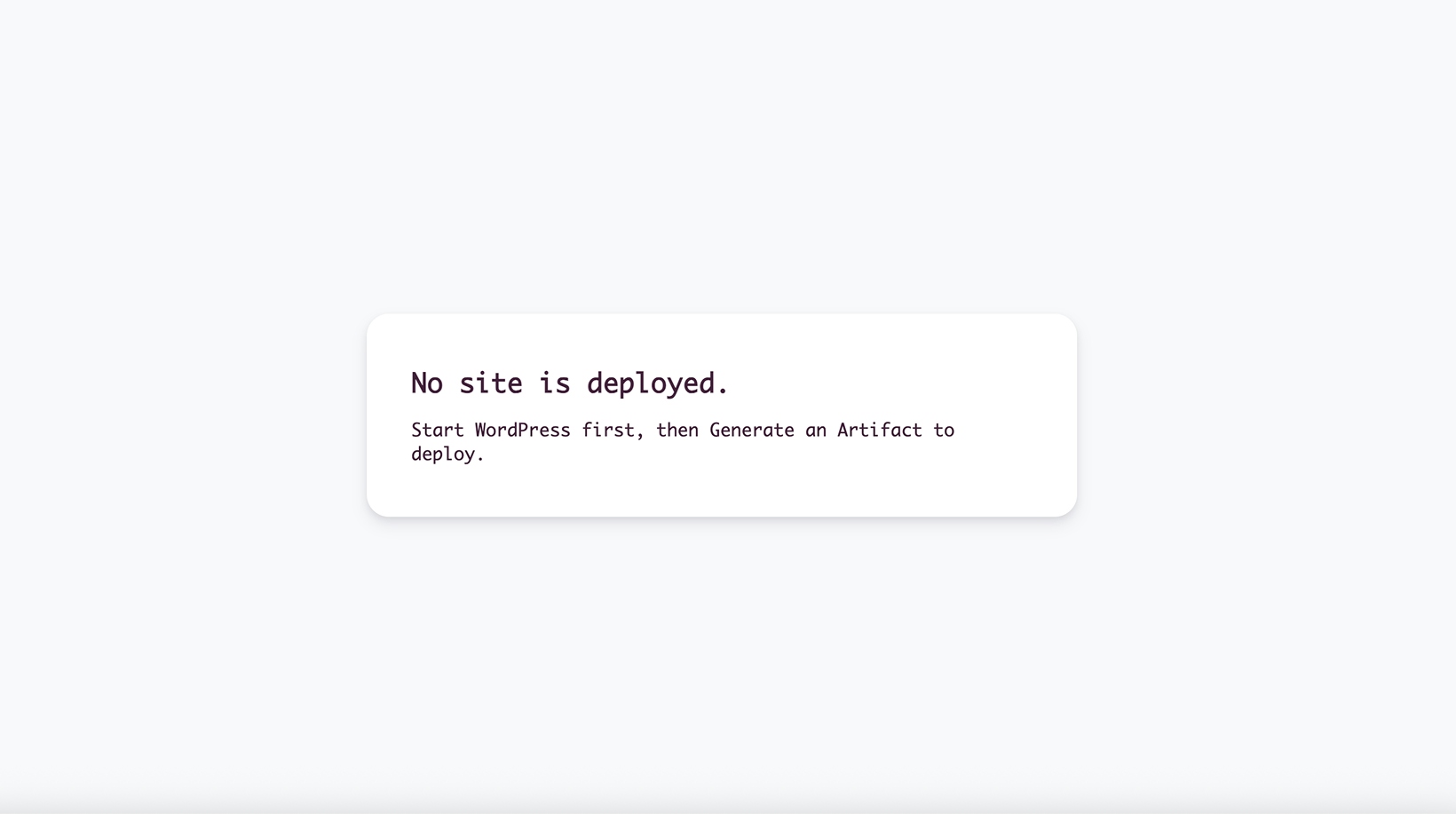
7. When you access the site, you can confirm that all content has been deleted.
Note
If you want to publish the artifact again, click the “Publish” button for that artifact.
For detailed instructions, see “ https://ja.getshifter.io/?post_type=document&p=66091&preview=true ” (https://ja.getshifter.io/shifter-support-documents/static-deploy/% e3%82%b3%e3%83%b3%e3%83%86%e3%83%b3%e3%83%84%e3%81%ae%e5%89%8a%e9%99%a4% e5%be%8c%e3%81%ab%e3%82%a2%e3%83%bc%e3%83%86%e3%82%a3%e3%83%95%e3%82%a1% (Re-opening the file) “