
If you have an existing WordPress site, you can use the WordPress Importer plugin ( https://wordpress.org/plugins/wordpress-importer/)to migrate your posts, pages, categories, and more.
Summary:
This plugin and process migrate your WordPress content and attachments. Plugins, themes, and custom settings are not migrated.
Step 1: Export your WordPress content
- Log in to WordPress.
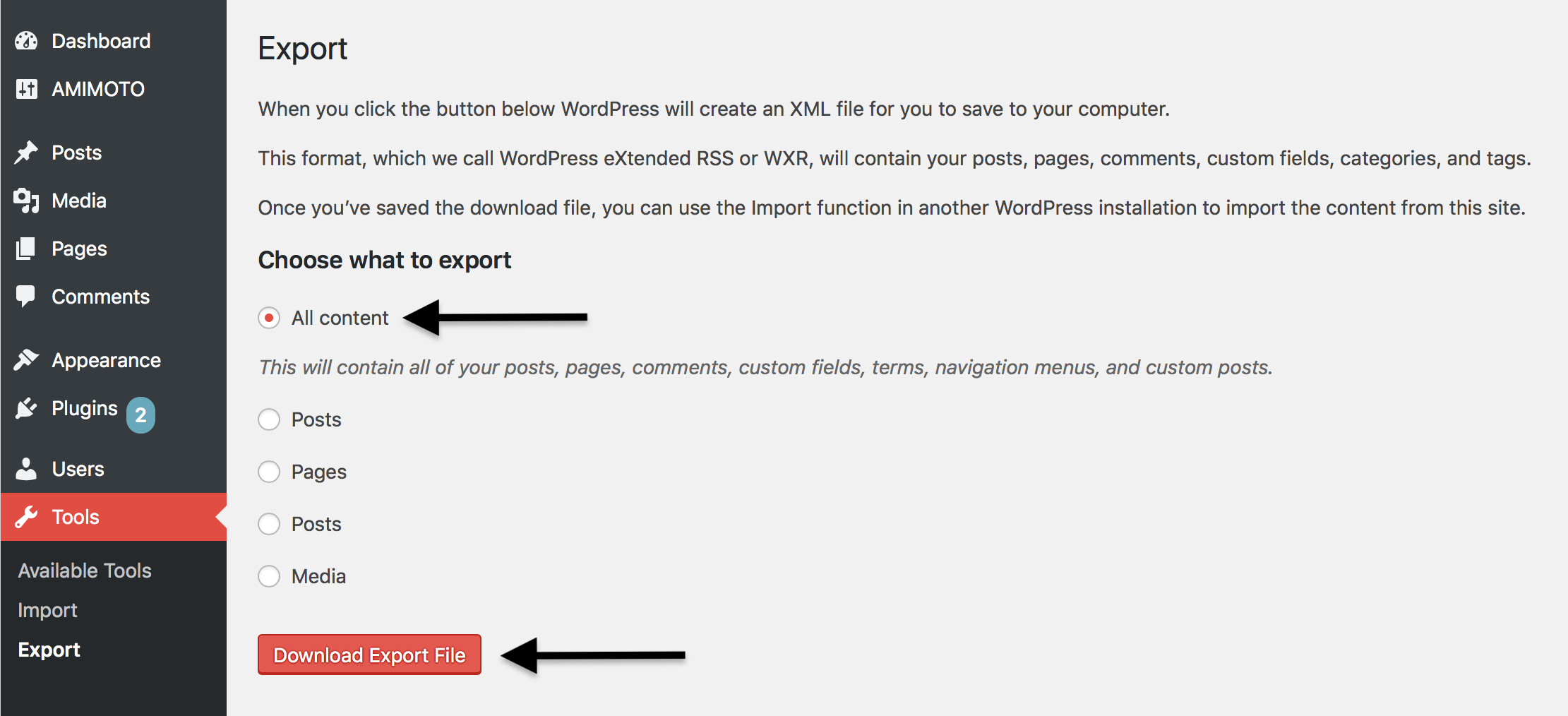
Step 1: Export Your WordPress ContentLog in to WordPress.Go to [Tools] → [Export].Select [All Content].Click [Download Export File].
Step 2: Import and Set Up WordPress on Shifter
Step 2: Import and set up WordPress on Shifter
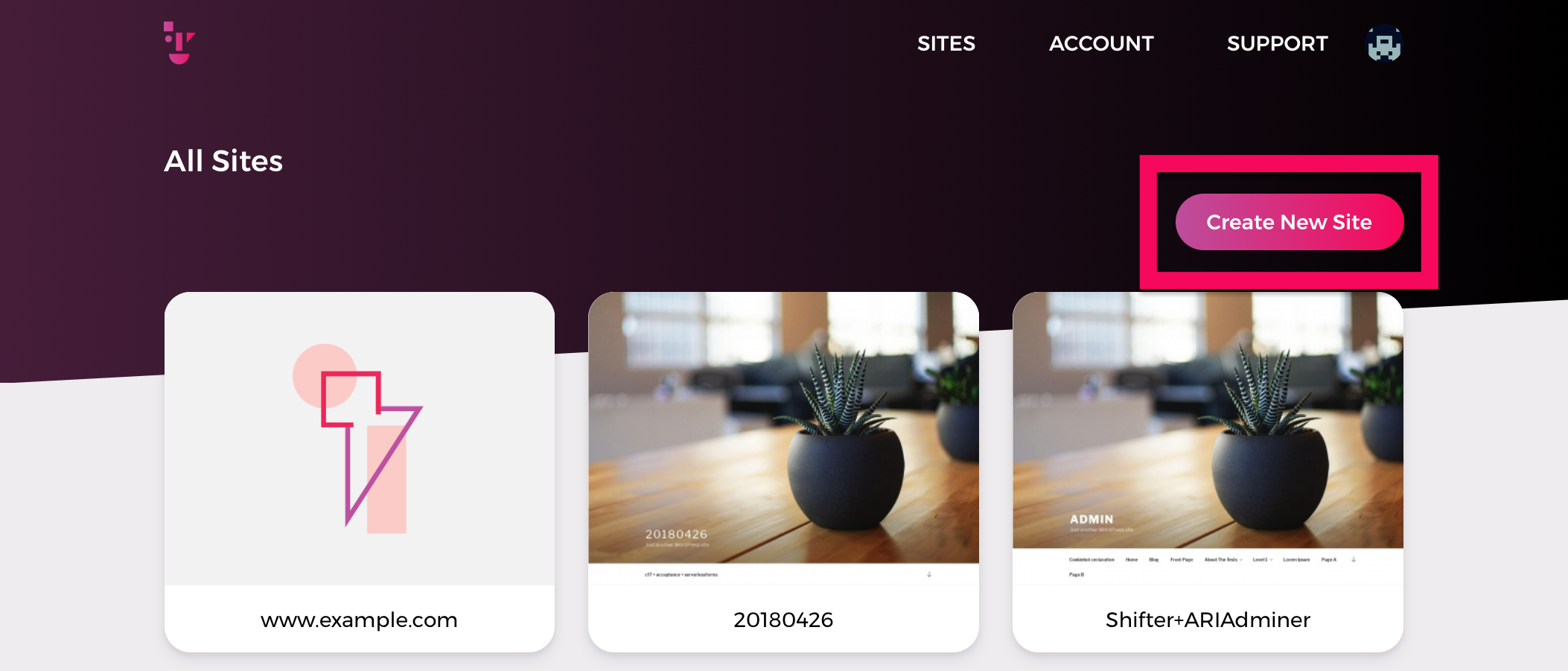
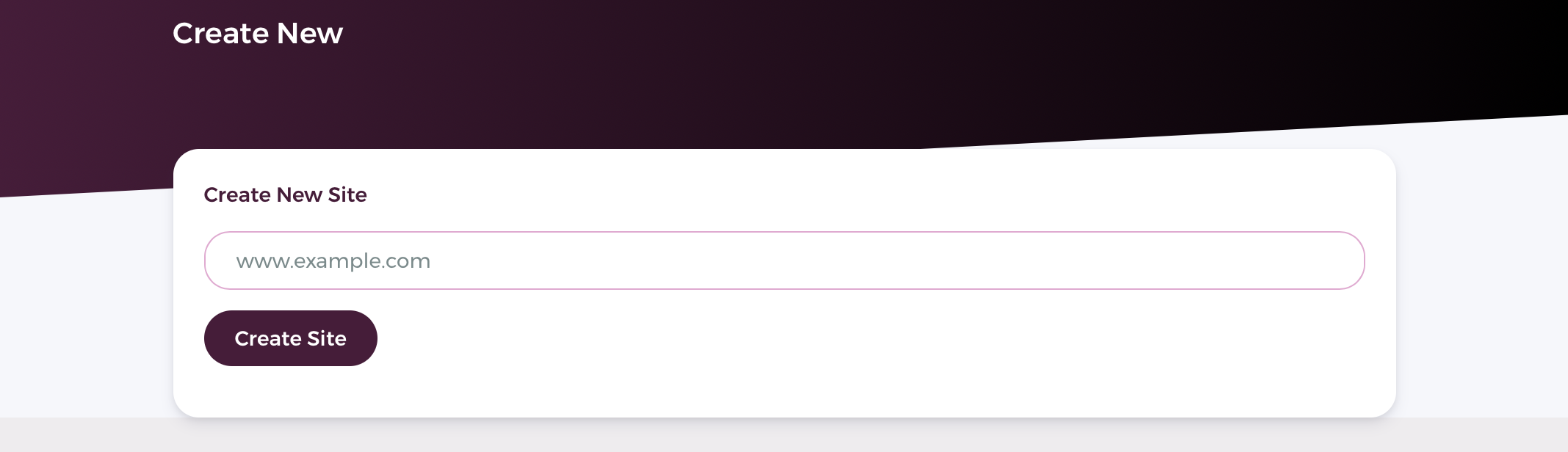
- Create a site.
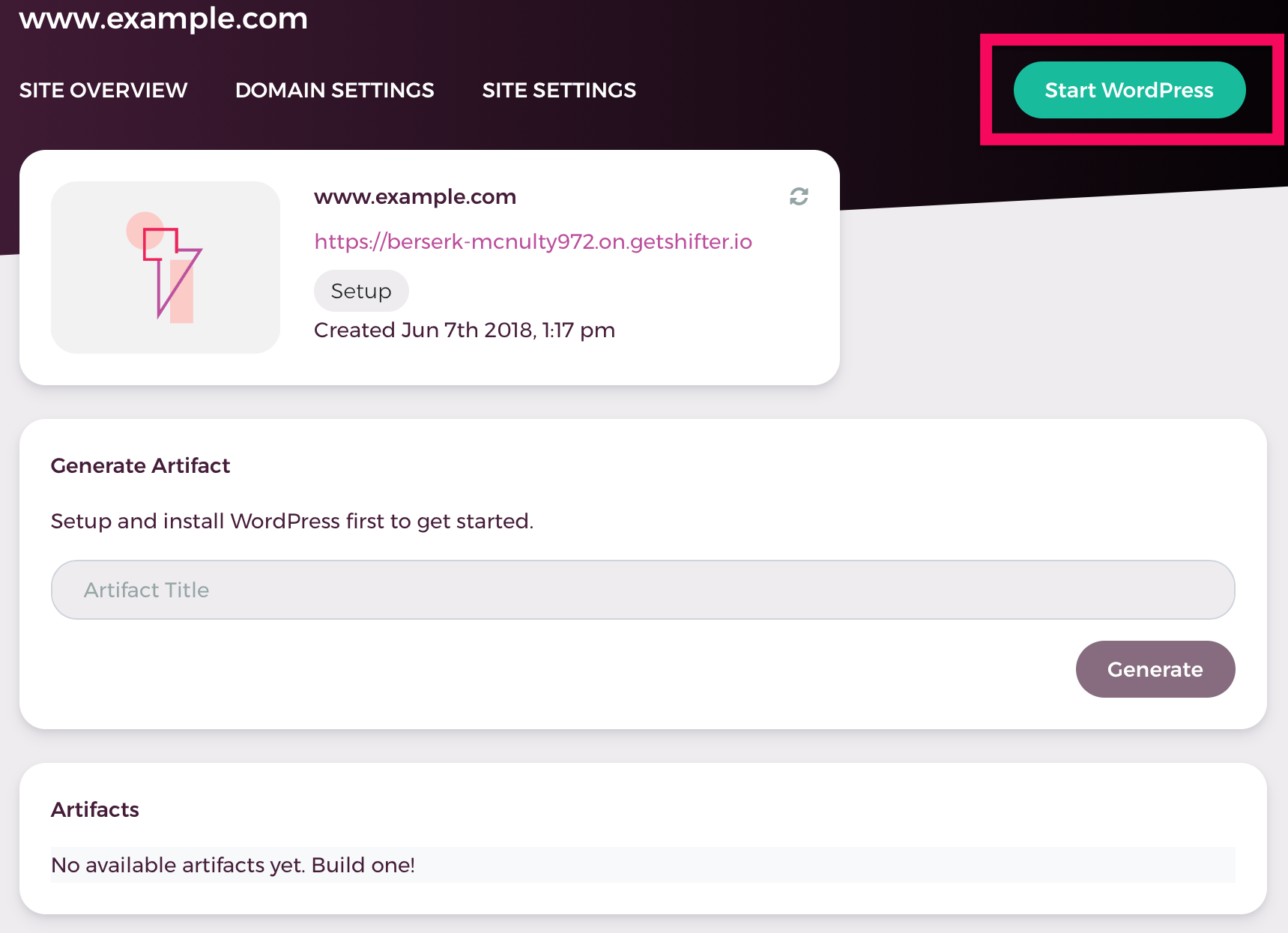
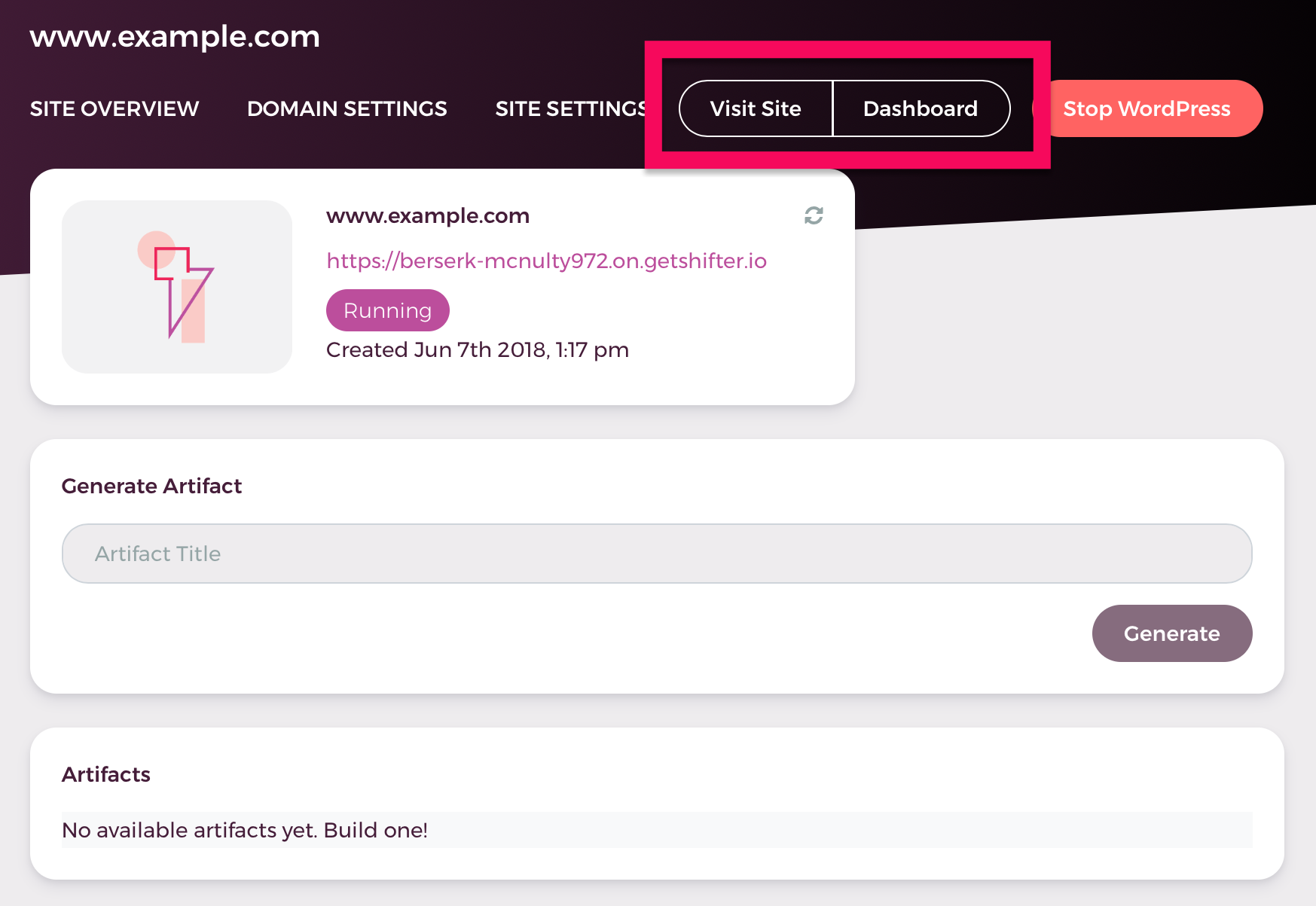
Click [Launch WordPress]
to launch WordPress.
- Access the WordPress dashboard.
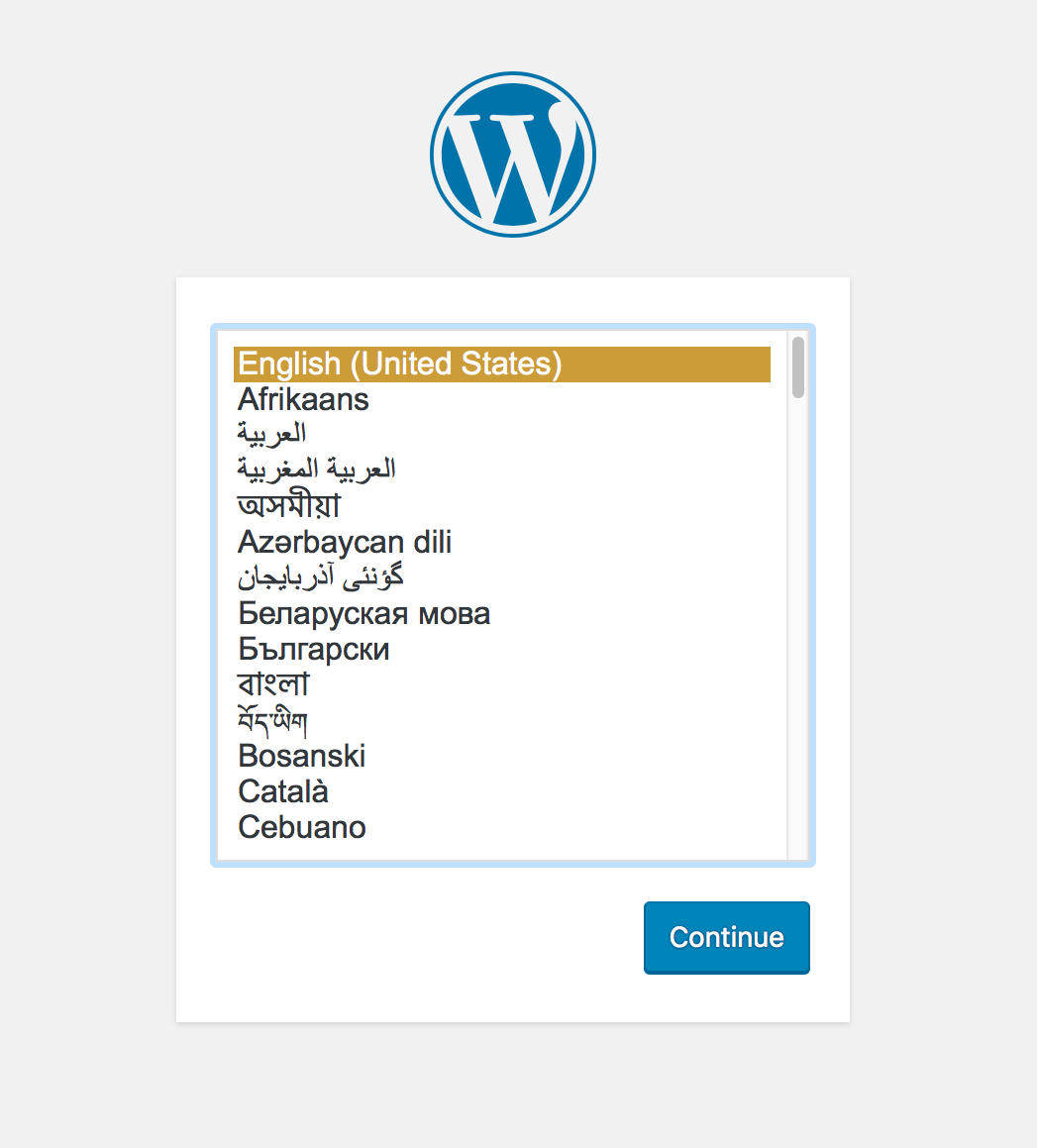
- Complete the famous five-minute installation.
Step 3: Import your content
- Log in to WordPress.
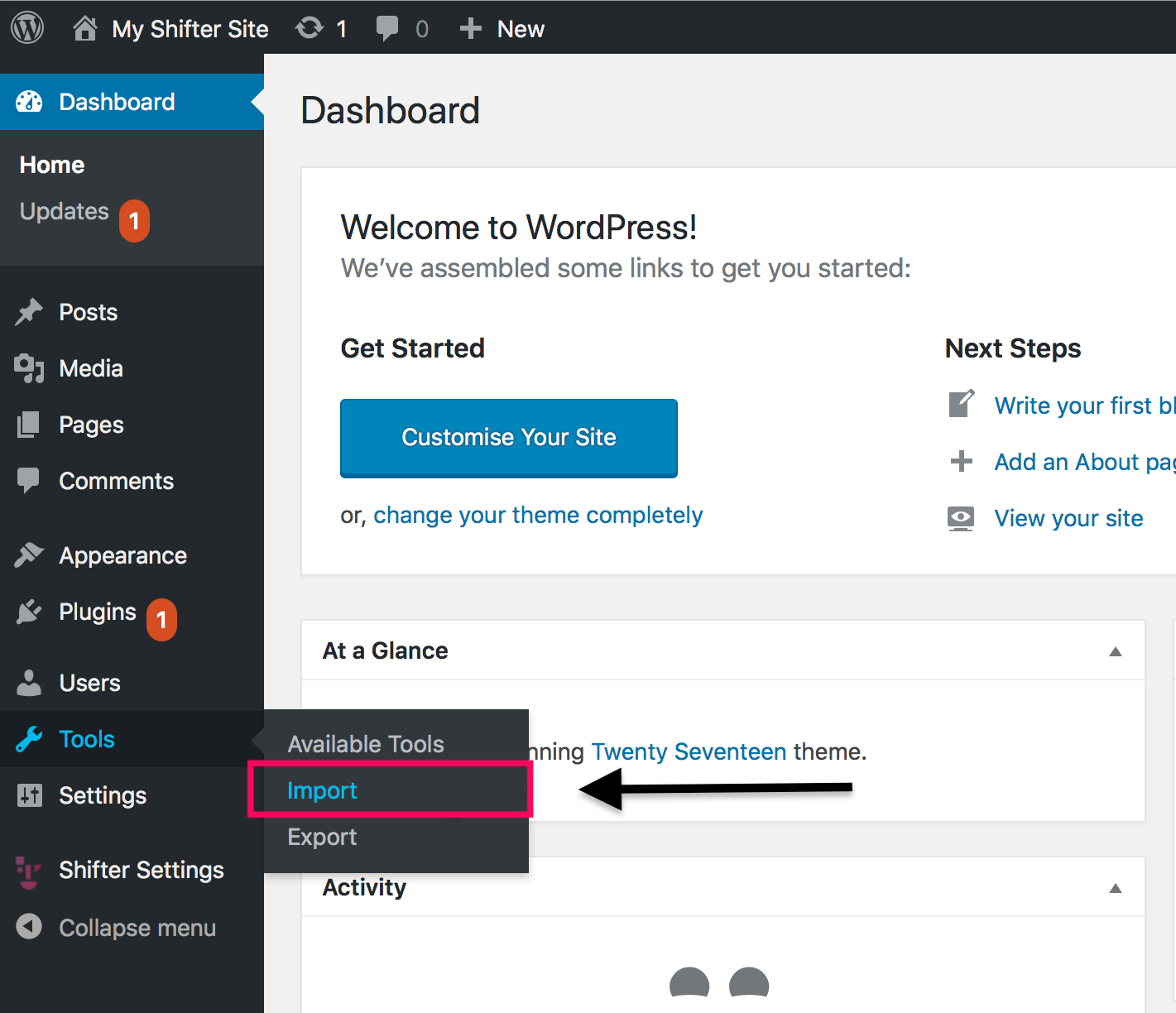
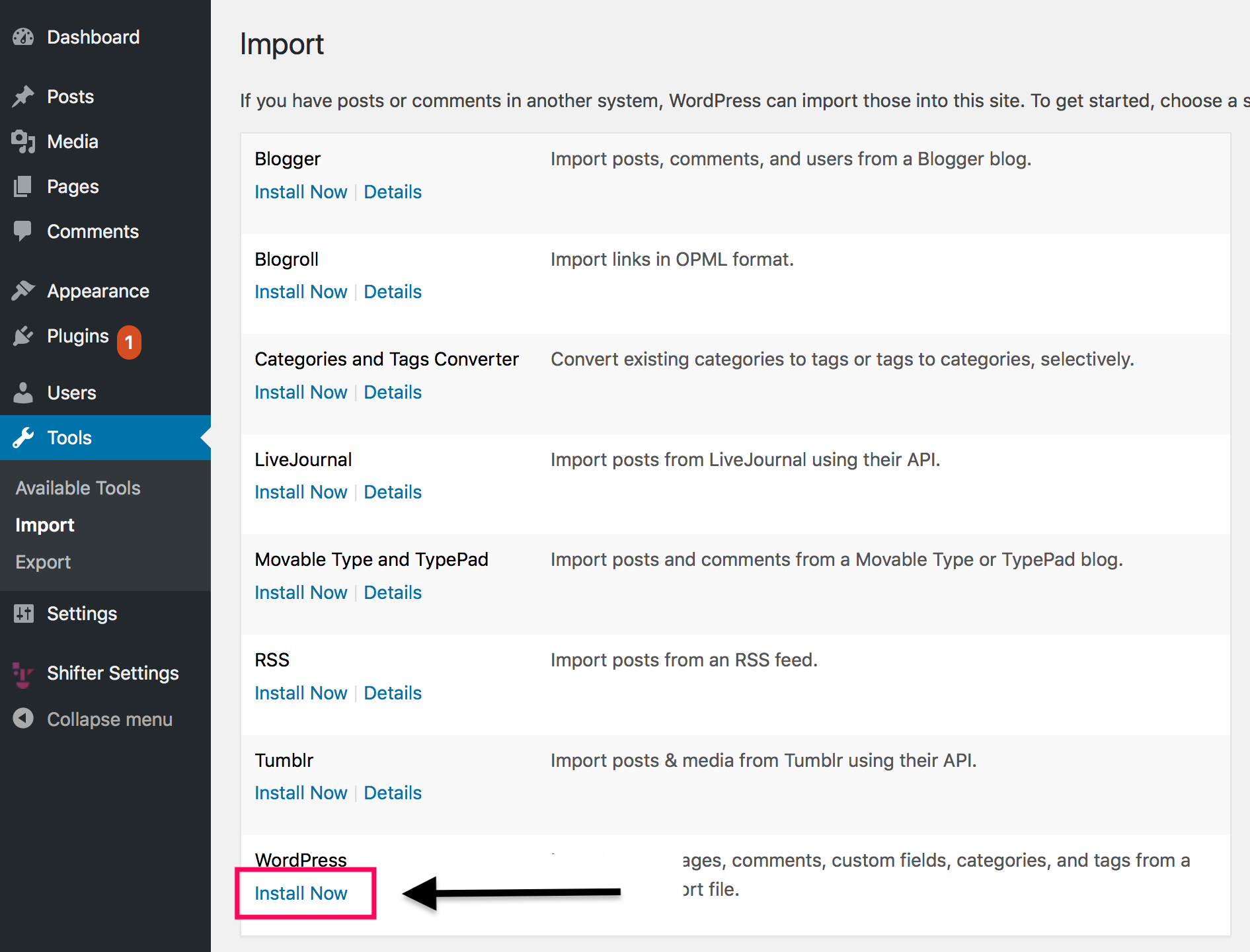
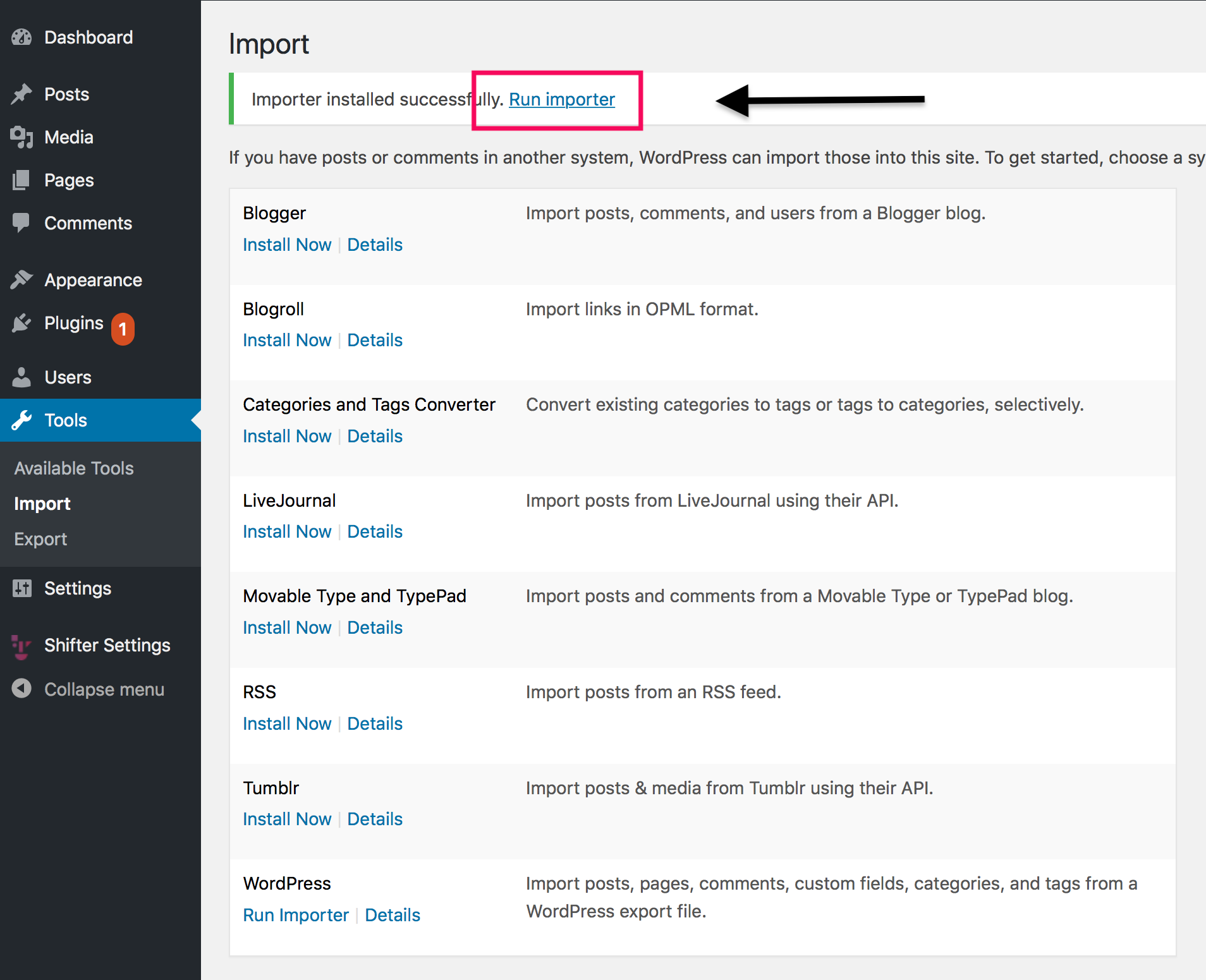
- Install and activate the WordPress Importer plugin.
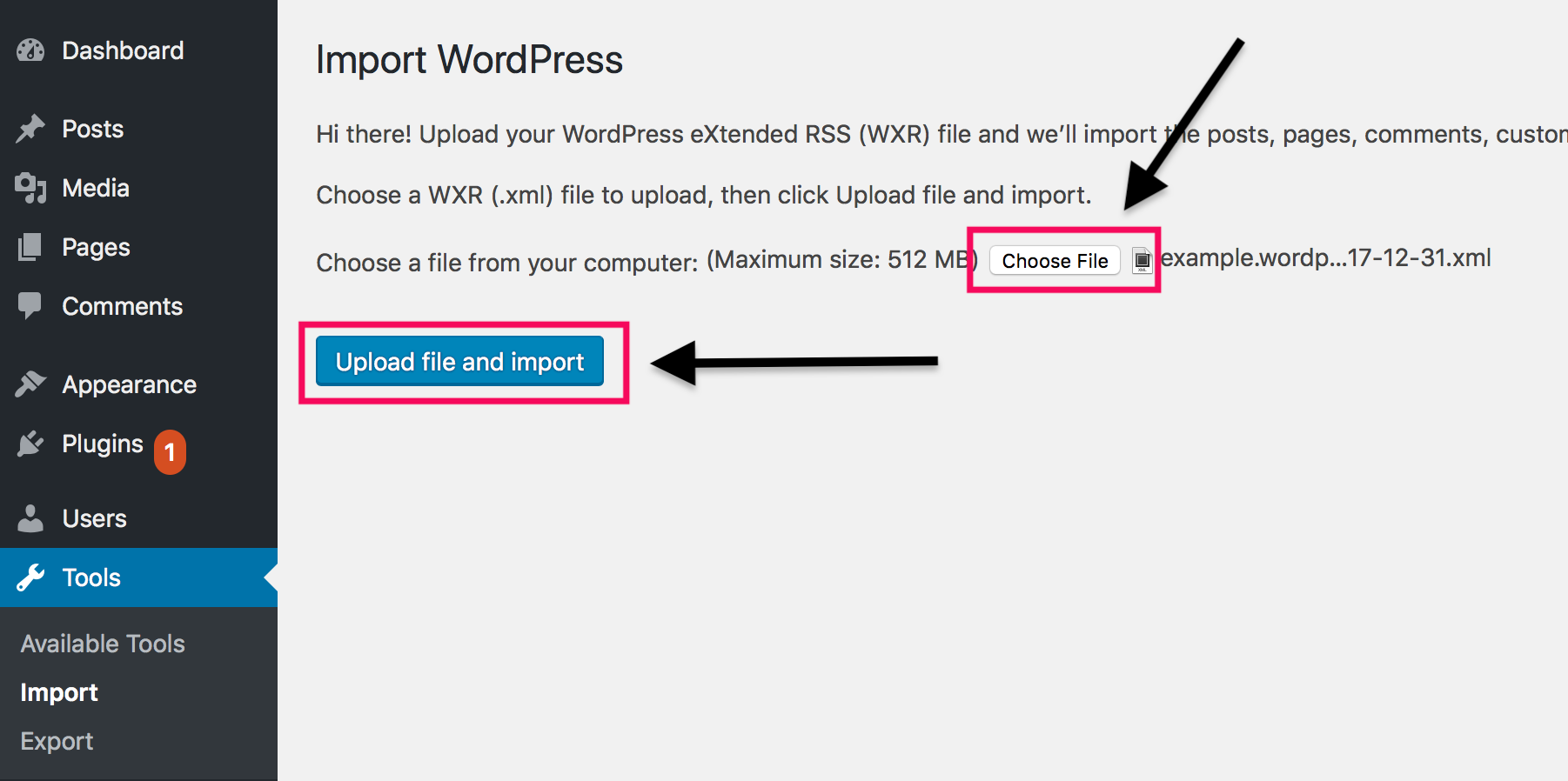
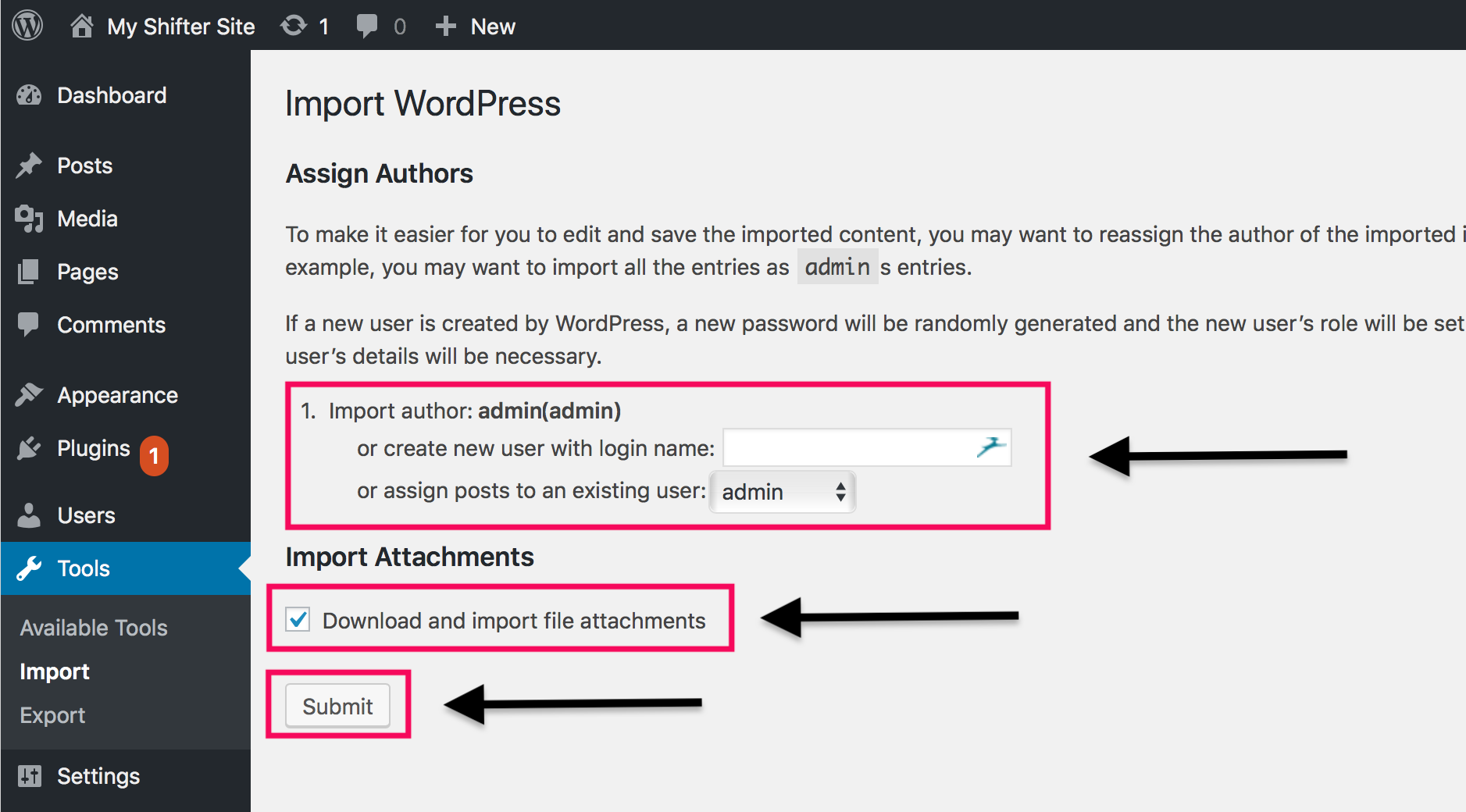
- Upload and import your content using the XML backup.
Important Note
The WordPress XML export/import tool is simple, but it is not a complete solution. Plugins and themes must be installed separately.
Next Steps
At this point, your new WordPress installation should be set up with the migrated content. You are now ready to create and deploy a static version. To create your first artifact, follow the how-to guide.
Next: Creating an Artifact