
This step-by-step guide explains how to create a Progressive Web App using WordPress. For more information about PWAs and their benefits, see our article on PWAs.
Instructions
Step 1: Sign in to your Shifter account.
Step 2: Launch your WordPress site.
Click the [Start WordPress] button to launch WordPress.
Step 3: Go to the WordPress Plugins page. Search for, install, and activate the PWA plugin.
Search for “PWA XWP,” then install and activate the PWA plugin.
What does the PWA plugin do?
Once activated, this PWA plugin automatically inserts rel="manifest" into the header section. Example:
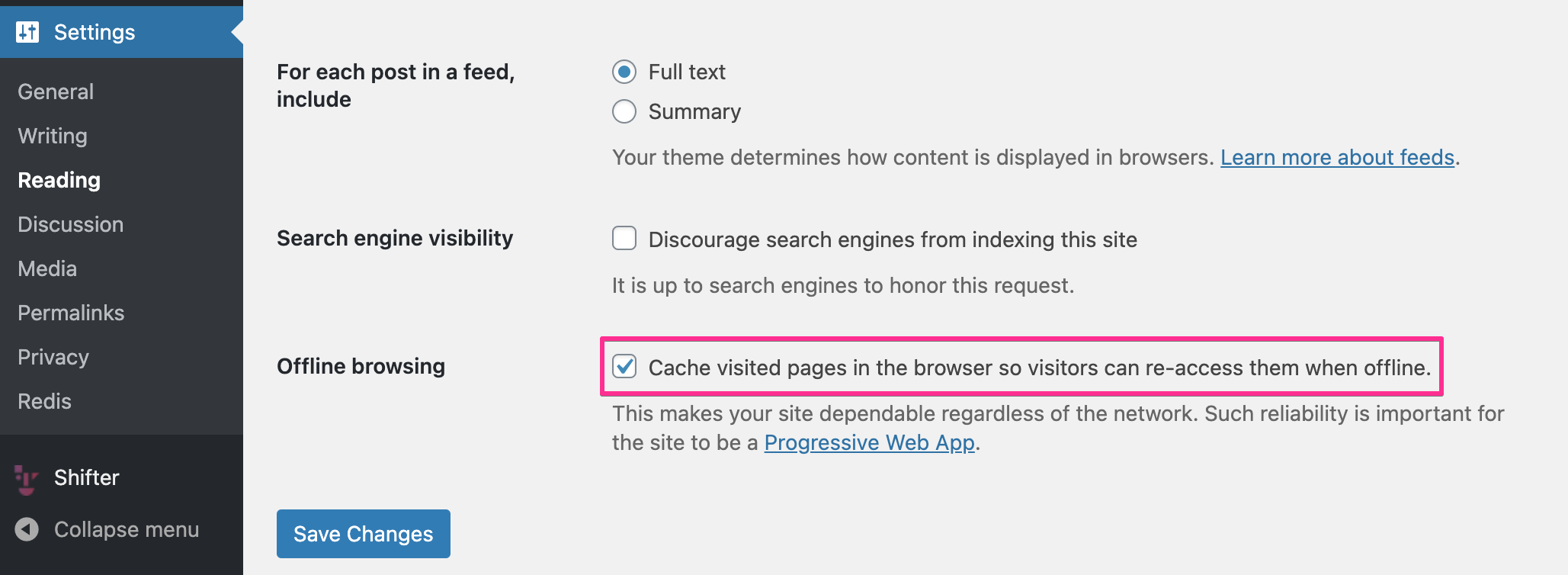
<link rel="manifest" href="/wp-json/app/v1/web-manifest">Step 4: Under [Offline Browsing], check the box for [Cache visited pages in the browser so visitors can revisit them offline] to cache content in the visitor’s web browser.
Step 5: Build and deploy the artifact.
After enabling the PWA plugin, return to the Shifter console and click [Build Deploy] to begin creating the static version of your WordPress site for deployment.
If you have already enabled automatic deployment, the artifact will be published automatically once it is ready. If you haven’t enabled automatic deployment, you’ll need to deploy the newly created artifact manually.
Step 6: Verify the PWA app’s manifest.
A PWA includes a file called a manifest, which stores information about the Progressive Web App. There are several ways to verify that the manifest file exists.
- Use Google Lighthouse (Recommended) Google Lighthouse is similar to Google PageSpeed Insights (though superior), is actively developed, and provides more data. Lighthouse requires the Google Chrome extension. This service is free and provides more information than just PWA support.
- Use Google Chrome or your browser’s developer tools. To check the manifest, open the site in Google Chrome. Click [View] -> [Developer Tools] -> [Developer Tools], then click [Application]. There, you’ll see the [Manifest] tab, which displays PWA information.
That’s it—you’ve finished setting up your PWA on Shifter!