
During the single sign-on setup process, you will need to perform certain actions on the single sign-on provider side.
This page explains the steps for Auth0.
Please follow the steps below, as outlined in “4. Tasks at the Single Sign-On Provider” in the Single Sign-On Setup guide.
SAML Configuration and Downloading the Configuration File
Log in to the Auth0 admin console ( https://auth0.com/).
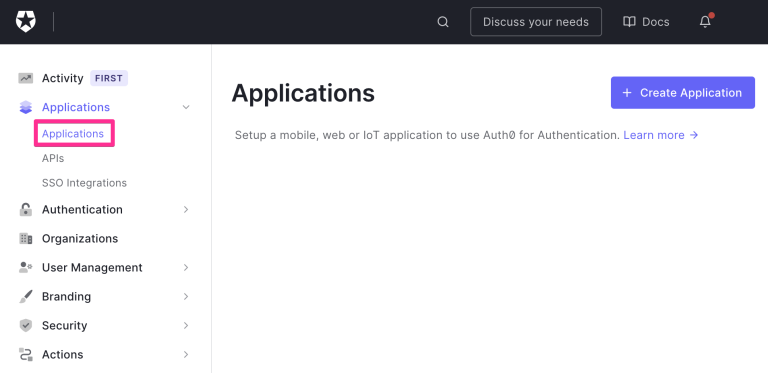
Click “Applications” in the left-hand menu, then select “Applications” from the submenu that appears.
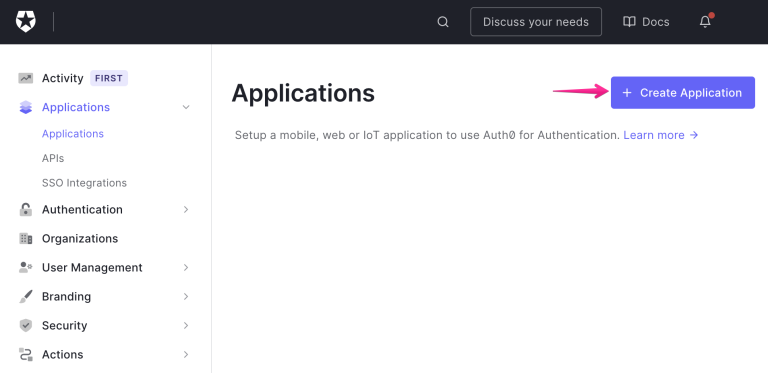
Click “Create Application” in the upper-right corner.
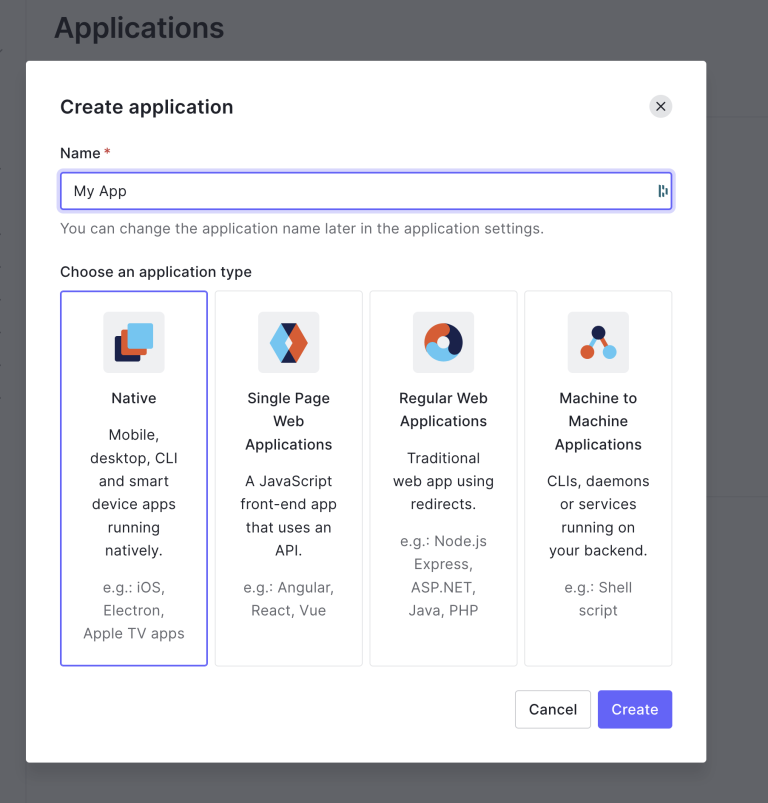
Enter a name of your choice (e.g., Shifter SSO) in the “Name” field, select “Native,” and click the “Create” button in the lower-right corner.
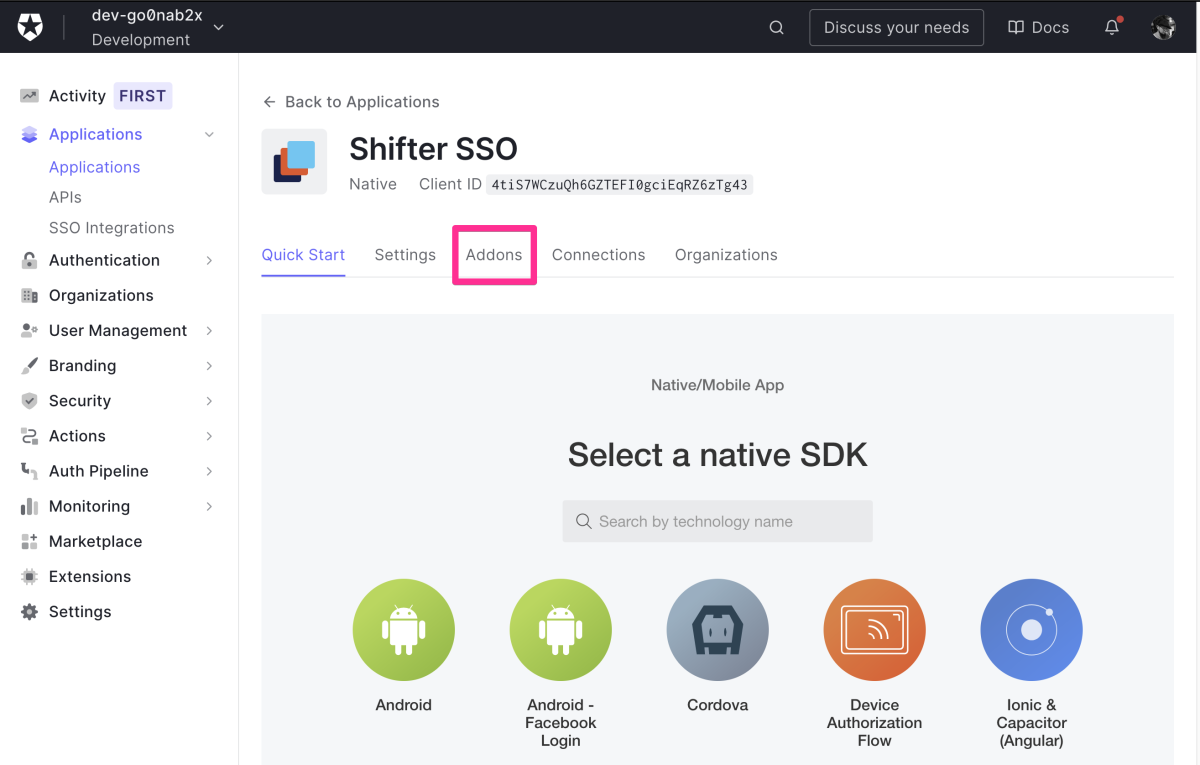
Select “Addons” from the created application.
Click the “SAML2 WebApp” option, which is currently disabled, to enable it.
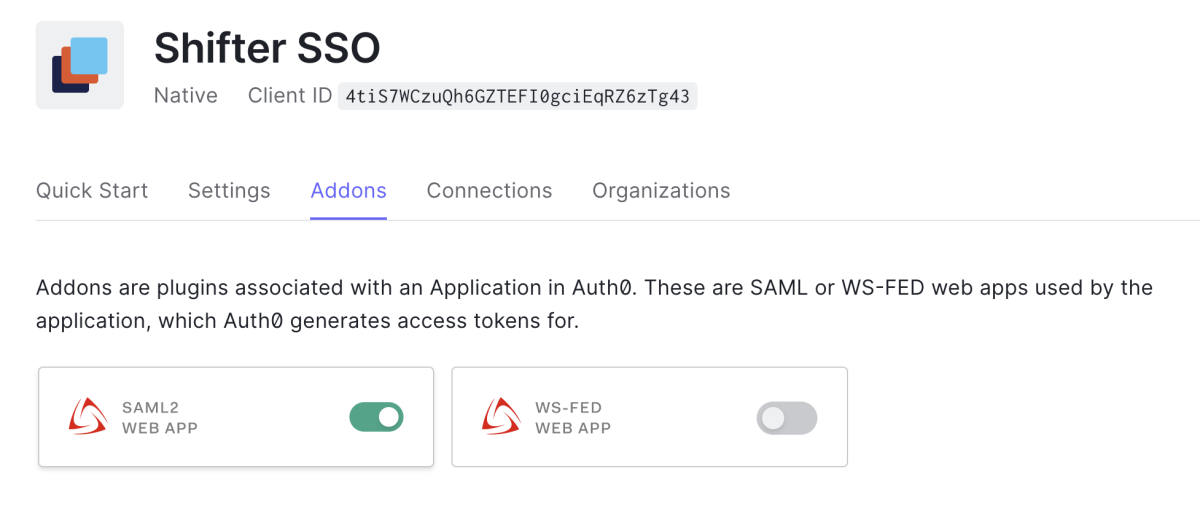
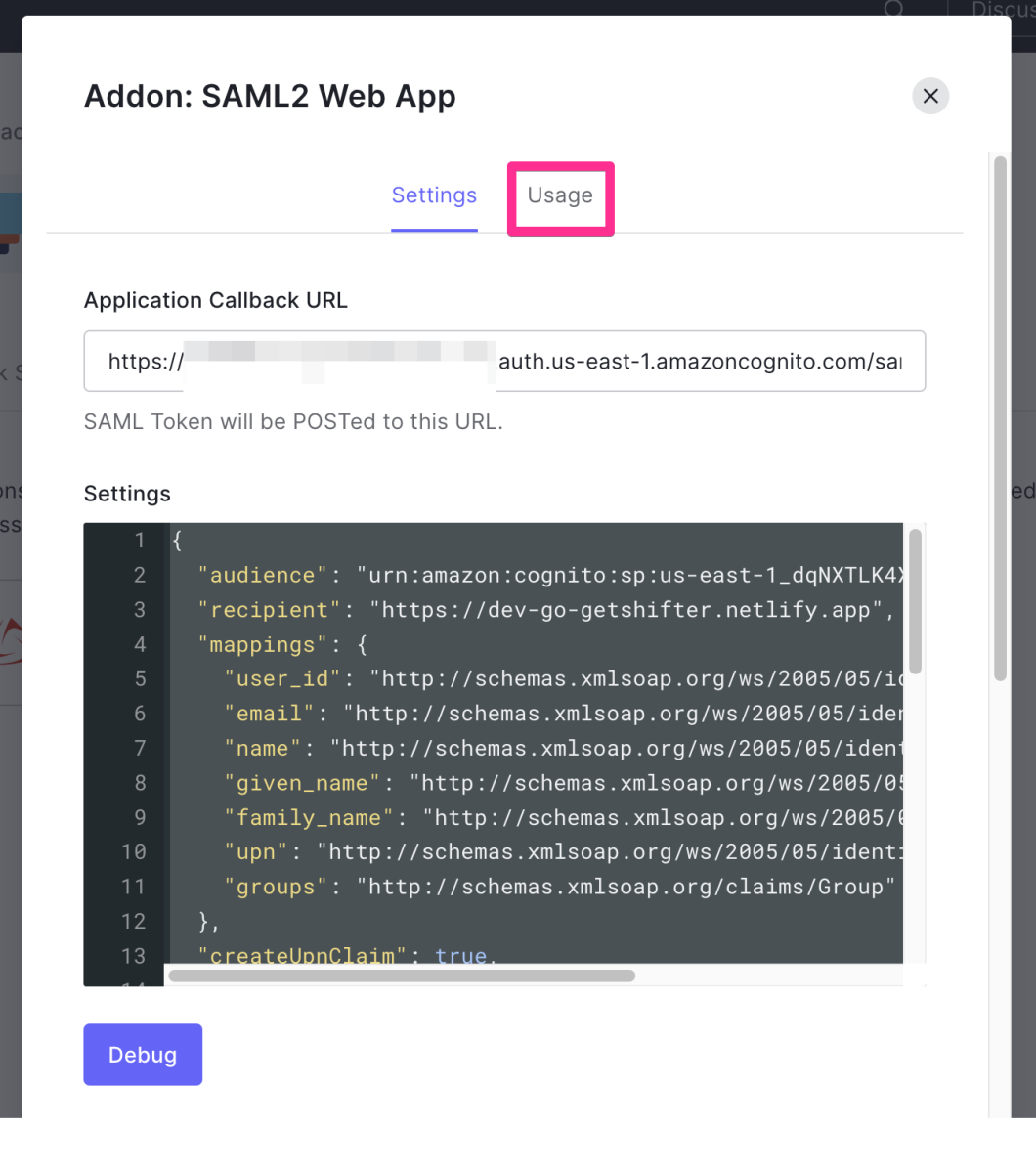
The SAML2 WebApp configuration screen will appear.
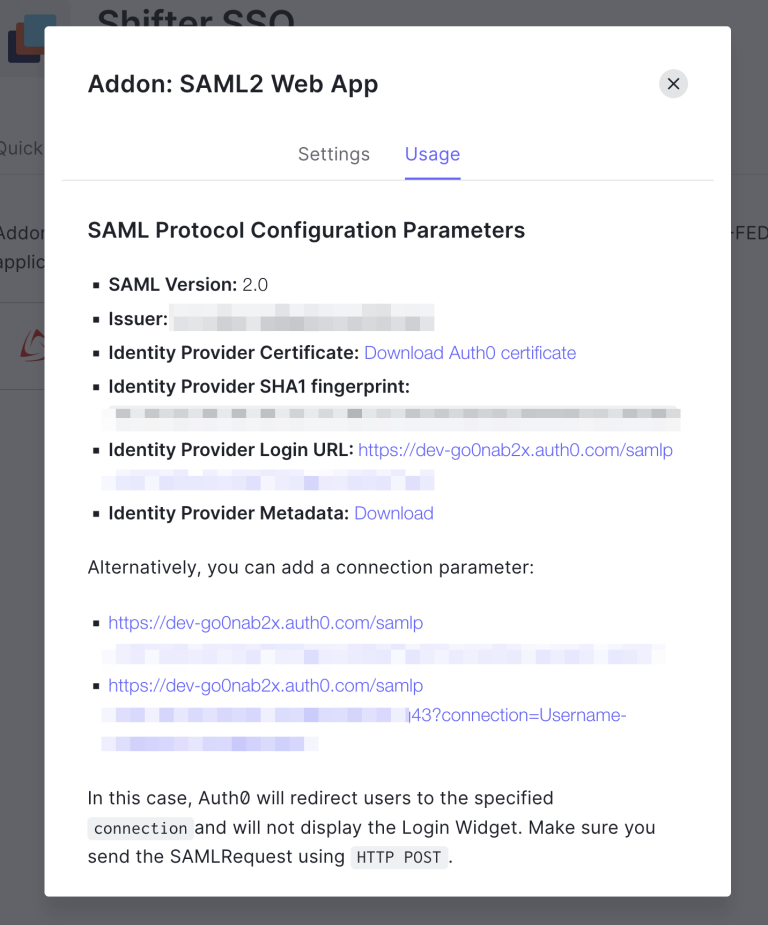
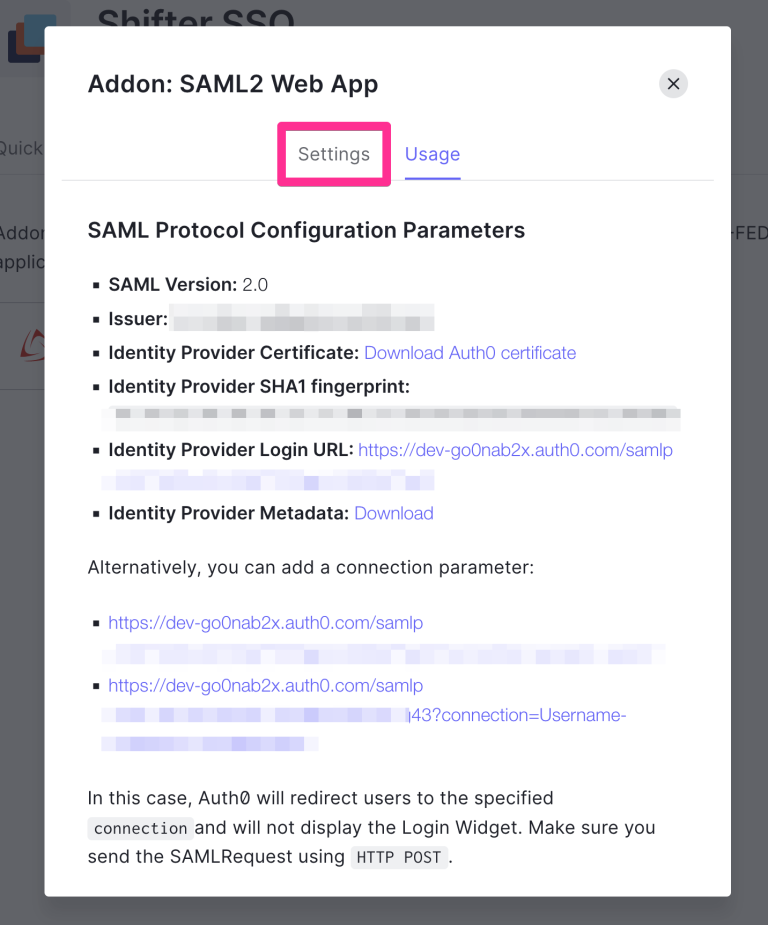
Click the “Settings” tab.
Paste the callback URL (the value starting with https://) that you copied from Shifter into the “Application Callback URL” field.
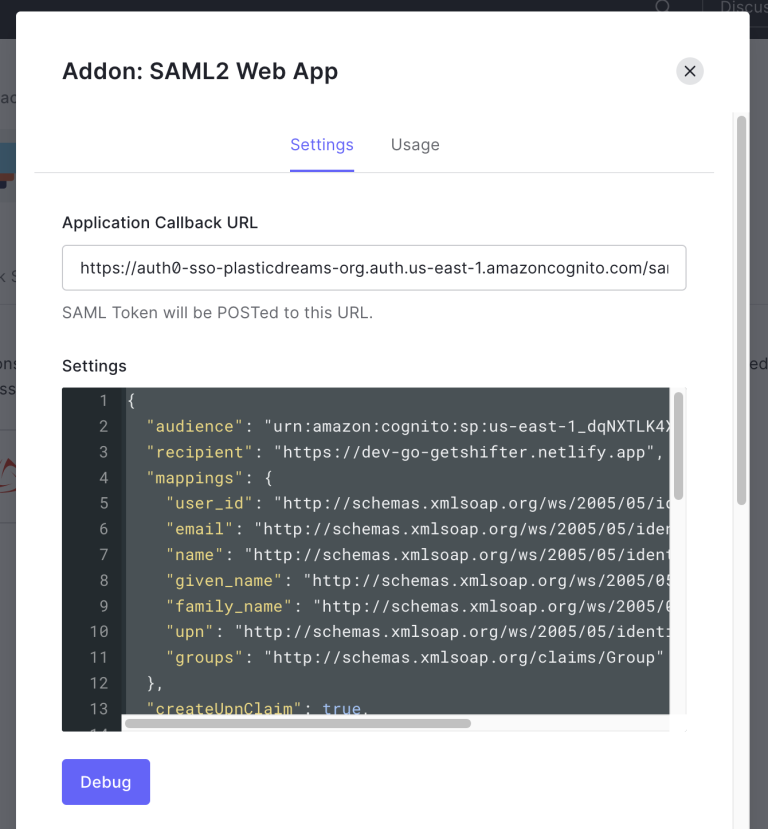
Next, if any lines of text displayed in the “Settings” section begin with //, delete them.
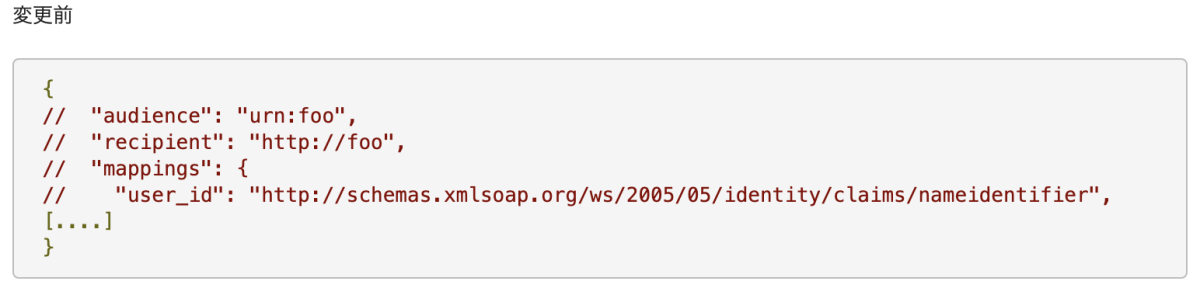
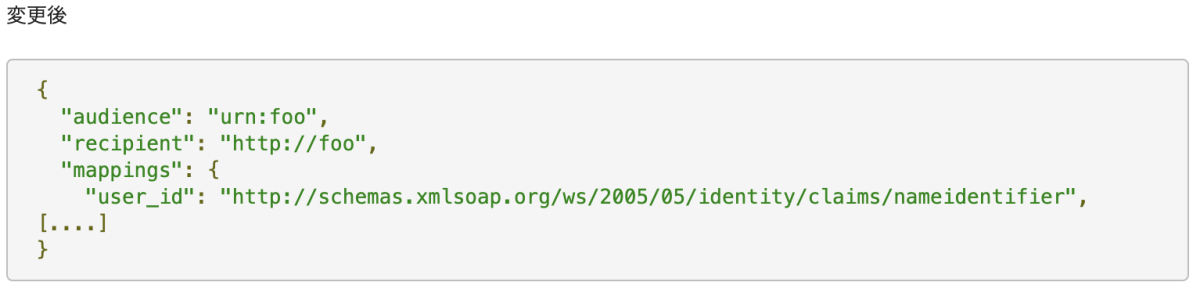
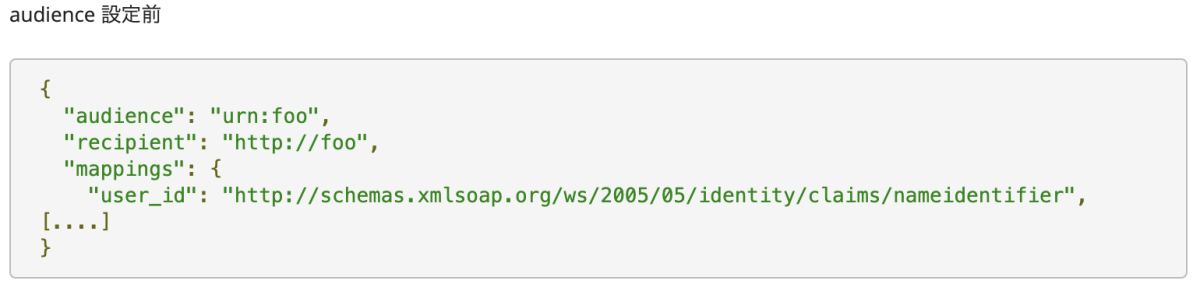
Delete the value (URL) originally entered in the “audience” field and paste the audience value (starting with urn:amazon:cognito) that you copied from Shifter.
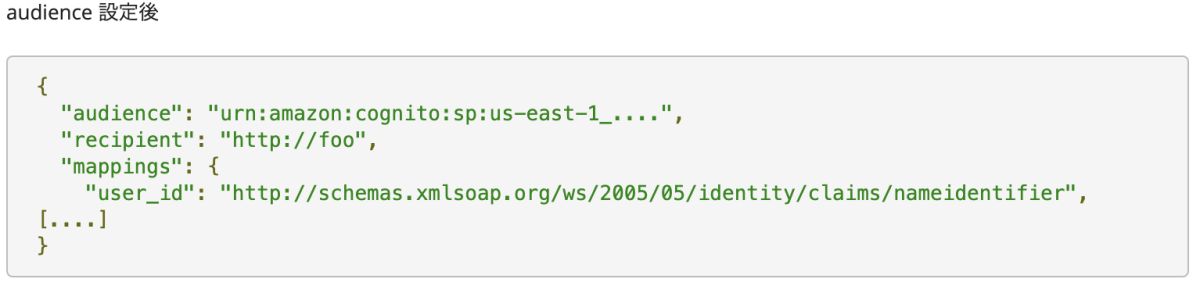
Click the “Save” button at the bottom of the window to save your changes.
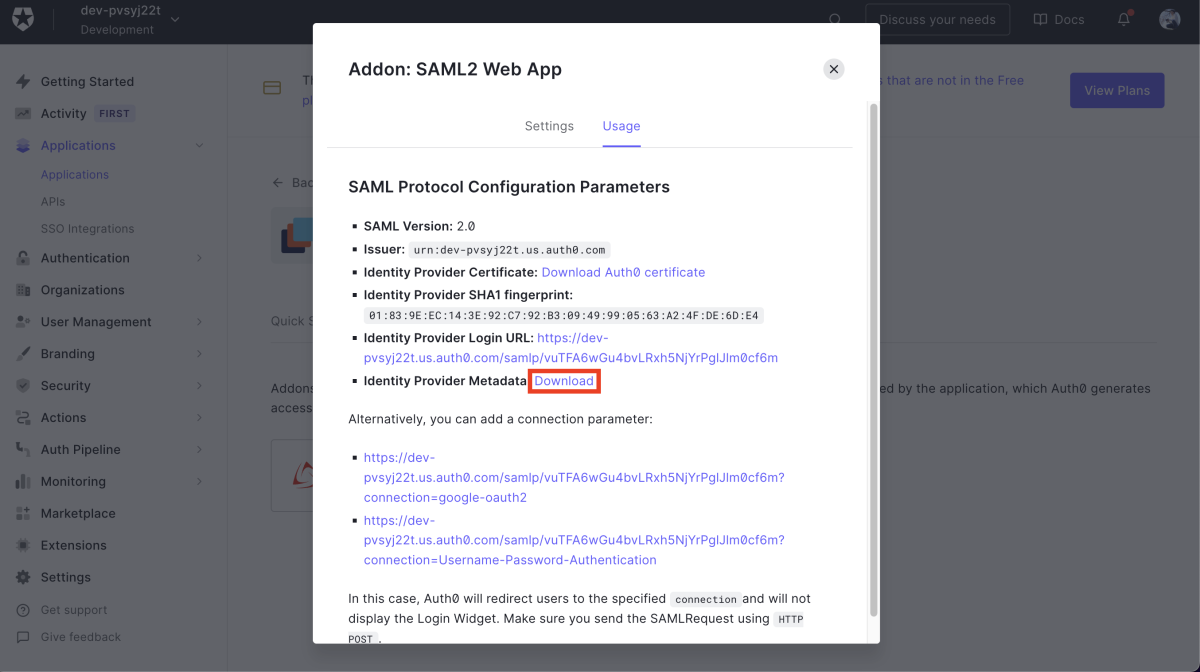
Next, click the “Usage” tab.
Click “Download” under “Identity Provider Metadata” to download the XML file.
Close the SAML2 WebApp configuration screen.
Adding User Information for Single Sign-On Login
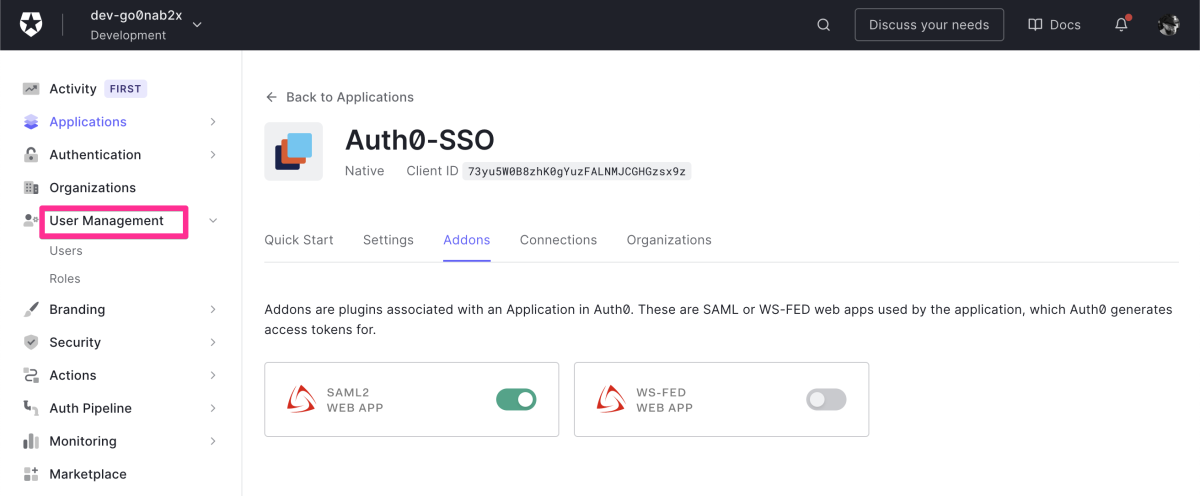
Click “User management” in the left-hand menu of the Auth0 admin console.
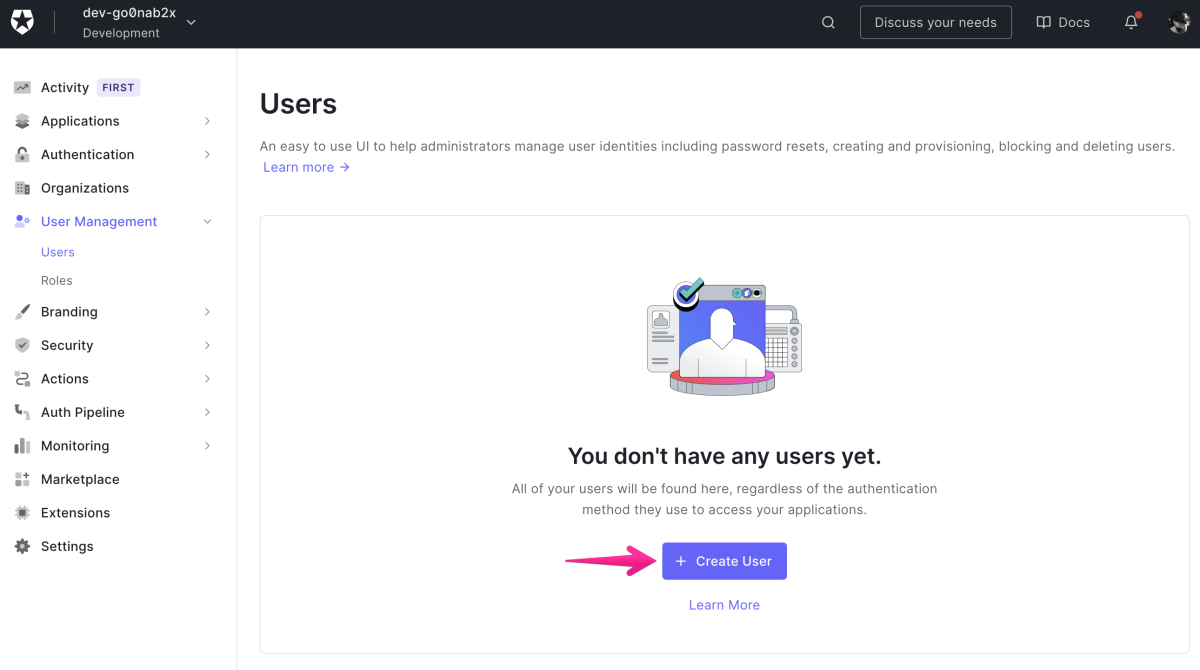
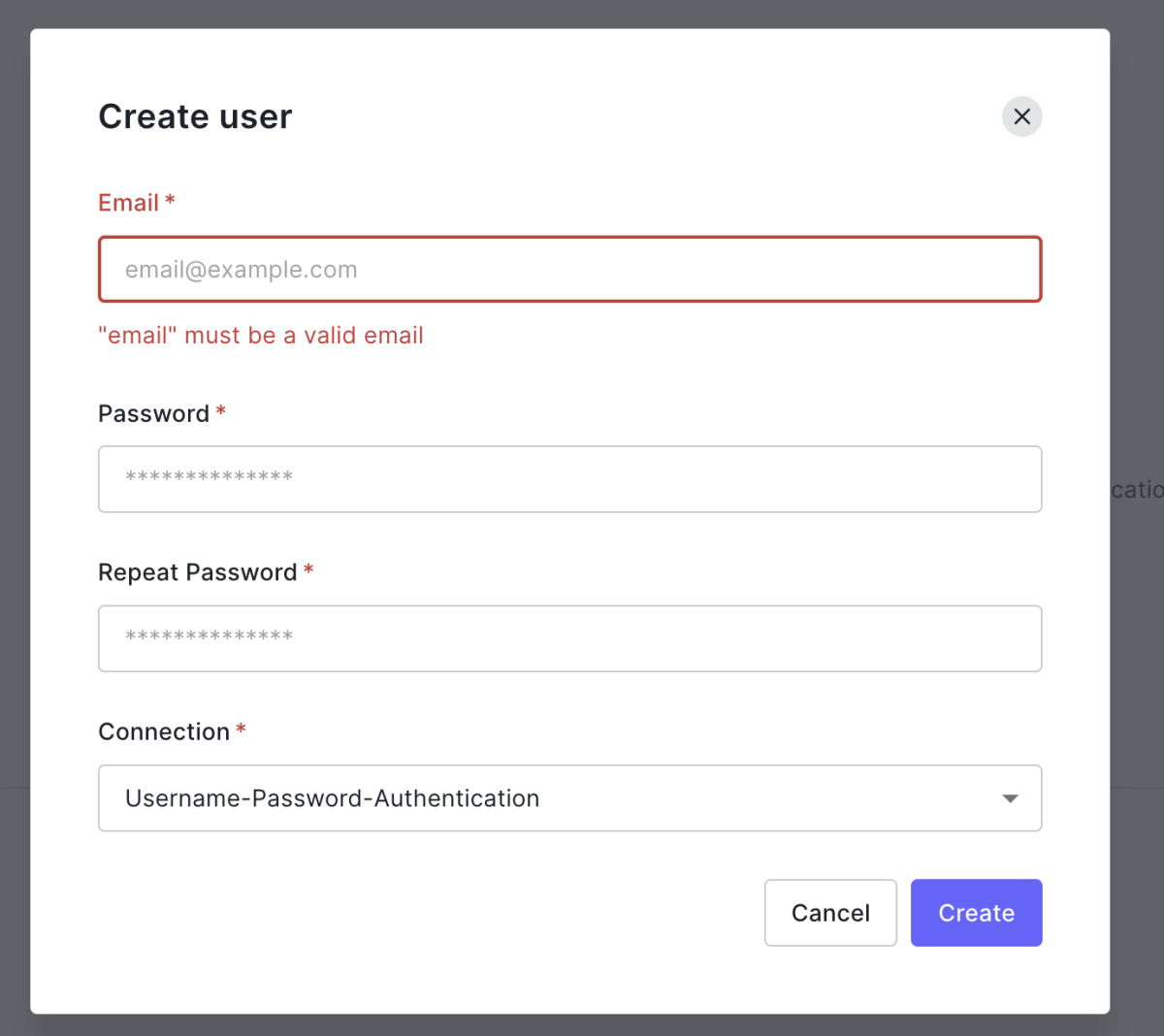
Click “Create User.”
Enter the following user information and click “Create.”
- Email address (an email address with the domain name registered with Shifter)
- Password
- Re-enter password
The user information will be added.
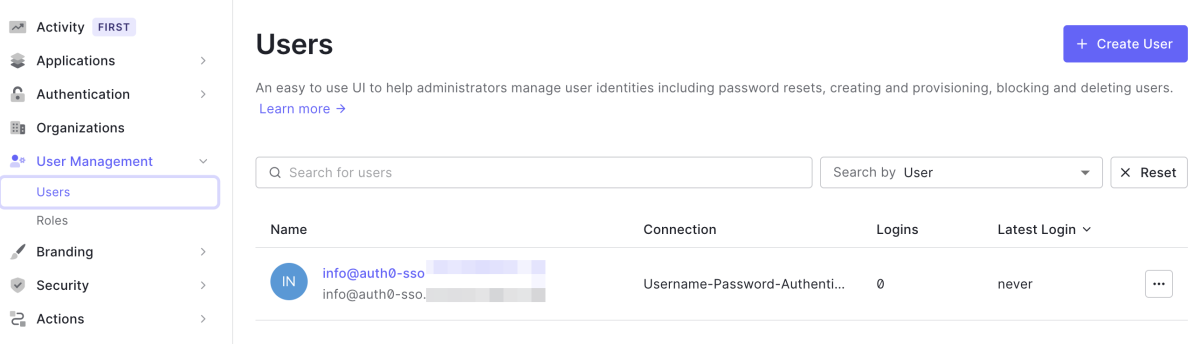
- Repeat this process for each user you want to enable single sign-on for in Shifter.
- When a user you’ve added logs into Shifter via single sign-on, they will be added as a user in the Shifter dashboard.
That completes the steps on the Auth 0 side.
Next, Single Sign-On Setup starting from “5. Steps on the Shifter Dashboard.”