
Installing the Plugin
1. Launch WordPress and access the WordPress dashboard.

2. Click [Plugins] → “Add New.”
![Screenshot: Click [Plugins] → “Add New.”](/wp-content/uploads/2026/10/en_WP-Sitemap-Configuration_02.png)
3. Enter “WP Sitemaps Config” in the “Search for plugins” field.
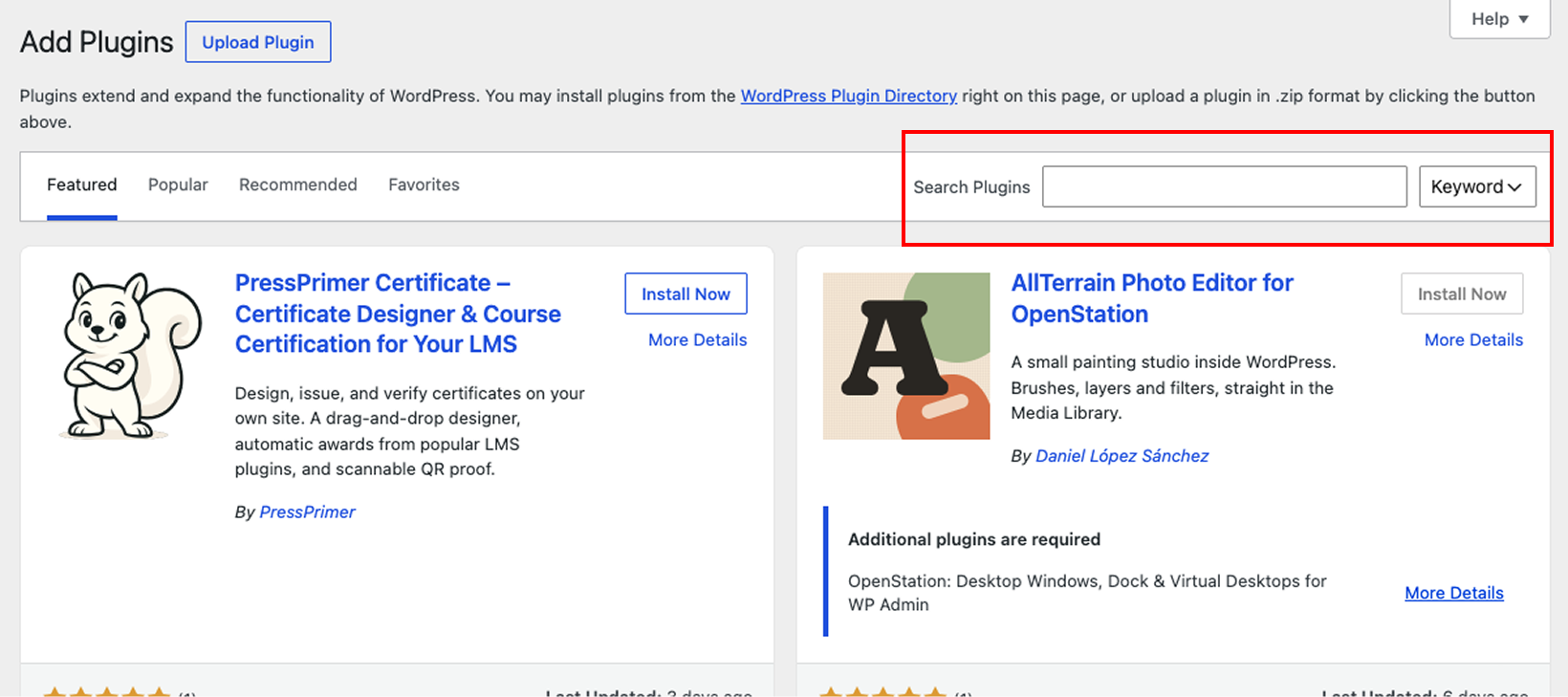
4. Click “Install Now”
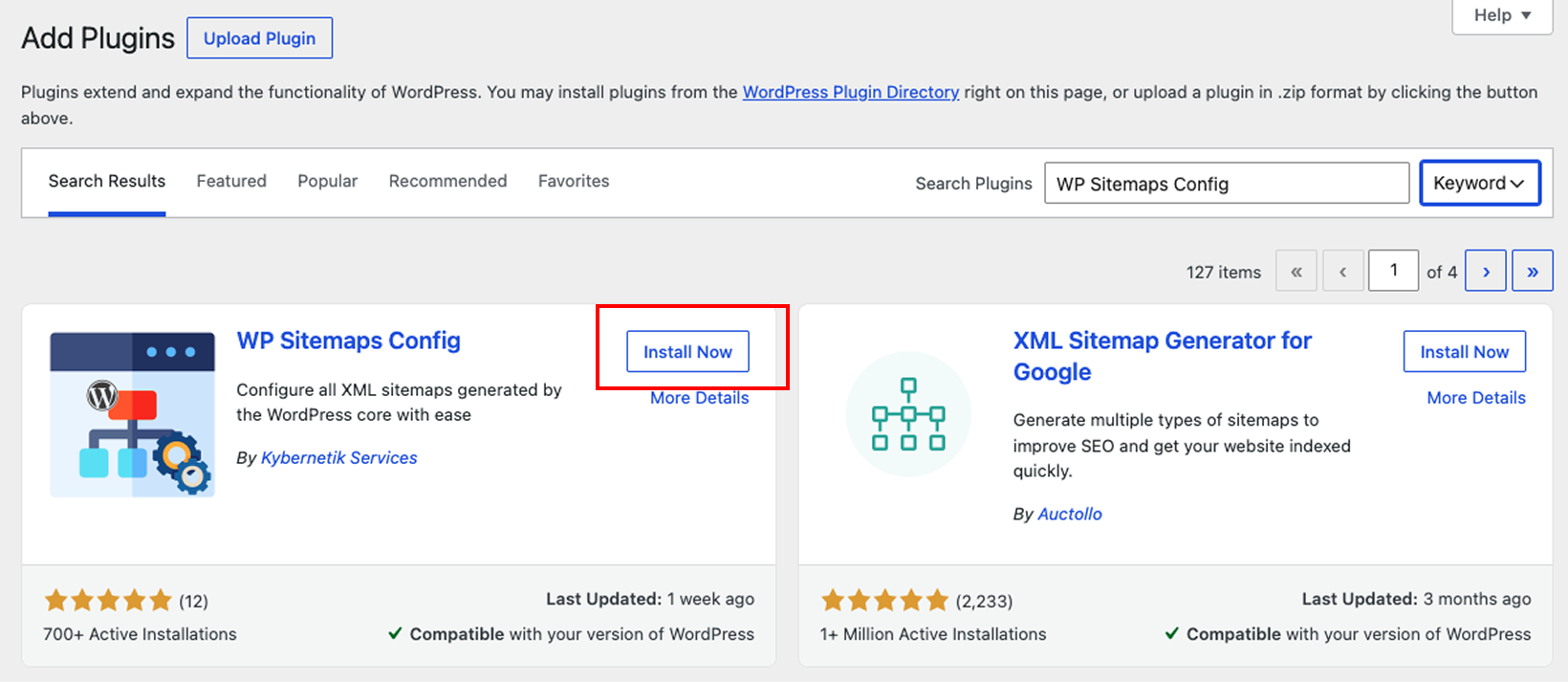
5. Activate the plugin
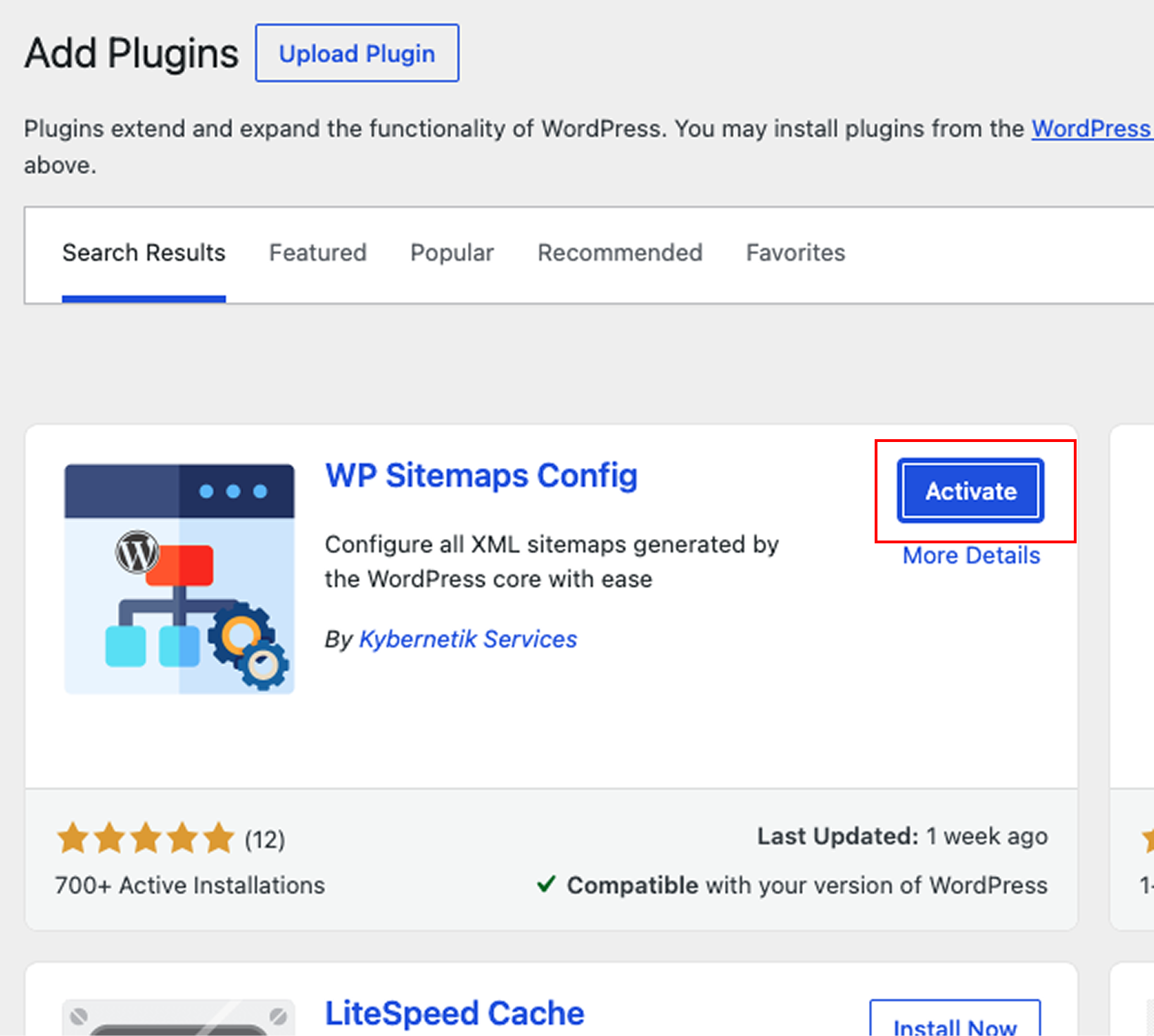
6. Click [Settings] → [XML Sitemap]
![Screenshot: Click [Settings] → [XML Sitemap]](/wp-content/uploads/2026/10/en_WP-Sitemap-Configuration_06.png)
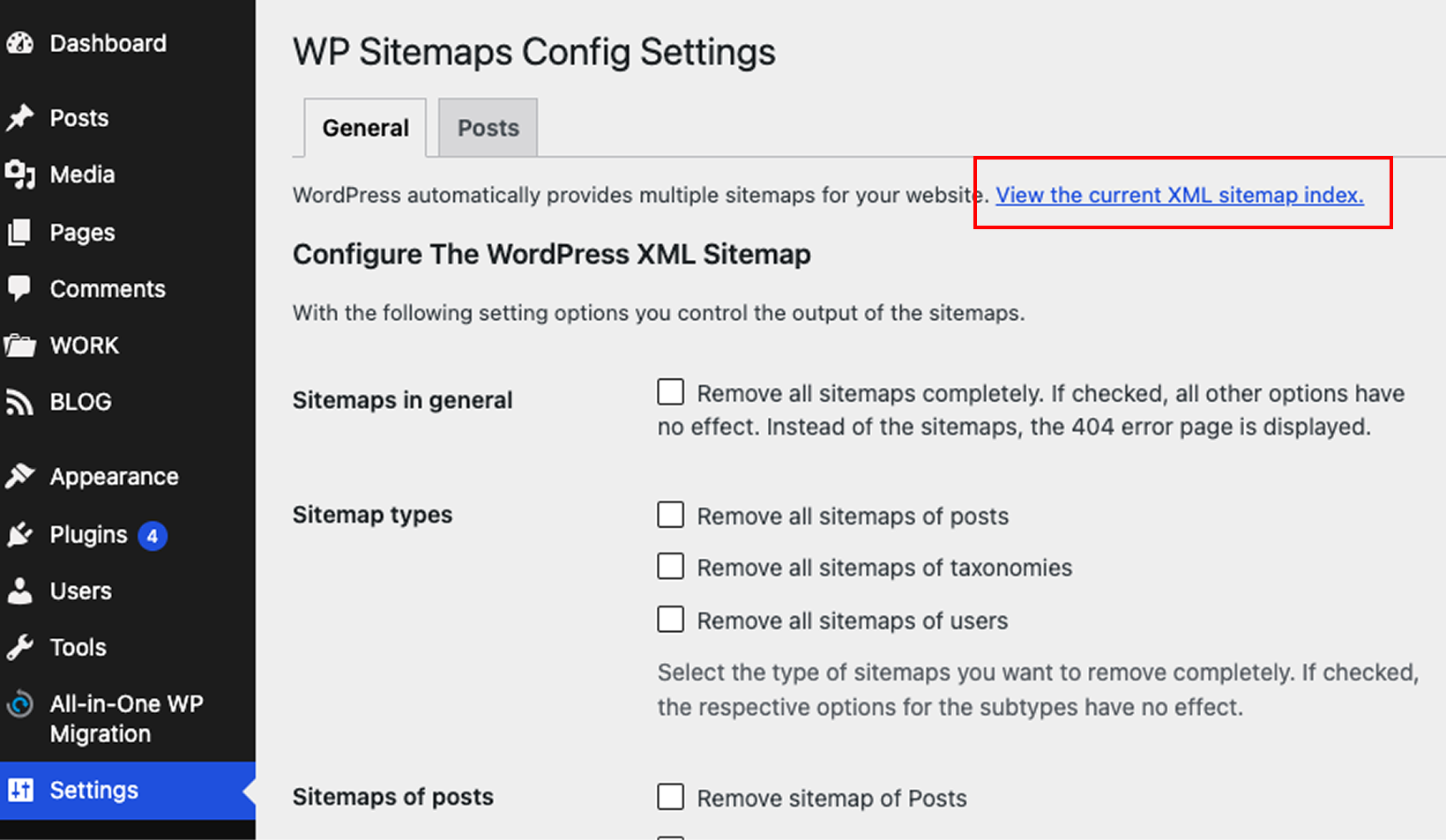
7. Click “WP Sitemaps Config Settings”
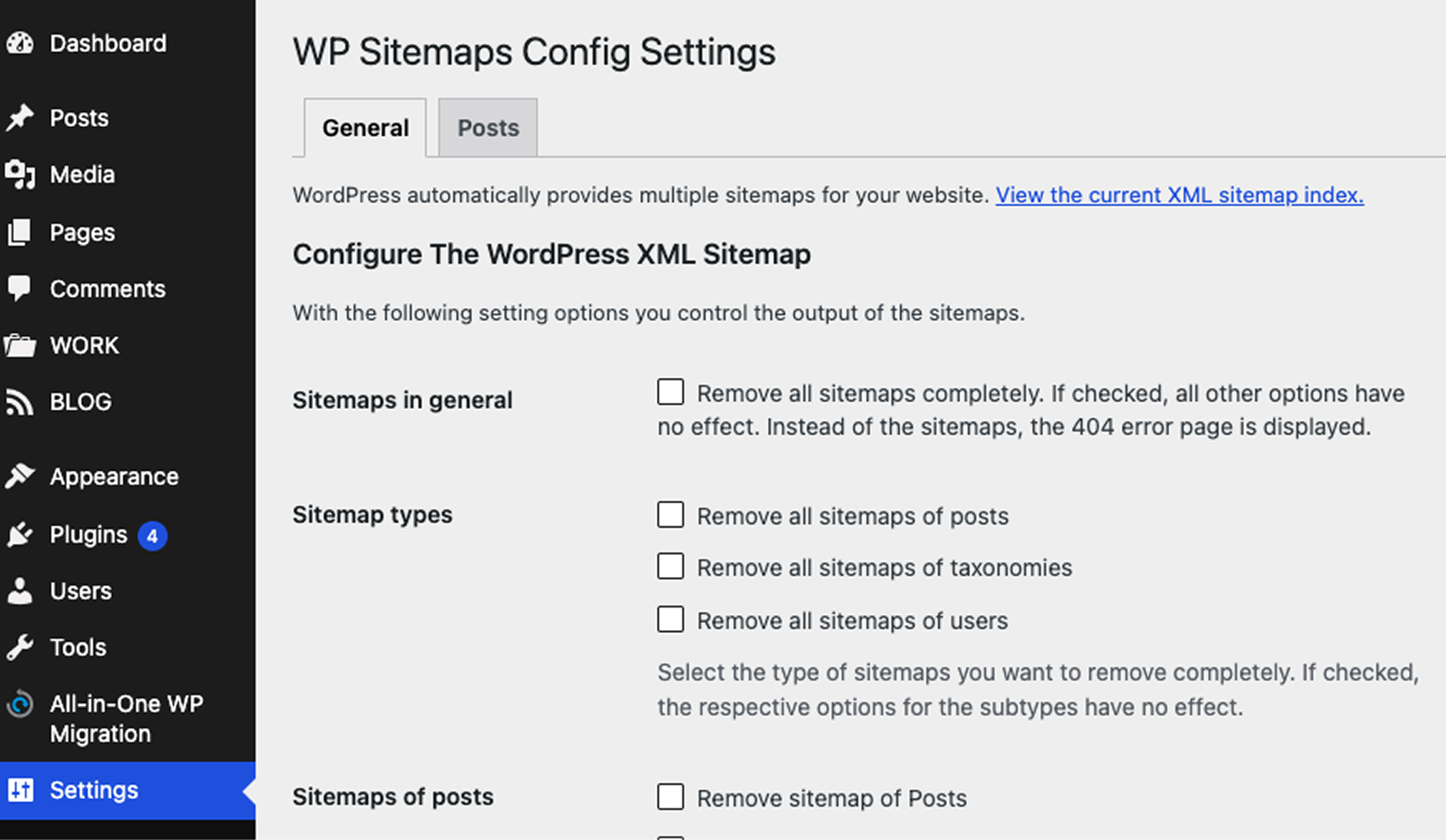
8. Click “View the current XML sitemap index” to check the current XML sitemap
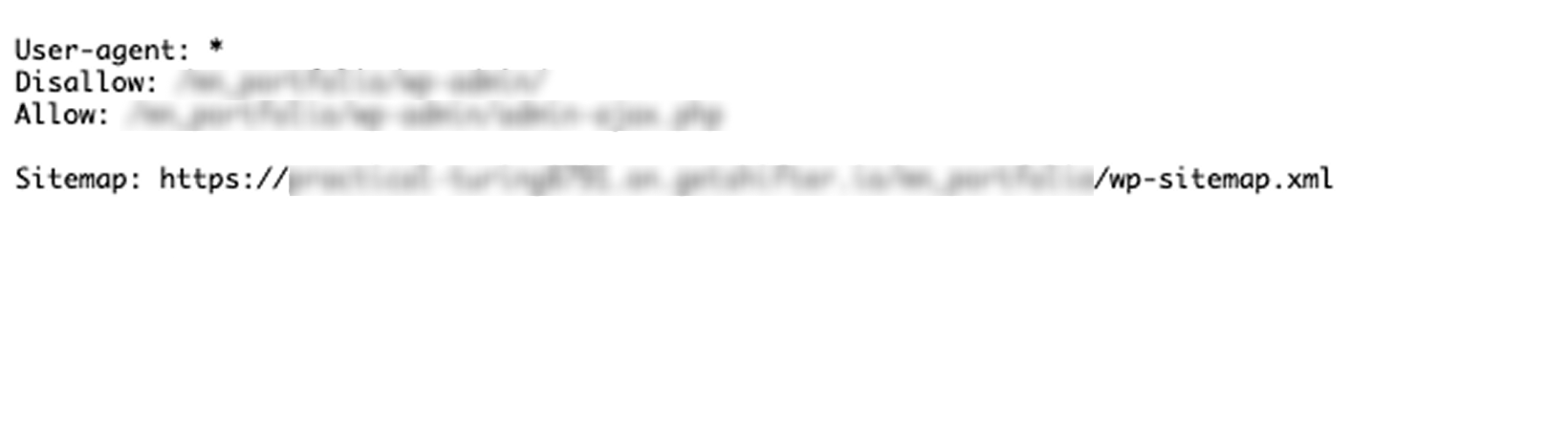
9. robots.txt opens
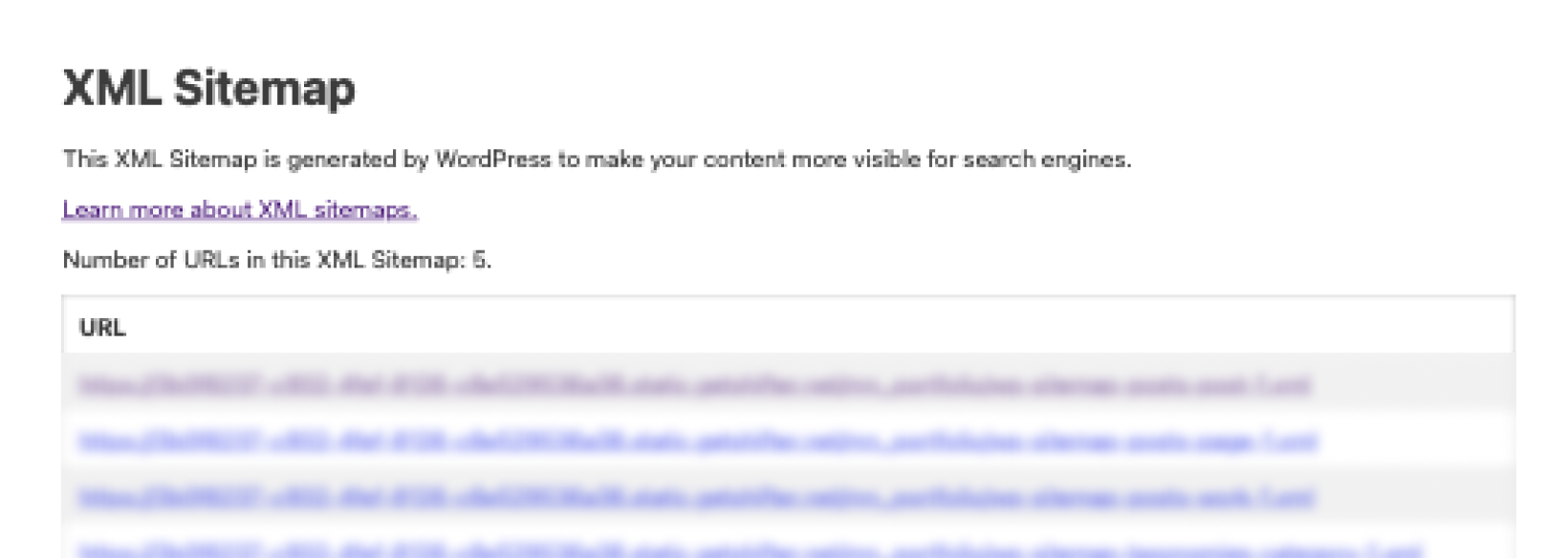
10. Check the current XML sitemap
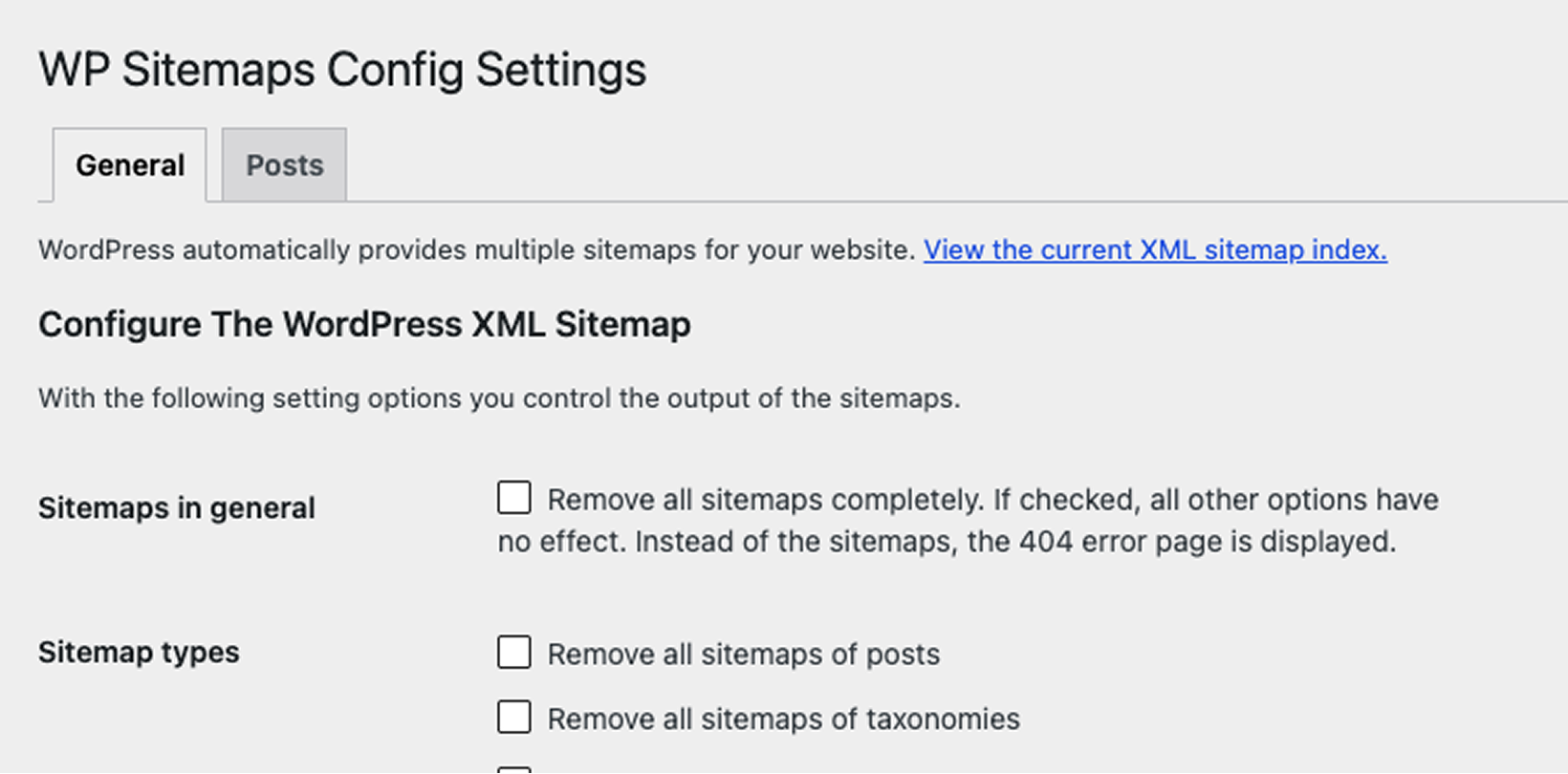
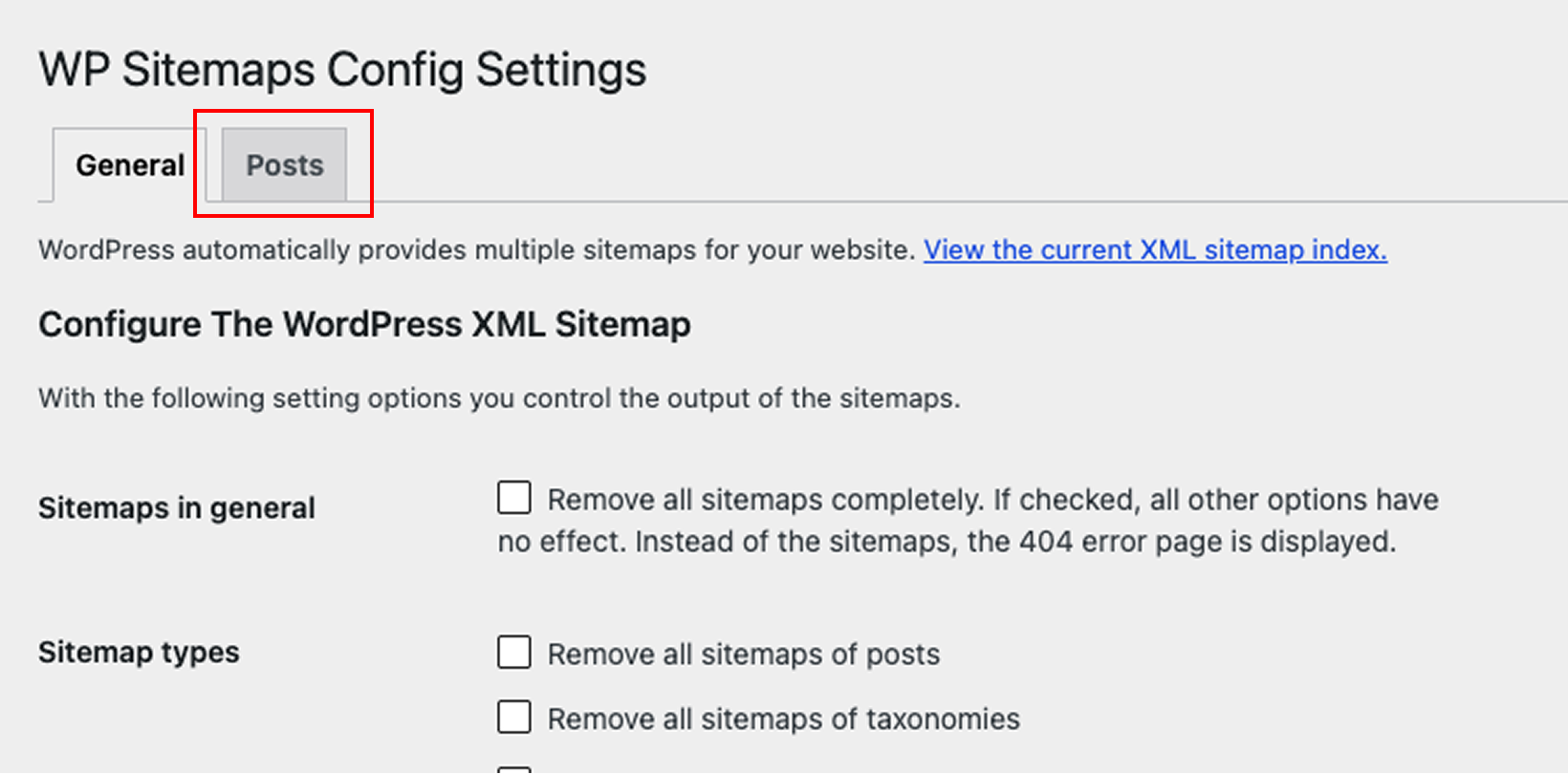
11. If there are any changes to make, configure them in the “General” tab
12. If there are any changes to make, configure them in the “Posts” tab
Create a deployment
13. Return to the dashboard
14. Click “Deploy”

15. Click “Stop WordPress.”
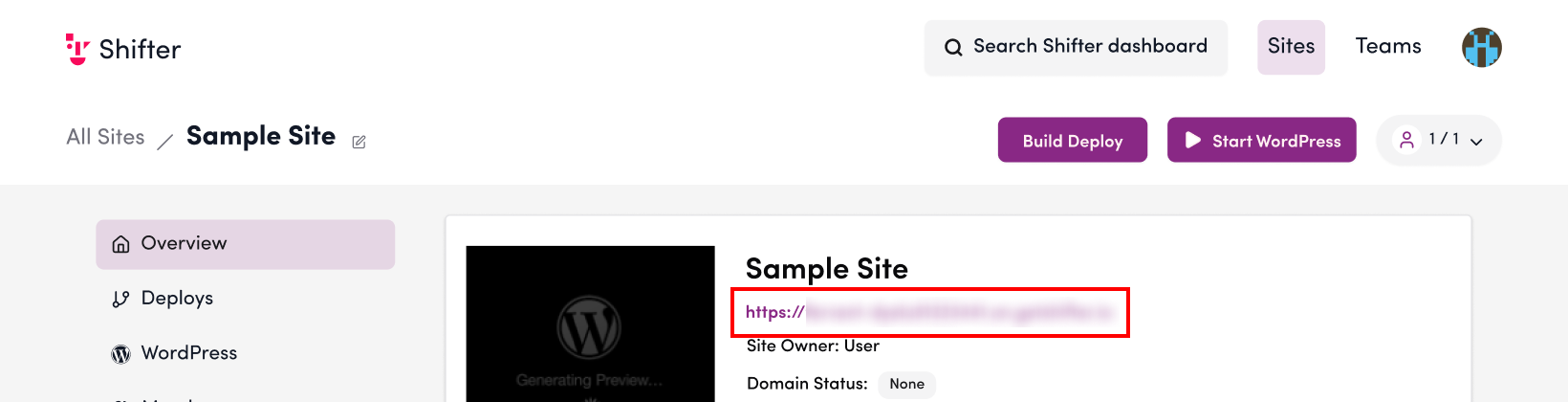
16. Click the site’s URL.
Verify robots.txt
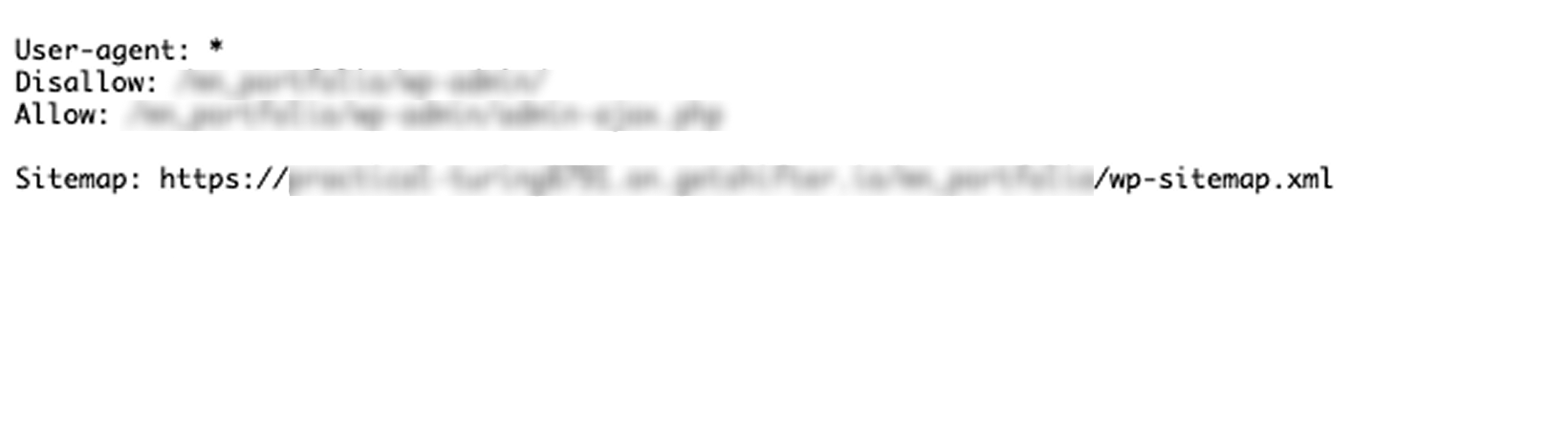
17. Access robots.txt
By default, https://your-domain.com/robots.txt
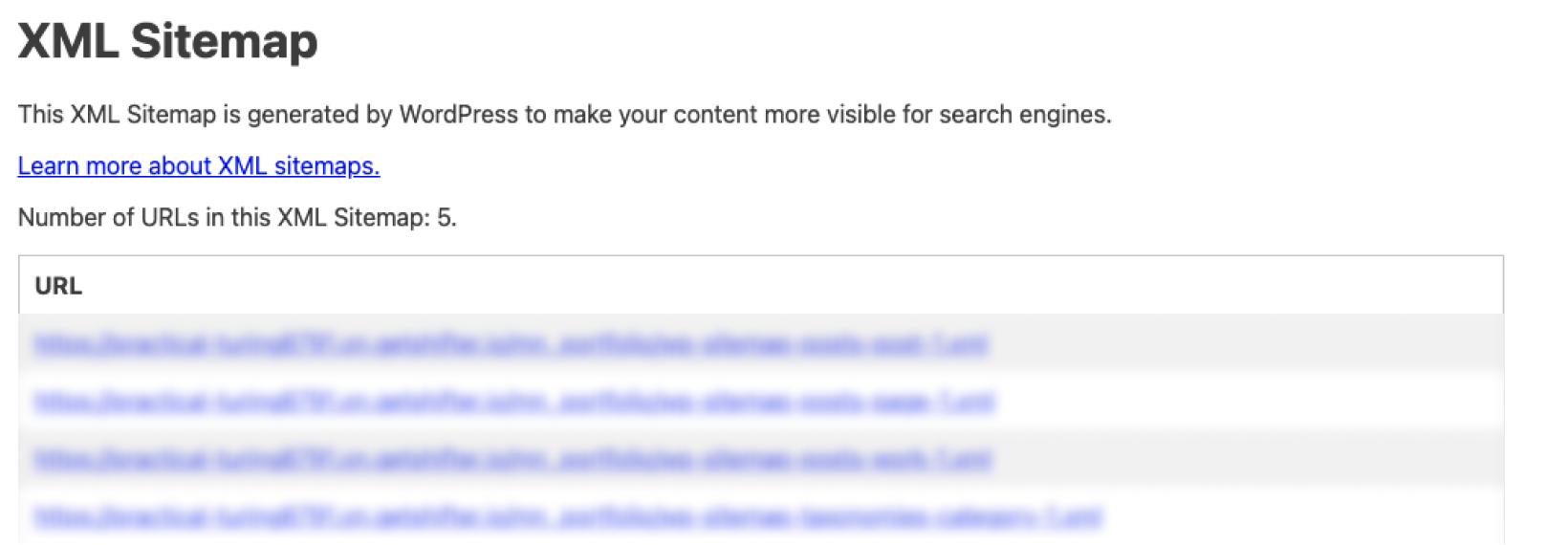
18. Access the XML Sitemap.
By default, it is located at https://your-domain.com/wp-sitemap.xml
Note: Paths when using a subdirectory (e.g., a directory named SUBDIR)
robots.txt: : https://your-domain.com/robots.txt
XML Sitemaps:: https://your-domain.com/SUBDIR/sitemap.xml